

My Sticky Elements is usually visible on every important page of a WordPress website. It can show a floating contact form, WhatsApp button, Messenger tab, click-to-call button, email button, social icons, and other sticky contact options that stay in front of visitors while they browse the site.
That makes the plugin useful for lead generation and customer communication, but it also makes the contact form easy for bots to find.
Spam in My Sticky Elements is not always just one unwanted message. A fake submission can become a saved lead, trigger a notification, pollute the contact leads list, create low-quality inquiries, or make it harder to identify real visitors who actually want to contact the business.
This guide explains how to protect My Sticky Elements from spam using CleanTalk as the main WordPress-side filtering layer, together with practical checks for floating contact forms, saved leads, chat buttons, file uploads, page targeting, and high-traffic contact widgets.
This approach is relevant for websites that use My Sticky Elements for floating contact forms, sticky social tabs, WhatsApp or Messenger contact buttons, click-to-call widgets, lead capture forms, mobile contact bars, or page-specific contact widgets.
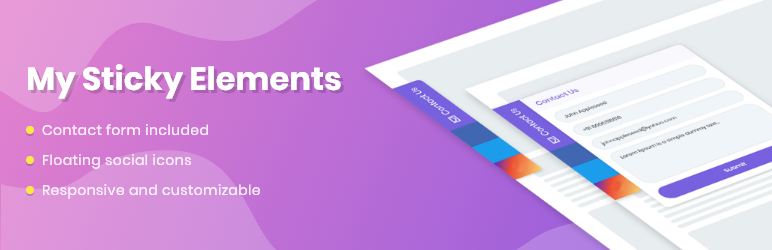
My Sticky Elements – Floating Contact Form, Chat Buttons, and Sticky Social Tabs
My Sticky Elements is a WordPress plugin by Premio. It helps website owners add a floating contact form and sticky contact tabs to make communication easier for visitors.
It can be used for:
- floating contact forms;
- WhatsApp chat buttons;
- Facebook Messenger buttons;
- click-to-call buttons;
- email buttons;
- social media icons;
- open hours and address tabs;
- mobile contact bars;
- sticky side widgets;
- lead capture forms;
- page-specific contact widgets;
- custom icons;
- shortcode, iFrame, or HTML tabs;
- chat and social channel navigation.
As WordPress.org shows, My Sticky Elements is currently used on over 40,000 websites and has 541 user reviews with an average rating of 4.9.
Plugin Homepage at wordpress.org | Website premio.io
Why My Sticky Elements Attracts Spam
My Sticky Elements is designed to make contact easy. The form and contact buttons can stay visible while visitors scroll, appear on desktop and mobile, and open quickly from a floating tab.
That visibility is good for conversions, but it also increases exposure to spam bots.
Common spam cases include:
- fake messages through the floating contact form;
- repeated lead submissions;
- fake names and disposable email addresses;
- low-quality contact requests;
- spam sent from high-traffic pages;
- bots targeting mobile contact widgets;
- suspicious submissions through auto-launched forms;
- fake inquiries from repeated IP addresses;
- spam in saved contact leads;
- unwanted file upload attempts in advanced forms;
- fake messages triggered from page-specific widgets;
- low-quality leads created through chat or contact tabs.
The main issue is that My Sticky Elements is often available across the whole website. A contact form on one page may receive some spam, but a sticky form visible across many pages can be targeted more often.
That is why spam protection should work before suspicious submissions become saved leads, email notifications, or contact records.
Anti-Spam Plugin by CleanTalk for WordPress
The next tool we’re going to use is the Anti-Spam plugin by CleanTalk.
Here’s a short overview:
- CleanTalk is a cloud-based spam protection service for websites.
- It automatically blocks spam without CAPTCHA challenges.
- It protects many types of forms, including contact forms, registrations, comments, surveys, payment forms, and subscription forms.
- It helps stop automated bots and suspicious human spam submissions.
- It uses spam detection signals such as IP address, email address, sender behavior, and global spam activity.
- It lets website owners create custom filtering rules for specific cases.
- It allows blocking or filtering by IP, email, and country.
- It works quietly in the background and is easy to install and configure.
For My Sticky Elements, this is useful because the contact form can be available on many pages at once. CleanTalk helps reduce spam before it reaches the lead list, admin notifications, or the business inbox.
According to WordPress.org, Anti-Spam by CleanTalk for WordPress has over 200,000 active installations, with 3,168 reviews and an average rating of 4.7.
Plugin Homepage at cleantalk.org | Latest release at GitHub.com | Website cleantalk.org
Install the CleanTalk Anti-Spam plugin
Show Instructions
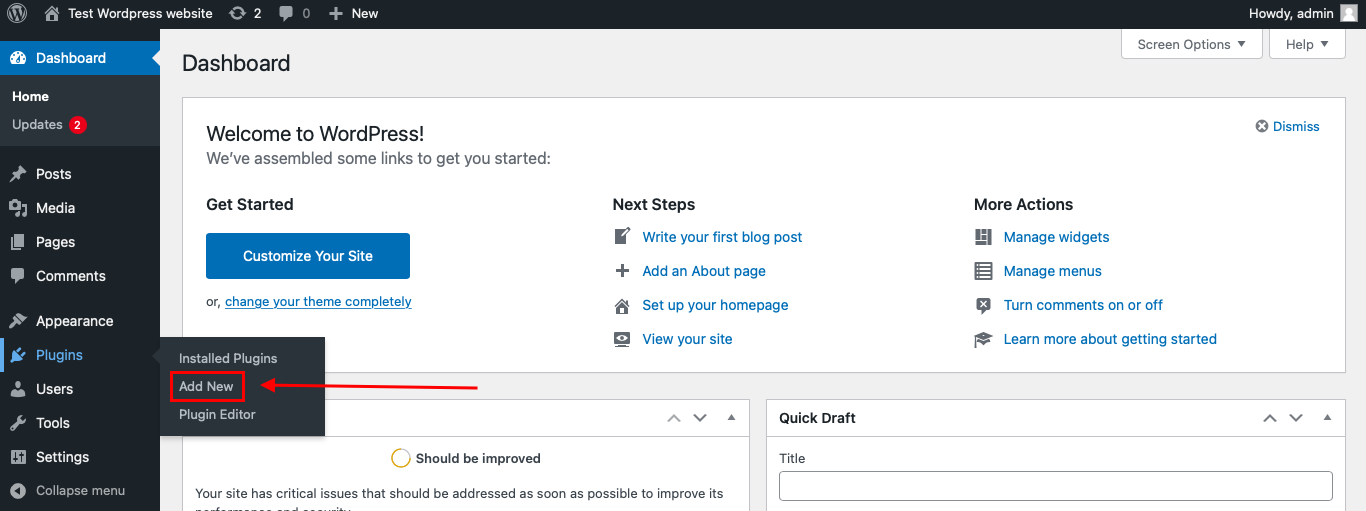
To install the Anti-Spam plugin, go to your WordPress admin panel → Plugins → Add New.
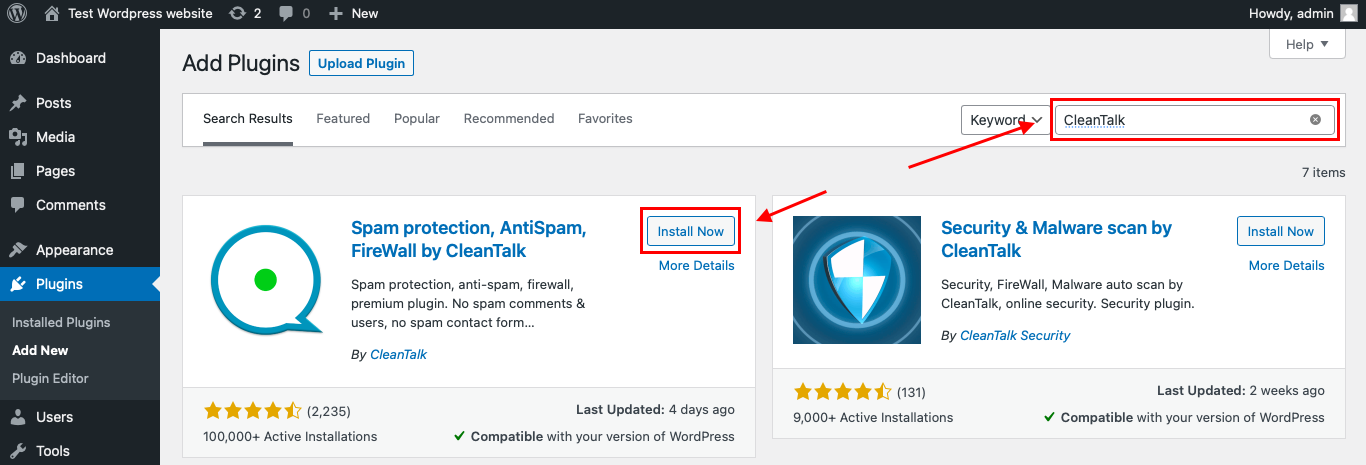
Then enter «СleanTalk» in the search box and click the Install button for «Spam protection, Anti-Spam, FireWall by CleanTalk».
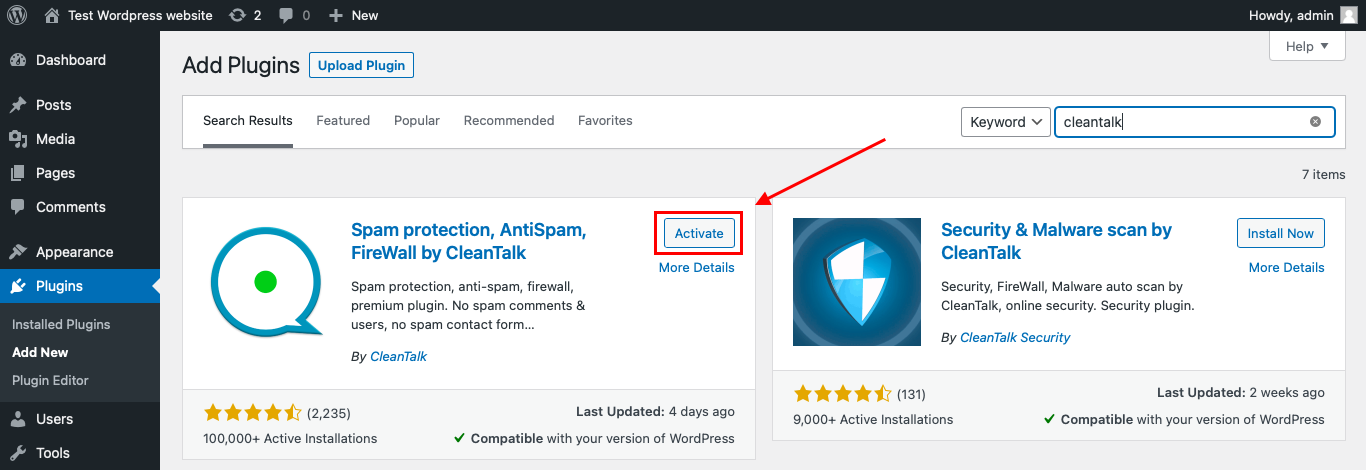
After installing the plugin, click the «Activate» button.
After it is done go to the plugin settings and click the «Get Access Key Automatically» button. Then just click the «Save Settings» button.
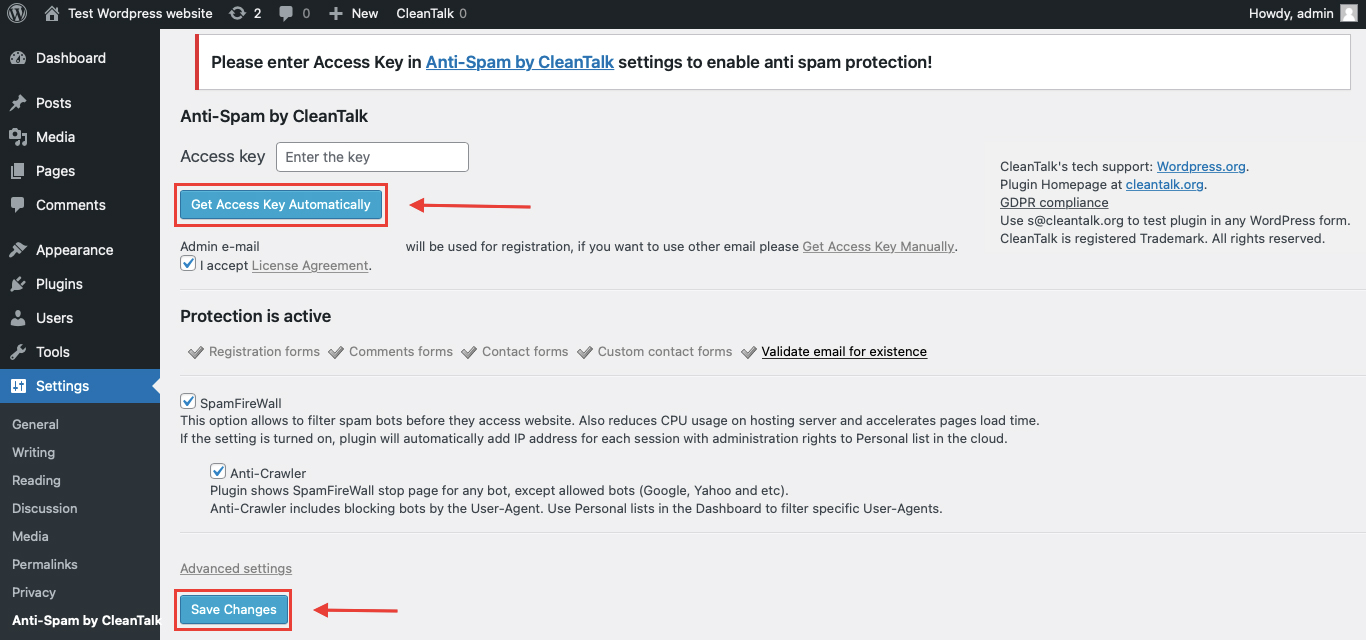
That’s it! From now you know how to completely protect your HivePress from spam.
That’s it. From now on, CleanTalk starts protecting your WordPress forms from spam.
You don’t need to rebuild your My Sticky Elements widget. Keep your floating contact form, sticky tabs, social buttons, mobile settings, and targeting rules as they are, and CleanTalk will check suspicious submissions in the background.
How to Check Spam Protection for My Sticky Elements
You can test the work of Anti-Spam protection for your My Sticky Elements form by using a test email:
stop_email@example.com
First, open the page with your My Sticky Elements widget in an Incognito browser tab. Open the floating contact form, fill in all required fields, and submit the form.
After submitting the form, you should see a block message about the blocked submission:
*** Forbidden. Sender blacklisted. Anti-Spam by CleanTalk. ***
The protection works only for website visitors, not for website admins. Be sure to test the form protection using Incognito mode.
This is important because sticky widgets may behave differently for logged-in admins and public visitors. Testing outside the admin session helps confirm that protection works in the real visitor flow.
Cloud Dashboard
In addition, in the CleanTalk Cloud Dashboard, you can find extra details about submissions processed by CleanTalk, including My Sticky Elements submissions and other WordPress forms.
The dashboard can help review:
- IP and email of the sender;
- sender activity history across other websites connected to the CleanTalk cloud;
- geolocation of the sender;
- date and time of the submission;
- page URL where the form was submitted;
- cloud decision: Approved or Denied;
- cloud explanation for the decision, such as blacklisted email, bad IP reputation, or spam text;
- tools to move senders to Block or Allow lists.
This is especially useful for My Sticky Elements because spam may come from different pages where the same sticky form appears.
The dashboard helps you understand whether bots are targeting one specific page, a mobile widget, an auto-launched contact form, or the entire floating contact form setup.
My Sticky Elements Features That Matter for Spam Protection
My Sticky Elements is not only a visual widget. It can create a contact entry point that stays visible across the website, and that changes how spam should be handled.
Floating Contact Form
The floating contact form is one of the main features of My Sticky Elements.
It helps visitors contact the business without searching for a separate contact page. But because it stays visible, bots can also find it easily.
Spam protection should be active before form submissions become saved leads or email notifications.
Sticky Chat and Social Channels
My Sticky Elements can show WhatsApp, Messenger, Telegram, email, phone, social media, and other contact channels.
These buttons do not all work like traditional form fields, but they still influence how visitors contact the business. If bots or low-quality users abuse the visible contact points, the business may receive more noise through several channels.
Saved Contact Leads
My Sticky Elements can store contact form leads in the WordPress admin area.
This is useful for lead review, but it also means spam can pollute saved records if filtering is weak.
A clean lead list makes it easier to identify real prospects and customer requests.
Mobile Contact Widgets
Sticky contact tabs often appear on mobile screens, where visitors expect quick actions such as call, WhatsApp, email, or contact form.
Mobile visibility can improve conversions, but it also means the form should be tested on mobile and desktop after spam protection is enabled.
Page Targeting and Triggers
My Sticky Elements Pro can show different widgets on different pages, use targeting rules, and launch widgets after time or scroll triggers.
That makes the setup more flexible, but it also means spam should be reviewed by page. A widget on a popular landing page may receive more spam than a widget on a low-traffic page.
File Upload and Advanced Fields
Advanced contact forms may include custom fields or file upload options.
If uploads are enabled, spam protection should be combined with file type restrictions, file size limits, and manual review before opening attachments.
reCAPTCHA in Pro
My Sticky Elements Pro includes Google reCAPTCHA for the contact form.
This can help on heavily abused forms, but it may also add friction. For many websites, CleanTalk can work as the background filtering layer, while visible verification can be added only when a specific form receives repeated abuse.
Additional Protection Options for My Sticky Elements
CleanTalk should be the main anti-spam layer, but My Sticky Elements websites can also benefit from form-specific checks.
Review Saved Leads Regularly
If your My Sticky Elements form stores leads in WordPress, check saved submissions regularly.
Look for repeated emails, strange names, suspicious messages, repeated IPs, and submissions from pages that should not normally generate leads.
Check High-Traffic Pages
If the widget appears on landing pages, campaign pages, pricing pages, or blog posts with strong SEO traffic, those pages may attract more spam.
Review the source page of submissions and adjust protection if one page is abused more often.
Keep Required Fields Useful
Required fields should help qualify the inquiry without making the form too difficult for real visitors.
For a floating contact form, the most useful required fields are usually name, email, phone if needed, and message.
Be Careful with Auto-Launch Forms
Auto-launching a contact form after a few seconds or scroll can increase visibility, but it also increases exposure.
If spam increases after enabling auto-launch, review logs and consider applying stronger rules to that widget.
Use reCAPTCHA Only Where Needed
Google reCAPTCHA can help on forms that receive repeated bot submissions.
However, it may add friction for real visitors. If conversions matter, use it carefully and only where spam pressure is high.
Restrict File Uploads
If file uploads are enabled, restrict accepted file types and file size.
Do not open suspicious attachments from unknown senders without review.
Clean Old Spam Leads
If spam has already entered the My Sticky Elements leads list, clean old records before judging lead quality.
Old spam entries can make it harder to review real customer inquiries.
Why My Sticky Elements Spam Is Different from Regular Contact Form Spam
A normal contact form usually lives on one contact page.
My Sticky Elements can place a contact form and communication buttons across many pages at once.
Depending on the setup, a fake submission may become:
- a saved contact lead;
- an email notification;
- a fake sales inquiry;
- a low-quality support request;
- a suspicious mobile form entry;
- a repeated lead from the same IP;
- a spam message from a high-traffic page;
- a file upload attempt;
- a record in the contact leads dashboard;
- a misleading signal in widget analytics.
That is why My Sticky Elements spam should be treated as a lead-quality problem, not only as a form problem.
Comparison of Anti-Spam Approaches for My Sticky Elements
| Solution | Main role | Strengths | Limitations | Best use case |
|---|---|---|---|---|
| CleanTalk | Main WordPress-side anti-spam filtering | Checks suspicious submissions in the background, no CAPTCHA friction for real visitors | Should be combined with lead review for high-traffic widgets | WordPress sites using My Sticky Elements contact forms |
| Saved lead review | Lead quality control | Helps identify fake inquiries and repeated spam after submission | Requires admin review | Sites storing contact form leads |
| Page-level monitoring | Source detection | Helps find which page or widget is being abused | Requires checking logs and lead sources | Sites using widgets across many pages |
| Required fields | Basic data quality control | Reduces empty or incomplete submissions | Bots can still fill required fields | Floating contact forms and lead forms |
| Google reCAPTCHA | Visible bot verification | Helpful for heavily abused forms | Can add friction for real visitors | High-risk contact widgets |
| File upload restrictions | Upload safety | Reduces risk from suspicious attachments | Does not block spam by itself | Forms with file uploader enabled |
| Widget targeting review | Exposure control | Helps reduce spam from unnecessary pages | Needs correct setup | Sites using page targeting or auto-launch widgets |
| Cloud Dashboard monitoring | Pattern detection | Shows blocked requests, repeated IPs, and abused pages | Requires periodic review | Sites receiving repeated sticky form spam |
In practice, My Sticky Elements spam protection should combine sender filtering with lead review. CleanTalk helps stop suspicious submissions, while widget-specific checks help protect saved leads, notifications, uploads, and high-traffic contact points.
Frequently Asked Questions – My Sticky Elements Spam Protection
Can spam appear in My Sticky Elements saved leads?
Yes. If spam is not blocked before submission, fake entries can appear in the Contact Leads area or be sent as email notifications, depending on the setup.
That is why filtering should happen before the form entry is stored or sent.
Is My Sticky Elements only a contact form plugin?
No. It can show a floating contact form, WhatsApp button, Messenger button, email button, click-to-call tab, social icons, address, open hours, and other sticky contact options.
However, the contact form is the main spam-sensitive part because it accepts user input.
Should I use reCAPTCHA with My Sticky Elements?
Use reCAPTCHA when the form is heavily abused or receives repeated bot submissions.
For many websites, CleanTalk can work as the background filtering layer, while reCAPTCHA can be added only to high-risk widgets to avoid extra friction for real visitors.
Can sticky contact forms hurt lead quality?
They can if the form is too exposed and not protected.
A sticky contact form can collect more real leads, but it can also collect more low-quality submissions if spam protection and lead review are not in place.
What should I check if spam still gets through?
Check the CleanTalk logs, the page URL where the form was submitted, repeated IPs, suspicious emails, required fields, mobile widget behavior, and whether the spam comes from one widget or several pages.
If the form appears on many pages, page source is especially important.
Can bots abuse mobile sticky widgets?
Yes. Mobile sticky widgets can be visible and easy to interact with, which is useful for visitors but also accessible to bots.
Test protection on both desktop and mobile versions of the widget.
Are file uploads risky in My Sticky Elements forms?
They can be. If file uploads are enabled, restrict file types and file size, and review submissions before opening attachments.
File upload protection should be combined with spam filtering.
Should I show My Sticky Elements on every page?
Not always. If some pages attract low-quality traffic or repeated spam, use targeting rules to limit where the widget appears.
High-intent pages usually produce better leads than pages with unrelated traffic.
Recommended Anti-Spam Stack for My Sticky Elements in 2026
My Sticky Elements can be used in different ways, so the best setup depends on where and how the widget appears.
For a basic floating contact form
Use:
- CleanTalk Anti-Spam;
- useful required fields;
- saved lead review;
- Cloud Dashboard monitoring.
This keeps the form simple while reducing fake submissions.
For high-traffic landing pages
Use:
- CleanTalk Anti-Spam;
- page-level monitoring;
- stricter review of saved leads;
- optional reCAPTCHA if abuse continues.
This helps protect pages exposed to ads, SEO traffic, and campaigns.
For mobile contact widgets
Use:
- CleanTalk Anti-Spam;
- mobile testing;
- click-to-call and contact form review;
- monitoring of repeated submissions.
This helps ensure protection works for real mobile visitors.
For widgets with auto-launch behavior
Use:
- CleanTalk Anti-Spam;
- review of lead quality after enabling auto-launch;
- monitoring of source pages;
- adjustment of display rules if spam increases.
This prevents auto-open forms from attracting unnecessary low-quality entries.
For forms with file uploads
Use:
- CleanTalk Anti-Spam;
- strict file type restrictions;
- file size limits;
- manual review before opening attachments.
This reduces risk from suspicious uploads.
For websites using several contact channels
Use:
- CleanTalk Anti-Spam;
- review of form leads;
- monitoring of WhatsApp, email, and phone contact quality;
- page targeting for high-value pages.
This helps control spam across multiple contact paths.
For sites using Pro targeting and analytics
Use:
- CleanTalk Anti-Spam;
- widget analytics review;
- page targeting cleanup;
- regular removal of spam leads.
This helps understand which widgets generate useful contacts and which ones attract spam.
Final Thoughts
My Sticky Elements spam should be handled as a lead-quality issue.
A floating contact form is designed to reduce friction. It helps visitors contact a business without looking for a separate contact page. But that same visibility can make the form more attractive to bots, especially when it appears on many pages or auto-launches after a delay.
The safest setup is to protect the form before spam reaches the lead list, then review the widget behavior by page, device, and contact channel.
CleanTalk can serve as the first filtering layer by checking suspicious submissions in the background. After that, My Sticky Elements settings should be reviewed based on how the widget is used: saved leads, mobile contact bars, page targeting, reCAPTCHA, file uploads, and high-traffic landing pages.
With this layered setup, you can keep sticky contact options easy for real visitors while reducing fake leads, repeated spam, and low-quality submissions.
