Tag: Anti-Spam Plugins

  • GiveWP – Spam Protection guide in 2026

    GiveWP – Spam Protection guide in 2026

    CleanTalk has added spam protection for GiveWP using direct form integration. This makes it a good opportunity to explore how to protect GiveWP against spam submissions using both built-in anti-spam tools integrated into the plugin core and third-party solutions. We will start with CleanTalk and then move on to Akismet, Google reCAPTCHA, Cloudflare Turnstile, honeypot techniques, and universal anti-spam plugins available on WordPress.org.

    GiveWP – Donation & Fundraising Plugin for WordPress

    In case of any misunderstanding or misinterpretation about which plugin we are referring to, allow me to provide a brief overview of GiveWP

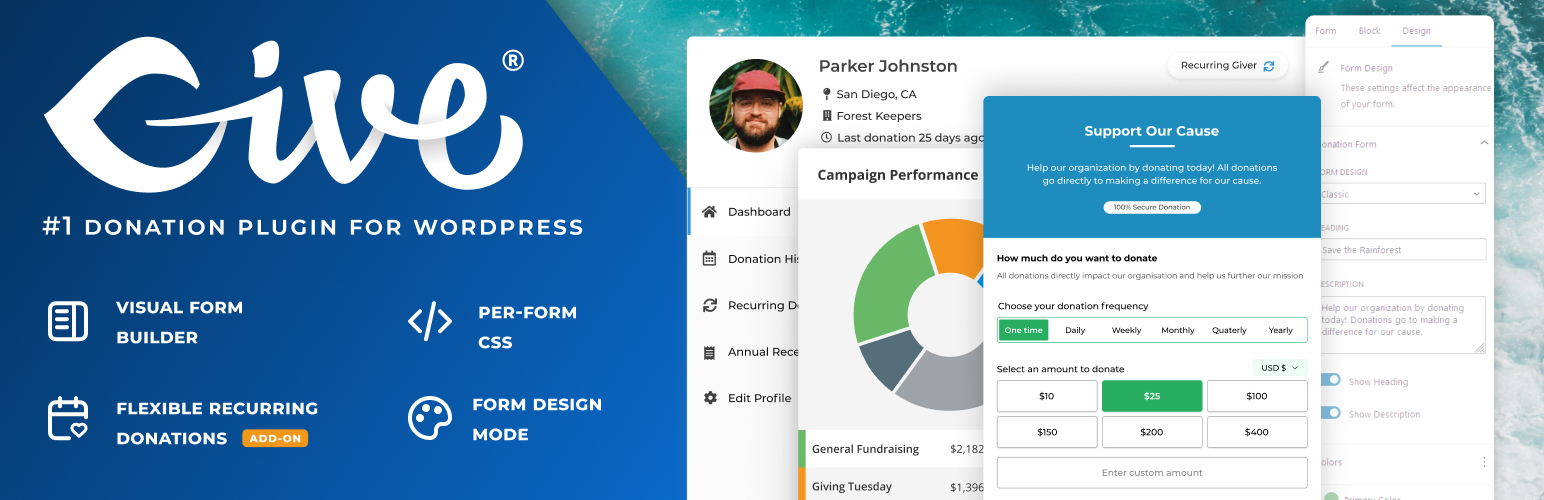
    GiveWP is a powerful WordPress donation plugin that helps nonprofits, charities, and organizations accept online donations directly on their websites. It allows you to create fully customizable donation forms and securely collect one-time or recurring donations without relying on third-party fundraising platforms. GiveWP supports popular payment gateways such as PayPal and Stripe, making it easy for donors to contribute using their preferred payment method. The plugin includes detailed donation reports, donor management tools, and fundraising goal tracking to help you monitor performance and grow contributions. With a wide range of add-ons and integrations, GiveWP scales from small fundraising campaigns to large nonprofit organizations. Designed to follow WordPress best practices, GiveWP is a reliable and flexible solution for online fundraising.

    According to WordPress.org, over 100,000 websites use this plugin.

    Install GiveWP – Donation Plugin and Fundraising Platform

    To have the plugin installed follow this steps,

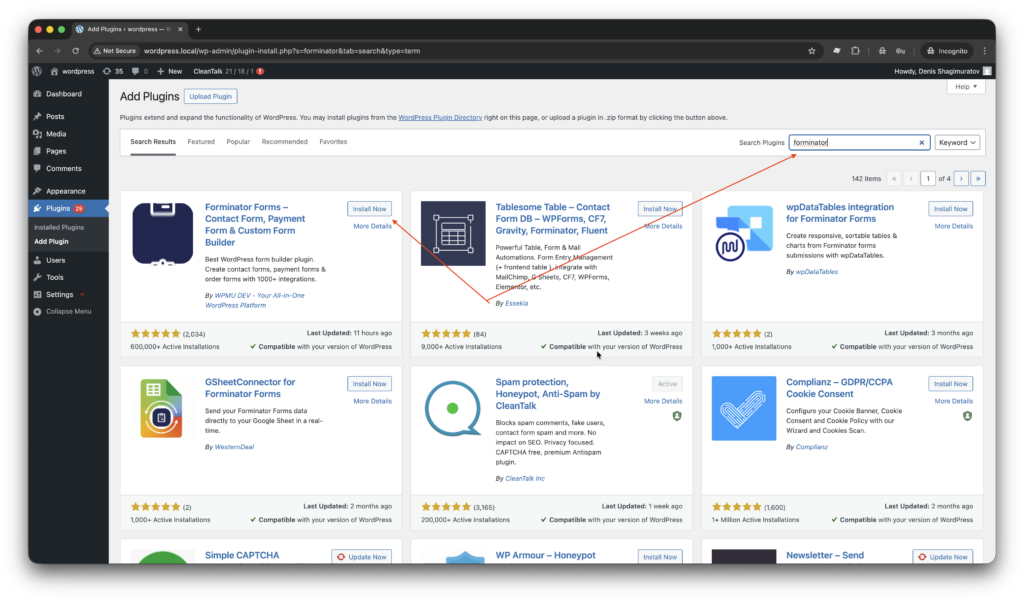
    1. Search for the plugin in,

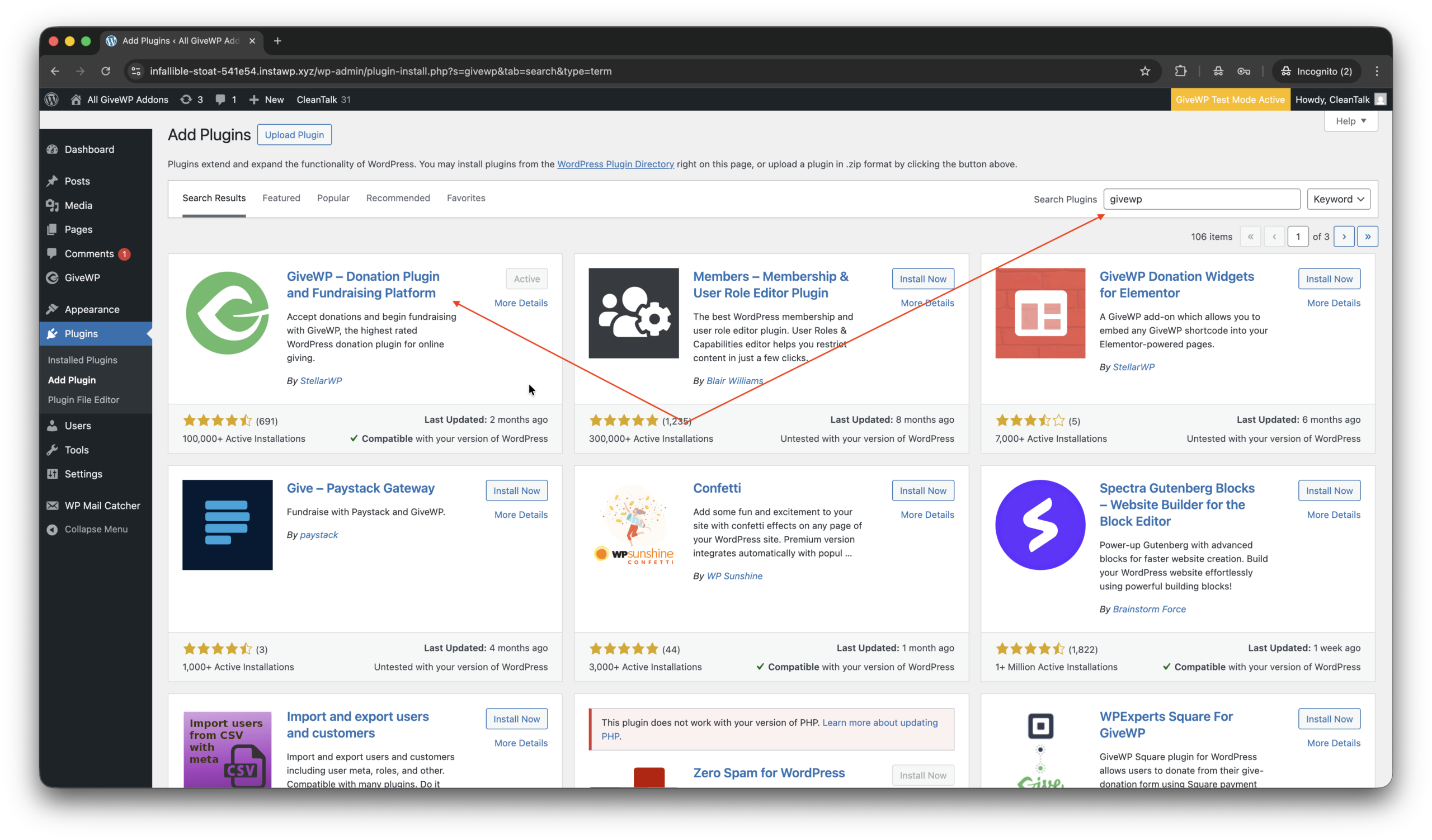
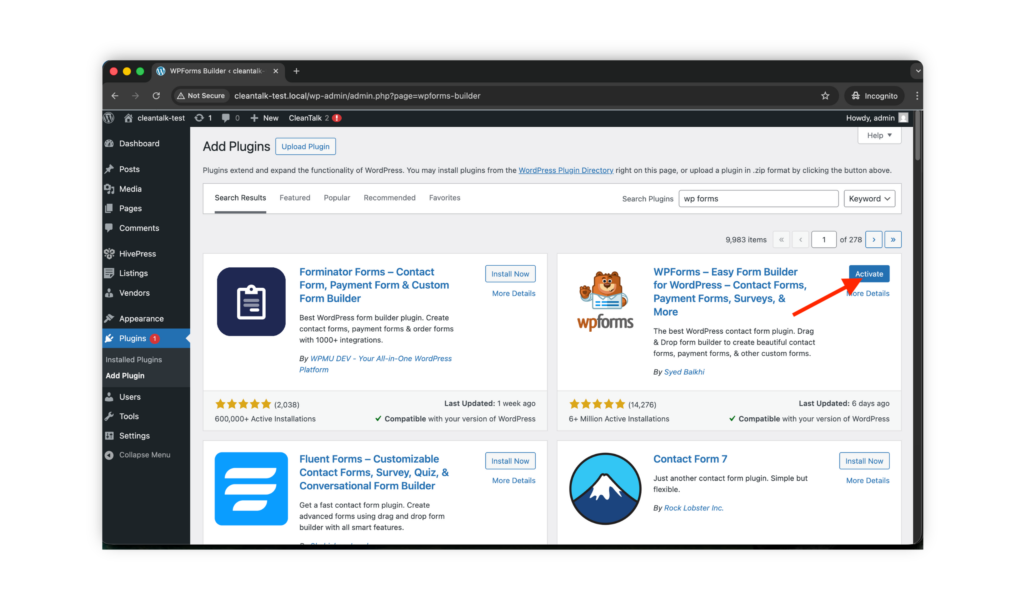
    WordPress console -> Plugins -> Add plugin -> Search -> givewp.

    1. Install and Activate the plugin.
    GiveWP plugin in WordPress catalog.
    1. Add a campaign and forms in,

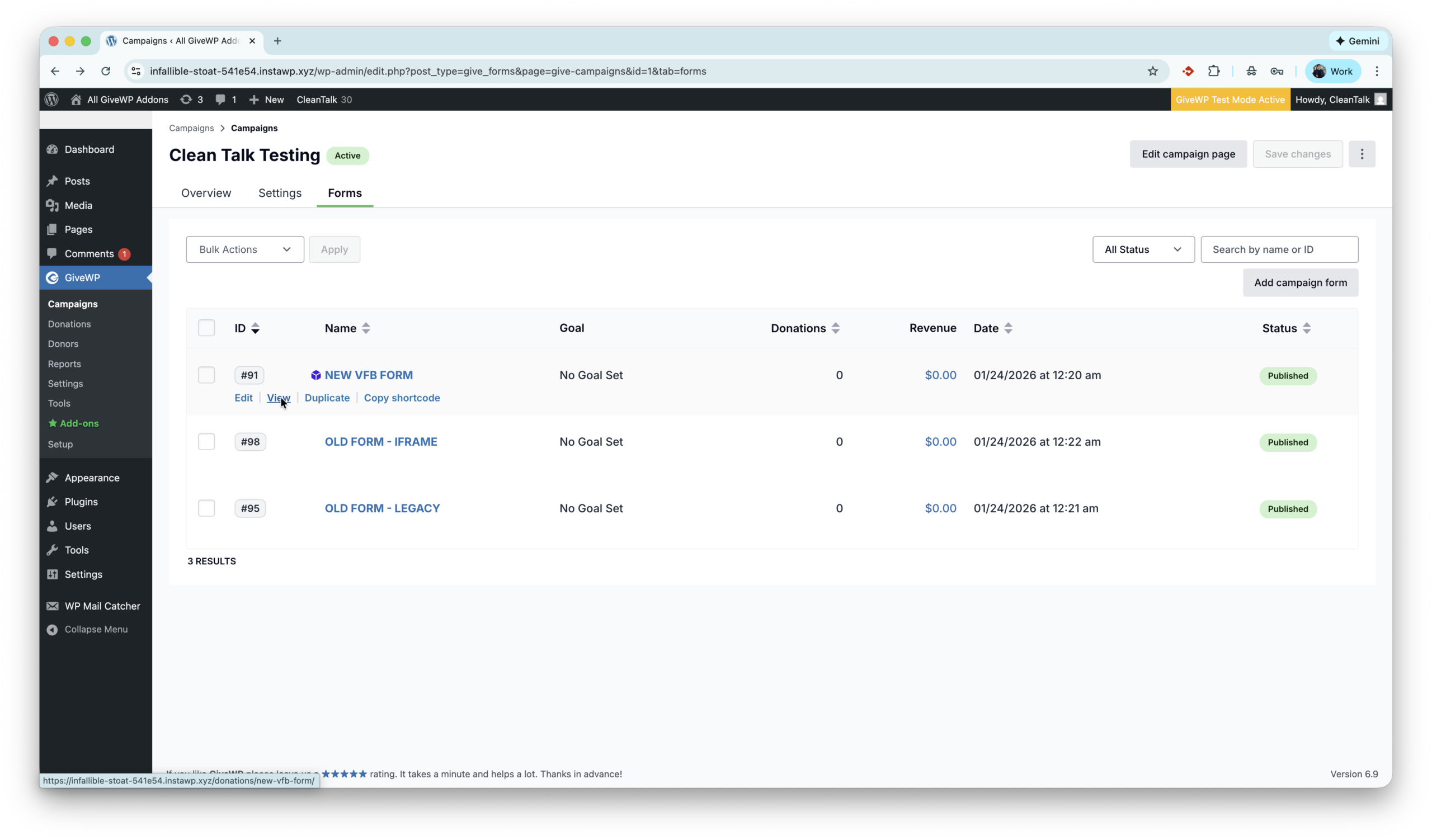
    WordPress console -> GiveWP -> Campaigns -> Forms

    GiveWP. First campaign and form.

    That’s all! GiveWP is installed.

    Anti-Spam plugin by CleanTalk for WordPress

    The next plugin we are going to use is the Anti-Spam plugin by CleanTalk. Here is a short description of it,

    CleanTalk Anti-Spam plugin for WordPress protects your site from spam comments, contact forms, registrations, and fake orders without CAPTCHA. It uses cloud-based spam detection and real-time databases to block bots automatically while keeping the experience smooth for real users. CleanTalk works in the background and requires minimal setup, making it a reliable hands-off anti-spam solution.

    According to WordPress.org, over 200,000 websites use this plugin.

    How to install CleanTalk Anti-Spam plugin

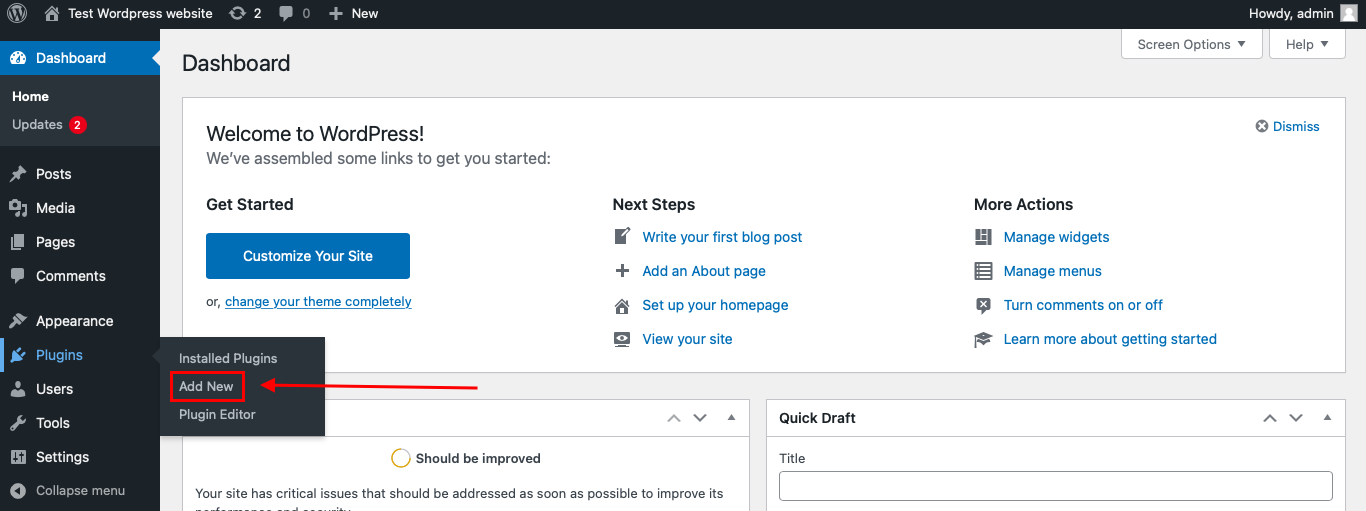
    To install the Anti-Spam plugin, go to your WordPress admin panelPluginsAdd New.

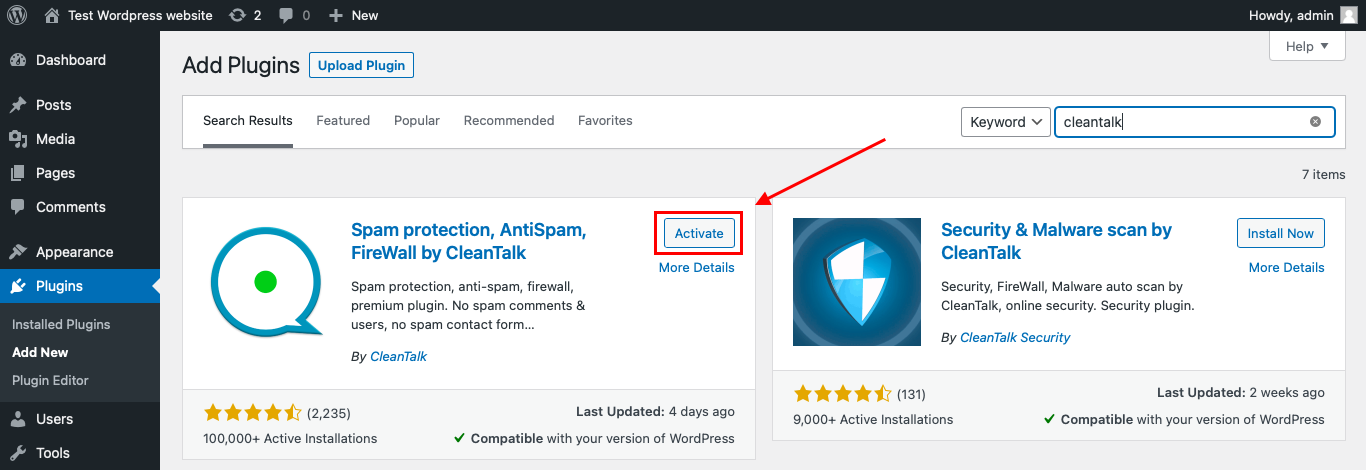
    Then enter «СleanTalk» in the search box and click the Install button for «Spam protection, Anti-Spam, FireWall by CleanTalk».
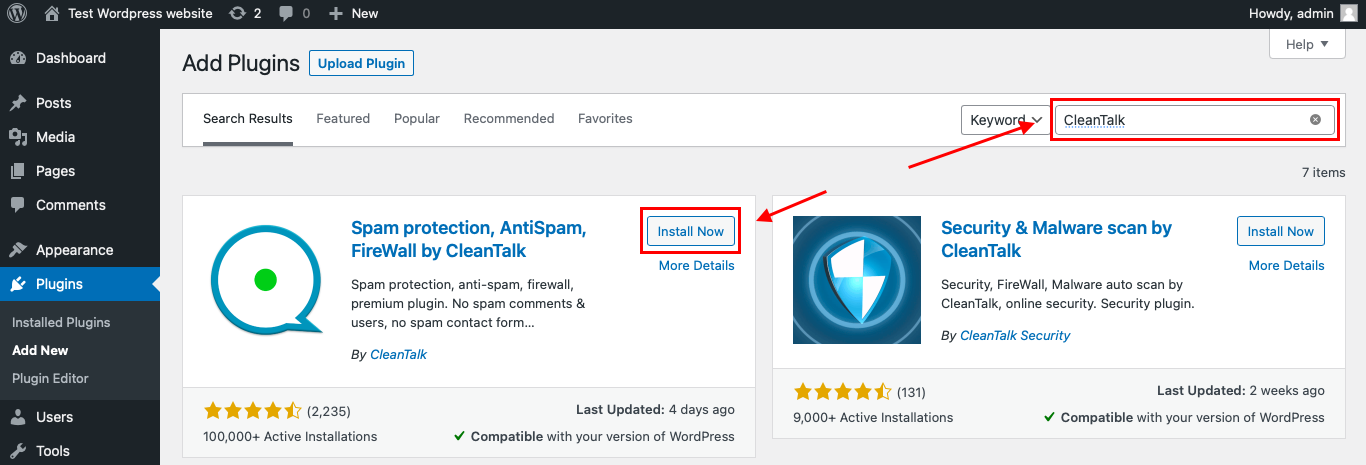
    After installing the plugin, click the «Activate»‎ button.

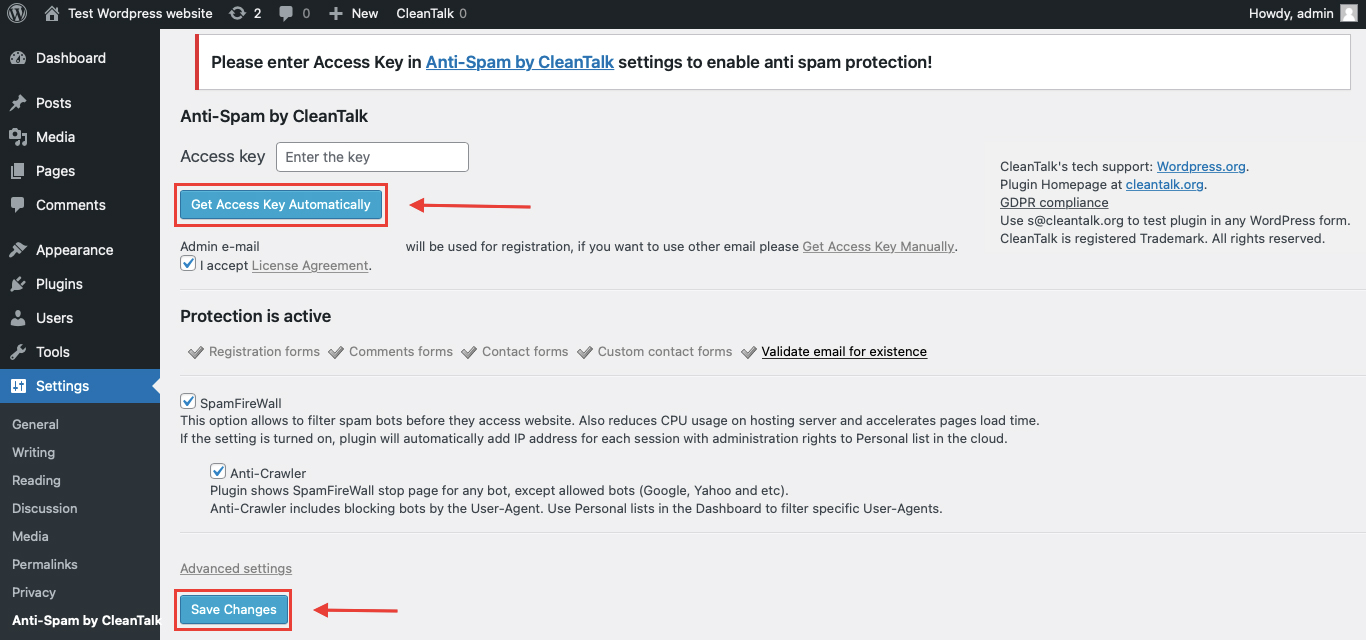
    After it is done go to the plugin settings and click the «Get Access Key Automatically» button. Then just click the «Save Settings»‎ button.

    That’s it! GiveWP is completely protected, let’s see how to test the protection.

    How to check spam protection for GiveWP Forms

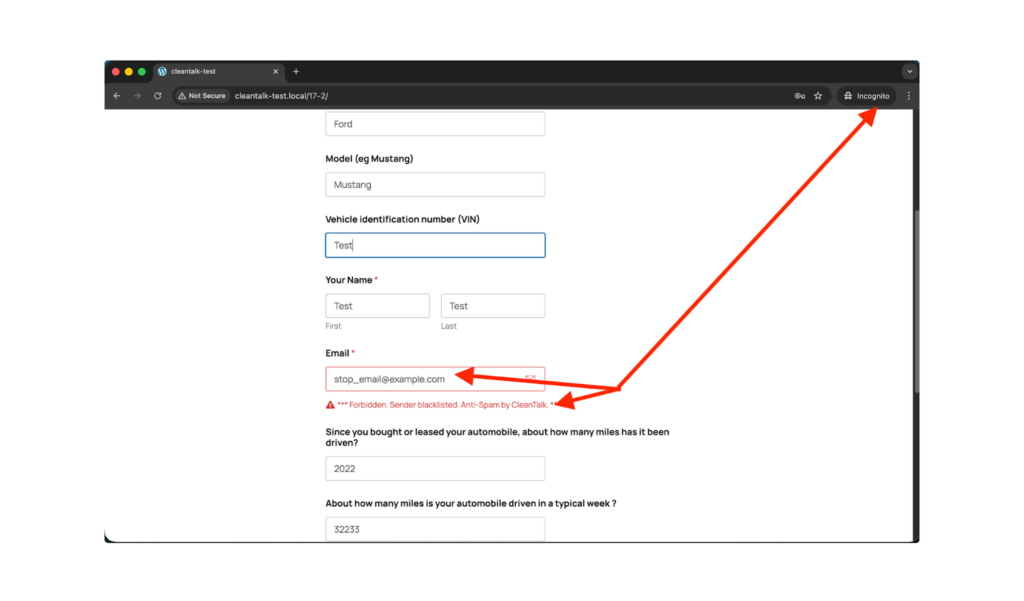
    You can test the work of Anti-Spam protection for GiveWP by using a test email,

    stop_email@example.com

    1. First, open the form in an Incognito browser tab.
    2. Choose amount to donate.
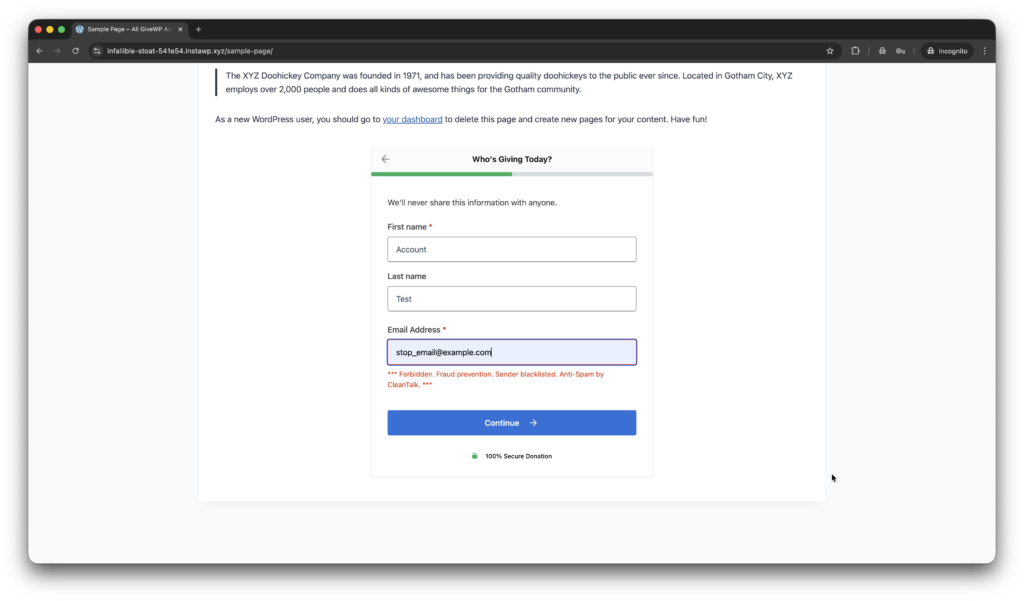
    3. In the next step fill out the account name data and the stop_email@example.com.
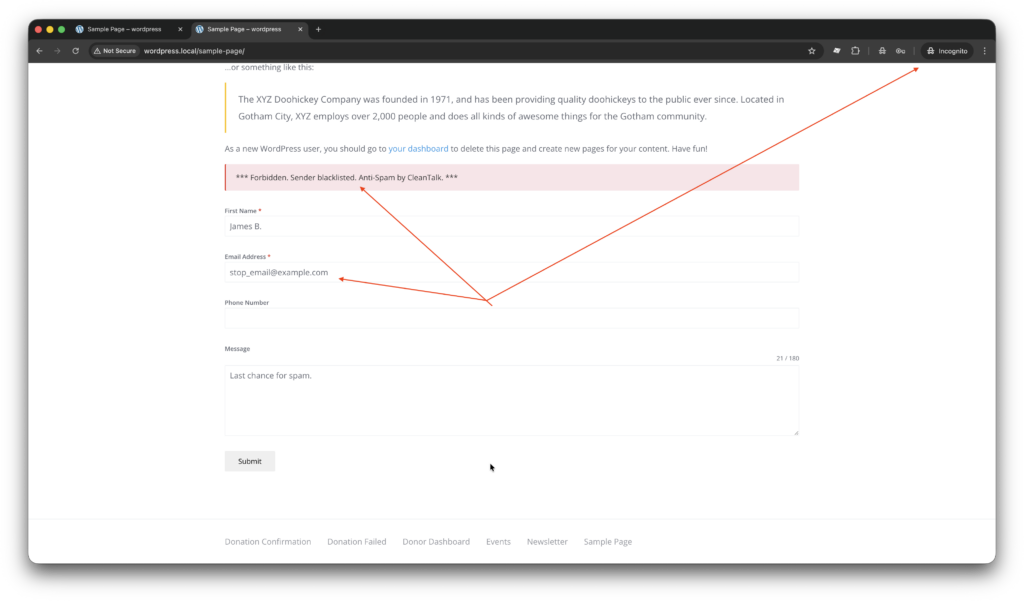
    4. You must see a message as below and in the screenshot.
    Testing spam protection for GiveWP.

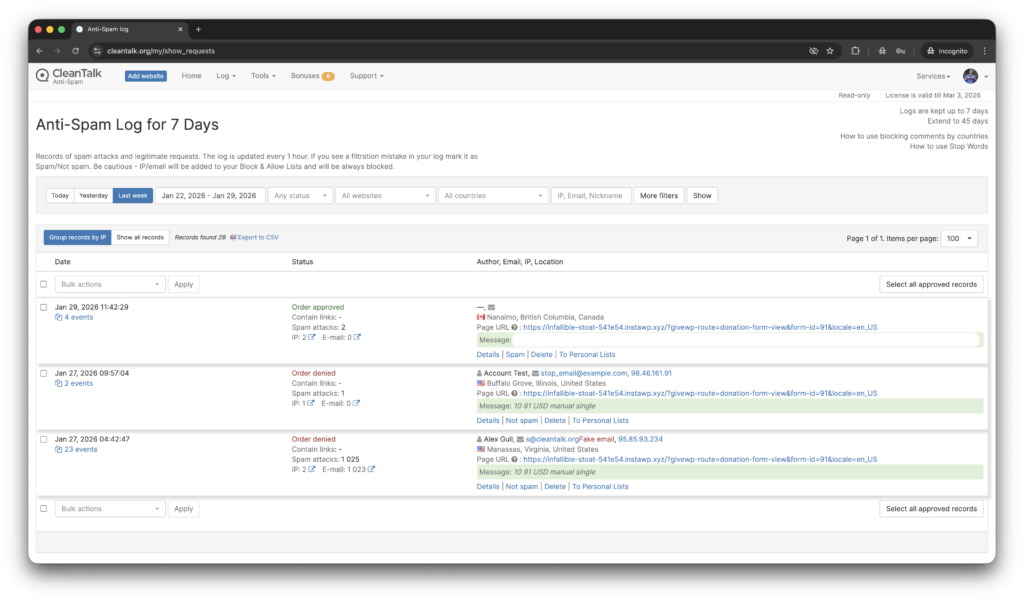
    In addition, in the Cloud Dashboard you can find extra details regarding all submissions for the donation form,

    • IP, Email of the donator. As well as history of activity a sender among other sites connected to CleanTalk’s cloud.
    • Geolocation of the sender.
    • Date and time of submission.
    • Page (URL) of the submission.
    • Cloud decision – Approved, Denied.
    • Cloud explanation for the decision.
    • Tools to move the sender to Block or Allow lists.
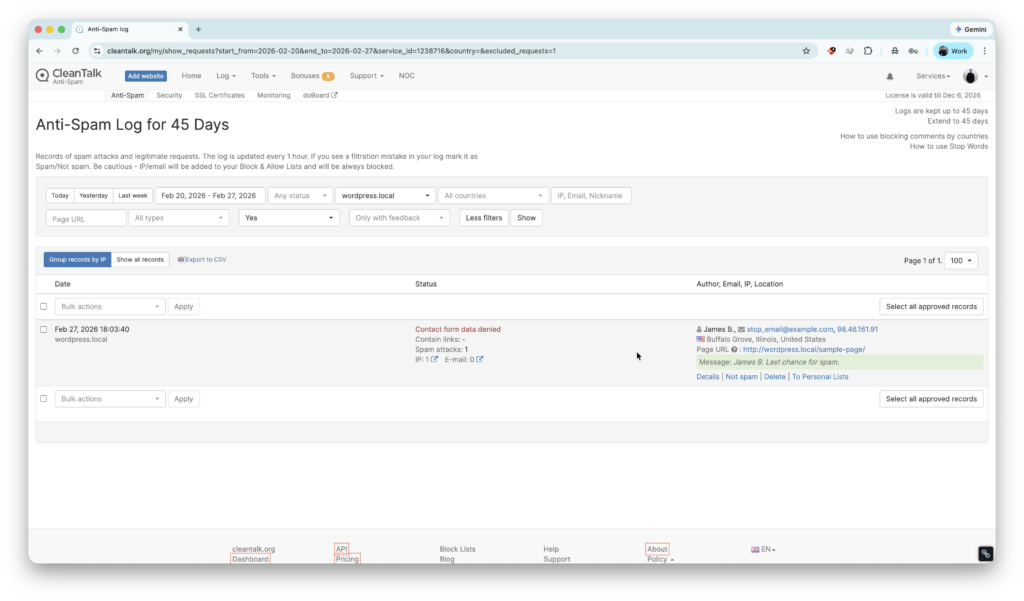
    Anti-Spam log in the CleanTalk's Dashboard.

    The Dashboard and Anti-Spam log is here.

    What additional anti-spam tools are available for GiveWP?

    Here are a few more tools on the market,

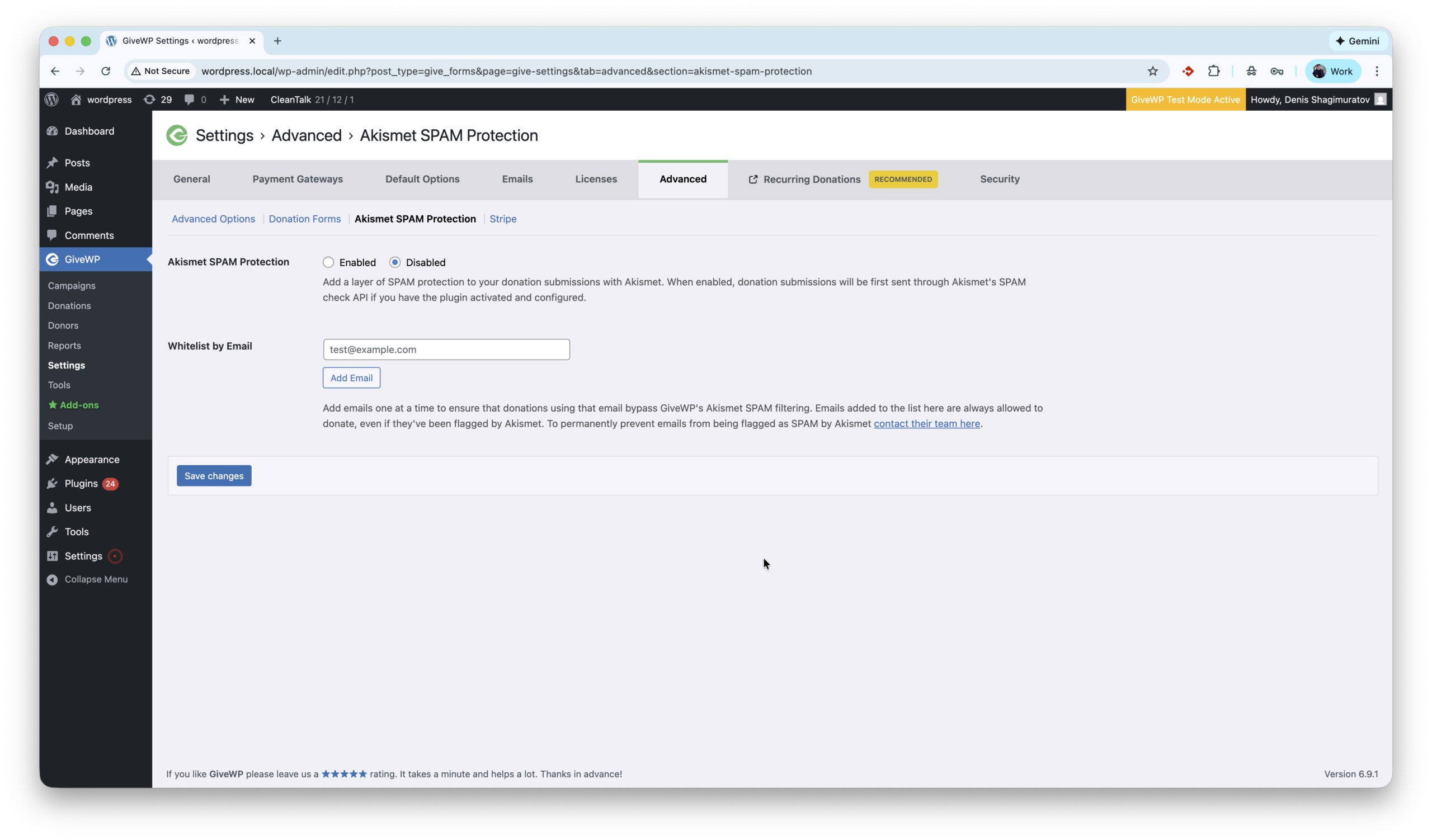
    1. Akismet is a cloud-based anti-spam service that works in the background and has excellent compatibility with WordPress. Most importantly, the GiveWP team has included Akismet integration directly in the core of the plugin, providing a seamless user experience for those who choose Akismet as their anti-spam solution. Akismet settings are located under WordPress console -> GiveWP -> Settings -> Advanced -> Akismet SPAM Protection. Here is full guide how to setup protection.
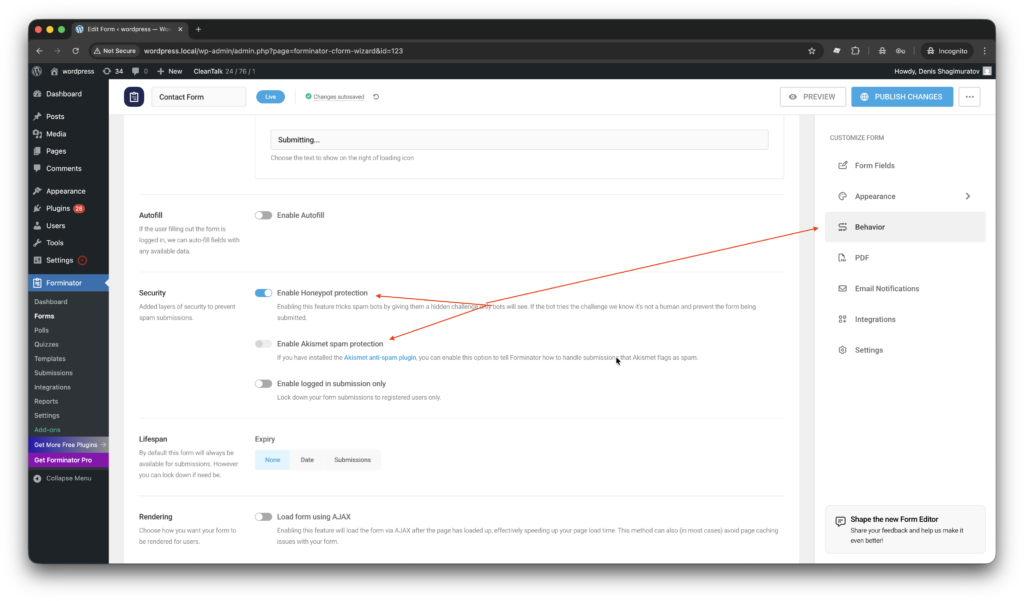
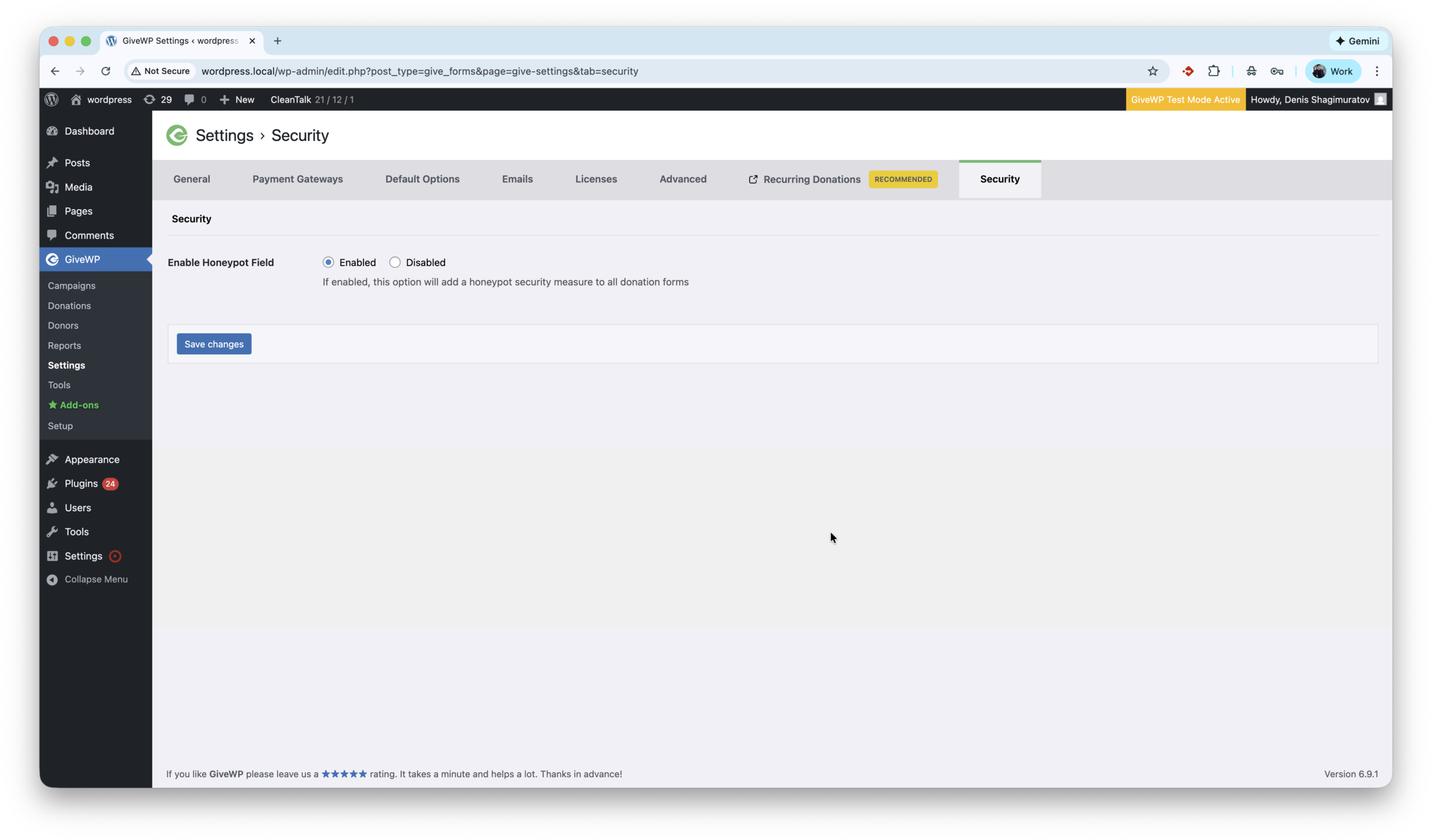
    2. Honeypot anti-spam techniques protect websites by adding invisible form fields that real users never see but spambots automatically fill in. When these hidden fields are completed, the submission is flagged and blocked, stopping spam without CAPTCHAs or user interaction. GiveWP has built-in honeypot which is located under settings WordPress console -> GiveWP -> Settings -> Security -> Enable Honeypot Field. This option is On in default setting, so should filter some primitive spam bots out of the box.
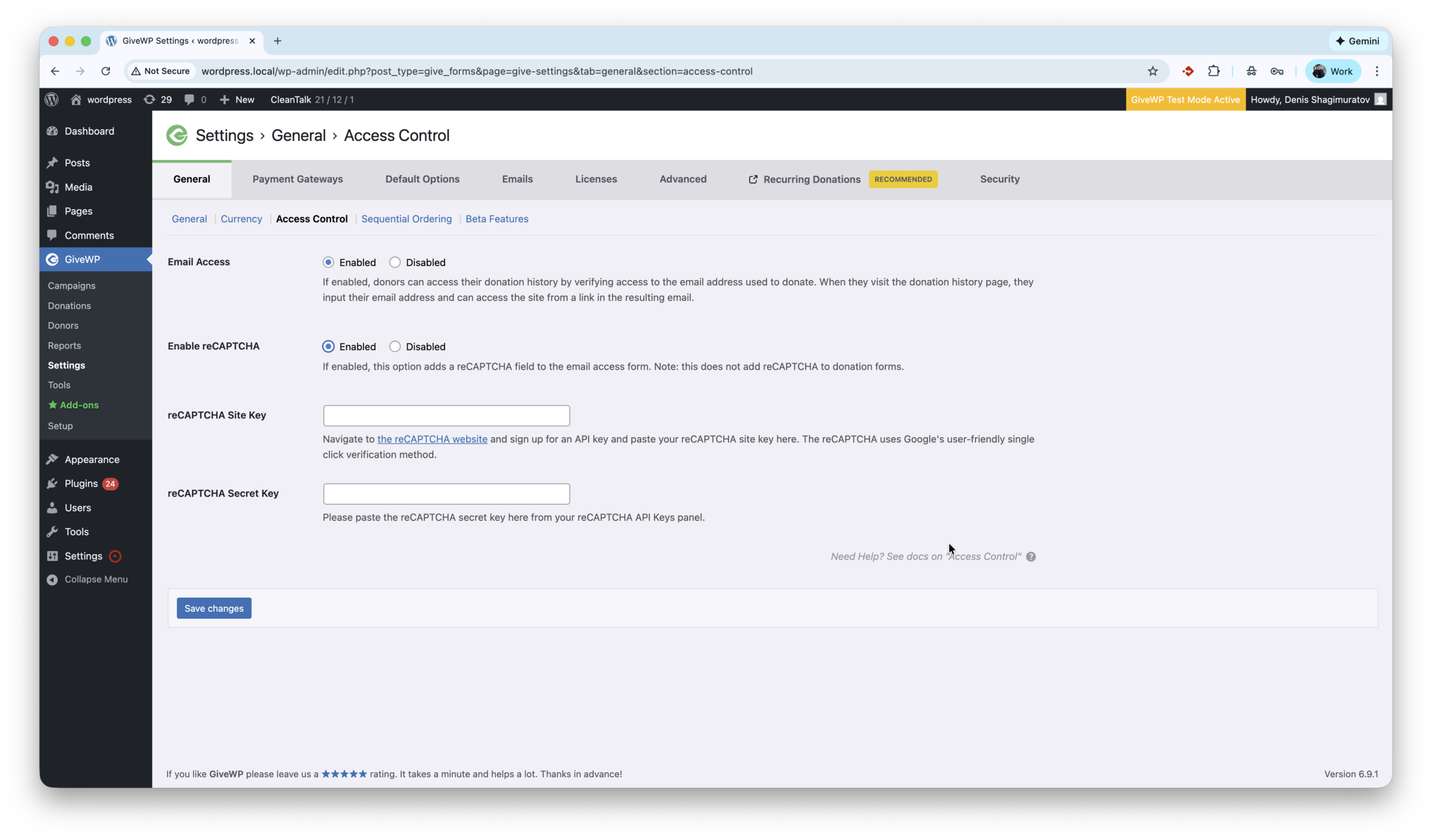
    3. reCAPTCHA is a spam protection technology by Google that helps protect WordPress websites by distinguishing real users from bots using challenges or behavioral analysis. It reduces automated spam submissions but may require user interaction, such as clicking a checkbox or solving a challenge. GiveWP supports reCaptcha in the core and settings are located by path WordPress console -> GiveWP -> Settings -> General -> Access Control -> reCaptcha. The first step to activate this protection is getting Site and Secret keys, which are available on website.
    4. Turnstile by Cloudflare is another great anti-spam tool which is available for GiveWP. Protects WordPress websites by verifying visitors automatically without CAPTCHAs or puzzles. It blocks bots using browser and behavioral signals while keeping the experience seamless for real users. One drawback is to use Turnstile user must install extra plugin – ‘Give – Cloudflare Turnstile’. The full guide is here.
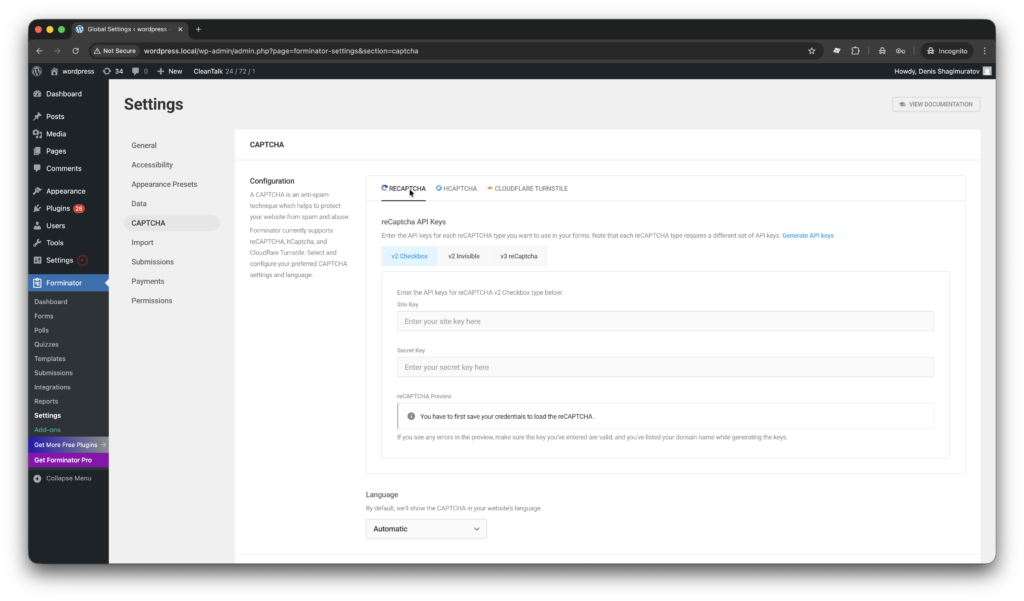
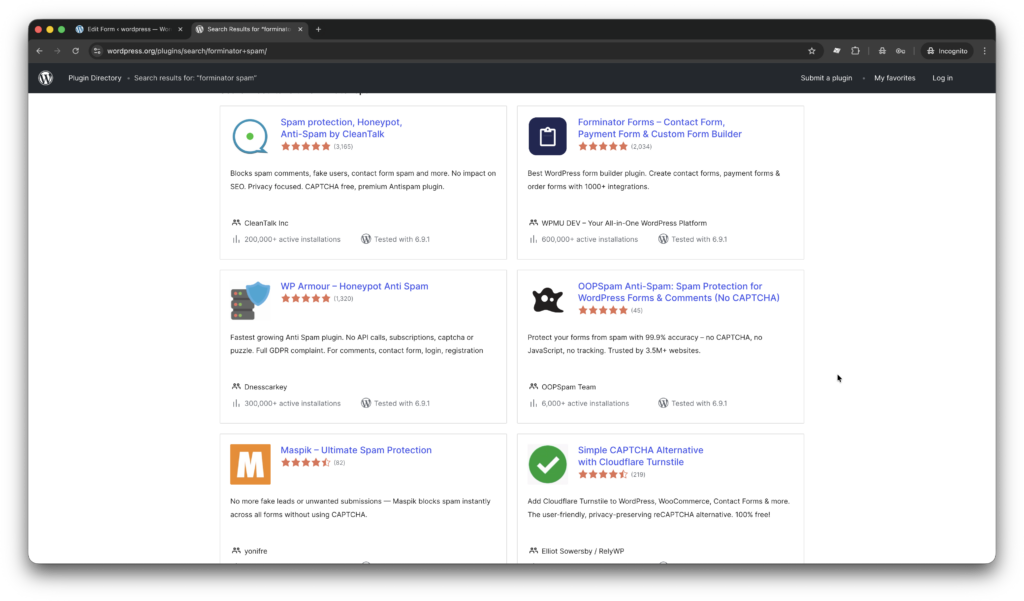
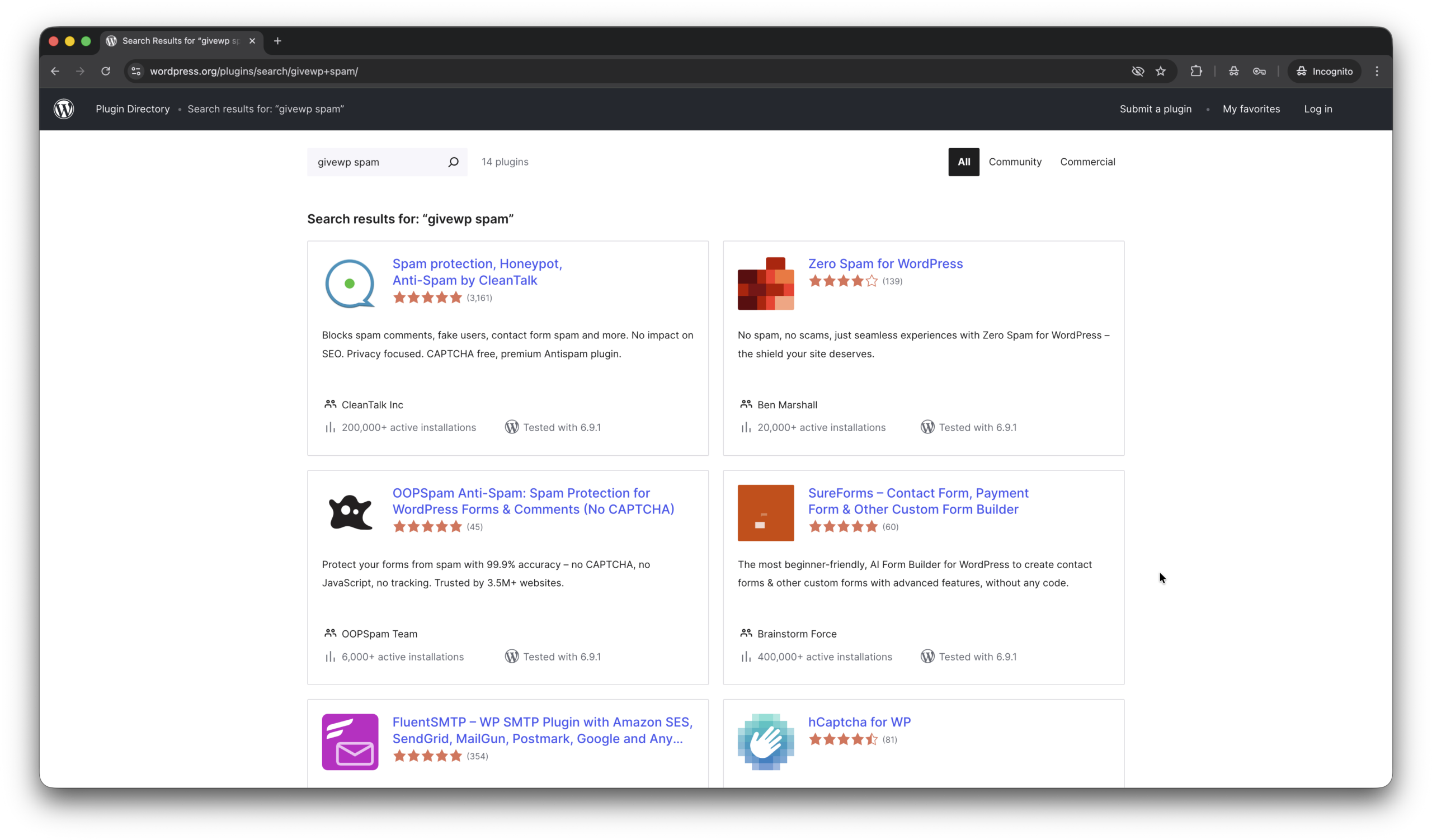
    5. And we have bunch of standalone, universal, all-in-one plugins like Zero Spam, OOPSpam, hCaptcha for WP which provide anti-spam protection for GiveWP as well. Here is a link to download one of them.

    Here are screenshots for tools above.

    I have questions…

    Is CleanTalk protects against donors email leak?

    In July 2025, a vulnerability in GiveWP led to an email data leak of Pi-hole donators. Yes, Anti-Spam by CleanTalk helps protect against such issues. In this case, email addresses were exposed in the HTML code, even though they were invisible on public pages. The plugin prevents this by obfuscating email addresses by default.

    We received hundreds of spam donations immediately after installing GiveWP plugin. How to fix it?

    If you do not have specific anti-spam tool installed. Increasing the minimum donation amount can help stop spam, as bots usually test forms with small payments like $1–$5. Setting a $10+ minimum helps filter out these low-effort automated attacks.

    A donor is trying to submit recurring donations but the transaction isn’t being processed because the donor’s email is considered spam.

    False/positives sometimes happen. In this case just post a support ticket or put this donor in Allow list.

    Final thoughts

    I hope this guide helped resolve all spam issues on your donation form. If not, Sign Up for an account and our CleanTalk team will be happy to help.

  • User Registration & Membership – Spam Protection Guide in 2026

    User Registration & Membership – Spam Protection Guide in 2026

    CleanTalk has added spam protection for the User Registration & Membership WordPress plugin by WPEverest through direct form integration. If you use this plugin, be sure to enable the highly effective CleanTalk Anti-Spam solution. In this post, we also review all anti-spam options available for User Registration & Membership.

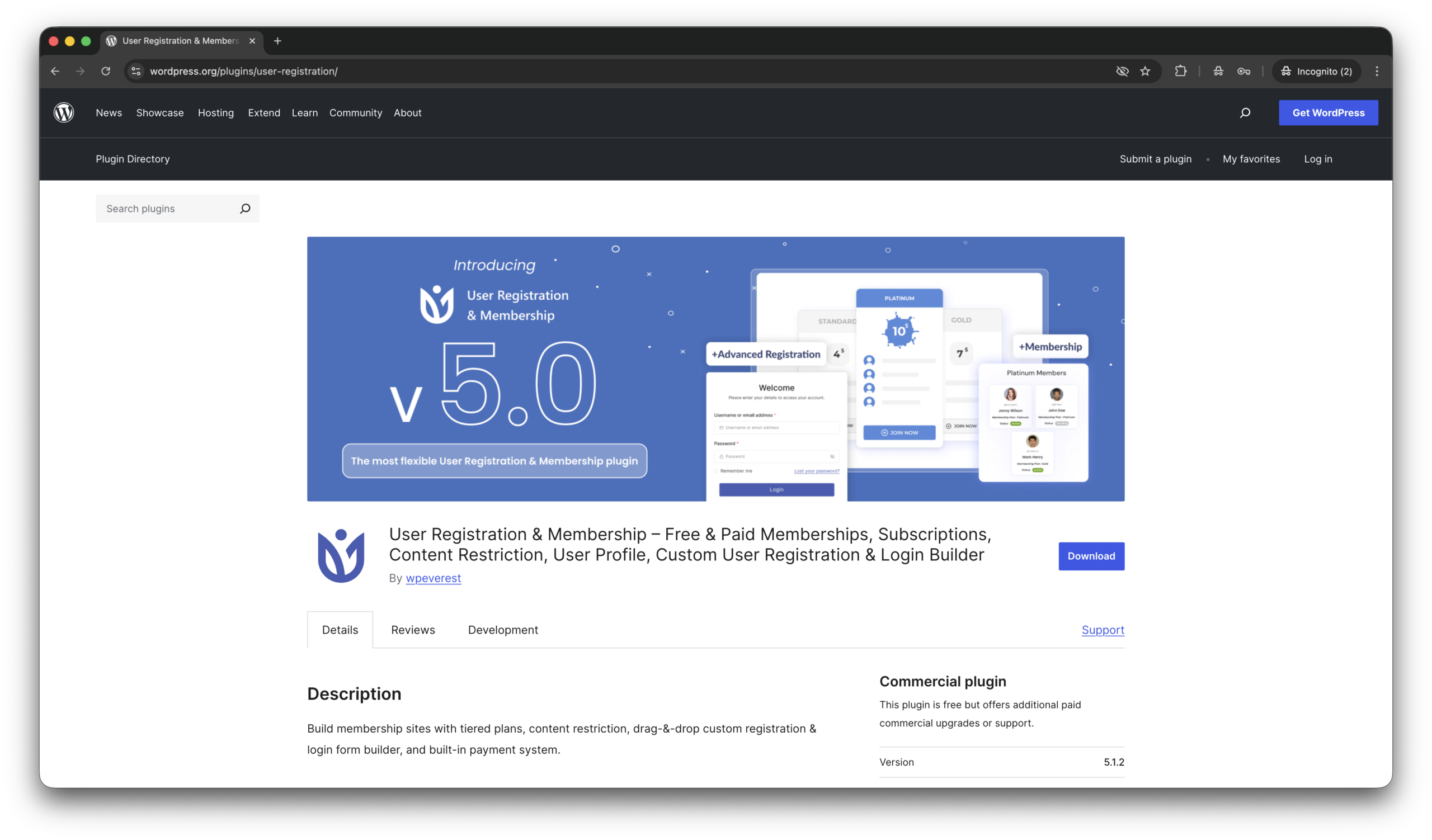
    User Registration & Membership – Free & Paid Memberships, Subscriptions, Content Restriction, User Profile, Custom User Registration & Login Builder

    First of all let’s see what this plugin is,

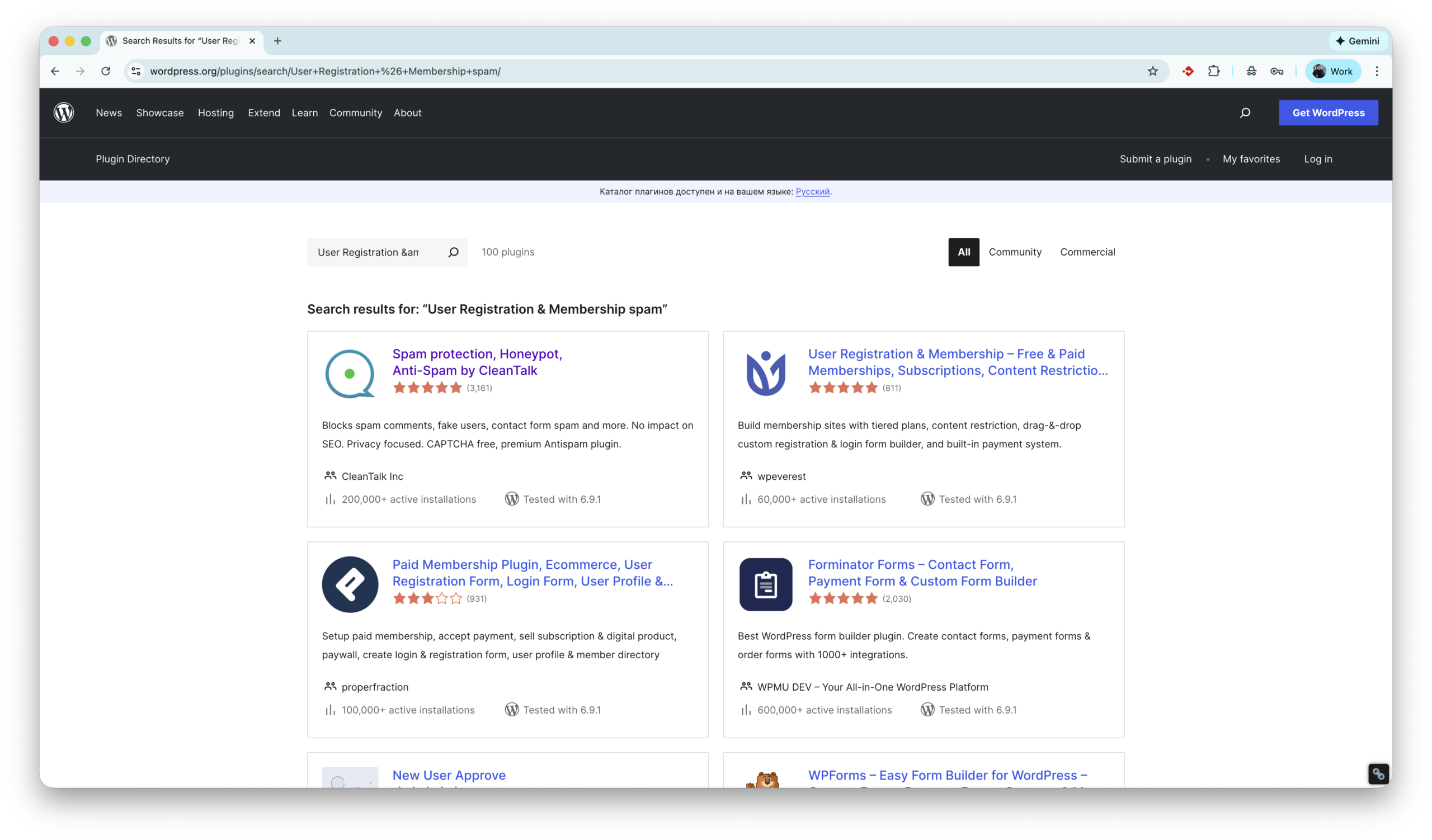
    User Registration & Membership by WPEverest is a powerful WordPress plugin for creating custom user registration forms, login pages, and membership websites without coding. It features a drag-and-drop form builder, user profile management, content restriction, and payment integrations for subscription-based sites. Ideal for communities, online courses, and client portals, the plugin helps website owners manage users and memberships efficiently while improving user experience.

    According wordpress.org, this plugin is installed on 60,000+ sites.

    Installing User Registration & Membership

    There are few steps to be this plugin installed,

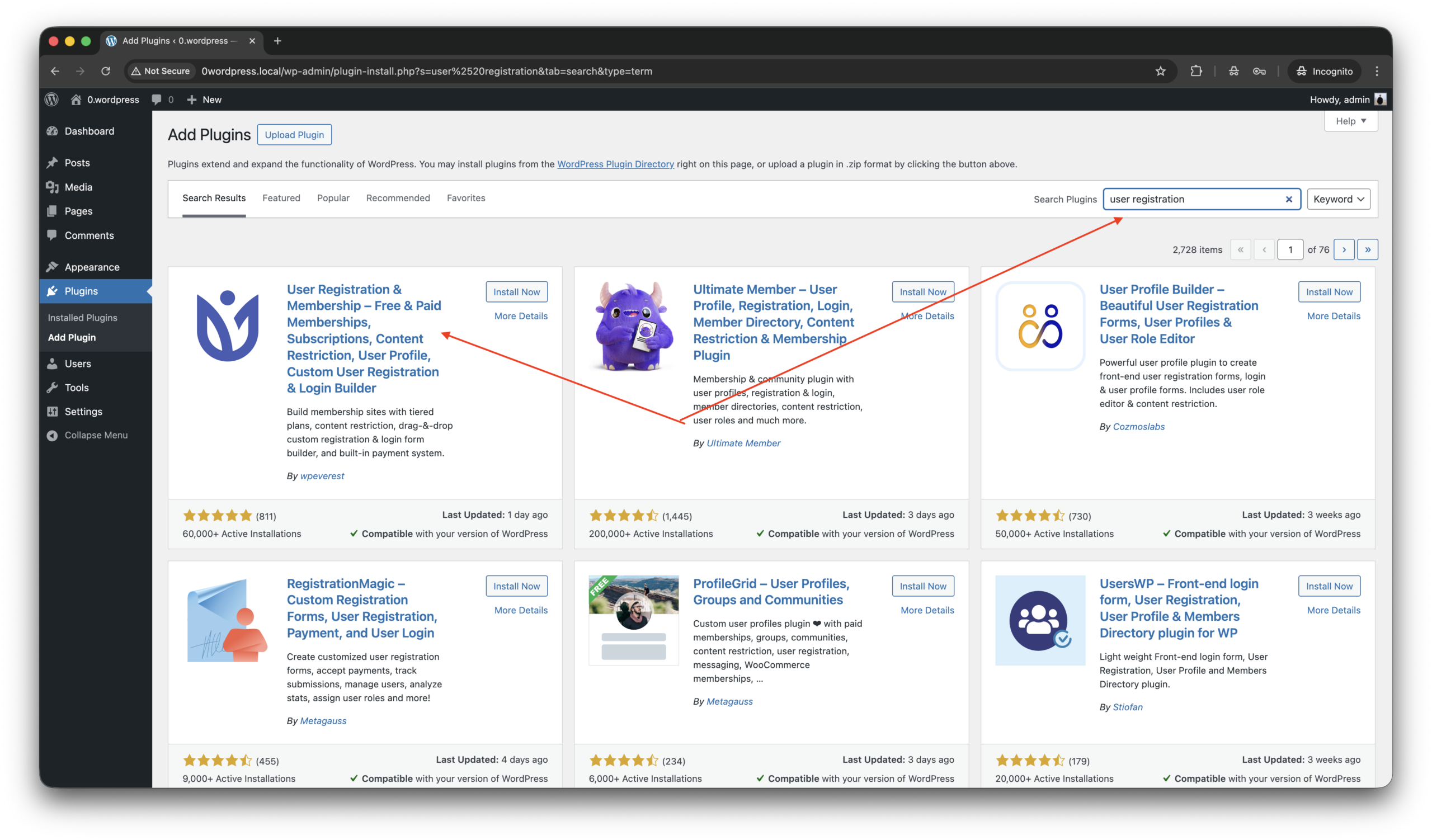
    1. Go to WordPress console -> Plugins -> Add plugin, type ‘user’.
    2. Install ‘User Registration & Membership’ by WPEverest and activate the plugin.
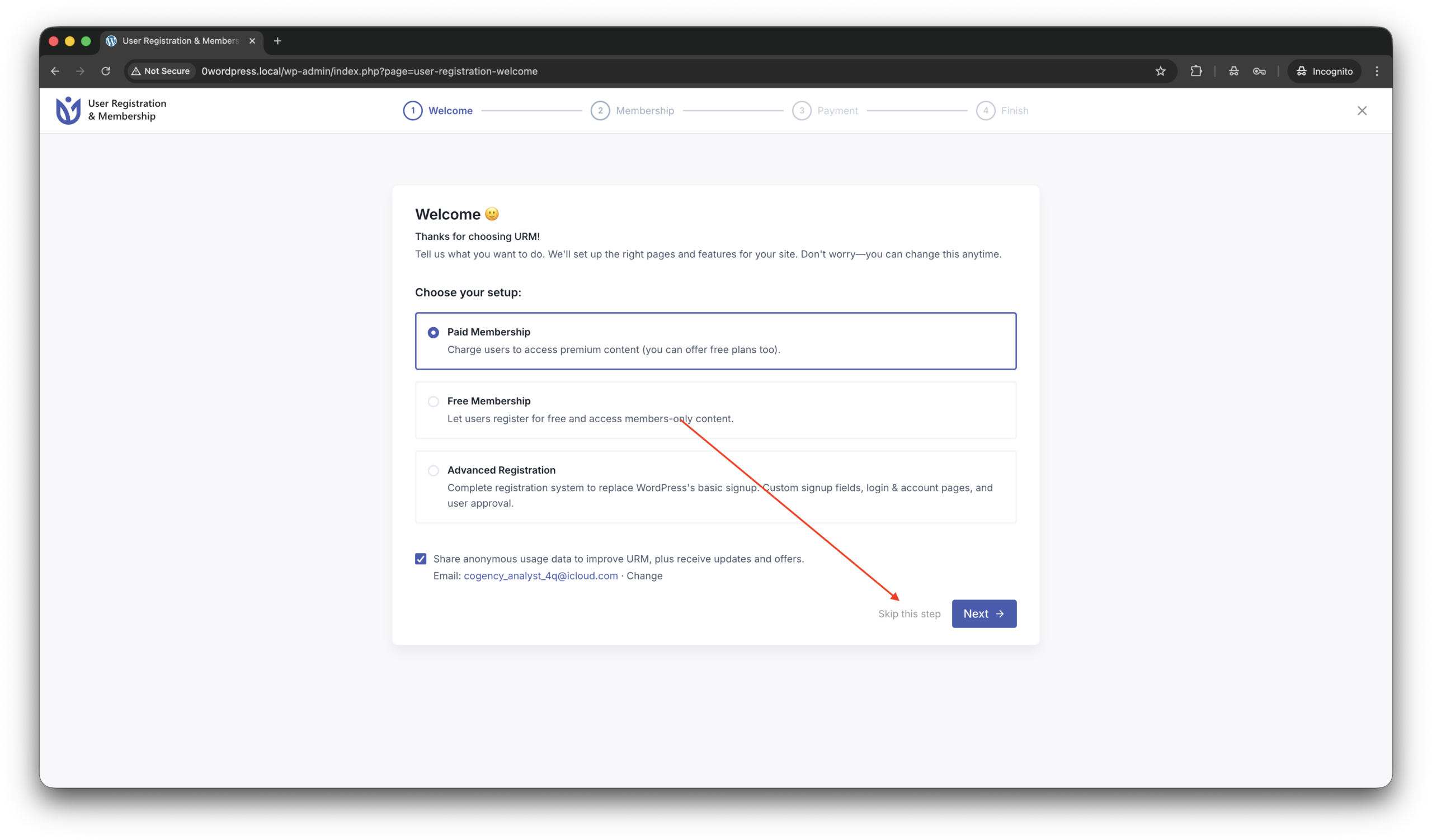
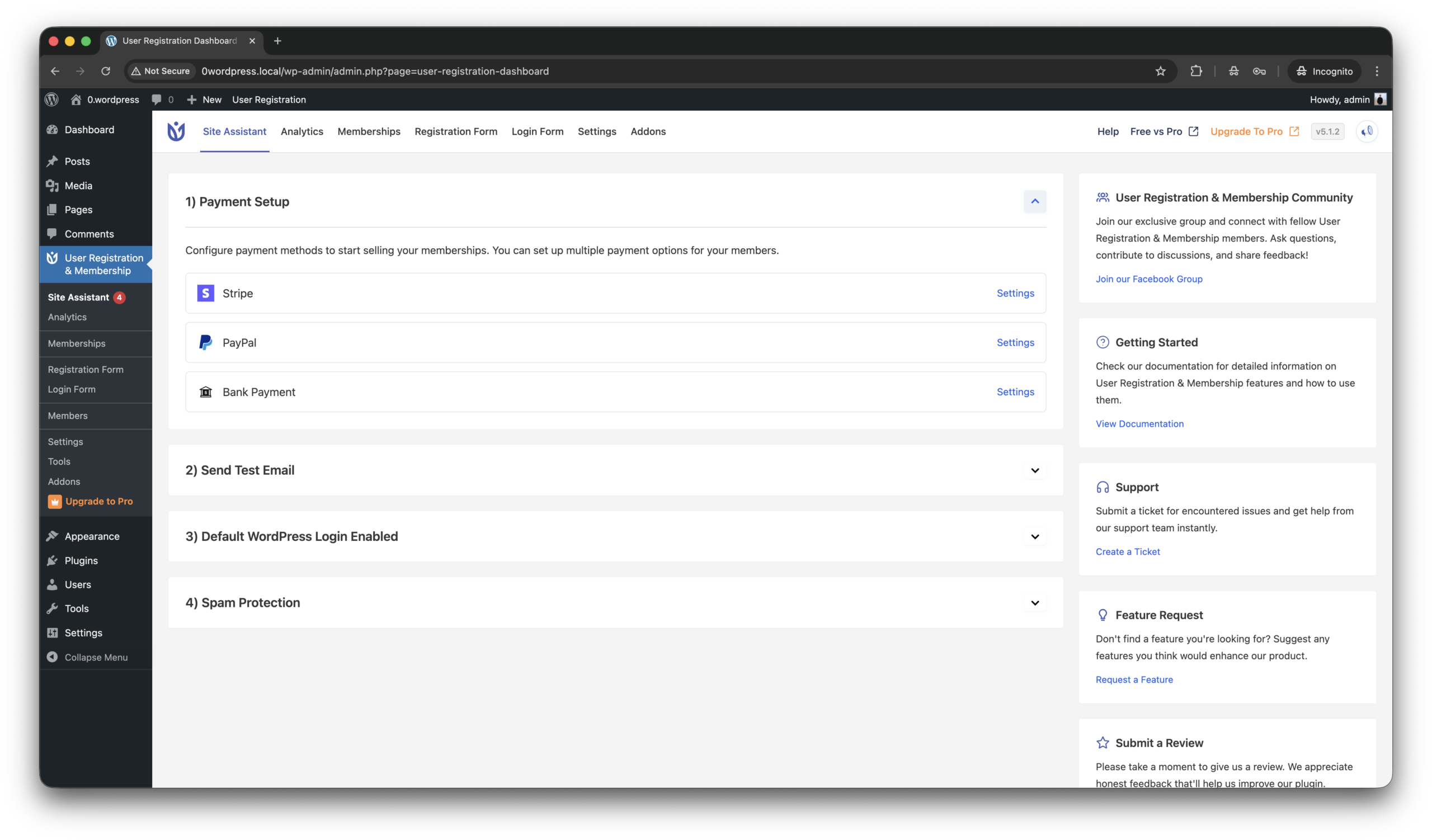
    3. Next you see a setup screen, that can be skipped on this moment.
    4. That’s all the plugin is installed!

    On the next steps we work with page YOUR-SITE.COM/registration/.

    By the if you want place the registration form on another page,

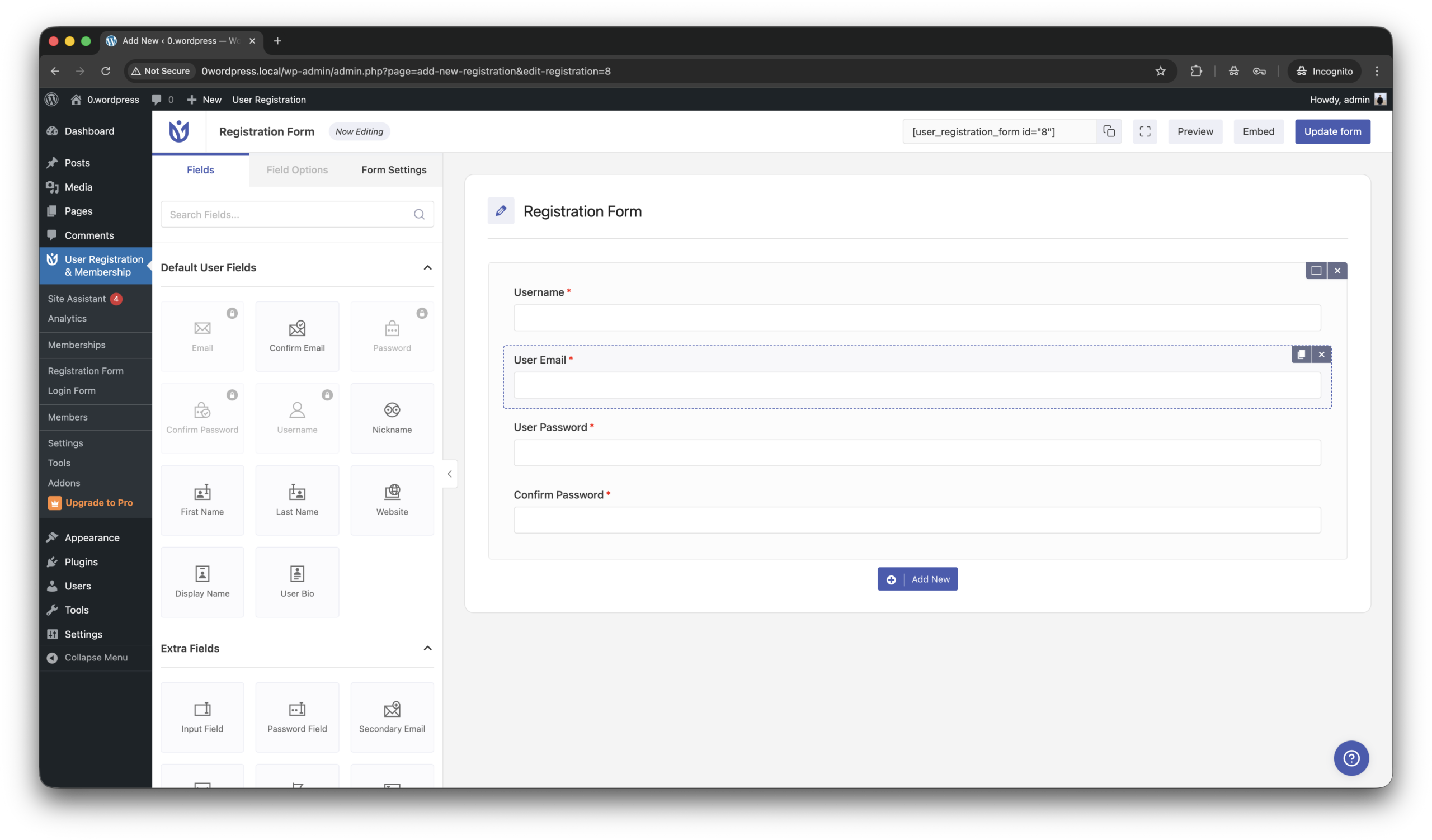
    1. Follow to WordPress console -> User Registration & Membership -> Registration form.
    2. Copy shortcode like this [user_registration_form id=”8″] from the right/top corner of screen and place on any other page you want to.

    Anti-Spam plugin by CleanTalk for WordPress

    In beginning a few words about the plugin that we are going to use against spam,

    CleanTalk Anti-Spam plugin for WordPress automatically protects your website from spam comments, registrations, contact forms, and fake orders without using CAPTCHA. It uses cloud-based spam detection and real-time databases to block bots in the background while keeping the experience smooth for legitimate visitors.

    According wordpress.org, this plugin is installed on 200,000+ web sites. To install the plugin please follow this guide.

    The next step is testing the anti-spam protection.

    How to check spam protection for User Registration & Membership

    We are going to test protection and the most important step in this process to do it as a regular visitor, not as as authorized user/administrator in WordPress console!

    Follow this,

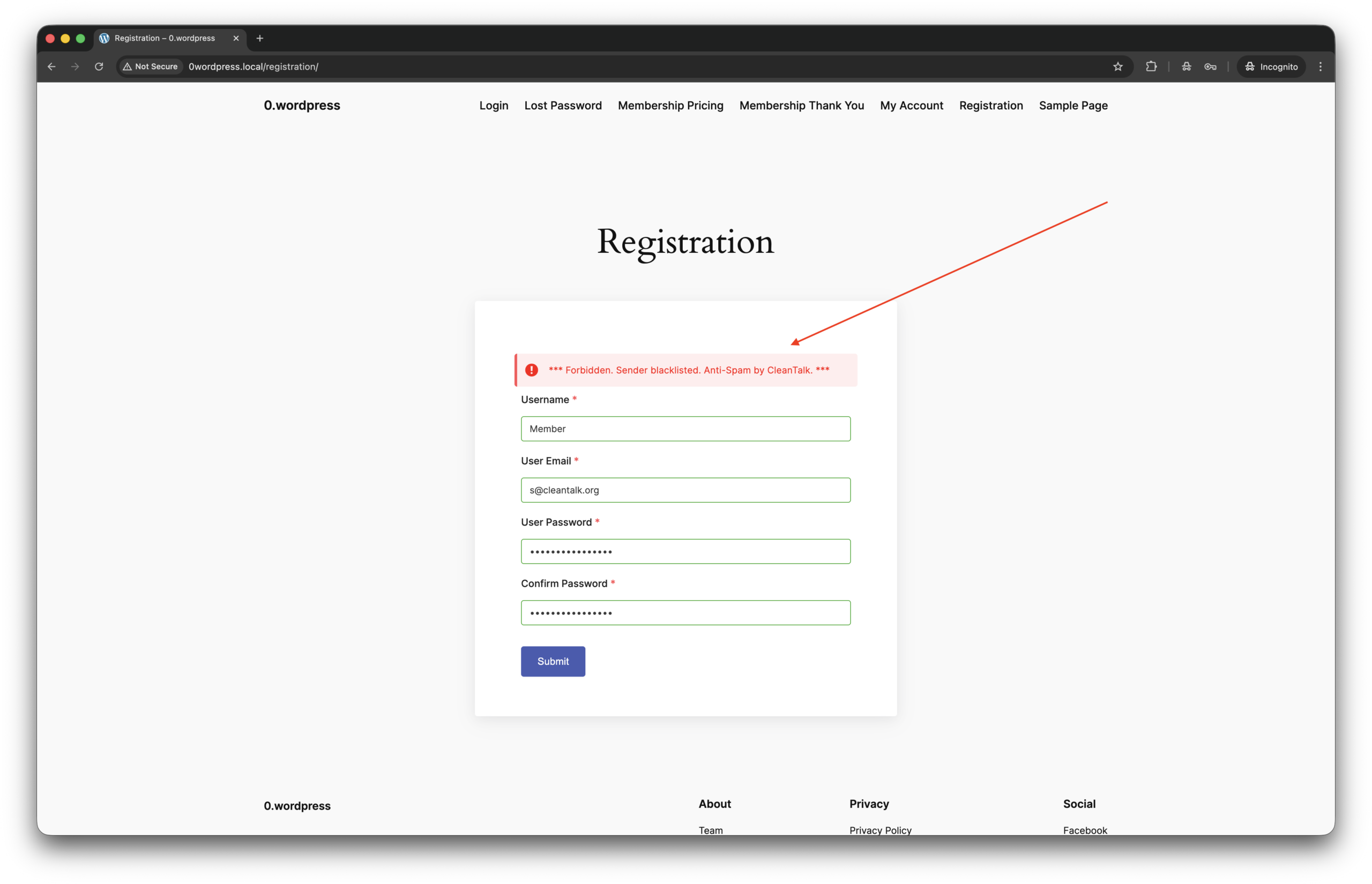
    1. Jump to YOUR-SITE.COM/registration/ in incognito mode in your browser.
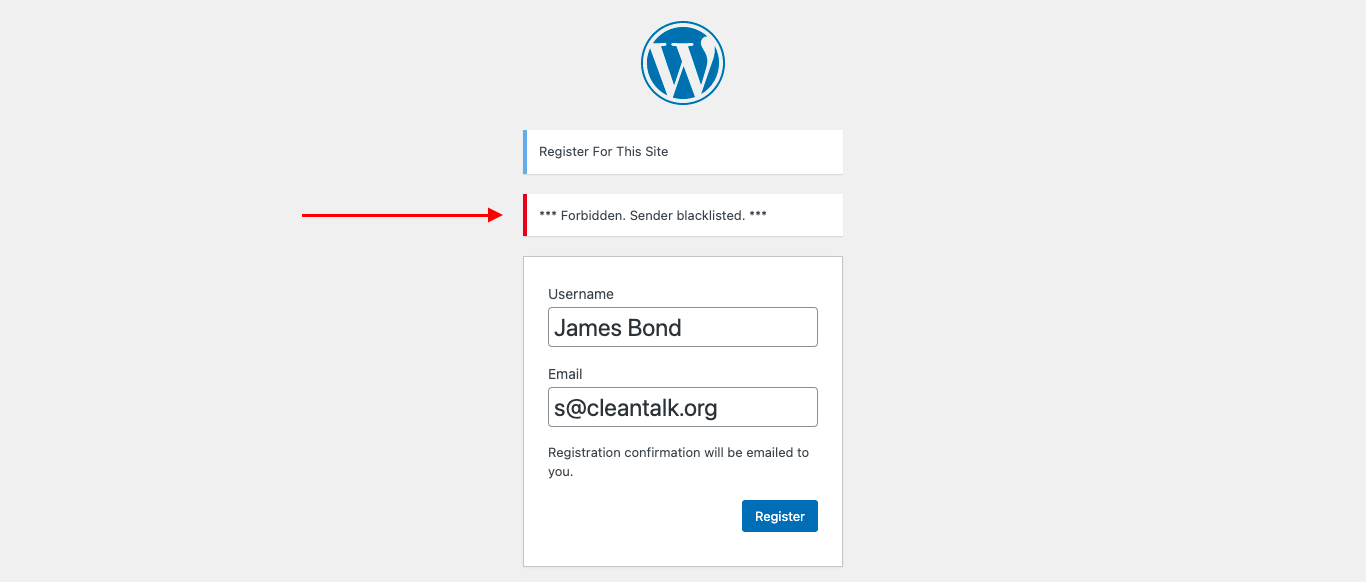
    2. Fill up the form using test email address s@cleantalk.org. This is a service email, using which do not cause block listing your IP in CleanTalk’s cloud.
    3. You see response from the cloud like this,

    That’s all! The protection is active and ready to go. If you have any questions, add a comment and we will be happy to help you. In addition, in the Cloud Dashboard you can find extra details regarding all submissions for registration form.
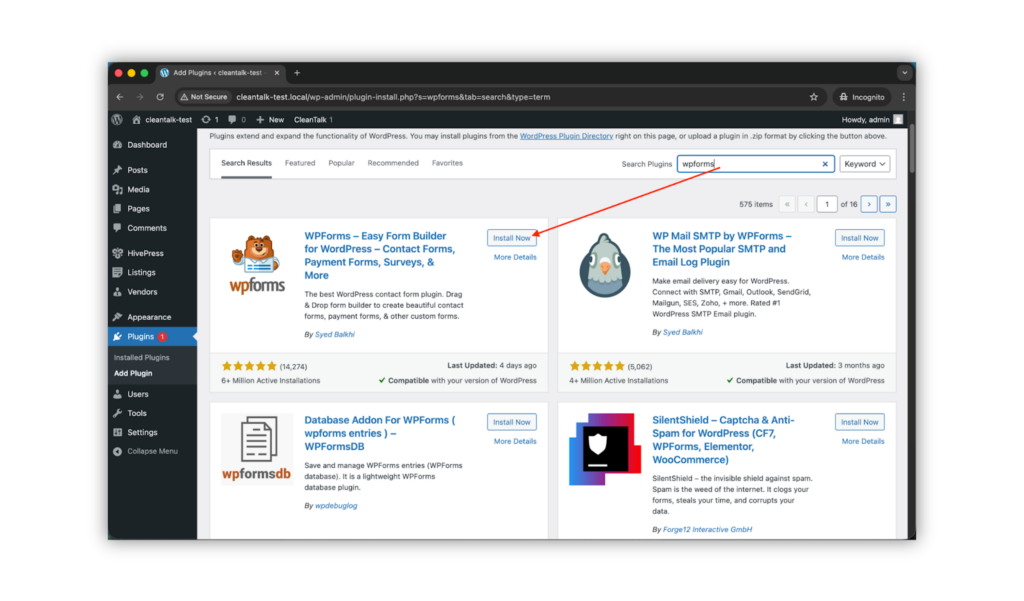
    What additional anti-spam tools are available for User Registration & Membership?

    On this day on the market there are a few more tools to protect User Registration & Membership against spam bots. As well as this plugin has some built-in tools. Let’s see what we have,

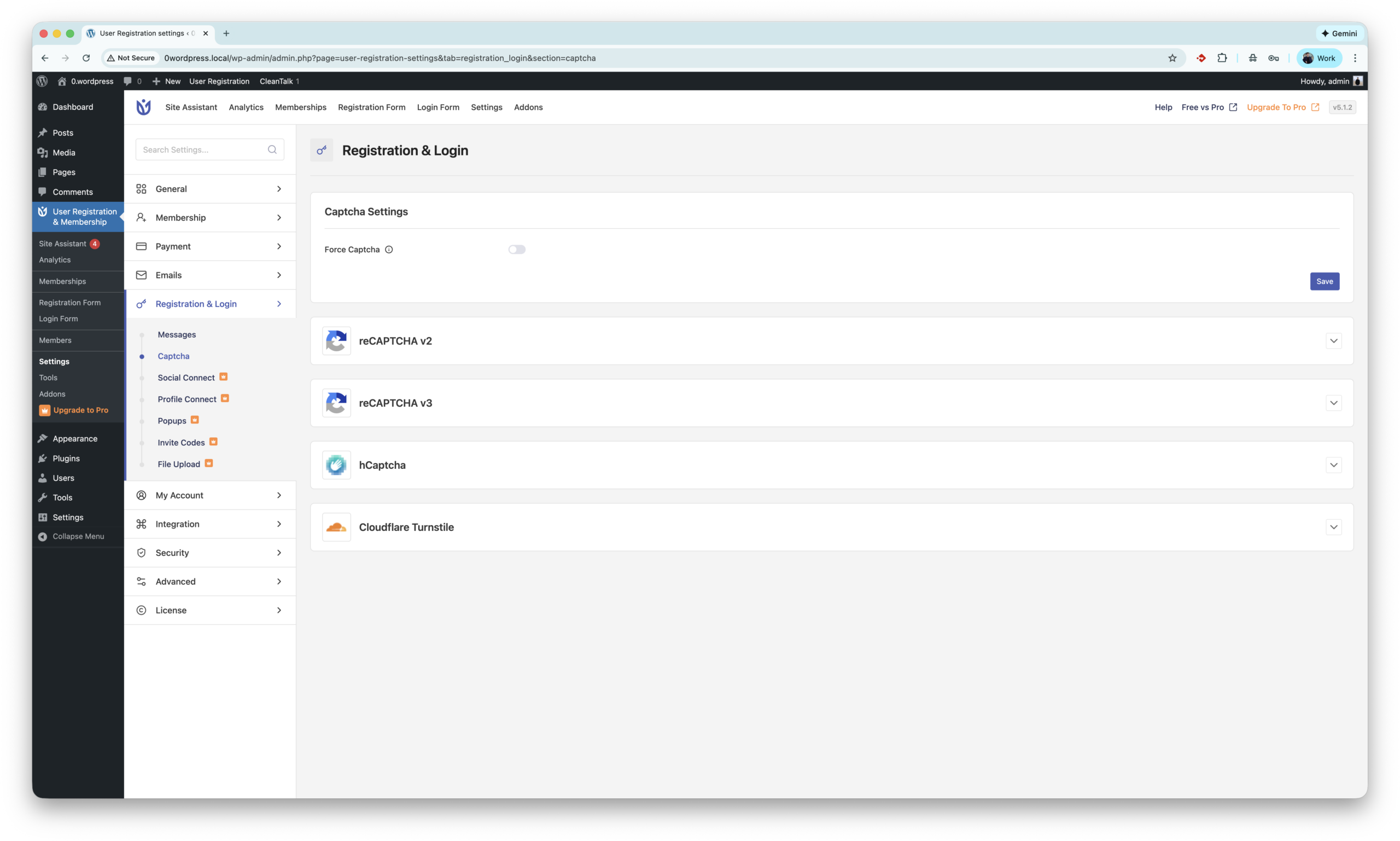
    1. This plugin has built-in integration with Google reCaptcha version 2 and 3. reCAPTCHA by Google helps protect WordPress registration forms from spam by verifying that users are real people using behavioral analysis or interactive challenges. It blocks automated bot sign-ups and reduces fake registrations while allowing legitimate users to register securely.
      The settings located are here WordPress console -> User Registration & Membership -> Registration & Login -> Captcha. The Site and Secret keys are available on website.
    2. The next tool is hCaptcha. hCaptcha is a privacy-focused CAPTCHA solution that protects WordPress registration forms from spam by requiring users to complete human verification challenges, helping block automated bot sign-ups. Unlike reCAPTCHA by Google, hCaptcha places stronger emphasis on user privacy and data control, making it a popular alternative for websites that want effective spam protection with less tracking.
      The settings located are here WordPress console -> User Registration & Membership -> Registration & Login -> Captcha. The Site Key and Secret key are available on website.
    3. Next is Turnstile by Cloudflare. It protects WordPress registration forms from spam by automatically verifying visitors using browser and behavioral signals without showing CAPTCHA challenges. Unlike reCAPTCHA, Turnstile is designed to be privacy-friendly and frictionless, reducing spam registrations while keeping the signup process seamless for real users.
      The settings located are unde same path as tools before WordPress console -> User Registration & Membership -> Registration & Login -> Captcha. The Site Key and Secret key are available on website.
    4. There are also bunch of universal anti-spam plugins like Simple CAPTCHA Alternative by Elliot Sowersby, WP Armour and etc. All of them can be found on wordpress.org.

    As my research shows there is no plugins or direct integration with Akismet.

    Final thoughts

    I hope this guide helped resolve all spam issues on your registration form. If not, Sign Up for an account and our CleanTalk team will be happy to help.

  • Stop Fake Emails: CleanTalk’s New Non-Existent Email Notification

    Stop Fake Emails: CleanTalk’s New Non-Existent Email Notification

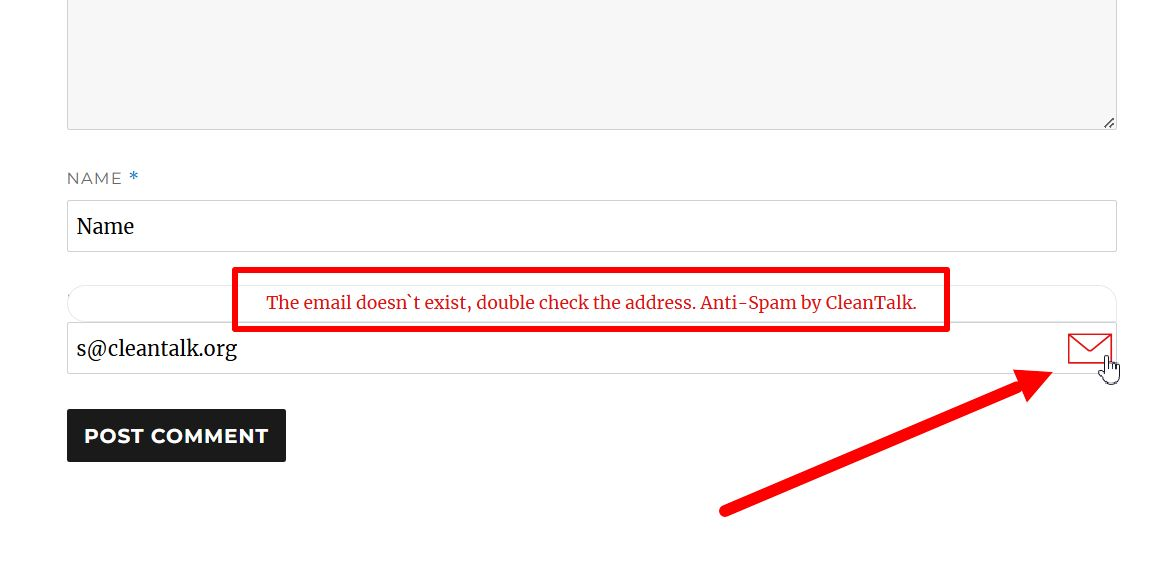
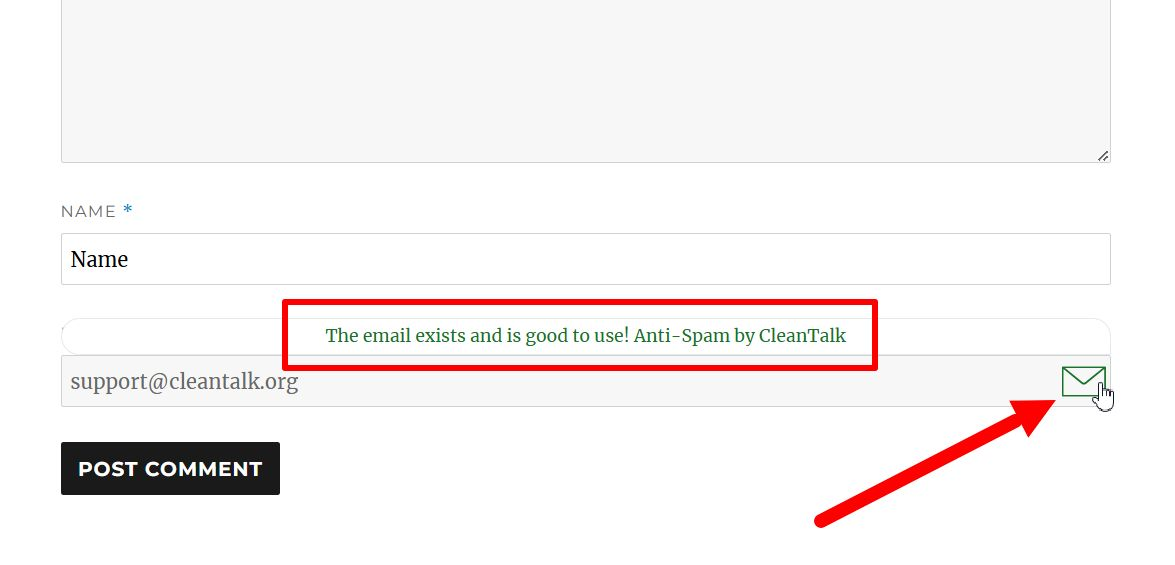
    Spammers often use fake email addresses to hide their identities and avoid consequences for their actions. This can lead to a deluge of spam comments, registrations, and other unwanted activity on your website. To combat this, CleanTalk Anti-Spam has always had a powerful feature: Non-Existent Email Notification. But now, this feature has evolved to a new form—to be useful not only for site owners but also for site visitors! 

    Now, if the email you’ve entered into a form is somehow non-existent (for example, you made a typo in it), you’ll see it right away. No confusion, no hassles, no pain!

    How it Works:

    When a user submits a form (such as a comment or registration form) on your website, CleanTalk’s system instantly checks the validity of the provided email address. If the email address is found to be non-existent or invalid, the user will receive an immediate notification. 

    An email is existent.

    An email is non-existent.

    Benefits:

    • Real-time feedback: This provides immediate alerts as you type, highlighting potential errors or typos in your email address.
    • Simple visual cues: Clear indicators like checkmarks or warning icons can quickly show whether an email address is valid or invalid.

    Experience the Difference

    By implementing CleanTalk’s Non-Existent Email Notification feature, you can significantly enhance the usability of your website while minimizing the impact of spam, and a new aspect of this feature provides even more comfort for your visitors!

  • How to Install the Universal Anti-Spam Plugin by CleanTalk on vBulletin 6

    How to Install the Universal Anti-Spam Plugin by CleanTalk on vBulletin 6

    Universal Anti-Spam plugin can be installed on any custom websites, CMS, and Frameworks including vBulletin 6. If you don’t have programming experience to add our API on a website it will be a better way to protect your website from spam with Universal Anti-Spam Plugin by CleanTalk. Invisible to the visitors, spam protection has a positive effect on the loyalty of the site’s audience. Read more about all CleanTalk anti-spam features.


    Setting up vBulletin 6 spam protection

    1. Download Universal Anti-Spam plugin.
       
    2. Go to your Anti-Spam dashboard.
       
    3. Backup copies of your forum files and database.
       
    4. Download (the link is at the top of this page) and unzip the “cleantalk” folder into your website’s ROOT folder.
       
    5. Proceed to address (your_website_name/cleantalk/install.php):

      address-strimg
       
    6. Input the following:
       
      • Your CleanTalk account email. If you do not have a CleanTalk account yet you can create one manually by clicking the button “Don’t have an account? Create here!“.
      • A password for the Universal settings page. Please, do not forget to save the password for future usage.
      • Universal Anti-Spam plugin will write protection code to the index.php file by default. If your contact or registration forms are located in different files/scripts, list them separated by commas in the “Additional scripts” (3) in the “Advanced configuration” (1) section.
      • The access key generated for your website in case you already added a website to your CleanTalk account (2).
         

      After that, you can click the button “Install” to continue with the installation or enter your e-mail to register a CleanTalk profile and continue with the installation.

      Installing Uni on vBulletin6

      At the end of the successful installation, you will see this message:

      Success

    7. You can test any form on your website by using special e-mails stop_email@example.com or s@cleantalk.org. Every submission with this email will be blocked. There is an example of a site registration interface on the image.
       

      test-registration


    How to Add Website to CleanTalk Anti-Spam Dashboard

    Please, use this guide to add a website to your CleanTalk Anti-Spam Dashboard.


    Сongratulations! vBulletin 6 spam protection setup is complete!

    To enter the plugin settings go to (your_website_name/cleantalk/settings.php). Here you can manage the plugin options, see statistics, and uninstall the plugin.

    Settings

    Please go to your Dashboard to see your Anti-Spam status, add new websites or manage existing ones!

  • Otter Blocks Spam Protection for WordPress

    Otter Blocks Spam Protection for WordPress

    CleanTalk added spam protection for Otter Blocks using direct form integration. So in case, you prefer using this type of contact forms be sure to use the most effective Anti-Spam plugin. Read the guide below and learn 4 steps to protect all your contact forms from spam.

    Once the CleanTalk Anti-Spam plugin is installed it starts to protect all of the existing forms on your WordPress website. It may not only be Otter Blocks Forms but also many others.

    Download CleanTalk Anti-Spam plugin | Download Otter Blocks 

    How to install CleanTalk Anti-Spam plugin

    To install the Anti-Spam plugin, go to your WordPress admin panelPluginsAdd New.

    Then enter «CleanTalk» in the search box and click the Install button for «Spam protection, Anti-Spam, FireWall by CleanTalk».

    After installing the plugin, click the «Activate»‎ button.

    After it is done go to the plugin settings and click the «Get Access Key Automatically» button. Then just click the «Save Settings»‎ button.

    That’s it! From now you How to completely protect your Contact Forms from spam.

    How to check Otter Blocks Forms Spam Protection

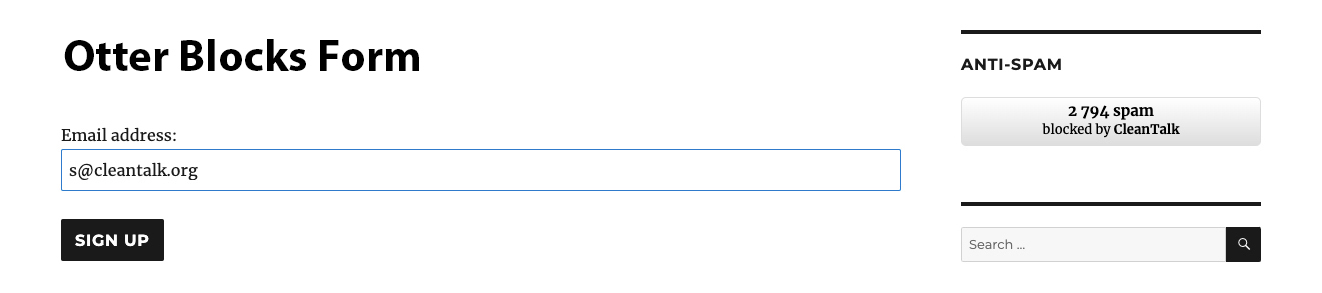
    You can test the work of Anti-Spam protection for your Contact Forms by using a test email s @ cleantalk.org (without spaces). First, open the form in an Incognito browser tab. Fill in all the required form fields and send a form. After submitting the form, you will see a block message about the block on the form submission.

    otter blocks forms
    otter blocks forms

    If you have any questions, add a comment and we will be happy to help you.
    Create your CleanTalk account – Register now and protect your Contact Forms from spam in 5 minutes

    Update

    The protection works only for website visitors, not for website admins. Be sure to test the form protection using Incognito mode.

    Additional features

    • CleanTalk protects all forms at once: comments, registrations, feedbacks, contacts, reviews.
    • Installation takes about 1-2 minutes.
    • Smart 99% protection against spambots.
    • Always online – 24/7 technical support.
    • Logs, SpamFireWall, personal lists, country filters, stop-words, and many others.

    Discover the complete list of CleanTalk Anti-Spam plugin features here.

  • Kadence Blocks Advanced Spam Protection for WordPress

    Kadence Blocks Advanced Spam Protection for WordPress

    CleanTalk added spam protection for Kadence Blocks Advanced Platform using direct form integration. So in case, you prefer using this platform be sure to use the most effective Anti-Spam plugin. Read the guide below and learn 4 steps to protect all your contact forms from spam.

    Once the CleanTalk Anti-Spam plugin is installed it starts to protect all of the existing forms on your WordPress website. It may not only be Kadence Blocks Advanced but also many others.

    Download CleanTalk Anti-Spam plugin | Download Kadence Blocks Advanced 

    How to install CleanTalk Anti-Spam plugin

    To install the Anti-Spam plugin, go to your WordPress admin panelPluginsAdd New.

    Then enter «CleanTalk» in the search box and click the Install button for «Spam protection, Anti-Spam, FireWall by CleanTalk».

    After installing the plugin, click the «Activate»‎ button.

    After it is done go to the plugin settings and click the «Get Access Key Automatically» button. Then just click the «Save Settings»‎ button.

    That’s it! From now you How to completely protect your Contact Forms from spam.

    How to check Kadence Blocks Advanced Spam Protection

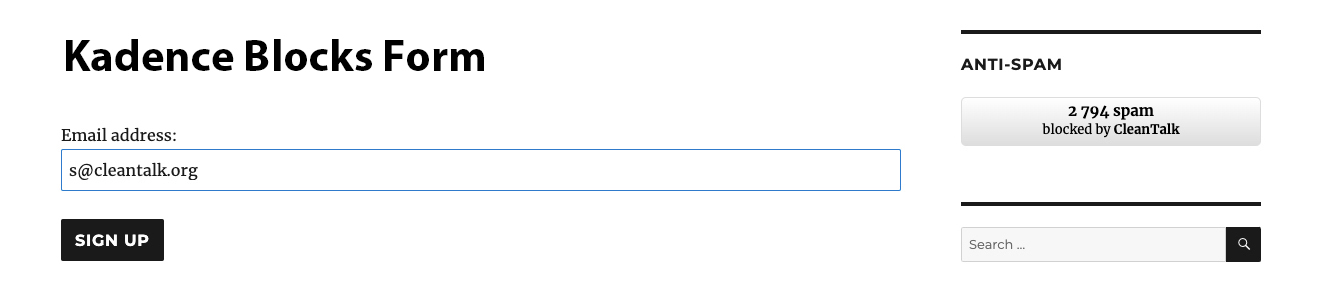
    You can test the work of Anti-Spam protection for your Contact Forms by using a test email s @ cleantalk.org (without spaces). First, open the form in an Incognito browser tab. Fill in all the required form fields and send a form. After submitting the form, you will see a block message about the block on the form submission.

    kadence forms
    kadence forms

    If you have any questions, add a comment and we will be happy to help you.
    Create your CleanTalk account – Register now and protect your Contact Forms from spam in 5 minutes

    Update

    The protection works only for website visitors, not for website admins. Be sure to test the form protection using Incognito mode.

    Additional features

    • CleanTalk protects all forms at once: comments, registrations, feedbacks, contacts, reviews.
    • Installation takes about 1-2 minutes.
    • Smart 99% protection against spambots.
    • Always online – 24/7 technical support.
    • Logs, SpamFireWall, personal lists, country filters, stop-words, and many others.

    Discover the complete list of CleanTalk Anti-Spam plugin features here.

  • LearnPress Spam Protection for WordPress

    LearnPress Spam Protection for WordPress

    CleanTalk added spam protection for LearnPress Forms using direct form integration. So in case, you prefer using this type of contact forms be sure to use the most effective Anti-Spam plugin. Read the guide below and learn 4 steps to protect all your contact forms from spam.

    LearnPress
    LearnPress

    Once the CleanTalk Anti-Spam plugin is installed it starts to protect all of the existing forms on your WordPress website. It may not only be LearnPress Forms but also many others.

    Download CleanTalk Anti-Spam plugin | Download LearnPress 

    How to install CleanTalk Anti-Spam plugin

    To install the Anti-Spam plugin, go to your WordPress admin panelPluginsAdd New.

    Then enter «CleanTalk» in the search box and click the Install button for «Spam protection, Anti-Spam, FireWall by CleanTalk».

    After installing the plugin, click the «Activate»‎ button.

    After it is done go to the plugin settings and click the «Get Access Key Automatically» button. Then just click the «Save Settings»‎ button.

    That’s it! From now you How to completely protect your Contact Forms from spam.

    How to check LearnPress Forms Spam Protection

    You can test the work of Anti-Spam protection for your Contact Forms by using a test email s @ cleantalk.org (without spaces). First, open the form in an Incognito browser tab. Fill in all the required form fields and send a form. After submitting the form, you will see a block message about the block on the form submission.

    2
    2

    If you have any questions, add a comment and we will be happy to help you.
    Create your CleanTalk account – Register now and protect your Contact Forms from spam in 5 minutes

    Update

    The protection works only for website visitors, not for website admins. Be sure to test the form protection using Incognito mode.

    Additional features

    • CleanTalk protects all forms at once: comments, registrations, feedbacks, contacts, reviews.
    • Installation takes about 1-2 minutes.
    • Smart 99% protection against spambots.
    • Always online – 24/7 technical support.
    • Logs, SpamFireWall, personal lists, country filters, stop-words, and many others.

    Discover the complete list of CleanTalk Anti-Spam plugin features here.

  • KulaHub Spam Protection for WordPress

    KulaHub Spam Protection for WordPress

    CleanTalk added spam protection for KulaHub marketing and CRM platform using direct form integration. So in case, you prefer using this platform be sure to use the most effective Anti-Spam plugin. Read the guide below and learn 4 steps to protect all your contact forms from spam.

    Once the CleanTalk Anti-Spam plugin is installed it starts to protect all of the existing forms on your WordPress website. It may not only be KulaHub forms but also many others.

    Download CleanTalk Anti-Spam plugin | Download KulaHub 

    How to install CleanTalk Anti-Spam plugin

    To install the Anti-Spam plugin, go to your WordPress admin panelPluginsAdd New.

    Then enter «CleanTalk» in the search box and click the Install button for «Spam protection, Anti-Spam, FireWall by CleanTalk».

    After installing the plugin, click the «Activate»‎ button.

    After it is done go to the plugin settings and click the «Get Access Key Automatically» button. Then just click the «Save Settings»‎ button.

    That’s it! From now you How to completely protect your Contact Forms from spam.

    How to check KulaHub Spam Protection

    You can test the work of Anti-Spam protection for your Contact Forms by using a test email s @ cleantalk.org (without spaces). First, open the form in an Incognito browser tab. Fill in all the required form fields and send a form. After submitting the form, you will see a block message about the block on the form submission.

    kulahub forms
    kulahub forms

    If you have any questions, add a comment and we will be happy to help you.
    Create your CleanTalk account – Register now and protect your Contact Forms from spam in 5 minutes

    Update

    The protection works only for website visitors, not for website admins. Be sure to test the form protection using Incognito mode.

    Additional features

    • CleanTalk protects all forms at once: comments, registrations, feedbacks, contacts, reviews.
    • Installation takes about 1-2 minutes.
    • Smart 99% protection against spambots.
    • Always online – 24/7 technical support.
    • Logs, SpamFireWall, personal lists, country filters, stop-words, and many others.

    Discover the complete list of CleanTalk Anti-Spam plugin features here.

  • Attention CleanTalk Anti-Spam Users! Important Update Regarding Public Widget

    Attention CleanTalk Anti-Spam Users! Important Update Regarding Public Widget

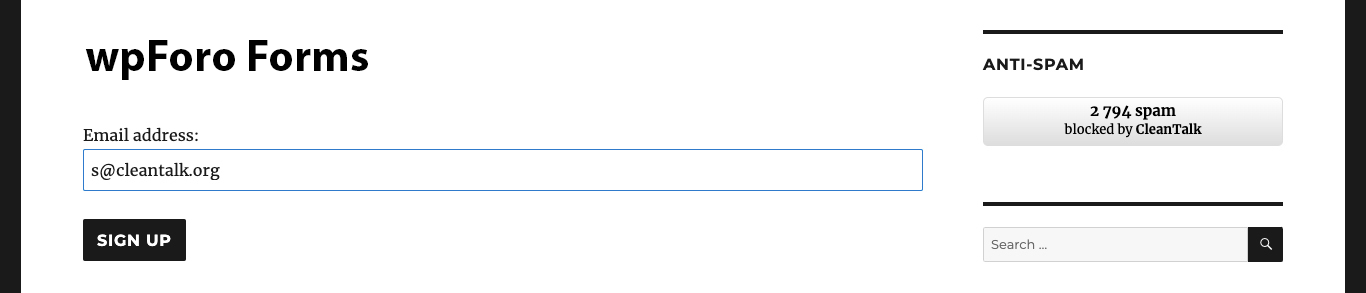
    We’re writing to inform you that the public widget for CleanTalk Anti-Spam will be removed from the plugin and no longer be supported after August 1, 2024.

    What does this mean for you?

    The public widget, which is typically displayed on public pages and demonstrates the number of spam attacks, is no longer considered compatible with modern WordPress development practices and has seen low user demand. As a result, we’re removing it from the plugin to ensure optimal performance, streamline the user experience, and focus on core functionalities. This removal also helps us stay aligned with future WordPress versions.

    What action should you take?

    While the public widget will no longer be available after August 1, 2024, CleanTalk Anti-Spam’s core functionality remains unchanged and will continue to provide robust spam protection for your WordPress site.

    Here’s what you can do:

    1. No action required: If you don’t utilize the public widget, you don’t need to take any further action. CleanTalk Anti-Spam will continue to operate seamlessly.
    2. Review alternative widget usage: If you’ve been using the public widget, we recommend exploring alternative methods for interacting with CleanTalk Anti-Spam’s features. These may include accessing settings pages or utilizing shortcodes.

    Affiliate Program Guidance

    If you’ve been using the public widget to promote the CleanTalk AntiSpam Affiliate program, we recommend transitioning to using Affiliate links along with our banner. This method provides a more streamlined and effective way to promote the program.

    To get started with Affiliate links:

    1. Access your CleanTalk Affiliate Dashboard: Log in to your CleanTalk account and navigate to the Affiliate program section.
    2. Generate your Affiliate link: Your unique Affiliate link is provided within the dashboard. Copy this link for use in your promotional materials.
    3. Utilize our Affiliate banner: We offer a visually appealing banner that you can include alongside your Affiliate link. Download the banner from the Affiliate dashboard.
    4. Promote your Affiliate link and banner: Share your Affiliate link and banner on your website, social media channels, or other relevant platforms. When a visitor clicks on your link and signs up for CleanTalk AntiSpam, you’ll earn a commission.

    By transitioning to Affiliate links and our banner, you can continue to effectively promote the CleanTalk AntiSpam Affiliate program while aligning with the updated public widget removal.

    We understand that change can be challenging, and we appreciate your understanding as we work to enhance the CleanTalk Anti-Spam experience.

    If you have any questions or concerns, please don’t hesitate to contact our support team.

    Thank you for being a valued CleanTalk Anti-Spam user!

  • CleanTalk SpamFireWall Sets New Record: Blocking 777 Million Bot Requests in April

    CleanTalk SpamFireWall Sets New Record: Blocking 777 Million Bot Requests in April

    In April, CleanTalk SpamFireWall achieved a significant milestone by blocking an impressive 777 million bot requests. This accomplishment underscores our commitment to enhancing digital security through cutting-edge technology and vigilant monitoring.

    This feat serves as a reminder of the persistent threat posed by automated bots in today’s interconnected world. SpamFireWall plays a crucial role in safeguarding online platforms from exploitation by swiftly identifying and neutralizing suspicious activities.

    We owe this success to our team’s dedication and our customers’ support. Their invaluable feedback and collaboration have been instrumental in achieving this remarkable milestone.

    You can find our latest spam stats here for those interested in more detailed statistics on bot activity and SpamFireWall’s performance.

    SpamFireWall, an optional feature of the CleanTalk Anti-Spam Plugin, enhances website security by blocking access for spam-active IP addresses, effectively denying them entry (via blocking GET requests). By intercepting spambots before they reach the website, SpamFireWall prevents the loading of pages for these malicious bots. This action alleviates the burden on your web server, reducing the load on both the database and server resources.

    Moving forward, SpamFireWall remains committed to staying at the forefront of cybersecurity. We will continue to innovate and adapt to emerging threats to ensure a safer digital landscape for all users.

    This achievement in April reflects our unwavering resolve to combat cyber threats and uphold the highest standards of digital security. Together, we will continue to protect online ecosystems and instill confidence in users worldwide.