

If you use Kadence Blocks to build forms on your WordPress website, spam can quickly become a serious problem. Public contact forms are often targeted by bots, crawlers, automated scripts, and human-like spam submissions.
These unwanted messages may include fake inquiries, suspicious links, promotional offers, irrelevant SEO pitches, adult content, crypto spam, or repeated messages from disposable email addresses. Over time, spam can make it harder to notice real leads and important customer requests.
This guide explains how to protect Kadence Blocks forms from spam using Anti-Spam by CleanTalk for WordPress, together with additional Kadence form protection options such as CAPTCHA, Cloudflare Turnstile, hCaptcha, honeypot protection, and WordPress Disallowed Comment Keys.

Kadence Blocks and WordPress Forms
Kadence Blocks is a WordPress block toolkit that extends the default Gutenberg editor with additional design, layout, and content blocks. It allows website owners to build pages, sections, and forms directly inside the WordPress block editor.
Kadence Blocks forms are often used for:
- contact forms
- lead generation forms
- support requests
- booking inquiries
- consultation requests
- simple application forms
- customer feedback forms
The advantage of Kadence Blocks is that users can create forms without relying on a separate heavy form builder. But the same accessibility that makes these forms convenient for real visitors can also make them attractive to spam bots.
Once a Kadence form is published on a public page, automated scripts can find it, submit it, and send unwanted messages through it.
As WordPress.org shows, Kadence Blocks – Page Builder Toolkit for Gutenberg Editor is currently used on over 600,000 websites and has 329 user reviews with an average rating of 4.8.
Plugin Homepage at WordPress.org | Documentation at Kadence Blocks
Why Kadence Forms Attract Spam
Kadence Blocks is not the reason spam happens. Spam is a common problem for almost every public WordPress form.
Bots and spammers usually look for exposed forms that can be used to send messages, promote links, test email addresses, or abuse website communication channels.
Common Kadence form spam patterns include:
- fake names and fake email addresses
- repeated promotional messages
- suspicious URLs inside the message field
- SEO, marketing, crypto, adult, or software-related spam
- irrelevant business offers
- fake support requests
- disposable email addresses
- repeated submissions from the same IPs or networks
- human-written spam that passes basic bot checks
This is especially important for business websites. If spam reaches the site owner’s inbox, CRM, database, or notification system, it can waste time and make real inquiries harder to manage.
That is why Kadence Blocks forms should have a reliable anti-spam layer working in the background.
Anti-Spam by CleanTalk
The main tool we are going to use here is the Anti-Spam plugin by CleanTalk.
CleanTalk is a cloud-based anti-spam service for WordPress websites. It works without traditional CAPTCHA challenges and helps block spam in forms, comments, registrations, subscriptions, and other WordPress submission points.
CleanTalk is useful for Kadence Blocks because it works as a broader site-level anti-spam layer. Instead of relying only on a visible challenge like CAPTCHA, CleanTalk checks submission signals such as sender reputation, email, IP, behavior, and spam patterns before the request is treated as legitimate.
CleanTalk also lists Kadence Forms among its direct web form integrations, and its documentation explains that direct integrations can improve compatibility, spam protection quality.
According to WordPress.org, Anti-Spam by CleanTalk for WordPress has over 200,000 active installations, with 3,168 reviews and an average rating of 4.7.
Plugin Homepage at cleantalk.org | Latest release at GitHub.com | Website cleantalk.org
Install the CleanTalk Anti-Spam plugin
Show Instructions
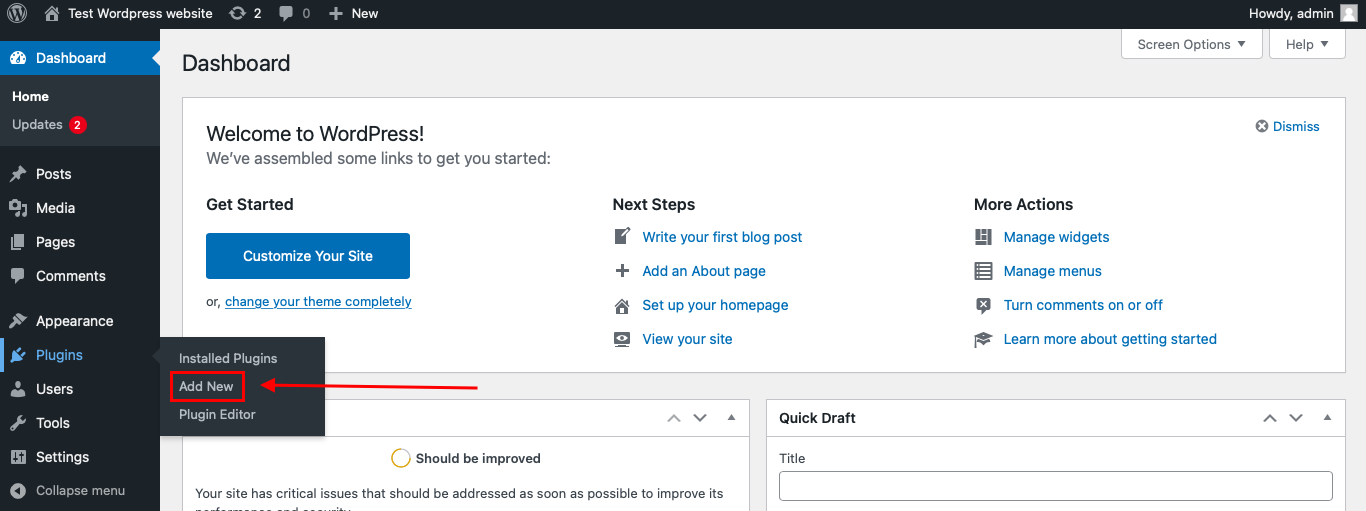
To install the Anti-Spam plugin, go to your WordPress admin panel → Plugins → Add New.
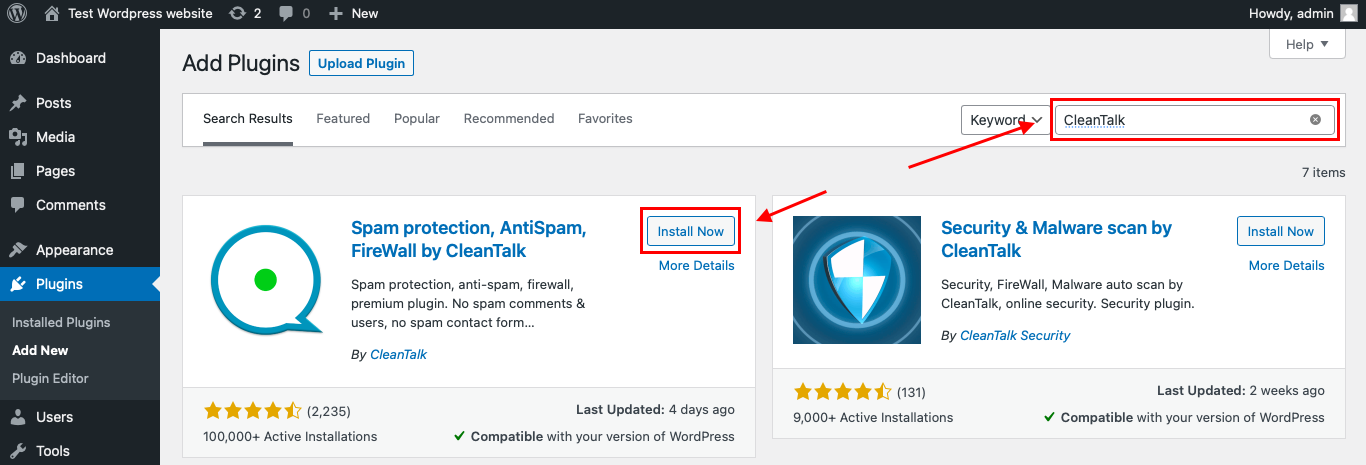
Then enter «СleanTalk» in the search box and click the Install button for «Spam protection, Anti-Spam, FireWall by CleanTalk».
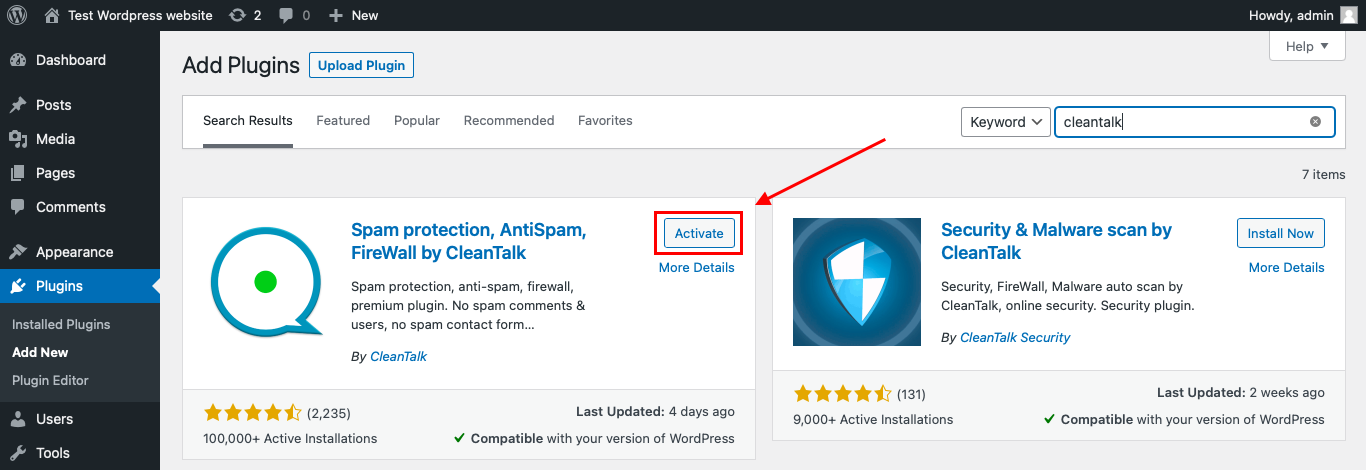
After installing the plugin, click the «Activate» button.
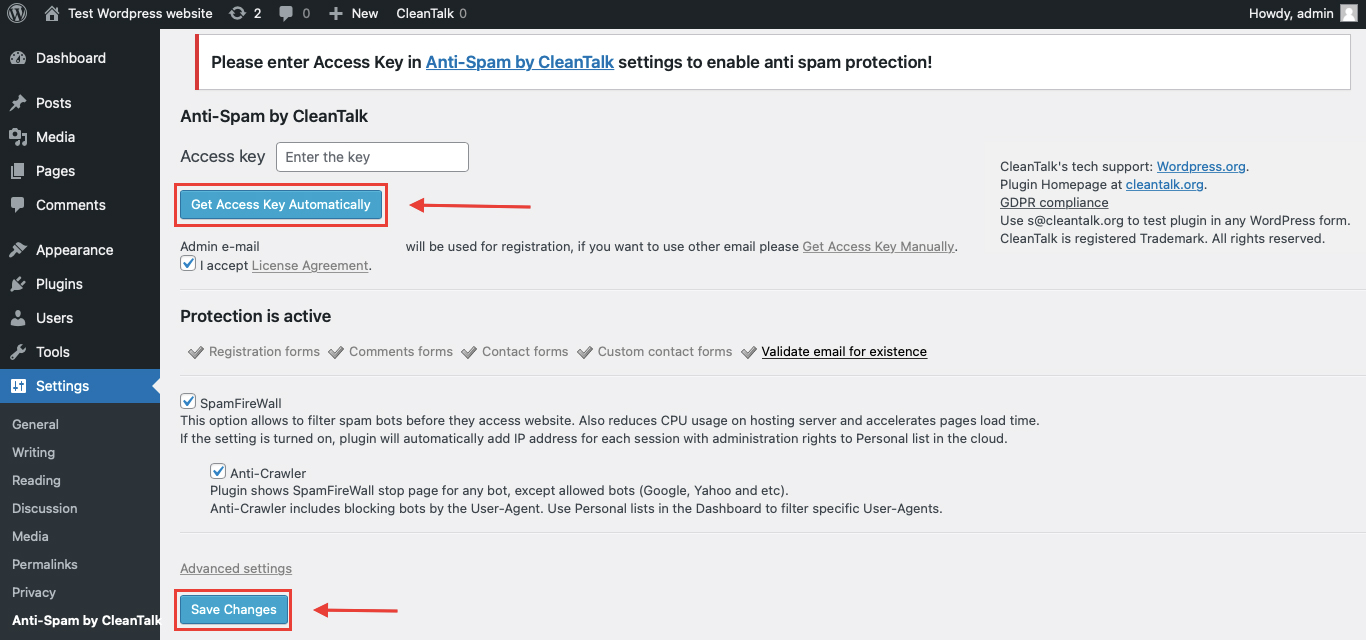
After it is done go to the plugin settings and click the «Get Access Key Automatically» button. Then just click the «Save Settings» button.
That’s it! From now you know how to completely protect your HivePress from spam.
Once that is done, the site has an anti-spam layer working in the background. This helps reduce suspicious form activity before unwanted messages reach the site owner’s inbox, CRM, database, or any connected Kadence form workflow.
How to Check Kadence Blocks Spam Protection
After installing the plugin, it is important to test that spam protection is working correctly.
Use the test email:
stop_email@example.com
To test the form:
- Open a page with a Kadence Blocks form.
- Use an Incognito or private browser window.
- Fill in the form fields.
- Use stop_email@example.com as the sender email.
- Submit the form.
If the anti-spam protection is working correctly, the submission should be blocked.
You may see a message similar to:
Forbidden. Sender blacklisted. Anti-Spam by CleanTalk.
It is better to test protection in an Incognito window because WordPress admins may be treated differently from regular website visitors. Testing as a normal visitor helps confirm that protection works for public form submissions.
Cloud Dashboard and Monitoring
CleanTalk does not only block suspicious submissions. It also gives website owners access to logs and request details in the CleanTalk Cloud Dashboard.
This is useful because spam problems are not always random. A website may receive repeated spam from the same IPs, countries, email patterns, keywords, or networks.
In the Cloud Dashboard, site owners can review:
- approved and blocked submissions
- sender IP addresses
- sender email addresses
- submission date and time
- page URL where the form was submitted
- spam check result
- reason for blocking or approving a request
- personal Allow lists and Block lists
This helps website owners understand what kind of spam is targeting their Kadence forms and adjust protection if needed.
For example, if a real user is blocked by mistake, the site owner can review the log and add the sender to an Allow list. If repeated spam comes from the same sender, country, network, or pattern, it can be handled more precisely.
Additional Spam Protection Options for Kadence Forms
CleanTalk can work as the main anti-spam layer, but Kadence Blocks also supports several additional protection methods.
These options can be useful depending on the website’s risk level, privacy requirements, and user experience priorities.
Google reCAPTCHA
Kadence Form Advanced supports Google reCAPTCHA. Website owners can add a CAPTCHA block to a Kadence form and connect it using the Site Key and Secret Key from Google.
Google reCAPTCHA is a familiar option for many WordPress users. It can help reduce automated spam submissions, especially when bots are targeting public forms.
However, some website owners prefer not to use Google reCAPTCHA because of privacy or GDPR-related concerns. For that reason, reCAPTCHA may not be the preferred option for every website.
Cloudflare Turnstile
Cloudflare Turnstile is another option for Kadence form protection. It can be used as a CAPTCHA-style verification method, but it is generally designed to be less intrusive than traditional CAPTCHA challenges.
Turnstile can be useful when the website owner wants an additional bot protection layer without making the form experience too difficult for real visitors.
This can be a good option for lead generation forms, landing pages, and conversion-focused websites where user experience matters.
hCaptcha
Kadence Form Advanced also supports hCaptcha.
hCaptcha can be used as an alternative to Google reCAPTCHA. Like other CAPTCHA-style tools, it helps verify that a form submission is likely coming from a real user rather than a bot.
This option may be useful for website owners who want CAPTCHA-style protection but prefer not to rely on Google reCAPTCHA.
Honeypot Protection
Honeypot protection is a simple anti-spam method that adds a hidden field to a form. Real users do not see or fill in this field, but bots may complete it automatically. If the hidden field is filled in, the submission can be treated as spam.
Honeypot protection is useful because it does not add visible friction for real visitors.
However, it should not be treated as a complete anti-spam solution. Modern bots can bypass basic honeypot checks, and human-written spam will not be stopped by this method.
For this reason, honeypot protection works best as a supporting layer, not as the only protection method.
WordPress Disallowed Comment Keys
WordPress has a built-in setting called Disallowed Comment Keys. It allows website owners to block submissions containing specific words, phrases, URLs, email addresses, IP addresses, or other patterns.
Kadence Advanced Forms can be connected with this WordPress feature using a custom filter.
This can be helpful when spam messages contain repeated words or phrases, such as:
- specific spam URLs
- repeated adult keywords
- crypto-related spam terms
- suspicious promotional phrases
- repeated fake company names
- unwanted email domains
However, this method requires careful setup. If the blocked words are too broad, real submissions may be rejected by mistake.
Disallowed Comment Keys are best used for repeated spam patterns, not as the main anti-spam layer.
Comparison of Anti-Spam Methods for Kadence Blocks
| Method | Main Role | Strengths | Limitations | Best Use Case |
|---|---|---|---|---|
| CleanTalk | Main anti-spam layer | Works in the background, no CAPTCHA required, checks suspicious submissions before they reach workflows | Requires plugin setup and monitoring through logs | Most WordPress sites using Kadence forms |
| Google reCAPTCHA | CAPTCHA-style bot protection | Familiar and widely used | May add friction and raise privacy/GDPR-related concerns for some website owners | Sites already using Google services |
| Cloudflare Turnstile | CAPTCHA alternative | Less intrusive, good for user experience | Still mainly a bot verification layer | Lead generation and conversion-focused forms |
| hCaptcha | CAPTCHA alternative | Useful alternative to Google reCAPTCHA | Requires external keys and correct setup | Privacy-conscious CAPTCHA setups |
| Honeypot | Basic hidden-field protection | Invisible to users, simple, low friction | Not enough against advanced bots or human spam | Low-risk forms with light spam volume |
| Disallowed Comment Keys | Manual keyword and pattern blocking | Good for repeated spam words, links, or phrases | Requires manual maintenance and careful keyword selection | Recurring spam patterns |
For most WordPress websites, the best approach is layered protection. CleanTalk can be used as the main anti-spam layer, while CAPTCHA, Turnstile, hCaptcha, honeypot, or Disallowed Comment Keys can be added when extra control is needed.
Frequently Asked Questions
Why am I getting spam through Kadence Blocks forms?
Kadence Blocks forms are public WordPress forms. Once a form is published on a page, bots and spammers can find it and try to submit unwanted messages.
This can happen even if the form is simple and only has a few fields. Spam bots often scan websites automatically and look for any form that can be submitted.
Is Kadence Blocks causing the spam?
No. Kadence Blocks is not the cause of spam.
Spam happens because public forms are common targets for automated scripts and manual spammers. Any WordPress form can receive spam if it is not protected properly.
Is honeypot protection enough for Kadence forms?
Honeypot protection can help stop simple bots, but it is usually not enough as the only protection method.
Some bots can detect and avoid honeypot fields. Human-written spam can also pass honeypot protection because a real person is filling out the form.
For better protection, honeypot should be used together with a stronger anti-spam layer.
Do I need Google reCAPTCHA for Kadence Blocks forms?
Not always.
Google reCAPTCHA can help reduce bot submissions, but it is not the only option. Some website owners avoid it because of privacy, user experience, or GDPR-related concerns.
Alternatives include CleanTalk, Cloudflare Turnstile, hCaptcha, honeypot protection, and Disallowed Comment Keys.
Can I protect Kadence forms without CAPTCHA?
Yes.
CleanTalk works as a no-CAPTCHA anti-spam solution. It checks submissions in the background and helps block suspicious form activity before unwanted messages reach the inbox, CRM, database, or connected workflows.
This allows real visitors to submit forms without solving visible CAPTCHA challenges.
What is the best anti-spam setup for Kadence Blocks?
For most websites, the best setup is:
CleanTalk as the main anti-spam layer + optional Turnstile, hCaptcha, honeypot, or Disallowed Comment Keys if extra protection is needed.
This gives the website both background spam filtering and additional control for higher-risk forms.
Can CleanTalk protect all Kadence Blocks forms automatically?
After installation and activation, CleanTalk adds an anti-spam layer to supported WordPress forms, including supported Kadence Blocks forms.
However, it is always a good idea to test the form after setup using a test email such as:
This confirms that protection is working correctly on the actual form.
What should I do if a real user is blocked?
Check the CleanTalk Anti-Spam logs in the Cloud Dashboard.
The logs can show why the submission was blocked. If the request was legitimate, the sender can be added to an Allow list or the settings can be adjusted.
It is better to review the logs and fine-tune the setup than to disable anti-spam protection completely.
What should I do if spam still gets through?
First, check the CleanTalk logs to understand what was approved and why.
Then consider adding extra protection, such as:
- Cloudflare Turnstile
- hCaptcha
- Google reCAPTCHA
- honeypot protection
- WordPress Disallowed Comment Keys
- stricter rules for specific countries, email domains, IPs, or keywords
Spam protection is most effective when it combines background filtering with additional rules for repeated spam patterns.
My Kadence form emails go to spam. Is that the same problem?
No. This is a different issue.
There are two separate problems:
Form spam means unwanted messages are submitted through the form.
Email deliverability problems mean real form notifications are not reaching the inbox or are landing in the spam folder.
If real Kadence form notifications go to spam, check your email configuration, SMTP setup, sender email, Reply-To settings, SPF, DKIM, and DMARC records.
Anti-spam protection helps block unwanted form submissions. Email deliverability settings help make sure legitimate form notifications arrive correctly.
Can WordPress Disallowed Comment Keys block Kadence form spam?
Yes, they can help when spam contains repeated words, phrases, URLs, email addresses, or IPs.
However, this method should be used carefully. If the blocked keywords are too general, legitimate messages may also be rejected.
Disallowed Comment Keys are best used as an additional layer for known spam patterns.
Should I use CleanTalk together with CAPTCHA?
You can, but it is not always necessary.
For many websites, CleanTalk alone may be enough to reduce Kadence form spam. For higher-risk forms or websites receiving heavy spam, adding Turnstile, hCaptcha, reCAPTCHA, honeypot protection, or Disallowed Comment Keys can create a stronger layered setup.
Recommended Anti-Spam Setup for Kadence Blocks
| Website Type | Recommended Setup | Why |
|---|---|---|
| Standard business website | CleanTalk | Background protection without CAPTCHA |
| Lead generation website | CleanTalk + Turnstile or hCaptcha | Stronger protection while keeping user experience smooth |
| Privacy-conscious website | CleanTalk + hCaptcha or Turnstile | Reduces reliance on Google reCAPTCHA |
| High-spam contact page | CleanTalk + CAPTCHA + Disallowed Comment Keys | Adds multiple layers against bots and repeated spam patterns |
| Website with repeated keyword spam | CleanTalk + Disallowed Comment Keys | Blocks suspicious senders and repeated spam phrases |
| Low-risk personal website | CleanTalk + honeypot | Simple setup with minimal user friction |
| Website with email delivery problems | CleanTalk + SMTP/email authentication review | Separates spam filtering from email deliverability |
Final Thoughts
Kadence Blocks makes it easy to create useful WordPress forms, but every public form needs reliable spam protection.
Honeypot protection and CAPTCHA can help, but they are not always enough on their own. Some spam comes from bots, some from human-assisted submissions, and some from repeated suspicious senders that require stronger filtering.
For most WordPress websites using Kadence Blocks forms, the best solution is to install Anti-Spam by CleanTalk as the main background anti-spam layer. Then, if needed, add Turnstile, hCaptcha, Google reCAPTCHA, honeypot protection, or Disallowed Comment Keys for extra control.
This layered setup helps reduce unwanted submissions, protect inbox quality, and keep Kadence forms easy for real visitors to use.
Kadence Blocks Spam Protection: How to Protect WordPress Forms from Spam
If you use Kadence Blocks to build forms on your WordPress website, spam can quickly become a serious problem. Public contact forms are often targeted by bots, crawlers, automated scripts, and human-like spam submissions.
These unwanted messages may include fake inquiries, suspicious links, promotional offers, irrelevant SEO pitches, adult content, crypto spam, or repeated messages from disposable email addresses. Over time, spam can make it harder to notice real leads and important customer requests.
This guide explains how to protect Kadence Blocks forms from spam using Anti-Spam by CleanTalk for WordPress, together with additional Kadence form protection options such as CAPTCHA, Cloudflare Turnstile, hCaptcha, honeypot protection, and WordPress Disallowed Comment Keys.
