Stop spam without frustrating your visitors

Create your CleanTalk account and start blocking spam — no CAPTCHA challenges and no impact on visitors.

Security Block Lists

CleanTalk Account

No credit card required • Setup takes less than a minute • Your temporary password will be sent by email.

Tag: featured

  • Flamingo Spam Protection in 2026. How to Protect Contact Form 7 Messages and Stored Submissions

    Flamingo Spam Protection in 2026. How to Protect Contact Form 7 Messages and Stored Submissions

     If you use Flamingo to store contact form submissions in WordPress, spam will eventually become a real issue. Fake messages, bot submissions, promotional junk, and low-quality inquiries can quickly pile up in your database and make it harder to work with genuine submissions.

    This guide explains how to set up Flamingo spam protection using CleanTalk as the main filtering layer on your website, along with additional tools such as Akismet, Cloudflare Turnstile, Google reCAPTCHA, Contact Form 7’s disallowed list, and other practical controls.

    This approach is relevant for websites that use Contact Form 7 as the form engine and Flamingo as the storage layer for inbound messages.

    Flamingo for Contact Form 7

    To begin, it helps to understand what Flamingo actually does.

    Flamingo is a WordPress plugin created for Contact Form 7 that saves submitted messages in the WordPress database. Once activated, it adds an interface in the admin panel where website owners can review, search, and manage stored messages later.

    This is especially useful because Contact Form 7 does not save submissions by default. Without Flamingo, an important message can be lost if email delivery fails or if the mail settings are not configured properly.

    In practice, Flamingo helps website owners:

    • keep a database copy of inbound messages
    • review past inquiries in the WordPress dashboard
    • search through saved submissions
    • preserve important communication even when email delivery is unreliable

    The same feature that makes Flamingo useful also creates its biggest weakness: it stores whatever gets through the form. If spam reaches the form, spam reaches Flamingo too. That is why a proper Flamingo spam protection setup matters from the start.

    Flamingo works hand in hand with Contact Form 7 because it stores messages submitted through Contact Form 7 forms. If you also want a broader guide focused on protecting the form layer itself, see our article on how to protect Contact Form 7 from spam:https://blog.cleantalk.org/how-to-protect-contactform7-from-spam/

    As WordPress.org shows, Flamingo is currently used on over 800,000 websites and has 118 user reviews with an average rating of 4.2.

    Plugin Homepage at WordPress.org | Documentation at Contact Form 7

    Why Flamingo Becomes a Spam Magnet

    Strictly speaking, Flamingo is not the source of the spam. It simply records what your public forms receive.

    But in real-world use, that distinction does not make much difference. If Contact Form 7 is exposed on a public website, spambots and low-quality submissions will eventually find it. Once that happens, Flamingo starts storing all that noise alongside legitimate inquiries.

    Typical examples include:

    • automated contact form submissions
    • irrelevant promotional messages
    • spam containing suspicious or malicious links
    • repeated junk inquiries that fill up the message list

    The more visible your website becomes, the more likely it is that those submissions will start accumulating.

    Anti-Spam by CleanTalk

    The main tool we’re going to use here is CleanTalk Anti-Spam.

    CleanTalk is a cloud-based anti-spam service for WordPress websites. In practical terms, it helps filter suspicious submissions before they are stored in Flamingo, checks sender reputation, detects automated abuse patterns, and reduces junk messages before they become part of your saved message history.

    That is especially important for Flamingo because the goal is not only to stop annoying emails. The larger issue is keeping your database clean and making sure stored submissions remain useful instead of becoming clutter.

    If real inquiries are buried under junk, Flamingo stops being an asset and starts becoming a maintenance problem.

    How CleanTalk Fits into the Flamingo Workflow

    Flamingo is usually used together with Contact Form 7, so the right place for protection is before the message is stored.

    That means the real focus is not Flamingo alone, but the submission flow that feeds it.

    If Contact Form 7 is running on WordPress and Flamingo is active, a site-level anti-spam layer can help block suspicious submissions before they are saved as inbound messages.

    If the website uses extra Contact Form 7 logic, custom handlers, or additional workflows tied to form submissions, the anti-spam check should still be placed before the message is fully processed and written to the database.

    That is the key principle: do not wait until spam appears inside Flamingo. Stop it earlier in the chain.

    Because of that, Flamingo spam protection should always be considered together with Contact Form 7 spam protection. For a more detailed guide focused specifically on the form layer, you can also read: https://blog.cleantalk.org/how-to-protect-contactform7-from-spam/

    According to WordPress.org, Anti-Spam by CleanTalk for WordPress has over 200,000 active installations, with thousands of reviews and an average rating around 4.7 out of 5.

    Plugin Homepage at cleantalk.org | Latest release at GitHub.com

    If Flamingo is being used together with Contact Form 7 on WordPress, the simplest option is to install the CleanTalk WordPress plugin.

    Install the CleanTalk Anti-Spam plugin

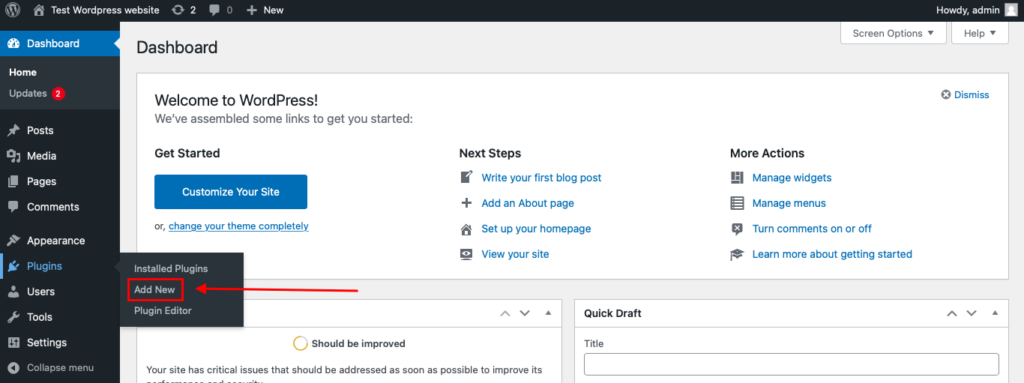
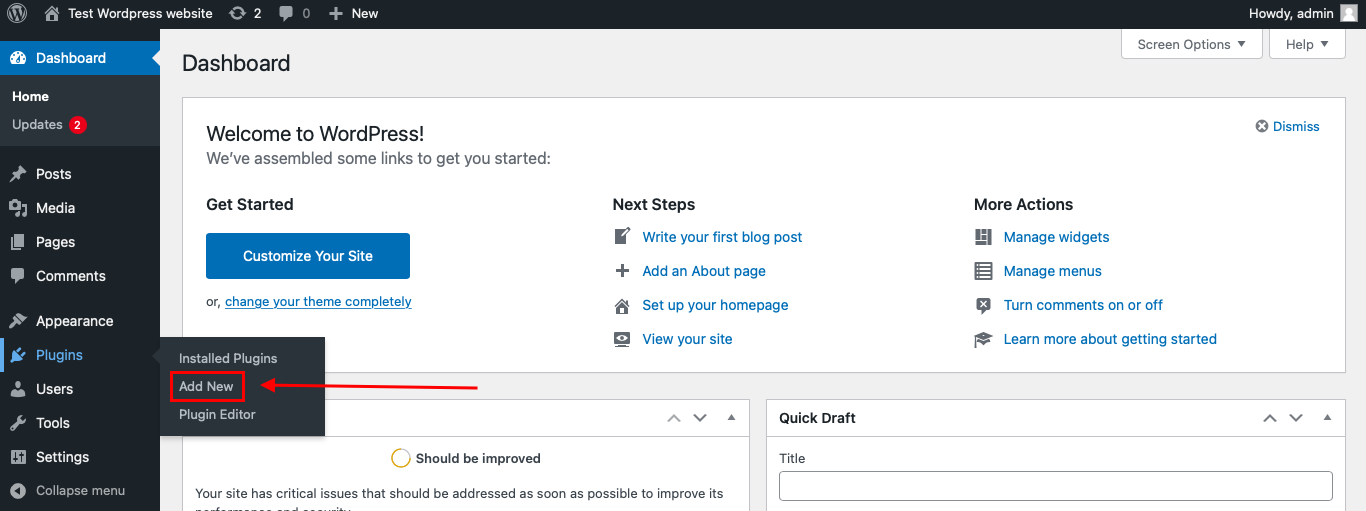
    To install the Anti-Spam plugin, go to your WordPress admin panelPluginsAdd New.

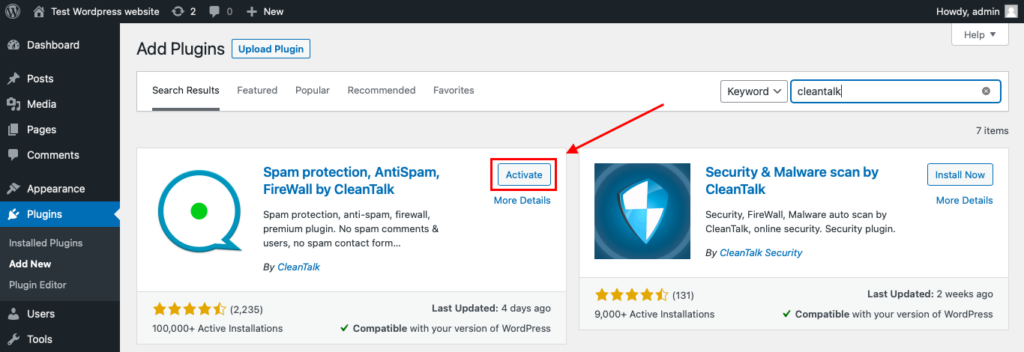
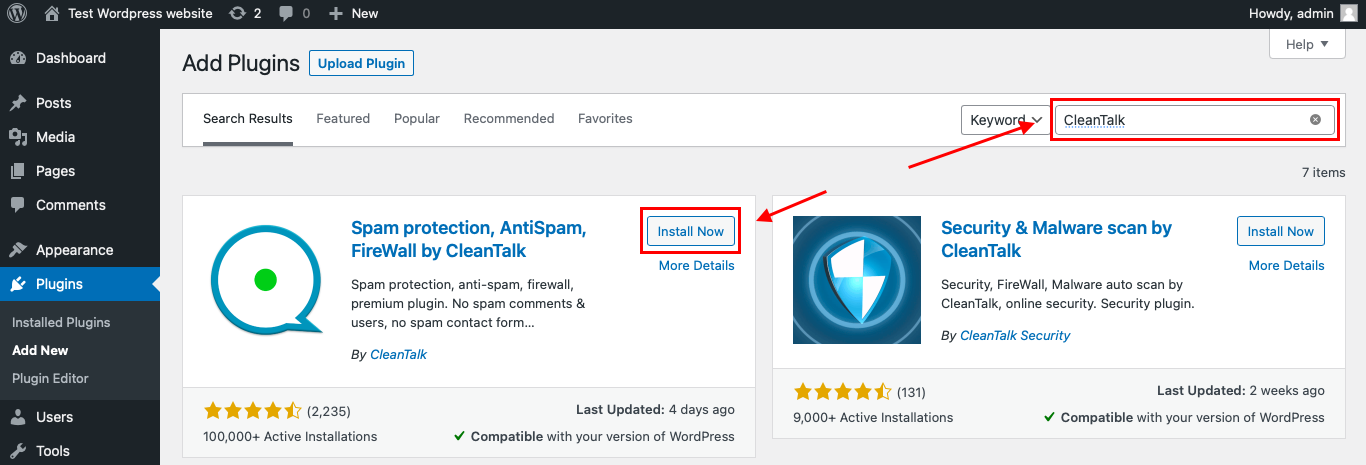
    Then enter «СleanTalk» in the search box and click the Install button for «Spam protection, Anti-Spam, FireWall by CleanTalk».
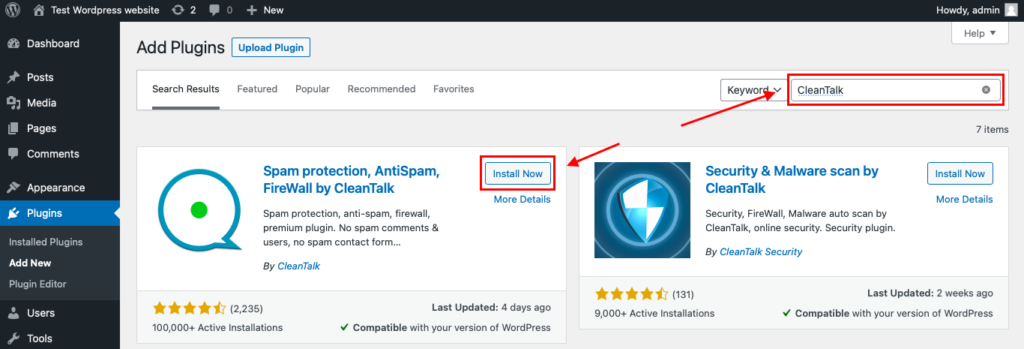
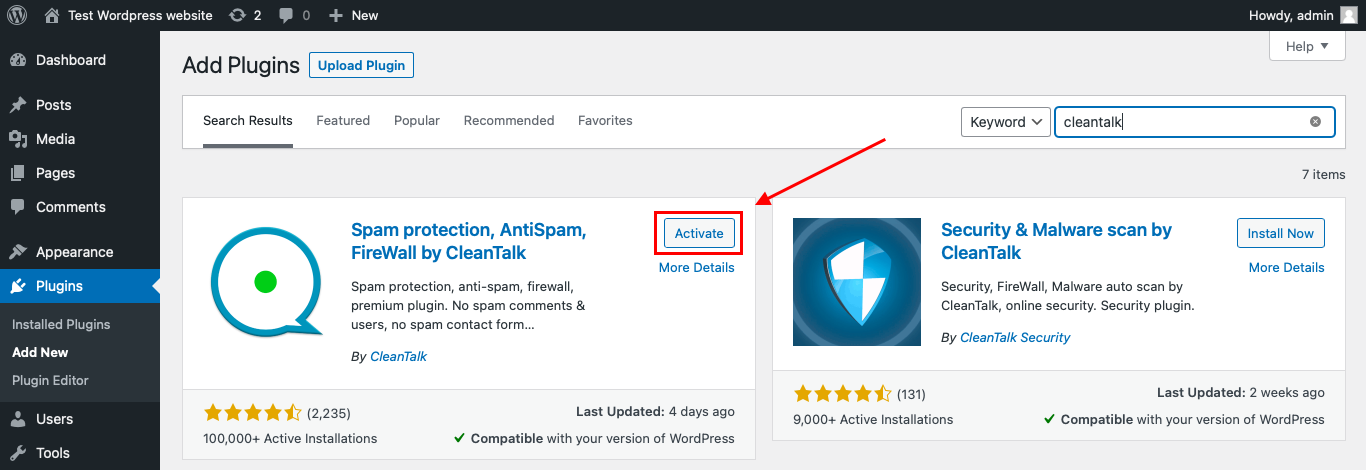
    After installing the plugin, click the «Activate»‎ button.

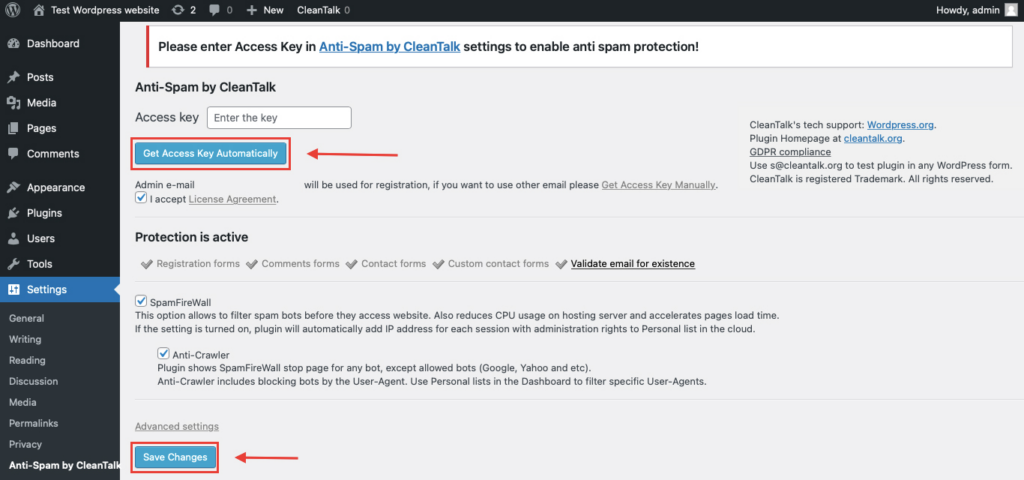
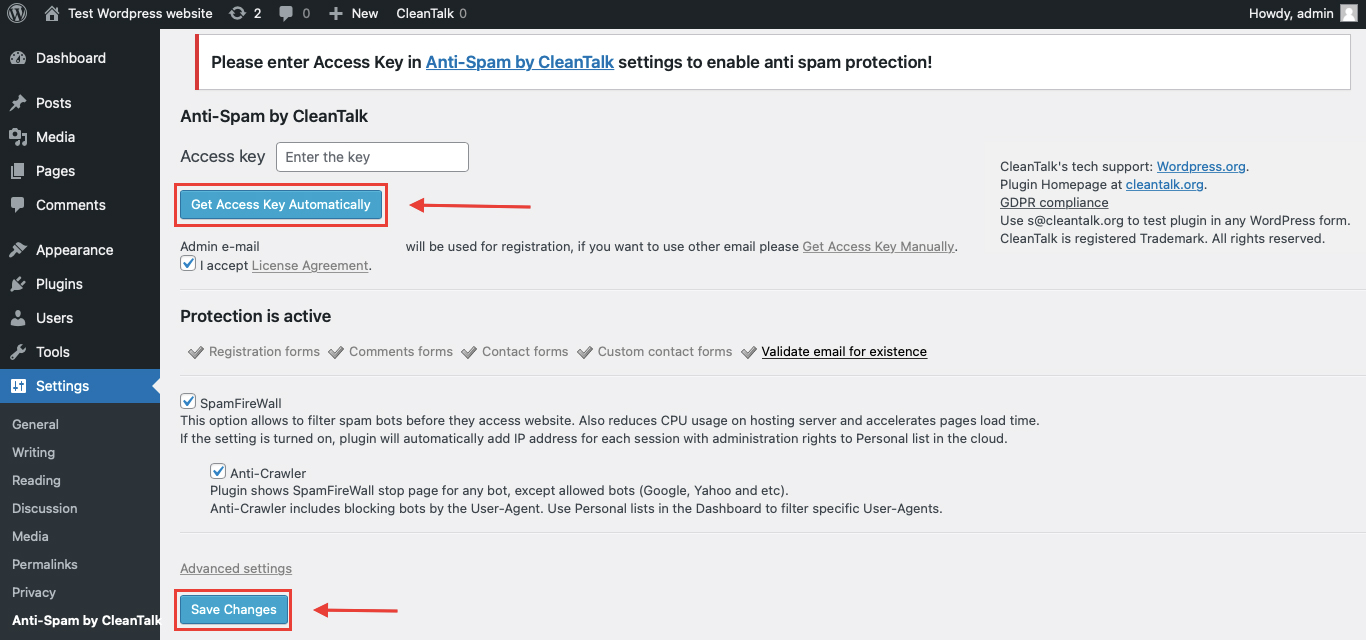
    After it is done go to the plugin settings and click the «Get Access Key Automatically» button. Then just click the «Save Settings»‎ button.

    That’s all –  Contact Form 7 are now protected From this moment,CleanTalk automatically protects the  Contact Form 7 registration form (REST route /wp-json/Contact Form 7press/v1/users/), and the Add Listing form used to submit new listings.
    You don’t need to paste any shortcodes – just use  Contact Form 7 as usual, and CleanTalk will filter spam in the background.

    Once that is done, the site has an anti-spam layer working in the background. This helps reduce suspicious form activity before unwanted messages ever reach Flamingo.

    Check if spam protection works with Contact Form 7 (CF7)

    The best way to text the spam protection by using a test email,

    stop_email@example.com

    1. Open a page with a Contact Form 7 (for example, the registration popup or the Add Listing form) in an Incognito / private browser tab.
    2. Fill out the Contact form using stop_email@example.com as sender’s email.
    3. Send the form.
    4. You should see a message from the Anti-Spam plugin confirming that a spam submission was blocked.

    *** Forbidden. Sender blacklisted. Anti-Spam by CleanTalk. ***
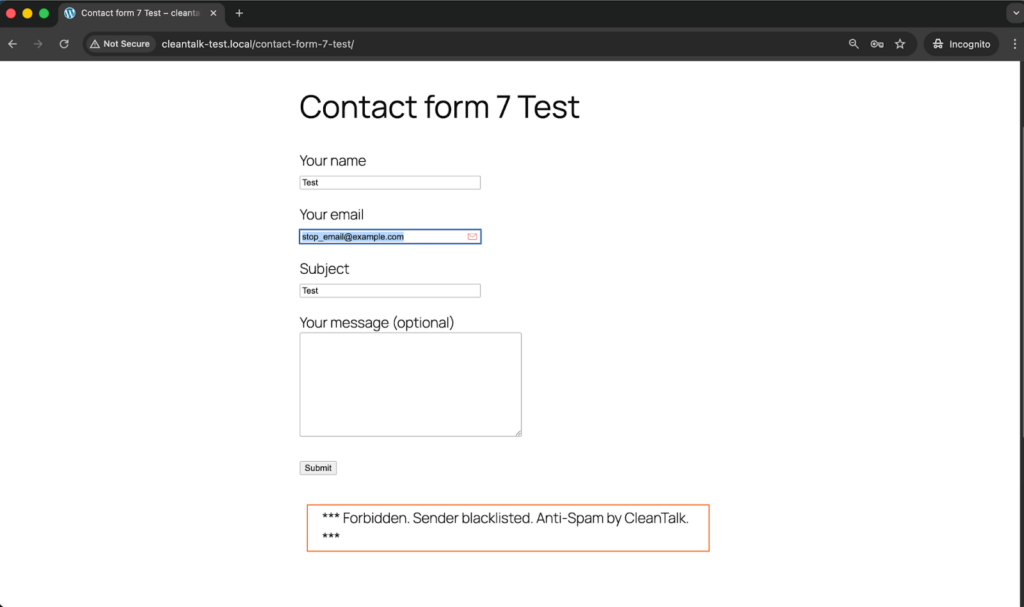
    This double check is important because visible blocking on the page and actual storage behavior in WordPress are not always the same thing.

    Cloud Dashboard and Monitoring

    Blocking spam is only part of the job. Good protection also gives you visibility.

    In the anti-spam dashboard, it is useful to review:

    • sender IP and email
    • submission time
    • source page
    • request status: denied or approved 
    • the likely reason a message was flagged

    This makes it easier to spot recurring spam waves, identify low-quality traffic sources, and understand which forms are attracting the most junk.

    That kind of visibility helps you improve the setup over time instead of relying on guesswork.

    Akismet, Cloudflare Turnstile, Google reCAPTCHA, and Disallowed List

    Besides CleanTalk, there are several other methods that can strengthen Flamingo and Contact Form 7 protection.

    Akismet

    Akismet is a familiar option for WordPress users and works well as an additional spam-filtering layer for Contact Form 7.

    It is especially useful when:

    • you want a Contact Form 7-compatible filtering option
    • Akismet is already active elsewhere on the site
    • you want another signal alongside your main anti-spam layer

    That said, Akismet works better as part of a broader setup than as the only safeguard on a website with serious spam traffic.

    Cloudflare Turnstile

    Turnstile is one of the best frontend protection options for modern contact forms.

    Its main advantages are:

    • little or no visible friction for visitors
    • a smoother experience than traditional image-based CAPTCHA flows
    • a good fit for contact pages where usability matters

    For Contact Form 7 forms connected to Flamingo, Turnstile is often the most user-friendly additional layer.

    Google reCAPTCHA

    Google reCAPTCHA is still one of the most familiar anti-bot tools.

    Many WordPress users consider it first simply because it is widely recognized and easy to understand.

    At the same time, in a modern Contact Form 7 and Flamingo setup, reCAPTCHA often makes more sense as an optional supporting tool than as the foundation of the whole protection strategy.

    Disallowed List

    The WordPress disallowed list remains useful for recurring, predictable spam patterns.

    It works best when:

    • the same keywords appear again and again in junk messages
    • certain IP-based sources need to be blocked
    • you want a quick manual rule for repeated spam patterns

    It is not enough on its own, but it can be a useful reinforcement layer when spam follows recognizable patterns.

    Why Stored Spam Creates a Bigger Headache Than Expected

    With Flamingo, spam does not just interrupt the moment. It stays behind.

    Once junk submissions start getting stored, they can:

    • clutter the Inbound Messages view
    • make legitimate inquiries harder to find
    • create unnecessary database noise
    • slow down support or sales workflows that depend on stored submissions

    That is one of the main reasons Flamingo spam protection deserves attention. Flamingo is meant to preserve valuable communication. But when filtering is weak, the same storage advantage turns into an organizational burden.

    Comparison of Anti-Spam Approaches for Flamingo

    SolutionMain roleStrengthsLimitationsBest use case
    AkismetNative Contact Form 7 spam filteringFits well into Contact Form 7 workflows, familiar to WordPress users, useful as an additional layerNot strong enough on its own for websites with heavy spam volumeSites that want a Contact Form 7-compatible filtering option
    Cloudflare TurnstileLightweight frontend verificationLow friction, strong user experience, suitable for conversion-focused formsNeeds proper implementation and does not replace broader filteringWebsites that want a user-friendly frontend protection layer
    Google reCAPTCHAFamiliar anti-bot verificationWidely recognized, easy to understand, adds a visible anti-bot checkpointCan introduce friction and is not always the best modern defaultSites that specifically prefer Google-based protection
    Disallowed listManual rule-based spam filteringUseful for repeated spam phrases and IP patterns, easy to update manuallyLimited on its own and requires ongoing maintenanceSituations where recurring spam follows recognizable patterns
    CleanTalkCore site-level anti-spam filteringStops suspicious submissions before they reach Flamingo, reduces junk storage, works quietly in the backgroundUsually strongest when combined with other layersWebsites that want the main anti-spam layer to protect Flamingo message quality

    In practice, the most reliable setup is layered: site-level filtering first, lightweight frontend verification second, and manual rules such as disallowed list on top where they add value.

    Frequently Asked Questions

    Flamingo is filling up with spam messages. Where should I begin?

    Start by looking at the form flow, not the storage screen.

    Review whether Contact Form 7 has any real anti-spam protection enabled, check if Akismet or Turnstile is active, and make sure suspicious submissions are being filtered before they are written to the database.

    If junk keeps appearing in Flamingo, the weak point is usually earlier in the process.

    Contact Form 7 seems to be working normally, so why does Flamingo still contain spam?

    Because Flamingo simply saves what gets accepted.

    If an unwanted message slips through the form layer, Flamingo may store it like any legitimate inquiry. That is why protection has to happen before the submission reaches storage, using tools such as CleanTalk, Akismet, Turnstile, or disallowed list rules.

    Can spam and legitimate inquiries be separated inside Flamingo?

    Yes, depending on how the filtering workflow is configured.

    With the right anti-spam tools in place, suspicious entries and genuine submissions can be handled more clearly instead of ending up mixed together in one crowded stream of messages.

    We installed Turnstile, but suspicious messages are still being saved. What could be wrong?

    In many cases, the problem is not the idea but the implementation.

    Turnstile helps reduce automated abuse, but it does not replace deeper filtering, email checks, or manual blocking rules. If junk is still getting through, review whether backend verification is configured correctly and whether another filtering layer is needed.

    Contact Form 7 sometimes shows an orange border warning. What usually triggers that?

    That warning typically means one of the spam protection mechanisms marked the submission as suspicious.

    In other words, the system did not treat it as a regular inquiry. If this happens often, it is worth checking which layer is being triggered and whether the settings are too aggressive or working exactly as intended.

    What setup tends to work best for Flamingo in 2026?

    For most websites, the strongest setup is a layered one.

    A site-level anti-spam filter should do the main screening, a user-friendly frontend solution such as Turnstile or a Contact Form 7-compatible layer such as Akismet can add another checkpoint, and disallowed list rules can help handle recurring spam patterns you already recognize.

    Why does Flamingo spam become harder to manage over time?

    Because saved junk does not clear itself.

    Once spam starts accumulating, it makes the inbox harder to navigate, hides real inquiries among irrelevant messages, and creates more manual cleanup work inside WordPress. The longer it continues, the more it affects daily workflow.

    What should I do if real inquiries are being blocked together with spam?

    Start by reviewing your filters one by one.

    Look at your keyword rules, test your frontend protection settings, and check whether the anti-spam layer is acting too aggressively. In most cases, the solution is not removing protection altogether, but adjusting the combination of rules so legitimate messages can pass more reliably.

    Recommended Anti-Spam Stack for Flamingo (2026)

    Use caseRecommended setupWhy it works
    Standard contact websiteCleanTalk as the main anti-spam filtering layer + Contact Form 7 disallowed list + optional AkismetHelps block obvious spam, reduce junk messages, and keep Flamingo inboxes cleaner
    Business website with important inquiriesCleanTalk as the main anti-spam filtering layer + Cloudflare Turnstile + Flamingo storageReduces bot submissions while preserving important messages in the database
    High-traffic contact pagesCleanTalk as the main anti-spam filtering layer + Turnstile or Akismet + manual disallowed list updatesBalances spam protection with usability and adds extra control over recurring spam patterns
    Privacy-sensitive projectsCleanTalk as the main filtering layer + Cloudflare Turnstile + stricter form rulesAdds protection while keeping a more privacy-friendly setup
    Contact Form 7 sites already using Flamingo heavilyCleanTalk + Akismet + Flamingo spam review workflowHelps reduce junk storage while preserving visibility into stored submissions

    Final Thoughts

    No single anti-spam tool can stop every type of junk submission that reaches Flamingo.

    Some solutions are better at reducing bot traffic. Others are more useful for identifying suspicious message patterns or adding a lightweight verification layer without hurting usability. The most dependable approach is to combine several methods so that each one covers a different part of the problem.

    For most WordPress websites using Contact Form 7 and Flamingo, the strongest setup is to use a site-level anti-spam layer such as CleanTalk, add a Contact Form 7-compatible control such as Akismet or Cloudflare Turnstile, and apply disallowed list rules where recurring manual patterns appear.

    This combination helps keep bad submissions out of your saved messages, reduces unnecessary database clutter, and makes genuine inquiries easier to find and manage.

    Because Flamingo stores messages submitted through Contact Form 7, it makes sense to protect both layers together. If you want a more detailed guide focused specifically on Contact Form 7, read also:https://blog.cleantalk.org/how-to-protect-contactform7-from-spam/

    By this point, most spam issuesin your Flamingo inbox should be significantly reduced.

    If they are not, review the current setup and make sure you are not depending on only one method. In most cases, the answer is not to store messages more carefully after the fact, but to filter more effectively before they are ever saved.


    Stop spam before it reaches your Flamingo inbox

    Create your CleanTalk account and start blocking spam messages sent through Contact Form 7 and stored in Flamingo — no CAPTCHA challenges and no extra friction for real visitors.

    CleanTalk Account

    No credit card required • Setup takes less than a minute • Your temporary password will be sent by email.

  • Moving On: A Farewell to UNI/UniForce

    Moving On: A Farewell to UNI/UniForce

    Hey everyone,

    We’ve got some news about our UNI/UniForce product line, and while it might not be the easiest thing to share, we wanted to be upfront and personal with you all about it.

    Here’s the deal: we’ve decided to sunset UNI/UniForce. What does that mean exactly?

    • November 1st, 2024: This is the day we’re putting a pause on active development. 
    • November 1st, 2025: This is the official end-of-life date for UNI/UniForce. After this point, we won’t be able to provide technical support for it anymore.

    We know this might come as a surprise, and we truly appreciate you sticking with us and using UNI/UniForce. This wasn’t a decision we made lightly. Sometimes, in the tech world, we have to make choices about where to focus our energy to build the best possible future.

    What happens next?

    We understand that you might be looking for a replacement solution. Great news! CleanTalk offers a robust set of APIs that can be integrated into a wide variety of applications. You can find out more about CleanTalk’s API options and how they can help protect your projects here: https://cleantalk.org/help/api-cleantalk-all 

    CleanTalk also provides a powerful blacklist checking tool that allows you to instantly verify if an IP address, email address, subnet, or domain is listed on any major blacklists. This can be a valuable resource for maintaining your security and reputation. Give it a try here: https://cleantalk.org/blacklists 

    If you have any questions about this transition or need help exploring alternatives, please don’t hesitate to reach out to our support team. They’re always happy to help!

    Thanks for being awesome!

  • The Real Person Badge – the Anti-Spam New Feature

    The Real Person Badge – the Anti-Spam New Feature

    Bots are among us all over the internet. They visit websites, gather information, and write comments and reviews. So how do you distinguish such a bot from a real comment or review author? That’s where The Real Person appears.

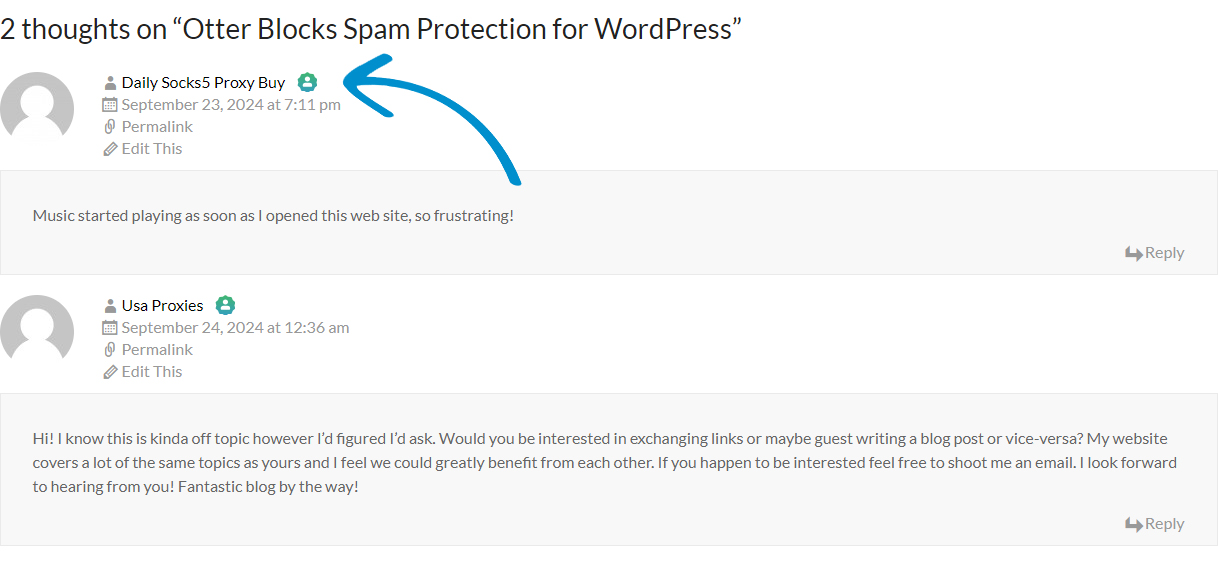
    The Real Person is a benchmark system for WordPress that separates real users from bots. It shows a special badge for the author of a comment or review, that the author passed all Anti-Spam filters and acts as a real person. As well as his email is also confirmed to exist.

    Here’s an example of what The Real Person badge looks like on a WordPress website. You can also see the live badge in the comments below the post.

    Screenshot 2024 09 25 115706

    The Real Person is free and is a part of the Anti-Spam protection cloud service.

    How to enable the feature

    The feature is disabled by default. To enable it follow the short guide.

    Don’t forget to check The Real Person badge in the comments below ↓

  • Kadence Blocks Advanced Spam Protection for WordPress

    Kadence Blocks Advanced Spam Protection for WordPress

    CleanTalk added spam protection for Kadence Blocks Advanced Platform using direct form integration. So in case, you prefer using this platform be sure to use the most effective Anti-Spam plugin. Read the guide below and learn 4 steps to protect all your contact forms from spam.

    Once the CleanTalk Anti-Spam plugin is installed it starts to protect all of the existing forms on your WordPress website. It may not only be Kadence Blocks Advanced but also many others.

    Download CleanTalk Anti-Spam plugin | Download Kadence Blocks Advanced 

    How to install CleanTalk Anti-Spam plugin

    To install the Anti-Spam plugin, go to your WordPress admin panelPluginsAdd New.

    Then enter «CleanTalk» in the search box and click the Install button for «Spam protection, Anti-Spam, FireWall by CleanTalk».

    After installing the plugin, click the «Activate»‎ button.

    After it is done go to the plugin settings and click the «Get Access Key Automatically» button. Then just click the «Save Settings»‎ button.

    That’s it! From now you How to completely protect your Contact Forms from spam.

    How to check Kadence Blocks Advanced Spam Protection

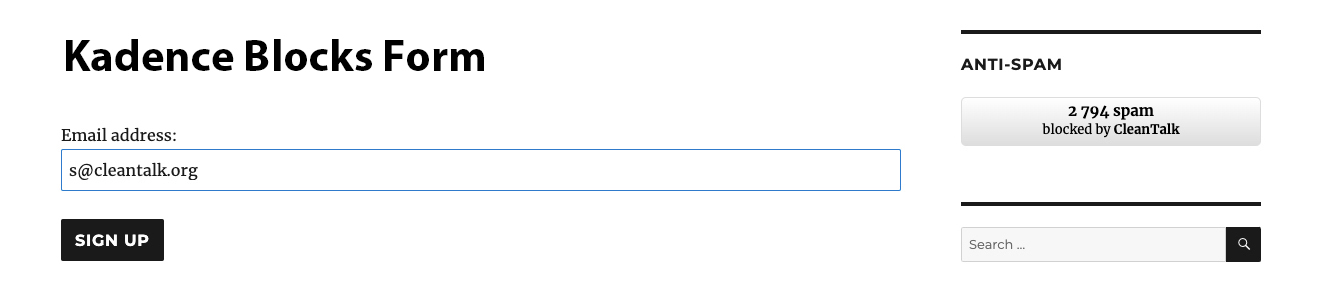
    You can test the work of Anti-Spam protection for your Contact Forms by using a test email s @ cleantalk.org (without spaces). First, open the form in an Incognito browser tab. Fill in all the required form fields and send a form. After submitting the form, you will see a block message about the block on the form submission.

    kadence forms
    kadence forms

    If you have any questions, add a comment and we will be happy to help you.

    Create your CleanTalk account – Register now and protect your Contact Forms from spam in 5 minutes

    Update

    The protection works only for website visitors, not for website admins. Be sure to test the form protection using Incognito mode.

    Additional features

    • CleanTalk protects all forms at once: comments, registrations, feedbacks, contacts, reviews.
    • Installation takes about 1-2 minutes.
    • Smart 99% protection against spambots.
    • Always online – 24/7 technical support.
    • Logs, SpamFireWall, personal lists, country filters, stop-words, and many others.

    Discover the complete list of CleanTalk Anti-Spam plugin features here.

  • Conversion rates, feature of AI and payments. Notes by Stripe Sessions 2024

    Conversion rates, feature of AI and payments. Notes by Stripe Sessions 2024

    A few months ago I’ve got a great chance to visit Stripe Sessions 2024 at SF, CA. Here are my notes from this,

    1. Stripe uses machine learning to protect merchants against fraud, as data they look through completed transactions. They identify two types of fraud – card testing and card caching. The false positive rate is 0.05%, meaning 5 false transaction per 1,000. Here is our solution against fraud for Stripe’s merchants https://blog.cleantalk.org/preventing-stripe-fraudulent-payments/
    2. Stripe offers around one hundred payment methods (besides cards) and recommends enabling these methods either manually with country linkage or conducting payment in the buyer’s local currency. In this case, Stripe automatically shows to buyers their local payment methods. In my opinion, payments in local currency brings losses on conversion to USD, but in return a merchant improves payment conversion rates.
    3. Stripe recommends using an embedded payment form on the seller’s website instead of redirecting the user to the Stripe site. This increases conversion by up to 11% due to fewer clicks for the buyer. We are going to implement such feature on our payment page as well, p.cleantalk.org. Here is a draft of the new design.

      Inline payment form. Stripe + PayPal.
    4. For clients from the US and Europe, it makes sense to offer credit/installment options at checkout. A representative from affirm.com (online credits/installments) mentioned that they work with payments starting at $50, and adding such a payment method can increase conversion by up to 60%, as well as increase the average check (typical buyer behavior when purchasing on credit).
    5. Stripe measures the reliability of its infrastructure by the number of seconds of downtime. Currently, their downtime is 26 seconds per month, which they consider a key product feature.
    6. There was an interesting session with the CEO of Nvidia, Jensen. He said,
      We are currently experiencing a new industrial revolution, comparable to the time when humans transformed the energy of fire into steam, and then steam into electrons. Now electrons are being transformed into tokens (GPU computational cycles), and the number of these tokens will change the economy and industry. He is driving the AI industry towards solving real human problems, namely building multi-stage processes and using external (to AI) ways of solving problems. For example, AI should independently write an email or call a third party to provide the correct solution to the user who requested it. We use own AI to design new chips. Nvidia employees would never have started doing what AI is currently doing in chip design.
    7. There were also several sessions on product design (Figma, Linear) and pricing systems (Adobe, Stripe). I didn’t learn anything new here; we are doing what the experts recommend.
    8. Stripe has launched Usage-Based Billing, which is similar to our Pay-as-you-go model (that we have launched in the end of 2023). Interestingly, it features a simple API for interacting with Stripe’s billing system, and it provides real-time tracking of consumed resources and costs. In CleanTalk we considered using Stripe before starting work on our universal page but decided against it because Stripe didn’t support cross-selling. Otherwise, it’s a good solution if you don’t have the desire or capability to develop your own system.
    9. At the developer session, about 80% of the audience (approximately 1000 developers) use GitHub Copilot (https://github.com/features/copilot), which is GitHub’s AI language model that assists with coding. From what I quickly gathered, this tool:
      • Writes documentation.
      • Writes unit tests.
      • Provides clear descriptions for pull requests and commits.
      • And, of course, writes code.
      • The head of development at GitHub explained that the system is designed so that the developer must oversee the AI-written code to avoid issues similar to Tesla’s self-driving problems. Overall, we should try it out.
    10. Stripe is very focused on code documentation. They have many in-house developments to keep their documentation up to date, which they consider a strong point and a reason why they are widely used (which I think is true, as their documentation was among the best during my time as a developer).
    11. To enter the corporate market, besides complying with ISO standards, it would be good to implement Bring Your Own Key (BYOK). This feature allows users to encrypt their cloud data with their own key.
    12. Stripe sees a reduction in payment processing costs by offering users the least expensive payment methods for the seller (Surcharge). However, it’s unclear whether Stripe plans to launch this feature for everyone or if they are suggesting users consider this option themselves.
    13. In the summer of 2024, Stripe is launching cryptocurrency payment acceptance. They had previously tried accepting such payments but abandoned it in 2018 because the process took up to 30 minutes (due to insufficient computing power on buyers’ devices). Now, thanks to the increased performance of client devices, they have reduced this process to 15 seconds.
    14. We should look into Linear, as they have ideas regarding project management and tracking. As well as Mindbody, which provides software (SaaS) around fitness, including financial services for their clients.

    Bonus

    In San Francisco, self-driving taxis are already fairly common. White cars with sensors are seen in the photos. Subjectively, 2 out of 10 cars are on autopilot. It’s a bit eerie to imagine that such a car will come to pick you up and take you somewhere, it immediately reminds me of Skynet.

  • Say Goodbye to Checkout Spam with CleanTalk for Opencart 4!

    Say Goodbye to Checkout Spam with CleanTalk for Opencart 4!

    Hey there, Opencart store owners! Are spammers giving you a headache? Let us put a smile on your face. CleanTalk Anti-Spam plugin for Opencart 4 is your new best friend in the fight against online nuisances!

    Imagine a world where your Opencart checkout form is protected from spam and fraudulent orders. Well, guess what? That world is here! Our clever little plugin works tirelessly behind the scenes to keep your store safe and your customers happy.

    Here’s why you’ll love CleanTalk:

    1. Spam-Be-Gone: Watch those annoying spam attempts bounce right off your checkout form. It’s like having a bouncer for your online store!
    2. Fraud Fighter: Say “not today” to those sneaky fraud orders. CleanTalk’s got your back, 24/7.
    3. Easy-Peasy Integration: No tech wizardry required! CleanTalk plays nice with Opencart 4, making setup a breeze.
    4. Happy Customers, Happy You: With a smooth, spam-free checkout, your real customers will love shopping with you even more.
    5. Time-Saver Extraordinaire: Less time cleaning up spam means more time growing your business. Who doesn’t want that?

    But don’t just take our word for it! Give CleanTalk a spin and see the difference for yourself. Your Opencart store deserves the best protection from checkout form spam and fraud orders, and that’s exactly what we deliver.

    Ready to kick spam to the curb and give your store the shield it deserves? Hop on board with CleanTalk today – because a happy checkout is a protected checkout!

  • Top 7 Features Your Task Manager Should Have

    Top 7 Features Your Task Manager Should Have

    Choosing the right task management tool can significantly enhance productivity, streamline workflows, and improve team collaboration. Here are the top 7 features your task manager tool should have:


    1. User-Friendly Interface

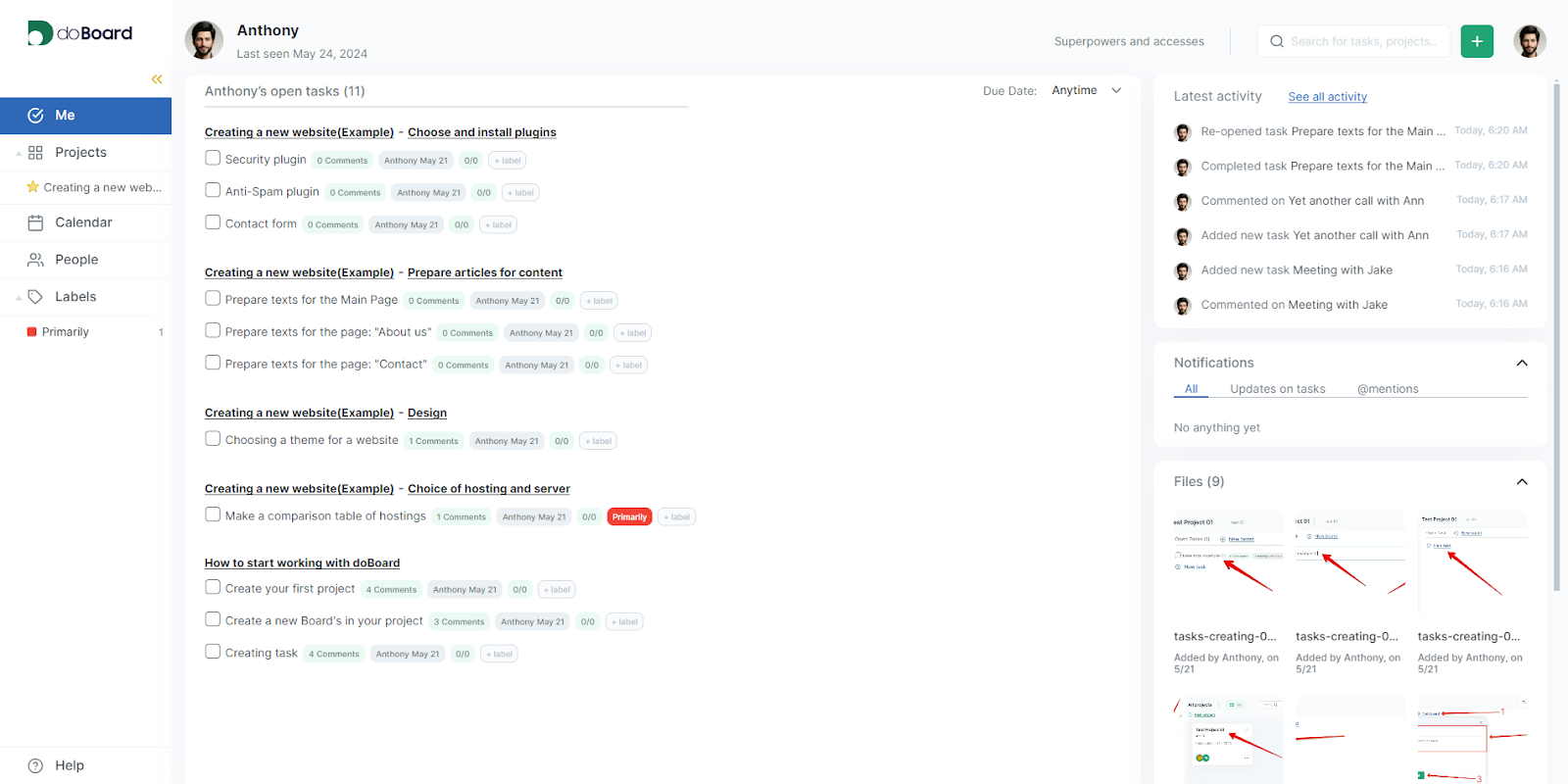
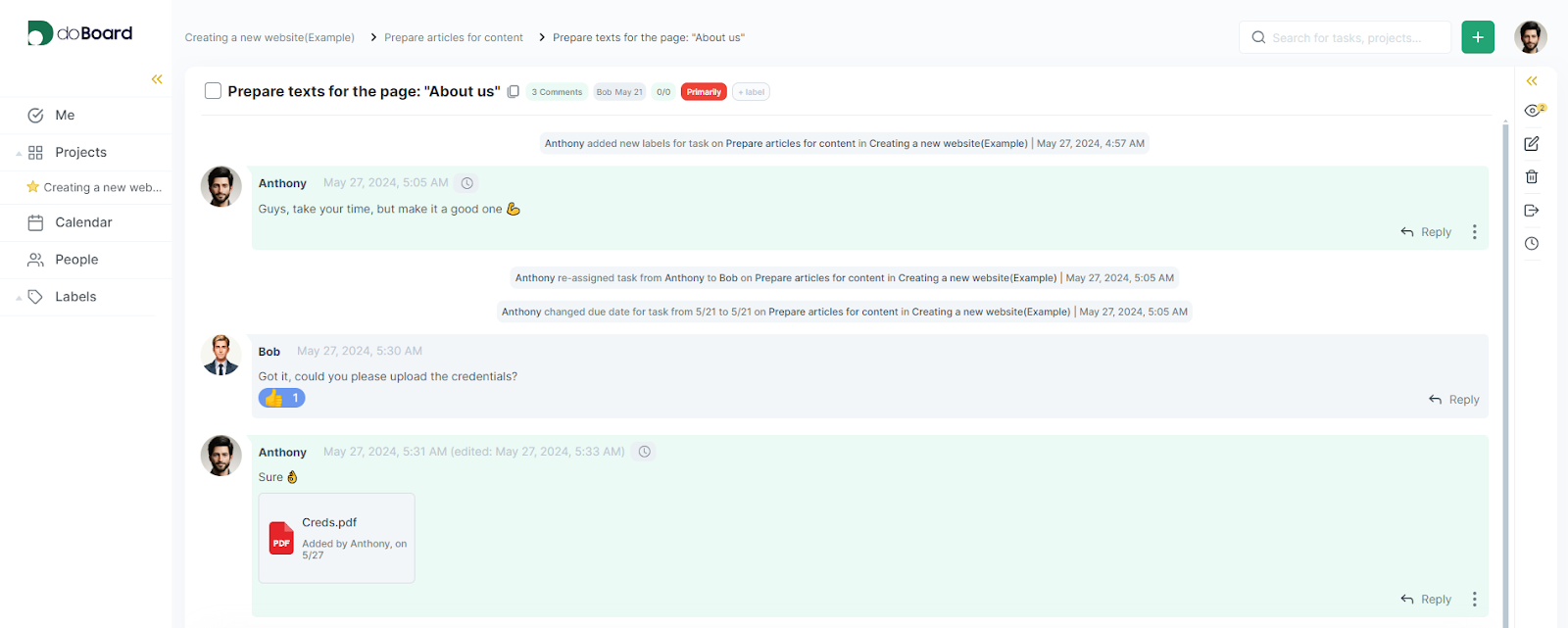
    A task manager tool should offer an intuitive and user-friendly interface. This ensures that users can easily navigate through the service dashboard and manage their tasks without spending too much time learning how to use it. Drag-and-drop tasks between boards, minimize the sidebar or other panels to give yourself more space.

    A user-friendly interface is essential for any task management tool because it ensures quick adoption, increases productivity, enhances user engagement, and supports effective collaboration. By reducing errors, boosting morale, and encouraging regular use, a user-friendly interface helps teams manage their tasks and projects more efficiently and effectively. Investing in a task management tool with a user-friendly interface ultimately leads to better project outcomes and a more productive and satisfied team.

    Key points:

    • Reduces the learning curve for new users.
    • Enhances user experience and productivity.
    • Saves time on training and onboarding.


    2. Collaboration and Communication

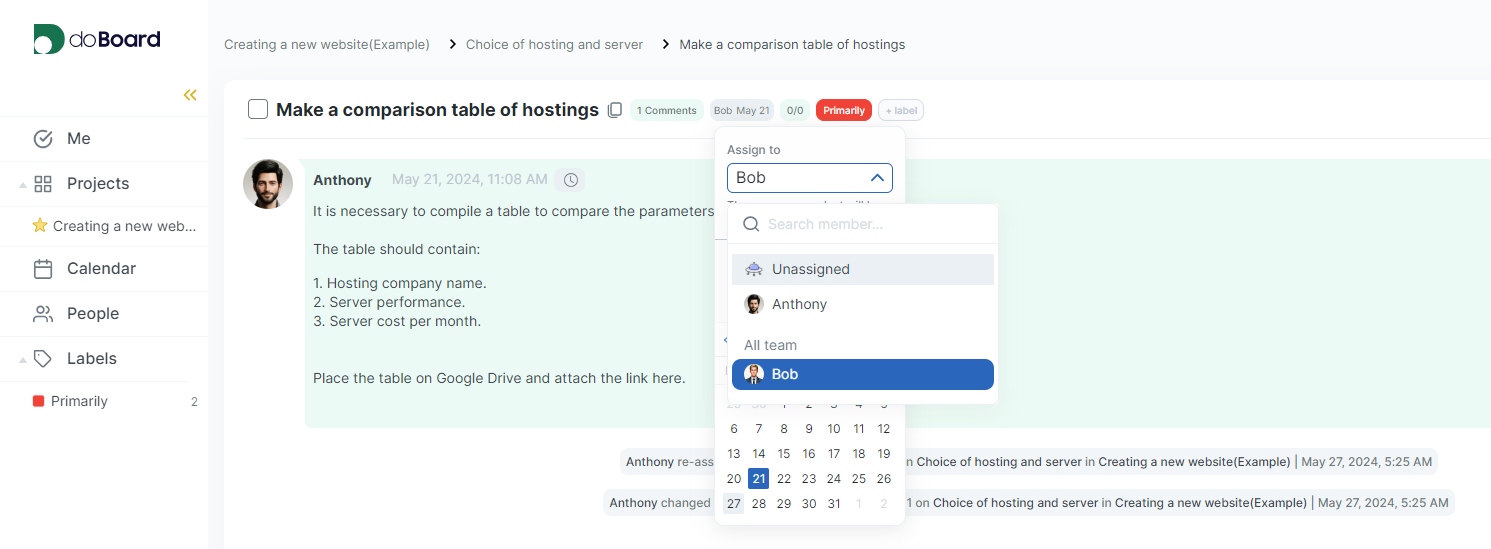
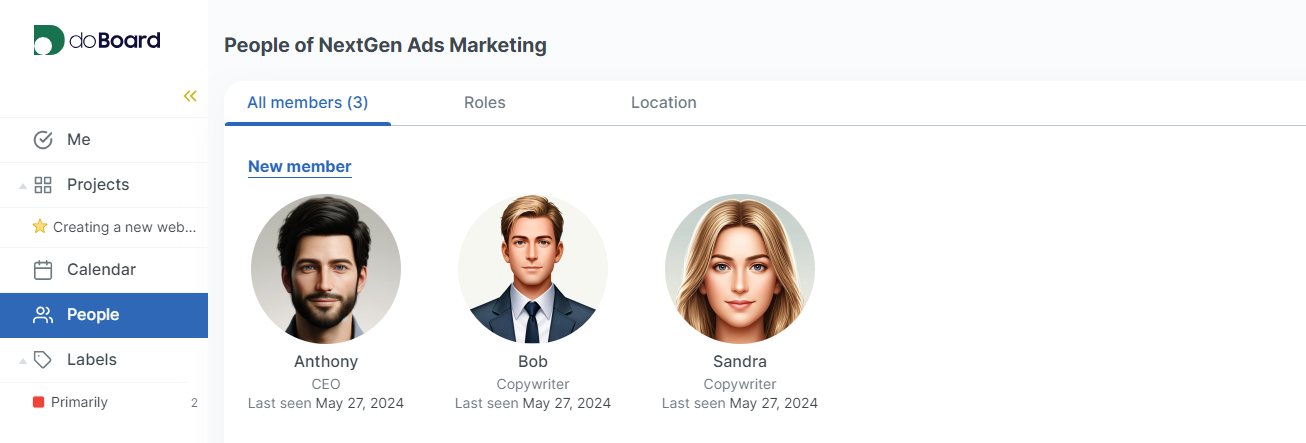
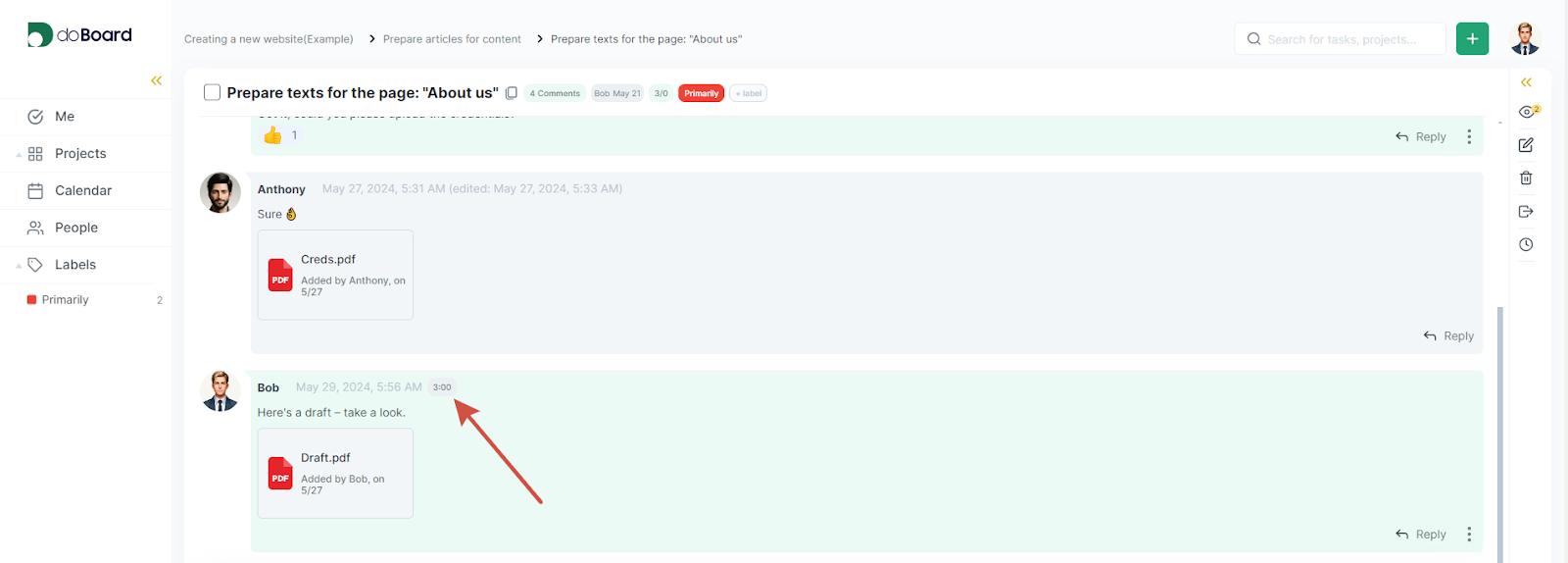
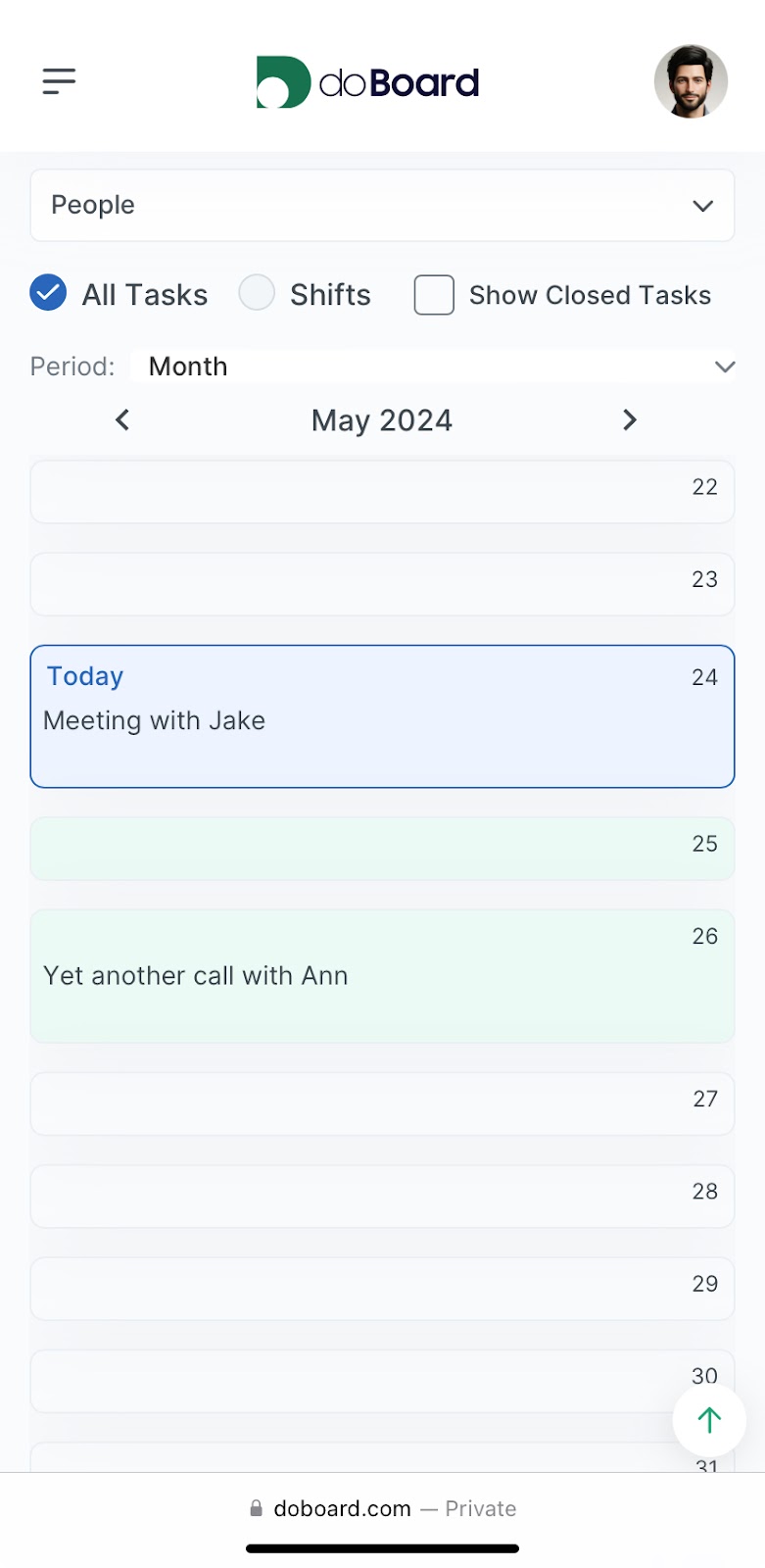
    Effective collaboration is essential for successful project management. Your task manager tool should support seamless communication and collaboration among team members. Assign tasks, observe your team, view your colleague’s current tasks, share files, and feel free to comment and react on tasks and boards.

    Among other things, transparency of tasks and centralized information are key features of a project management tool: all project-related information is stored in one place, making it easy for team members to find the information they need, and.everyone on the team can see the status of various tasks, which helps in understanding the overall progress of a project.

    Key points:

    • Keeps everyone on the same page.
    • Facilitates quick decision-making.
    • Enhances team productivity and accountability.


    3. Task Prioritization and Scheduling

    Managing tasks efficiently requires robust prioritization and scheduling capabilities. The tool should allow users to set priorities and deadlines for tasks. It is also important because it directly impacts how effectively and efficiently a team can manage its workload and achieve project goals.

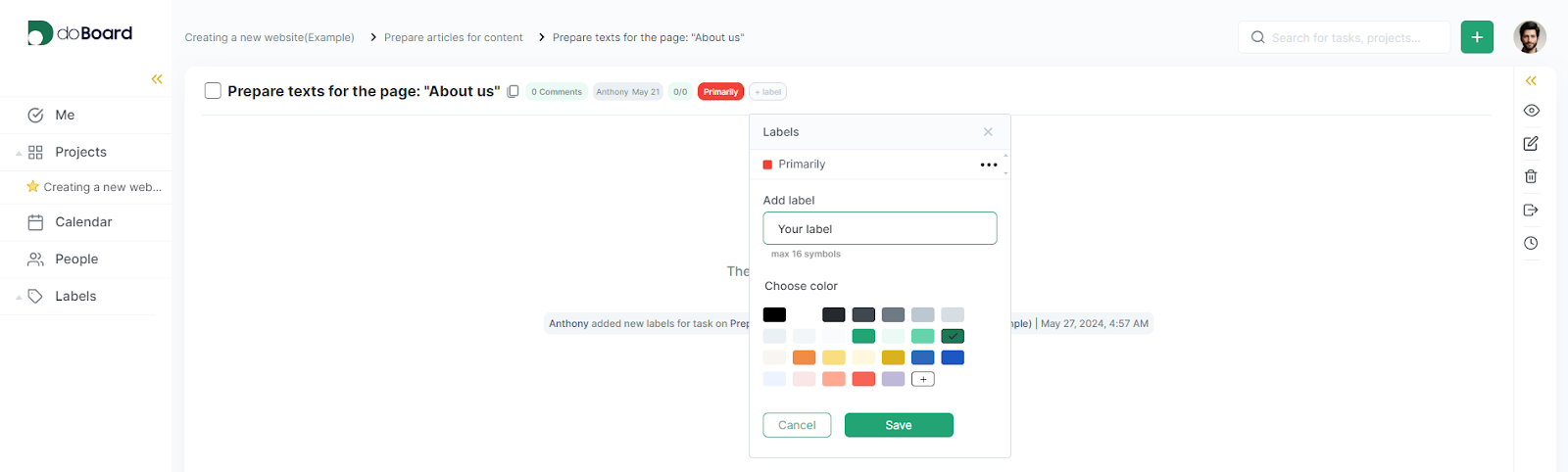
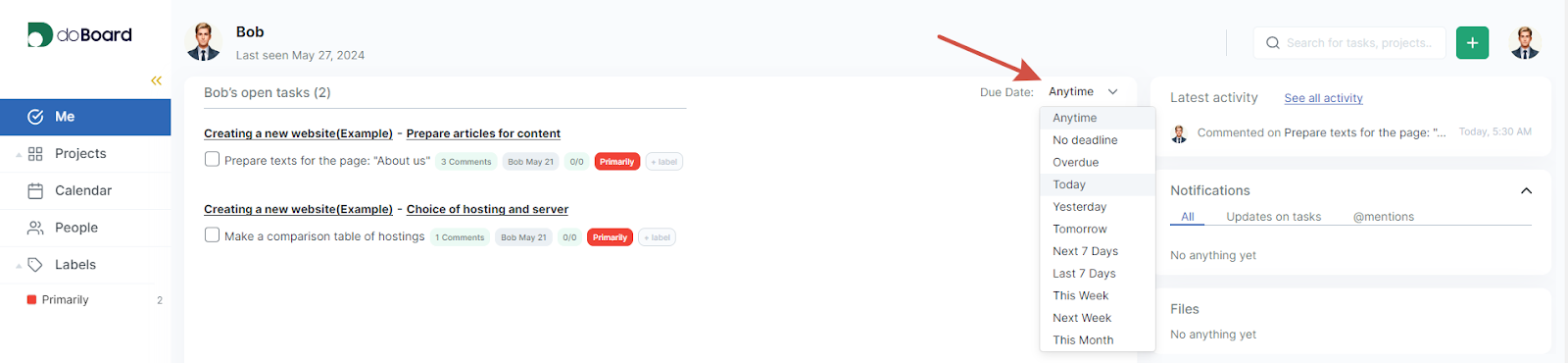
    A proper task management tool should have customizable labels for setting task priorities, and a due date so you don’t miss any deadlines and can concentrate on the most important tasks at the current time.

    Key points:

    • Helps manage deadlines and avoid procrastination.
    • Ensures important tasks receive the required attention.
    • Improves time management and efficiency.


    4. Progress Tracking and Reporting

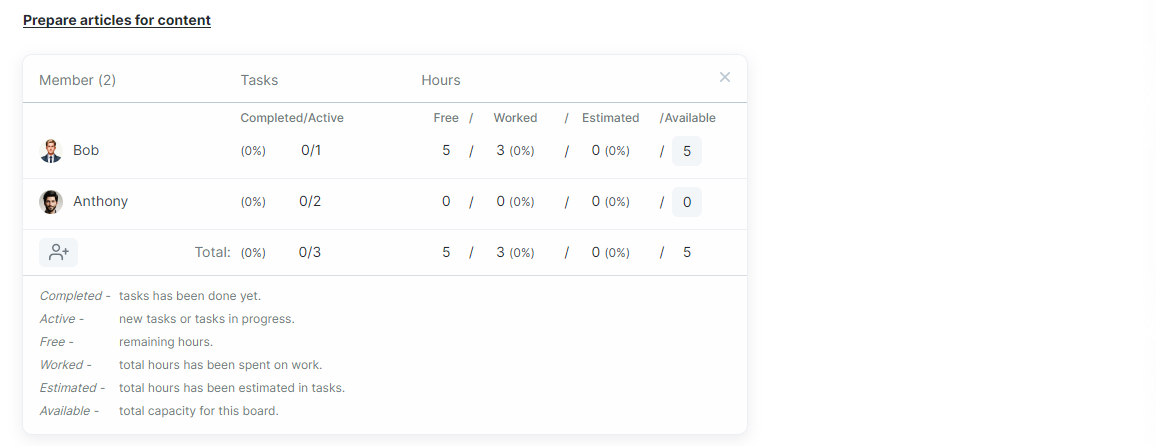
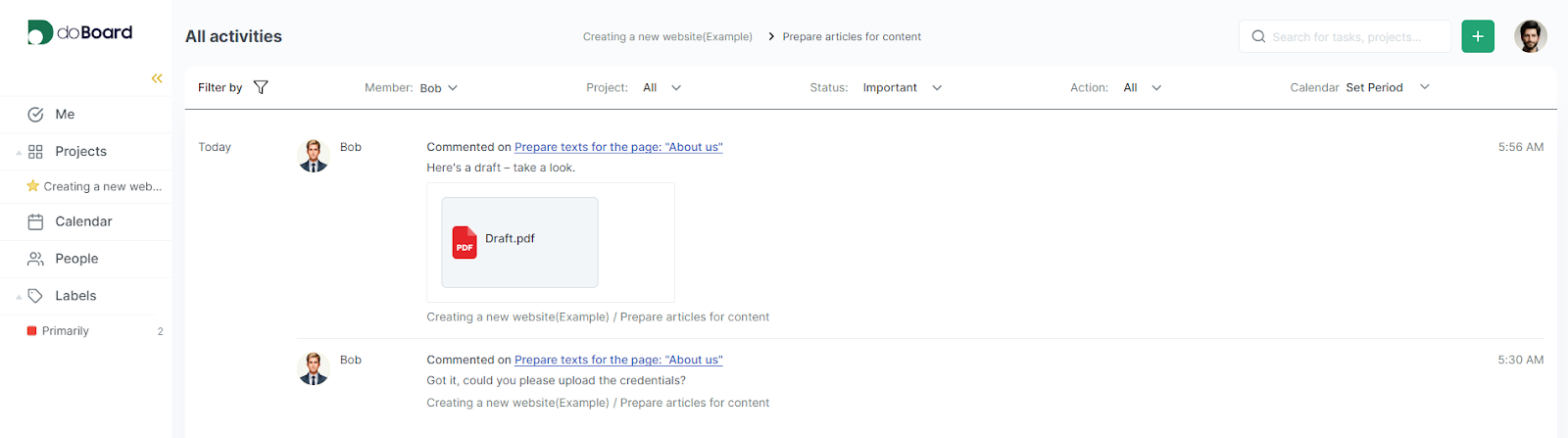
    To ensure projects stay on track, the task manager tool should offer comprehensive progress tracking and reporting features. Plan time for boards and track estimated time for certain tasks. Observe your colleague’s activity to be aware of the current load.

    Proper progress tracking and reporting tool helps you in early detection of potential risks and issues, allowing teams to mitigate them before they escalate. It is no less important for teams that practice agile methods.

    Key points:

    • Provides visibility into project status and progress.
    • Identifies bottlenecks and areas for improvement.
    • Facilitates data-driven decision-making.


    6. Mobile Accessibility

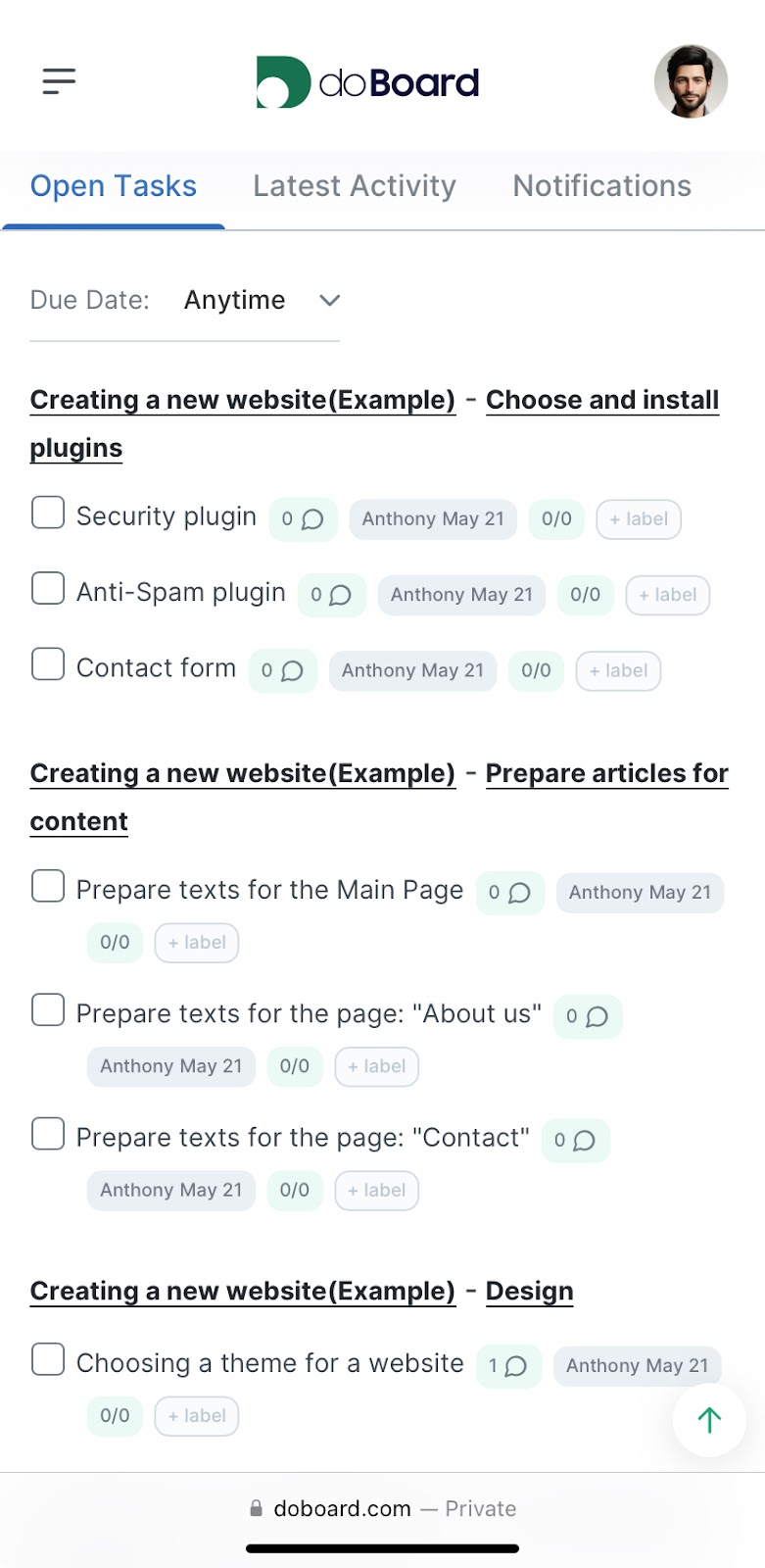
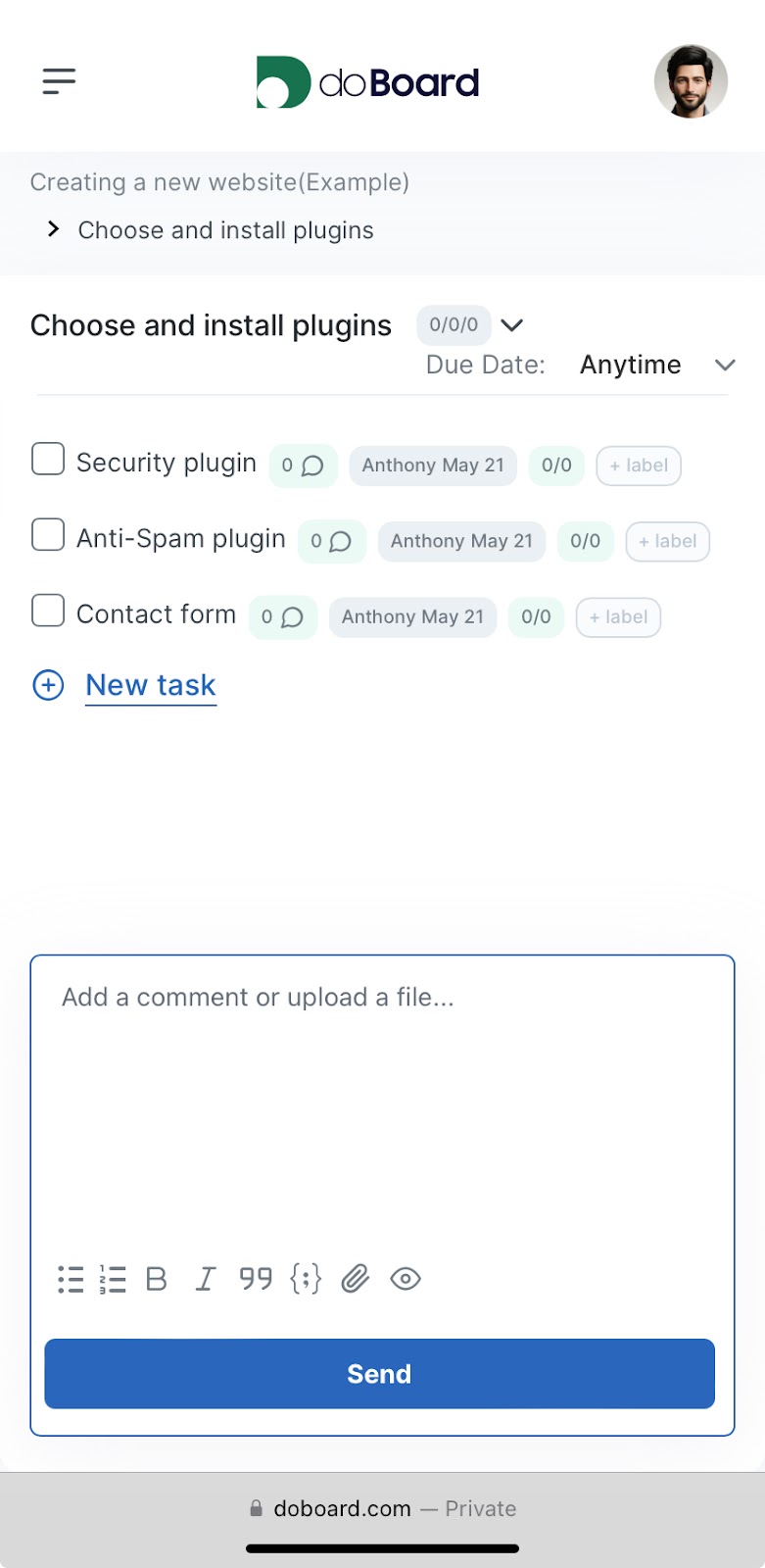
    In today’s mobile-driven world, having access to your task manager tool on the go is crucial. The tool should offer a mobile view that allows users to manage tasks, collaborate with team members, and receive updates from anywhere.

    Mobile accessibility is not just a convenient feature; it’s a necessity in today’s fast-paced, digital work environment. It empowers users with the flexibility to manage their tasks and collaborate with their teams effectively, no matter where they are. By ensuring real-time updates, enhancing collaboration, and supporting a balanced work-life integration, mobile accessibility significantly boosts productivity and efficiency in task management.

    Key points:

    • Increases flexibility and productivity.
    • Ensures that tasks can be managed anytime, anywhere.
    • Keeps team members connected and informed, even when they’re on the move.


    7. Flexible plans

    A popular problem with modern task managers is that if you use the service with your team, you have to pay for each employee, which is usually quite expensive.

    In order to avoid this difficulty, use services with an unlimited number of employees. Also, choose a plan for the number of projects that is relevant to you – so you will avoid unnecessary costs. And you can always expand the plan later.

    Extended 45-day trial might be a good bonus for you, because it, at least, saves you 1,5 months of free use, while giving you enough time to make the right decision. 

    Key points:

    • Extended trial
    • Flexible plans
    • Unlimited users


    Conclusion

    Many services for task management are now available that contain many of the effective tools we have listed. And many of them are quite effective.

    We see the main efficiency in finding a product that contains them all at once so that you don’t have to be torn between two services. That’s why we use doBoard in our projects for our team and can vouch for it.


    doBoard Project Examples


    Try doBoard


  • A Beginner’s Guide: How to Install WordPress Step by Step

    A Beginner’s Guide: How to Install WordPress Step by Step

    Welcome aboard the WordPress express! Today, we’re rolling up our sleeves to install WordPress from scratch. Don’t worry if tech stuff seems like a foreign language; I’ll guide you through each step with crystal clarity.

    1. Pick Your Host

    Selecting the right hosting provider sets the foundation for your website’s success. It’s akin to choosing the perfect spot for your dream home. Take into account crucial aspects like pricing plans, available storage, customer support responsiveness, and server uptime reliability.

    With a plethora of hosting options out there, ranging from big names to smaller, niche providers, you’re spoiled for choice. Some offer user-friendly interfaces, while others prioritize lightning-fast servers or round-the-clock support. It’s like browsing through a buffet—each option has its unique flavors, catering to different preferences.

    So, take your time to explore the offerings, read reviews, and consider your priorities. Once you’ve found the host that ticks all your boxes, it’s time to make it official. Sign up, secure your digital plot, and get ready to build your online empire with WordPress!

    2. Launch One-Click Install

    Once you’ve got hosting sorted, log into your hosting account. Look for the “WordPress Installer” or a similar tool. Click it, follow the instructions, and boom! WordPress is now installed on your hosting server.

    3. Installing WordPress Without One-Click

    If your hosting provider doesn’t offer a one-click WordPress installation option, fear not! You can still install WordPress manually, and it’s simpler than you might think. Here’s a step-by-step guide to get you started:

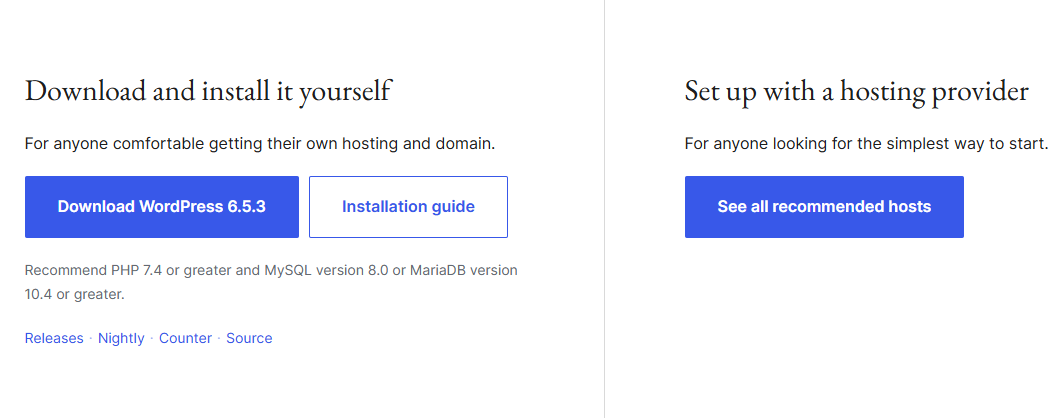
    • Download WordPress: Visit the official WordPress website and download the latest version of WordPress. It will be a zip file, so make sure to extract its contents to a folder on your computer.
    • Create a Database: Log in to your hosting account’s control panel (usually accessed through a link provided by your hosting provider). Look for the “Database” section and create a new MySQL database. Note down the database name, username, and password—you’ll need these later.
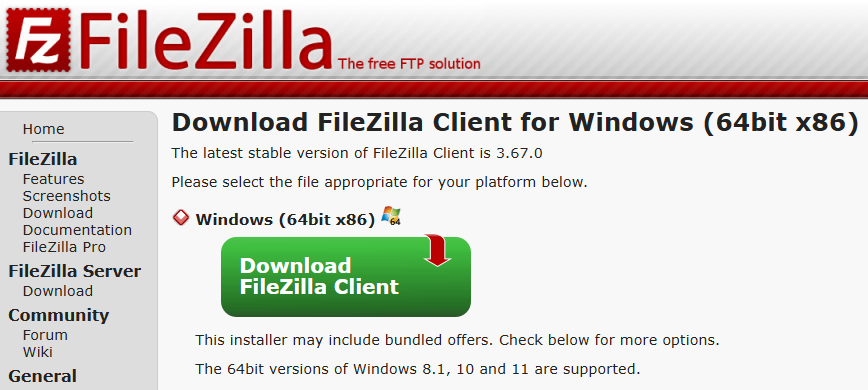
    • Upload WordPress Files: Using an FTP client like FileZilla, connect to your hosting account. Navigate to the directory where you want to install WordPress (usually the “public_html” folder) and upload all the extracted WordPress files.
    • Configure wp-config.php: In the WordPress folder on your hosting account, you’ll find a file named “wp-config-sample.php.” Rename this file to “wp-config.php” and open it in a text editor. Enter your database details (database name, username, and password) where indicated, and save the file.
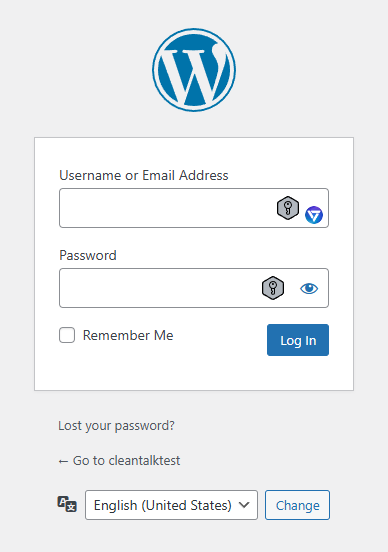
    • Run the Installation Script: Now, open your web browser and navigate to your domain name (e.g., www.yourdomain.com). You should see the WordPress installation wizard. Select your language and click “Continue.” Enter your site details (title, username, password, email) and click “Install WordPress.”
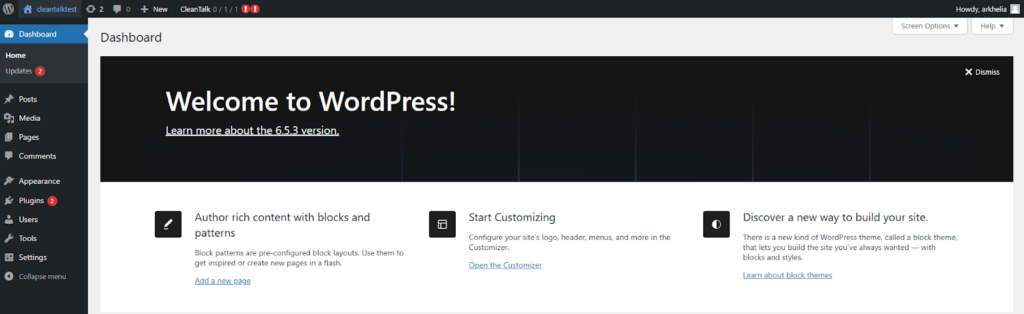
    • Complete Installation: Once the installation is complete, you’ll receive a success message. You can then log in to your WordPress dashboard using the username and password you set during installation.
    pasted image 0

    pasted image 0 2

    4. Choose a Theme

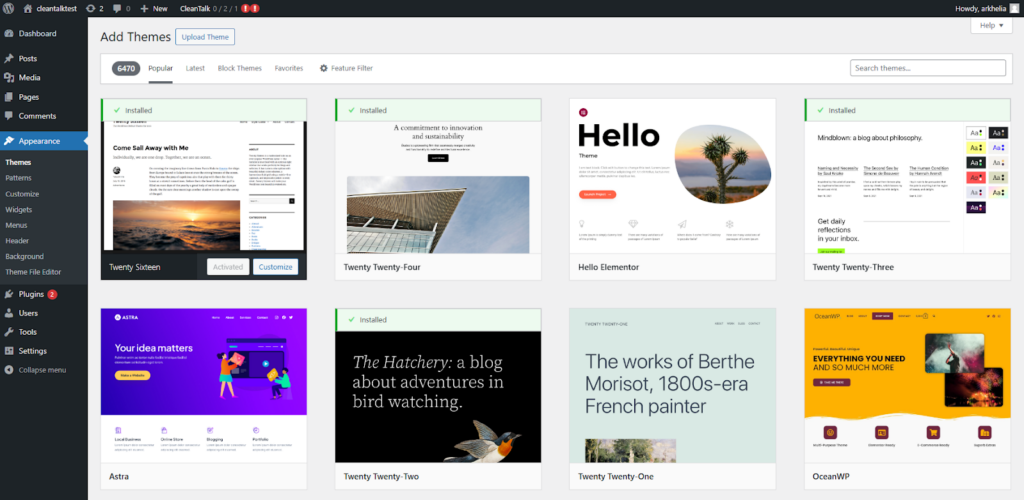
    It’s time to spruce up your site with a theme. Head to “Appearance” > “Themes” in the dashboard. Browse the free themes or consider purchasing a premium one for extra features. Click “Install” and “Activate” to apply your chosen theme.

    pasted image 0 3

    5. Customize Your Site

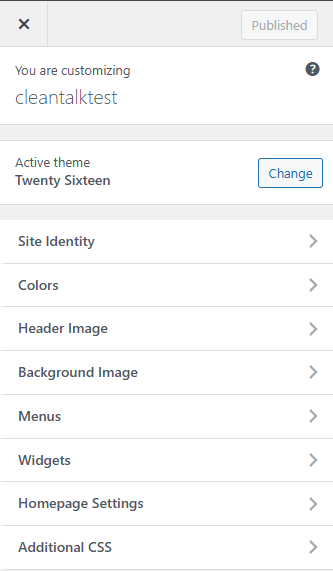
    Personalize your site’s appearance by tweaking settings in the WordPress Customizer. Change colors, fonts, and layouts to match your style. No coding is required—just click, preview, and save your changes.

    pasted image 0 4

    6. Add Essential Plugins

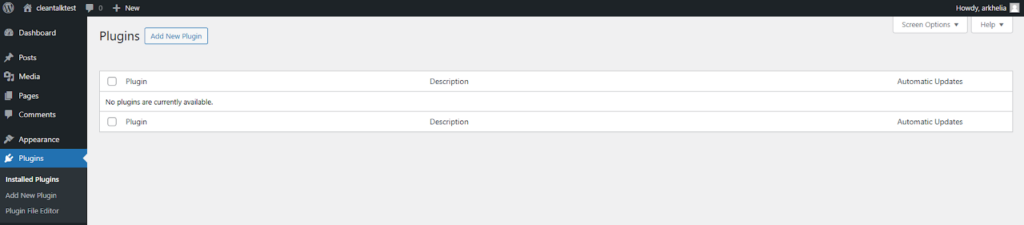
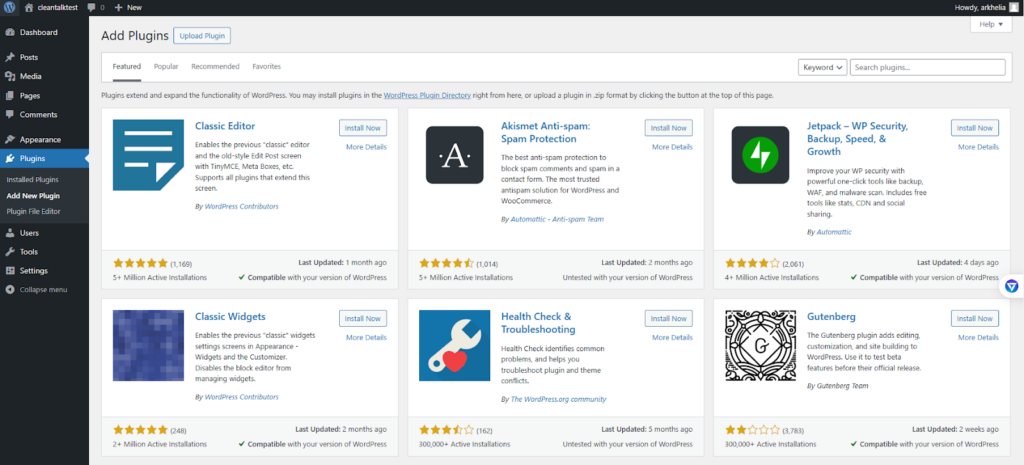
    Plugins are like apps for your website, adding extra functionality with a few clicks. From your dashboard, go to “Plugins” > “Add New.” Search for plugins like Yoast SEO for better search engine visibility or Contact Form 7 for creating forms. It’s a good idea to shield your website from spambots—they’ll know about it in the blink of an eye, and you’ll be attacked by virtual armies in no time. Also, you might want to exclude the possibility of your work being ruined by malware programs. For both of these problems, a good solution is Anti-Spam and Security plugins by CleanTalk. 

    Click “Install” and then “Activate” to start using them.

    pasted image 0 5
    pasted image 0 6

    7. Start Creating Content

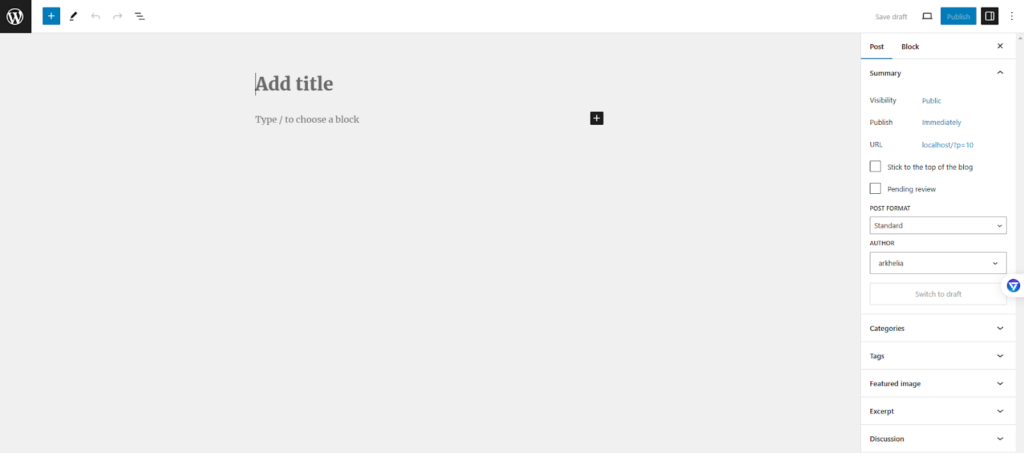
    Time to unleash your creativity! Click on “Posts” or “Pages” in the dashboard to write articles or create new pages. Use the intuitive editor to format text, add images, and publish your content. Don’t worry about making it perfect — editing is your friend!

    pasted image 0 7
    pasted image 0 8

    There you have seven straightforward steps to install WordPress and kickstart your online journey. No tech wizardry required, just a little patience and a willingness to explore. So go ahead, dive in, and start building your dream website!