
Stop spam without frustrating your visitors

Create your CleanTalk account and start blocking spam — no CAPTCHA challenges and no impact on visitors.

Security Block Lists

CleanTalk Account

No credit card required • Setup takes less than a minute • Your temporary password will be sent by email.

Tag: wordpress

  • Bots and Your Website: How Much of Your Traffic is Fake?

    Bots and Your Website: How Much of Your Traffic is Fake?

    Not all your website traffic is genuine. Hidden within your analytics are bots – automated programs that can mimic human behavior. Think of them like little robots that visit your website and pretend to be people. While some bots are harmless (like the ones that help Google find your site), others can cause trouble. They can clog up your contact forms with spam, create fake accounts, and even place phony orders. Those fake traffic bots are like a bunch of party crashers at your online store who aren’t there to buy anything, just to cause a mess!

    Just how big is this problem?

    Well, studies show that up to 30% of all web traffic might actually be bots! That means almost one in three “visitors” to your site might not be a real person. And when it comes to contact forms, things get even worse. Experts say that up to 40% of all form submissions could be spam generated by bots. That’s a lot of wasted time and effort dealing with junk! Even registrations and orders can be affected, with estimates suggesting that 10% of new accounts and 5% of online orders could be fake.

    fake traffic bots stats

    Why should you care?

    These sneaky bots can cause a lot of headaches for businesses. They can:

    • Waste your time: Dealing with spam messages and fake accounts takes time and effort away from real customers.
    • Mess up your data: Bots can make your website statistics unreliable, making it harder to understand how real people are using your site.
    • Hurt your reputation: If your contact form is full of spam, it makes your business look unprofessional.
    • Cost you money: Fake orders can lead to financial losses and logistical nightmares.

    So, what can you do about it?

    Imagine having a super-smart bouncer for your website, someone who can spot fake traffic bots before they even get through the door. That’s what CleanTalk Anti-Spam and Security plugins do! They’re like a 24/7 security team dedicated to keeping your website safe and clean.

    Here’s how CleanTalk helps protect your forms and keeps spam away:

    • CleanTalk is a pro at protecting all kinds of forms on your website, from contact forms to registration forms and even order forms. It checks every submission to make sure it’s from a real person, not a spam bot trying to cause trouble.
    • CleanTalk can even help you get rid of spam that’s already on your website. It can scan your comments and other content to find and remove those spam links that bots leave behind.

    CleanTalk is like having a dedicated team of experts protecting your website, making sure your forms are safe, your content is clean, and those pesky bots are kept far, far away

  • Wufoo Spam Protection for WordPress in 5 minutes

    Wufoo Spam Protection for WordPress in 5 minutes

    CleanTalk added spam protection for Wufoo Forms using direct form integration. So in case, you prefer using this type of forms be sure to use the most effective Anti-Spam plugin. Read the guide below and learn 4 steps to protect all your contact forms from spam.

    Once the CleanTalk Anti-Spam plugin is installed it starts to protect all of the existing forms on your WordPress website. It may not only be Wufoo Forms but also many others.

    Download CleanTalk Anti-Spam plugin | Download Wufoo Forms 

    How to install CleanTalk Anti-Spam plugin

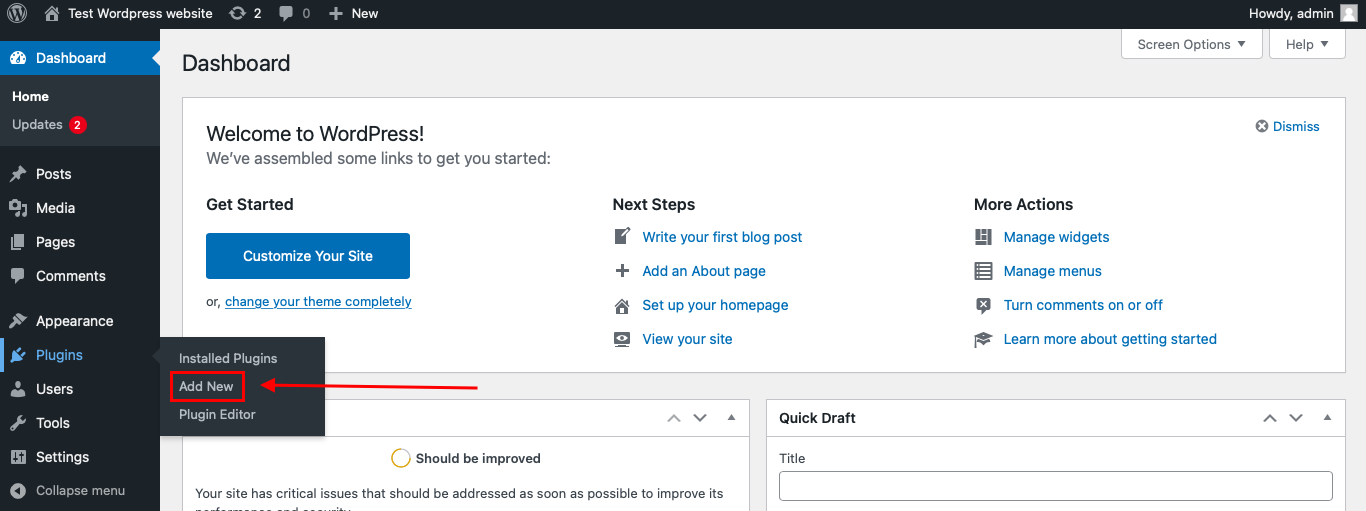
    To install the Anti-Spam plugin, go to your WordPress admin panelPluginsAdd New.

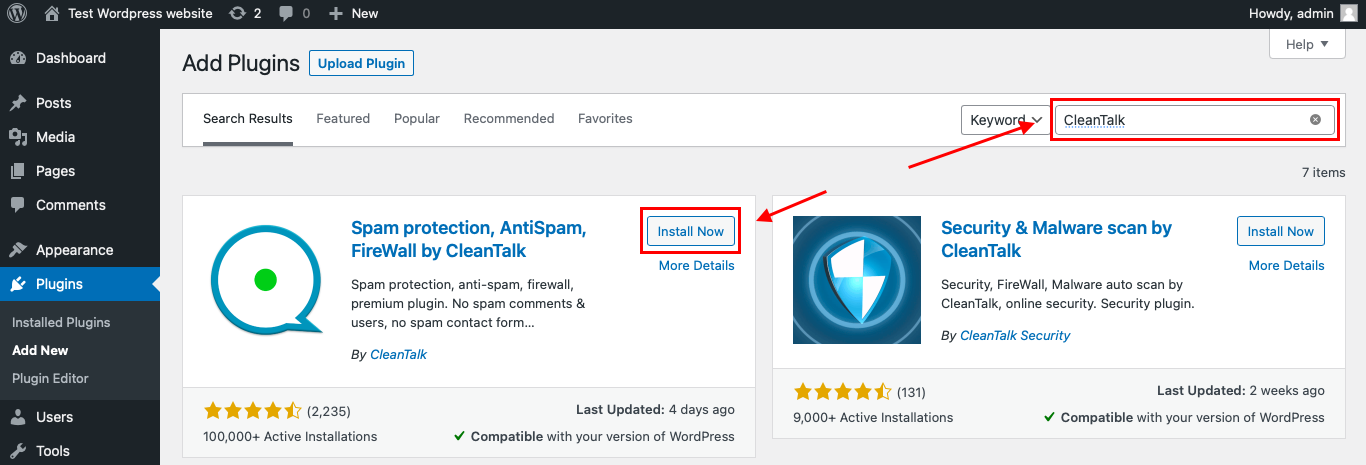
    Then enter «CleanTalk» in the search box and click the Install button for «Spam protection, Anti-Spam, FireWall by CleanTalk».

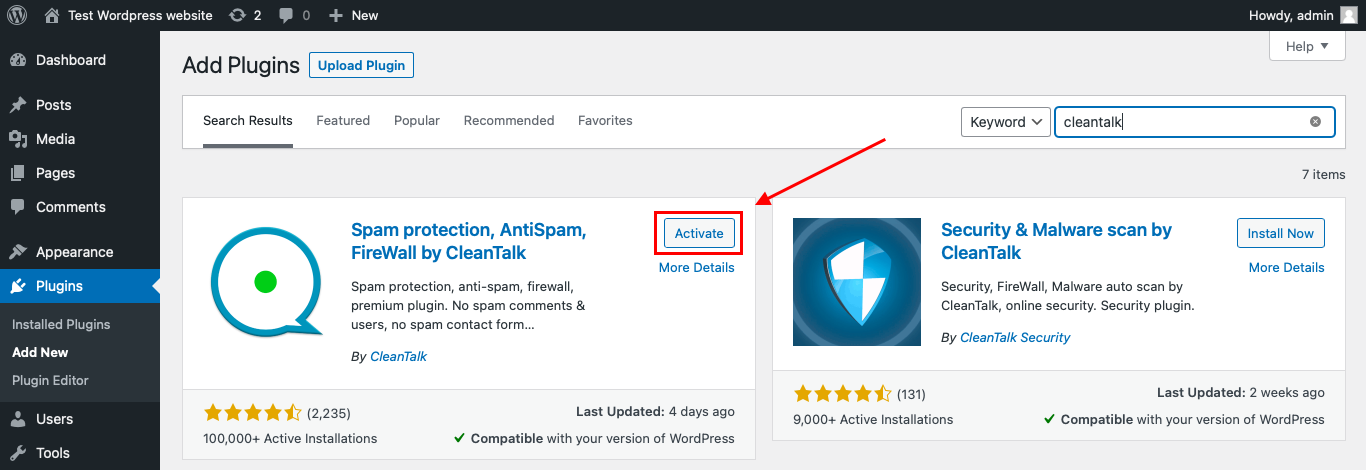
    After installing the plugin, click the «Activate»‎ button.

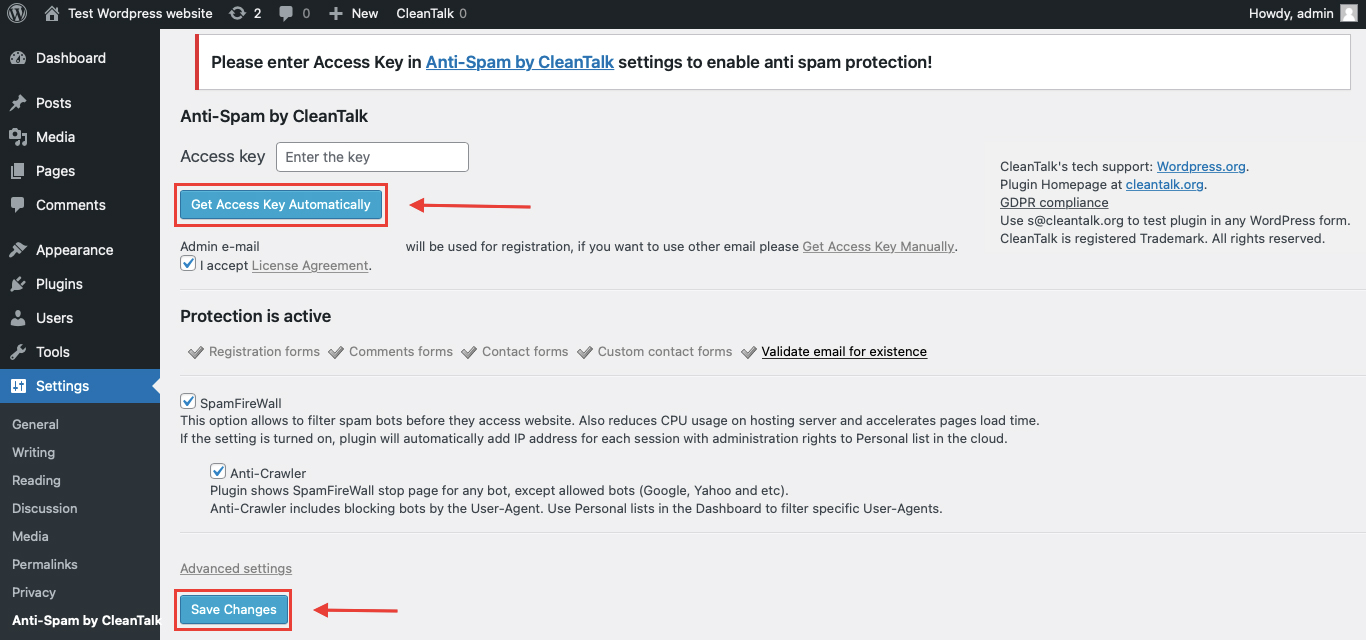
    After it is done go to the plugin settings and click the «Get Access Key Automatically» button. Then just click the «Save Settings»‎ button.

    That’s it! From now you How to completely protect your Contact Forms from spam.

    How to check Wufoo Forms Spam Protection

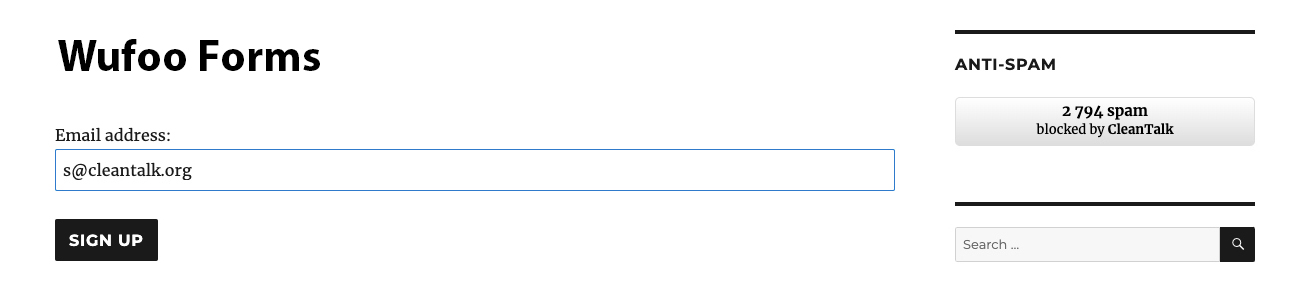
    You can test the work of Anti-Spam protection for your Contact Forms by using a test email s @ cleantalk.org (without spaces). First, open the form in an Incognito browser tab. Fill in all the required form fields and send a form. After submitting the form, you will see a block message about the block on the form submission.

    wufoo form

    If you have any questions, add a comment and we will be happy to help you.

    Create your CleanTalk account – Register now and protect your Contact Forms from spam in 5 minutes

    Update

    The protection works only for website visitors, not for website admins. Be sure to test the form protection using Incognito mode.

    Additional features

    • CleanTalk protects all forms at once: comments, registrations, feedbacks, contacts, reviews.
    • Installation takes about 1-2 minutes.
    • Smart 99% protection against spambots.
    • Always online – 24/7 technical support.
    • Logs, SpamFireWall, personal lists, country filters, stop-words, and many others.

    Discover the complete list of CleanTalk Anti-Spam plugin features here.

  • Otter Blocks Spam Protection for WordPress

    Otter Blocks Spam Protection for WordPress

    CleanTalk added spam protection for Otter Blocks using direct form integration. So in case, you prefer using this type of contact forms be sure to use the most effective Anti-Spam plugin. Read the guide below and learn 4 steps to protect all your contact forms from spam.

    Once the CleanTalk Anti-Spam plugin is installed it starts to protect all of the existing forms on your WordPress website. It may not only be Otter Blocks Forms but also many others.

    Download CleanTalk Anti-Spam plugin | Download Otter Blocks 

    How to install CleanTalk Anti-Spam plugin

    To install the Anti-Spam plugin, go to your WordPress admin panelPluginsAdd New.

    Then enter «CleanTalk» in the search box and click the Install button for «Spam protection, Anti-Spam, FireWall by CleanTalk».

    After installing the plugin, click the «Activate»‎ button.

    After it is done go to the plugin settings and click the «Get Access Key Automatically» button. Then just click the «Save Settings»‎ button.

    That’s it! From now you How to completely protect your Contact Forms from spam.

    How to check Otter Blocks Forms Spam Protection

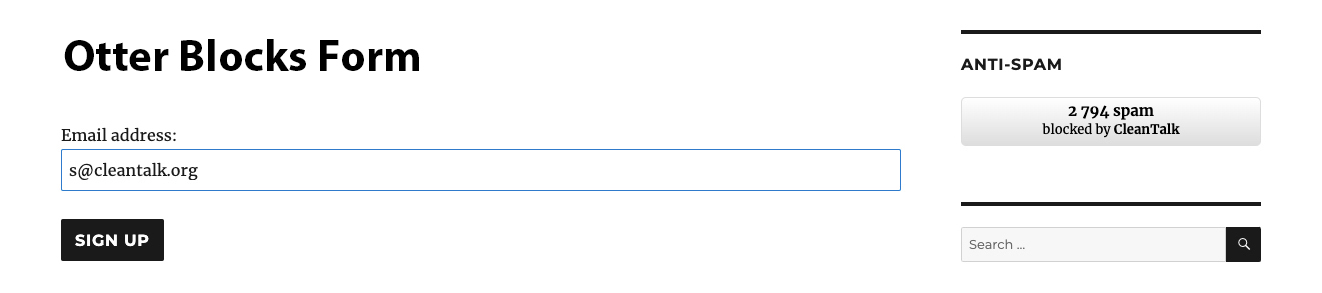
    You can test the work of Anti-Spam protection for your Contact Forms by using a test email s @ cleantalk.org (without spaces). First, open the form in an Incognito browser tab. Fill in all the required form fields and send a form. After submitting the form, you will see a block message about the block on the form submission.

    otter blocks forms
    otter blocks forms

    If you have any questions, add a comment and we will be happy to help you.

    Create your CleanTalk account – Register now and protect your Contact Forms from spam in 5 minutes

    Update

    The protection works only for website visitors, not for website admins. Be sure to test the form protection using Incognito mode.

    Additional features

    • CleanTalk protects all forms at once: comments, registrations, feedbacks, contacts, reviews.
    • Installation takes about 1-2 minutes.
    • Smart 99% protection against spambots.
    • Always online – 24/7 technical support.
    • Logs, SpamFireWall, personal lists, country filters, stop-words, and many others.

    Discover the complete list of CleanTalk Anti-Spam plugin features here.

  • Kadence Blocks Advanced Spam Protection for WordPress

    Kadence Blocks Advanced Spam Protection for WordPress

    CleanTalk added spam protection for Kadence Blocks Advanced Platform using direct form integration. So in case, you prefer using this platform be sure to use the most effective Anti-Spam plugin. Read the guide below and learn 4 steps to protect all your contact forms from spam.

    Once the CleanTalk Anti-Spam plugin is installed it starts to protect all of the existing forms on your WordPress website. It may not only be Kadence Blocks Advanced but also many others.

    Download CleanTalk Anti-Spam plugin | Download Kadence Blocks Advanced 

    How to install CleanTalk Anti-Spam plugin

    To install the Anti-Spam plugin, go to your WordPress admin panelPluginsAdd New.

    Then enter «CleanTalk» in the search box and click the Install button for «Spam protection, Anti-Spam, FireWall by CleanTalk».

    After installing the plugin, click the «Activate»‎ button.

    After it is done go to the plugin settings and click the «Get Access Key Automatically» button. Then just click the «Save Settings»‎ button.

    That’s it! From now you How to completely protect your Contact Forms from spam.

    How to check Kadence Blocks Advanced Spam Protection

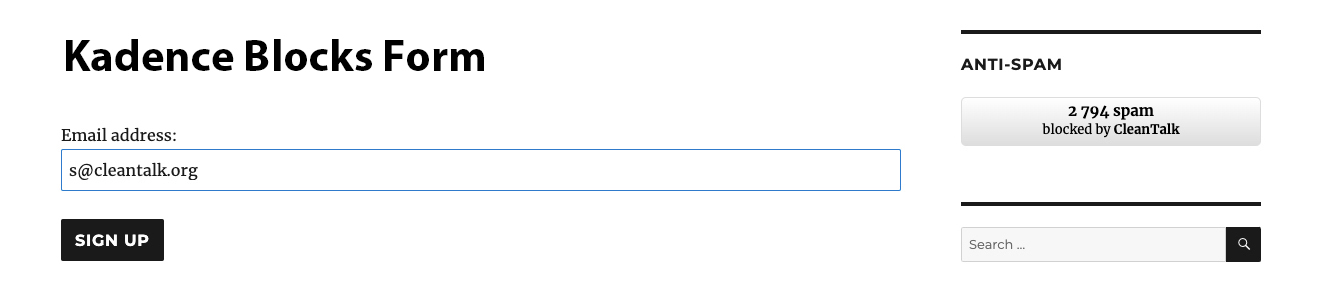
    You can test the work of Anti-Spam protection for your Contact Forms by using a test email s @ cleantalk.org (without spaces). First, open the form in an Incognito browser tab. Fill in all the required form fields and send a form. After submitting the form, you will see a block message about the block on the form submission.

    kadence forms
    kadence forms

    If you have any questions, add a comment and we will be happy to help you.

    Create your CleanTalk account – Register now and protect your Contact Forms from spam in 5 minutes

    Update

    The protection works only for website visitors, not for website admins. Be sure to test the form protection using Incognito mode.

    Additional features

    • CleanTalk protects all forms at once: comments, registrations, feedbacks, contacts, reviews.
    • Installation takes about 1-2 minutes.
    • Smart 99% protection against spambots.
    • Always online – 24/7 technical support.
    • Logs, SpamFireWall, personal lists, country filters, stop-words, and many others.

    Discover the complete list of CleanTalk Anti-Spam plugin features here.

  • Piotnet Forms Spam Protection for WordPress

    Piotnet Forms Spam Protection for WordPress

    CleanTalk added spam protection for Piotnet Forms using direct form integration. So in case, you prefer using this type of contact forms be sure to use the most effective Anti-Spam plugin. Read the guide below and learn 4 steps to protect all your contact forms from spam.

    Once the CleanTalk Anti-Spam plugin is installed it starts to protect all of the existing forms on your WordPress website. It may not only be Piotnet Forms but also many others.

    Download CleanTalk Anti-Spam plugin | Download Piotnet Forms 

    How to install CleanTalk Anti-Spam plugin

    To install the Anti-Spam plugin, go to your WordPress admin panelPluginsAdd New.

    Then enter «CleanTalk» in the search box and click the Install button for «Spam protection, Anti-Spam, FireWall by CleanTalk».

    After installing the plugin, click the «Activate»‎ button.

    After it is done go to the plugin settings and click the «Get Access Key Automatically» button. Then just click the «Save Settings»‎ button.

    That’s it! From now you How to completely protect your Contact Forms from spam.

    How to check Piotnet Forms Spam Protection

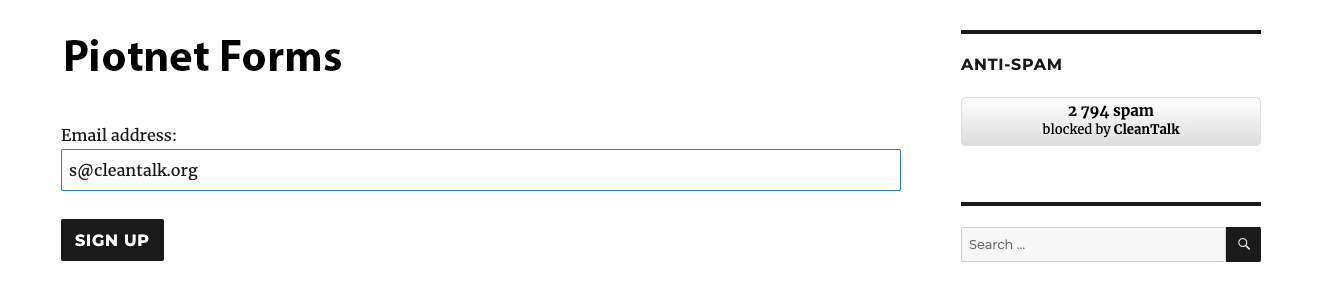
    You can test the work of Anti-Spam protection for your Contact Forms by using a test email s @ cleantalk.org (without spaces). First, open the form in an Incognito browser tab. Fill in all the required form fields and send a form. After submitting the form, you will see a block message about the block on the form submission.

    piotnet forms
    piotnet forms

    If you have any questions, add a comment and we will be happy to help you.

    Create your CleanTalk account – Register now and protect your Contact Forms from spam in 5 minutes

    Update

    The protection works only for website visitors, not for website admins. Be sure to test the form protection using Incognito mode.

    Additional features

    • CleanTalk protects all forms at once: comments, registrations, feedbacks, contacts, reviews.
    • Installation takes about 1-2 minutes.
    • Smart 99% protection against spambots.
    • Always online – 24/7 technical support.
    • Logs, SpamFireWall, personal lists, country filters, stop-words, and many others.

    Discover the complete list of CleanTalk Anti-Spam plugin features here.

  • Oracle Eloqua Spam Protection for WordPress

    Oracle Eloqua Spam Protection for WordPress

    CleanTalk added spam protection for Eloqua using direct form integration. So in case, you prefer using this platform be sure to use the most effective Anti-Spam plugin. Read the guide below and learn 4 steps to protect all your contact forms from spam.

    Once the CleanTalk Anti-Spam plugin is installed it starts to protect all of the existing forms on your WordPress website. It may not only be Eloqua Forms but also many others.

    Download CleanTalk Anti-Spam plugin | Download Eloqua 

    How to install CleanTalk Anti-Spam plugin

    To install the Anti-Spam plugin, go to your WordPress admin panelPluginsAdd New.

    Then enter «CleanTalk» in the search box and click the Install button for «Spam protection, Anti-Spam, FireWall by CleanTalk».

    After installing the plugin, click the «Activate»‎ button.

    After it is done go to the plugin settings and click the «Get Access Key Automatically» button. Then just click the «Save Settings»‎ button.

    That’s it! From now you How to completely protect your Contact Forms from spam.

    How to check Eloqua Spam Protection

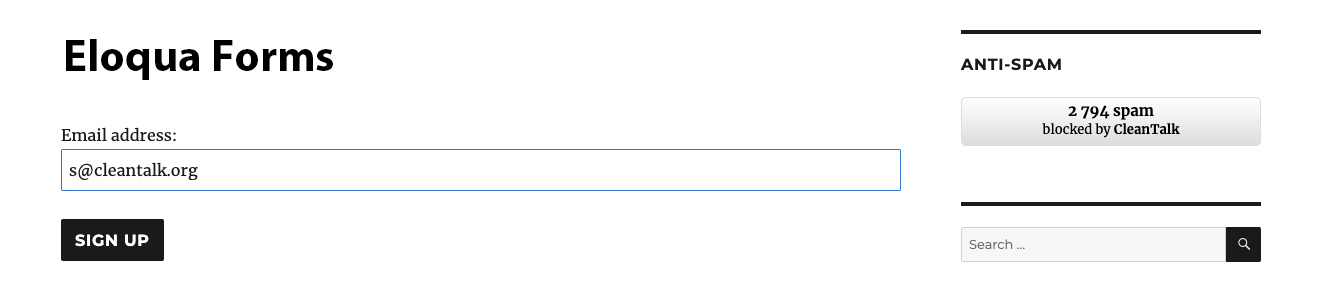
    You can test the work of Anti-Spam protection for your Contact Forms by using a test email s @ cleantalk.org (without spaces). First, open the form in an Incognito browser tab. Fill in all the required form fields and send a form. After submitting the form, you will see a block message about the block on the form submission.

    eloqua forms
    eloqua forms

    If you have any questions, add a comment and we will be happy to help you.

    Create your CleanTalk account – Register now and protect your Contact Forms from spam in 5 minutes

    Update

    The protection works only for website visitors, not for website admins. Be sure to test the form protection using Incognito mode.

    Additional features

    • CleanTalk protects all forms at once: comments, registrations, feedbacks, contacts, reviews.
    • Installation takes about 1-2 minutes.
    • Smart 99% protection against spambots.
    • Always online – 24/7 technical support.
    • Logs, SpamFireWall, personal lists, country filters, stop-words, and many others.

    Discover the complete list of CleanTalk Anti-Spam plugin features here.

  • Porto Theme Login popup Spam Protection for WordPress

    Porto Theme Login popup Spam Protection for WordPress

    CleanTalk added spam protection for Porto Theme Login popup using direct form integration. So in case, you prefer using this theme, be sure to use the most effective Anti-Spam plugin. Read the guide below and learn 4 steps to protect your login form from spam.

    Once the CleanTalk Anti-Spam plugin is installed it starts to protect all of the existing forms on your WordPress website.

    Download CleanTalk Anti-Spam plugin | Download Porto Theme 

    How to install CleanTalk Anti-Spam plugin

    To install the Anti-Spam plugin, go to your WordPress admin panelPluginsAdd New.

    Then enter «CleanTalk» in the search box and click the Install button for «Spam protection, Anti-Spam, FireWall by CleanTalk».

    After installing the plugin, click the «Activate»‎ button.

    After it is done go to the plugin settings and click the «Get Access Key Automatically» button. Then just click the «Save Settings»‎ button.

    That’s it! From now you How to completely protect your Contact Forms from spam.

    How to check Porto Theme Login popup Spam Protection

    You can test the work of Anti-Spam protection for your Login popup by using a test email s @ cleantalk.org (without spaces). First, open the form in an Incognito browser tab. Fill in all the required form fields and send a form. After submitting the form, you will see a block message about the block on the form submission.

    If you have any questions, add a comment and we will be happy to help you.

    Create your CleanTalk account – Register now and protect your Contact Forms from spam in 5 minutes

    Update

    The protection works only for website visitors, not for website admins. Be sure to test the form protection using Incognito mode.

    Additional features

    • CleanTalk protects all forms at once: comments, registrations, feedbacks, contacts, reviews.
    • Installation takes about 1-2 minutes.
    • Smart 99% protection against spambots.
    • Always online – 24/7 technical support.
    • Logs, SpamFireWall, personal lists, country filters, stop-words, and many others.

    Discover the complete list of CleanTalk Anti-Spam plugin features here.

  • A Beginners’ Guide: Crafting Captivating Pages on Your WordPress Website

    A Beginners’ Guide: Crafting Captivating Pages on Your WordPress Website

    WordPress pages are the cornerstones of your website’s static content, perfect for showcasing timeless information like “About Us” or “Contact” sections. This comprehensive guide will empower you to not only create pages in WordPress but also structure them strategically and fill them with engaging content.

    Creating a New Page

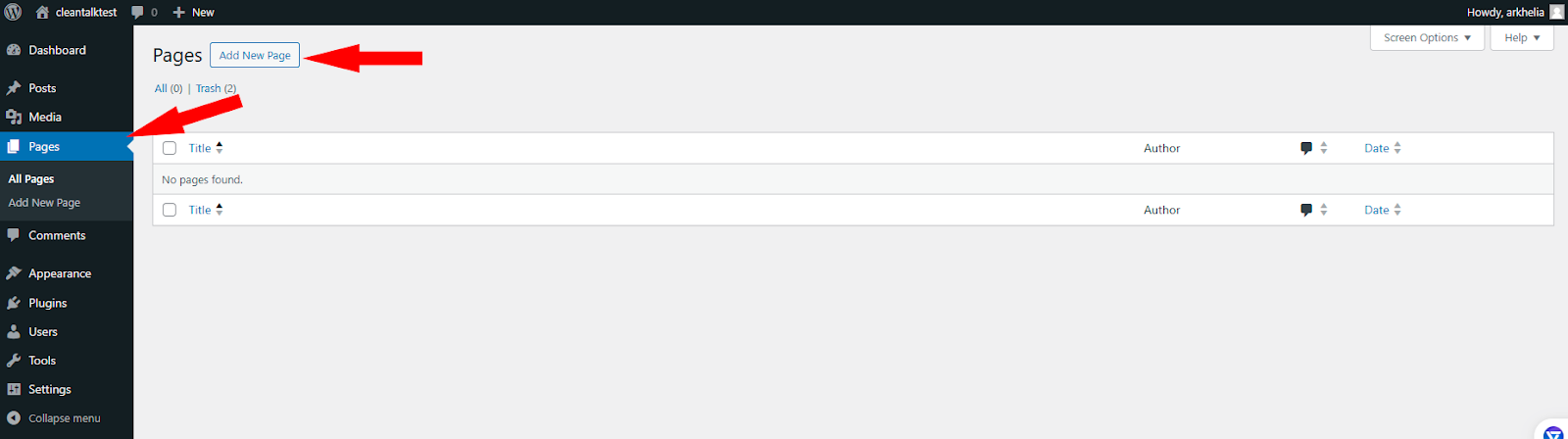
    1. Log in to your WordPress dashboard.
    2. In the left-hand menu, navigate to Pages.
    3. Click on Add New.

    Building Your Page’s Content

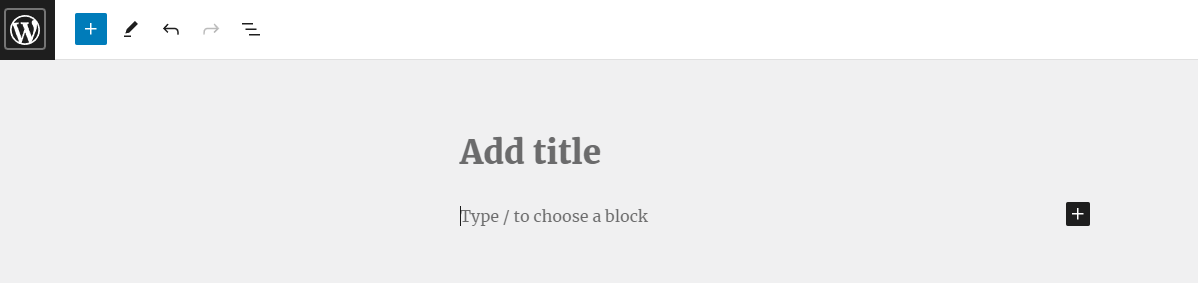
    • Title: Craft a clear and concise title that encapsulates your page’s content. This title will be displayed in navigation menus and search results.
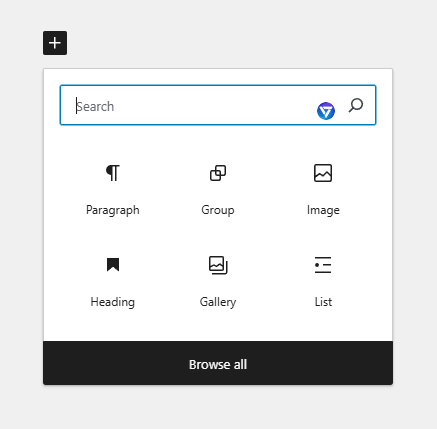
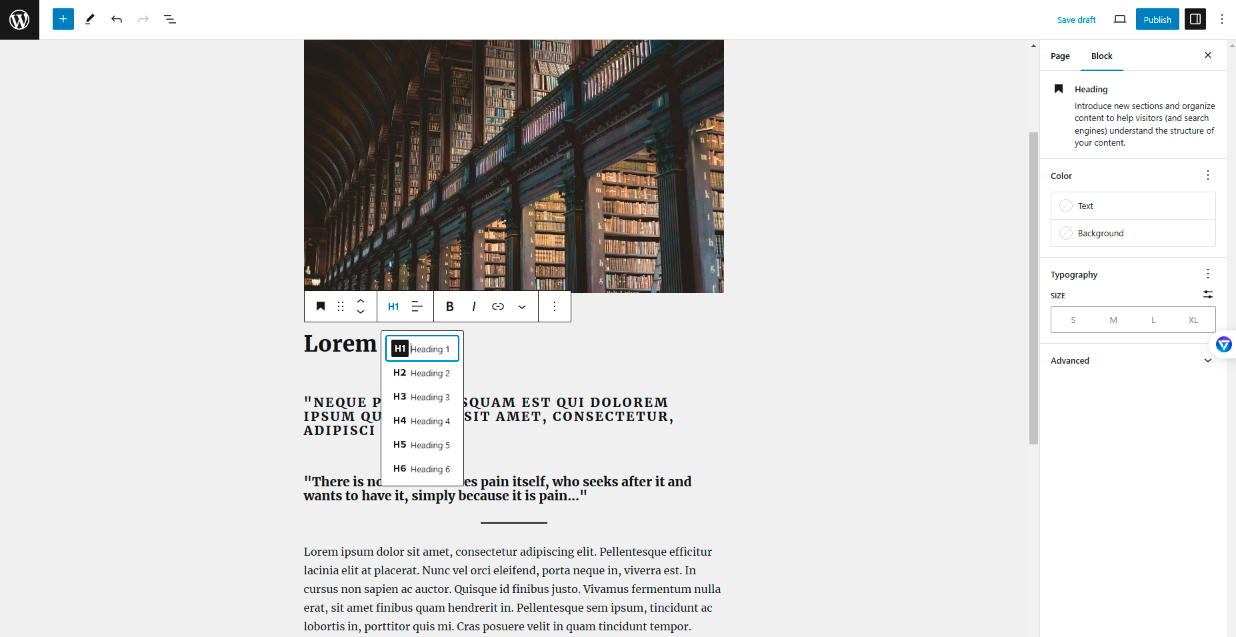
    • Content Area: This is where your page’s main content resides. WordPress utilizes a block editor, allowing you to add text, images, videos, and more using pre-designed blocks:
    • Click the “+” button to explore the various block options.
    • Drag and drop blocks to arrange your content in the preferred order.
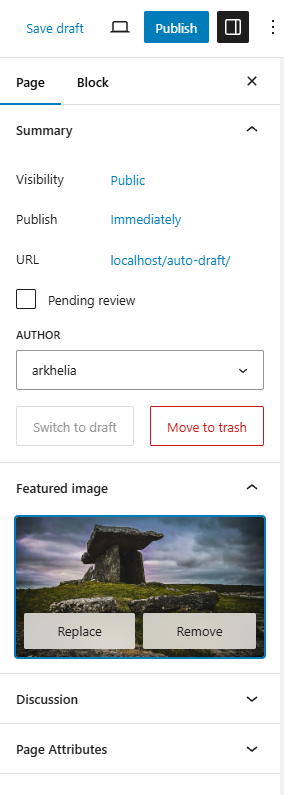
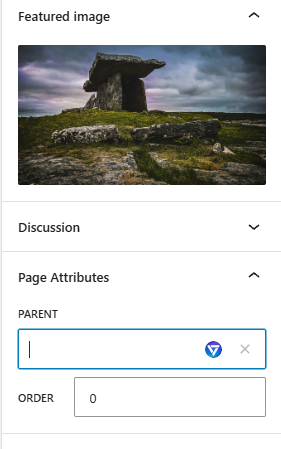
    • Featured Image (Optional): Select an image that visually represents your page’s content. This image is often displayed alongside your page title.

    Content Composition Techniques

    • Readability Matters: Break up large text chunks with images, headings (H1, H2, etc.), and bullet points. Use short paragraphs for easy scanning.
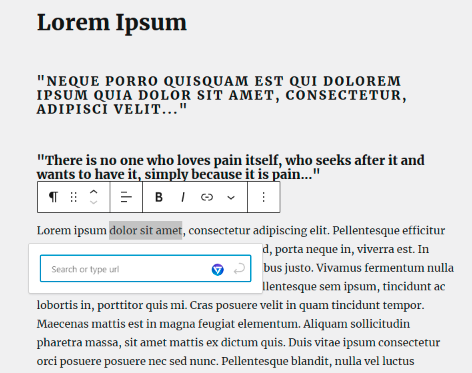
    • Internal Linking Power: Link to relevant pages within your website to enhance navigation and keep visitors engaged.

    Publishing and Visibility Control

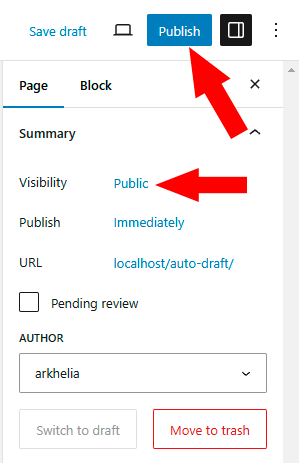
    • Publish Button: Once your content is ready, click the “Publish” button to make your page live on your website.
    • Visibility Options: You can choose to make your page publicly viewable, set it as a draft for further editing, or mark it as private for specific users.

    Arranging Your Pages for Optimal Flow (Page Hierarchy)

    • Parent-Child Relationships: WordPress allows you to establish a hierarchical structure for your pages. A parent page acts as a category, housing child pages that fall under its umbrella.
    • While creating a new page, look for the “Page Attributes” section on the right-hand side of the editor.
    • Under “Parent,” use the dropdown menu to select an existing page as the parent. This creates a sub-page nested under the chosen parent page.
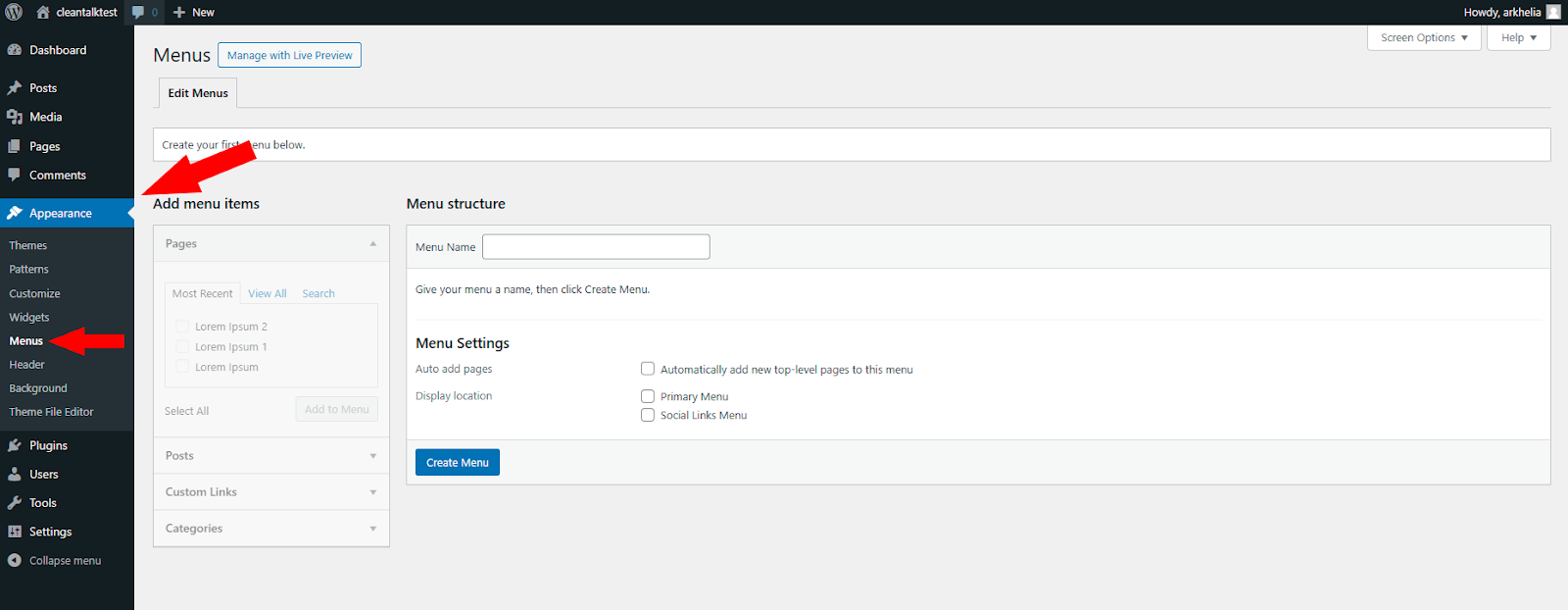
    • Navigation Menu Creation: Once you have a few pages, it’s time to create a navigation menu to help visitors find their way around.
    • In the WordPress dashboard, navigate to Appearance > Menus.
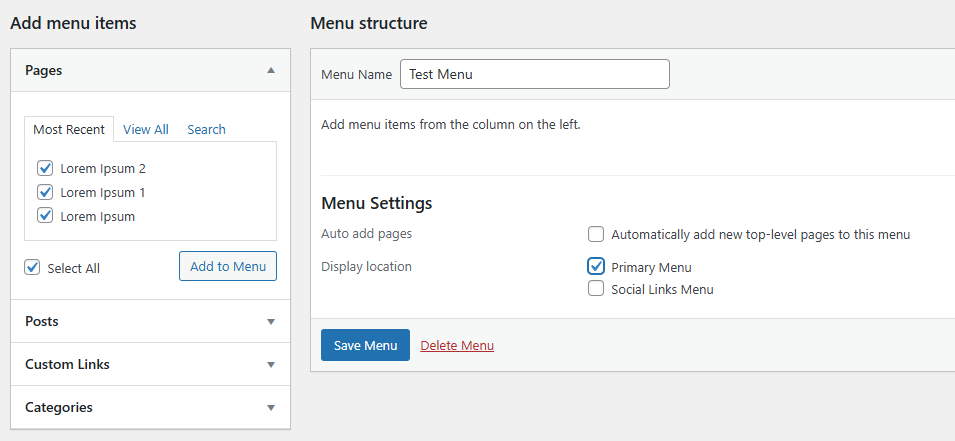
    • Give your menu a name and select the pages you want to include. You can use drag-and-drop to arrange the pages in the desired order within the menu.
    • Choose a menu location (header, footer, sidebar) and click “Save Menu” to make it live on your website.

    Maximizing Your Pages’ Potential

    • Categorize and Tag: Organize your pages using categories and tags to help visitors discover related content. Categories are broader groupings, while tags are more specific keywords.
    • Preview Function: Before publishing, use the preview function to see how your page will appear on the live website. This allows you to refine the layout and content before making it public.
    • SEO Optimization: Enhance your search ranking by incorporating relevant keywords in your title, headings, and content. Consider using SEO plugins for further optimization.
      • Yoast SEO: A household name in the WordPress SEO world, Yoast offers a user-friendly interface with a comprehensive feature set. It excels in on-page optimization, guiding you through keyword optimization, readability analysis, and title tag and meta description creation. While the free version provides a solid foundation, premium plans offer additional features like internal linking suggestions and social media previews.
      • Rank Math: This plugin is a powerful contender, known for its extensive free features and affordable paid plans. It offers on-page optimization tools similar to Yoast, including keyword research suggestions, content analysis, and schema markup implementation. Rank Math integrates well with popular page builders and provides basic local SEO and WooCommerce SEO optimization within the free version.
      • SEOPress: This plugin is another strong option, particularly for those seeking a lightweight and speed-focused solution. SEOPress offers on-page optimization tools, social media optimization, and broken link checker functionalities. Their free version is feature-rich, and their paid plans cater to larger websites with features like content redirection and white labeling.
      • The SEO Framework: If technical SEO is your primary concern, The SEO Framework is a great choice. It prioritizes website speed and automation, with features like automatic image SEO optimization, robots.txt editor, and built-in XML sitemap generation. While the free version offers valuable tools, paid plans unlock features like local SEO optimization and content audits.

    Bonus Advice: Choosing the Right SEO Plugin

    The best SEO plugin for your website depends on your specific needs and preferences. Here’s a quick breakdown to help you decide:

    • For beginners: Yoast SEO or Rank Math (free versions) offer a user-friendly interface and essential features.
    • For value-seekers: Rank Math provides a comprehensive free feature set with affordable paid upgrades.
    • For speed-conscious users: SEOPress is a lightweight option that prioritizes website performance.
    • For technical SEO focus: The SEO Framework excels in website speed optimization and automation.

    Remember, SEO is an ongoing process. It’s wise to experiment with different plugins to find the one that best suits your workflow and SEO strategy.

    By following these detailed steps and incorporating these tips, you can create well-structured, informative, and engaging pages that will elevate your WordPress website and provide a seamless user experience for your visitors.

  • CleanTalk Research Team Discovers Stored XSS Vulnerability in WP SEOPress Plugin (v7.7.1)

    CleanTalk Research Team Discovers Stored XSS Vulnerability in WP SEOPress Plugin (v7.7.1)

    The CleanTalk Research Team identified a critical Stored XSS (Cross-Site Scripting) vulnerability in the WP SEOPress plugin, version 7.7.1. This flaw can be exploited by attackers with contributor privileges to create new admin accounts, potentially granting them full control of your WordPress website.

    Understanding Stored XSS (CVE-2024-4899)

    Stored XSS vulnerabilities allow attackers to inject malicious scripts directly into your website’s database. These scripts are then executed whenever someone views the compromised content. Unlike reflected XSS, user interaction isn’t required to trigger the attack, making it particularly dangerous.

    How Attackers Can Exploit This Vulnerability

    An attacker with contributor privileges can exploit this vulnerability by injecting malicious JavaScript code into the “SEO Title” field while creating a new post. This code can then be used to create a new admin account, granting them complete control over your website.

    Potential Consequences of an Exploit

    • Complete Site Takeover: Attackers could create new admin accounts and seize full control of your website.
    • Data Theft: Sensitive information like user credentials, financial records, and even your website’s content could be stolen.
    • Website Defacement: Attackers could alter the appearance of your site, inject further malicious code, or display unauthorized content.
    • Persistent Backdoors: Malicious actors might install backdoors to ensure continued access even after the initial vulnerability is patched.

    Taking Action to Secure Your Website

    1. Update Immediately: The most critical step is to update the WP SEOPress plugin to the latest version as soon as possible. This update addresses the vulnerability and safeguards your website.
    2. Review User Roles: Carefully review user roles and permissions. Contributors should have the minimum access necessary for their tasks.

    Through continuous vulnerability discovery and disclosure, we empower website owners and developers to take preventative measures. We believe that by working together, we can create a robust and secure WordPress ecosystem for everyone.

    Stay vigilant. Stay secure.

  • Attention CleanTalk Anti-Spam Users! Important Update Regarding Public Widget

    Attention CleanTalk Anti-Spam Users! Important Update Regarding Public Widget

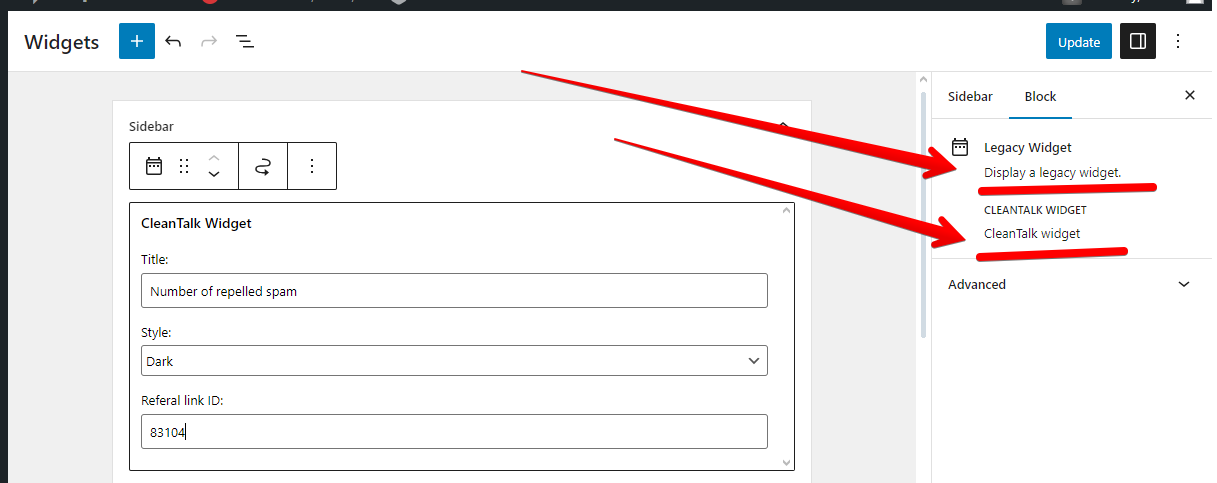
    We’re writing to inform you that the public widget for CleanTalk Anti-Spam will be removed from the plugin and no longer be supported after August 1, 2024.

    What does this mean for you?

    The public widget, which is typically displayed on public pages and demonstrates the number of spam attacks, is no longer considered compatible with modern WordPress development practices and has seen low user demand. As a result, we’re removing it from the plugin to ensure optimal performance, streamline the user experience, and focus on core functionalities. This removal also helps us stay aligned with future WordPress versions.

    What action should you take?

    While the public widget will no longer be available after August 1, 2024, CleanTalk Anti-Spam’s core functionality remains unchanged and will continue to provide robust spam protection for your WordPress site.

    Here’s what you can do:

    1. No action required: If you don’t utilize the public widget, you don’t need to take any further action. CleanTalk Anti-Spam will continue to operate seamlessly.
    2. Review alternative widget usage: If you’ve been using the public widget, we recommend exploring alternative methods for interacting with CleanTalk Anti-Spam’s features. These may include accessing settings pages or utilizing shortcodes.

    Affiliate Program Guidance

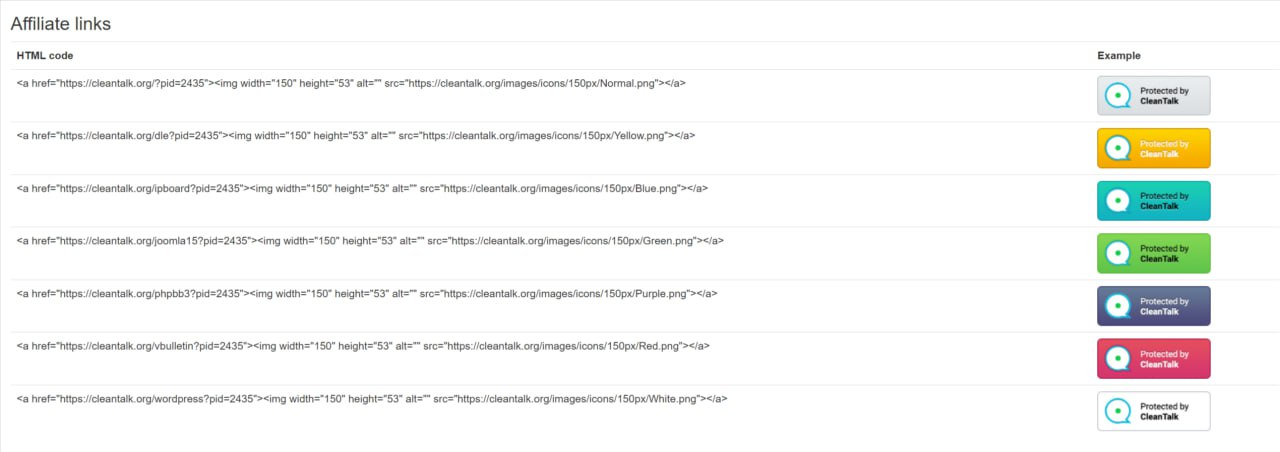
    If you’ve been using the public widget to promote the CleanTalk AntiSpam Affiliate program, we recommend transitioning to using Affiliate links along with our banner. This method provides a more streamlined and effective way to promote the program.

    To get started with Affiliate links:

    1. Access your CleanTalk Affiliate Dashboard: Log in to your CleanTalk account and navigate to the Affiliate program section.
    2. Generate your Affiliate link: Your unique Affiliate link is provided within the dashboard. Copy this link for use in your promotional materials.
    3. Utilize our Affiliate banner: We offer a visually appealing banner that you can include alongside your Affiliate link. Download the banner from the Affiliate dashboard.
    4. Promote your Affiliate link and banner: Share your Affiliate link and banner on your website, social media channels, or other relevant platforms. When a visitor clicks on your link and signs up for CleanTalk AntiSpam, you’ll earn a commission.

    By transitioning to Affiliate links and our banner, you can continue to effectively promote the CleanTalk AntiSpam Affiliate program while aligning with the updated public widget removal.

    We understand that change can be challenging, and we appreciate your understanding as we work to enhance the CleanTalk Anti-Spam experience.

    If you have any questions or concerns, please don’t hesitate to contact our support team.

    Thank you for being a valued CleanTalk Anti-Spam user!