

TL;DR: To stop spam in Tutor LMS, combine its registration settings and Pro reCAPTCHA with a cloud anti-spam filter. CleanTalk Anti-Spam checks every Tutor LMS submission in the background and blocks spam bots invisibly – no CAPTCHA, no puzzles, no checkboxes – while protecting registrations, comments and WooCommerce on the same site. reCAPTCHA, hCaptcha and Turnstile add a visible challenge layer for high-risk forms. For most WordPress sites, an invisible cloud filter blocks more spam with less friction than CAPTCHA alone. Plans start at $12 per site/year with a free 7-day trial.

An LMS signup is worth more to a spammer than a contact form
Tutor LMS by Themeum is one of the ways a WordPress site becomes a full learning platform: courses and lessons, quizzes, assignments, a student dashboard, an instructor marketplace with revenue sharing, and front-end registration forms for both students and instructors. In 2026 popularity also means exposure, and an open course platform is a more attractive target than a contact form, because a successful submission does not just send a message – it creates an account inside your site.
That is what makes Tutor LMS spam different. A blocked contact message costs a spammer nothing. A registered student account is a working asset: a profile with a bio and a website field, the ability to post questions in course Q&A, to leave course reviews, and to comment on lessons. An approved instructor account is worth even more, because it can publish content. Add the enrollment and password reset emails your site sends to every fake address, a user list you can no longer scan, and the moderation queue that grows every week, and the cost of registration spam becomes obvious.
As WordPress.org shows, Tutor LMS is currently used on over 100,000 active installations and has 586 reviews with an average rating of 4.4.
Plugin Homepage at wordpress.org | Website tutorlms.com
Common types of spam in Tutor LMS
- Bulk bot registrations on the student form. Scripted signups against the Student Registration page, usually in bursts, with generated usernames and disposable addresses.
- Fake instructor applications. Automated submissions on the Become an Instructor form. They fill your instructor approval queue, and an approved account can publish courses.
- Profile link farming. Accounts created only to put links into the profile bio and website fields, hoping the profile pages get indexed.
- Q&A and course review spam. Once an account exists, course Q&A, reviews and lesson comments become free placements for casino, crypto and backlink text.
- Throwaway and invalid email addresses. They pass format validation, never confirm, keep your enrollment emails bouncing and quietly inflate your user table.
- Human spam signups. Low-volume accounts registered manually by people who are paid to do it. They defeat rate limits and CAPTCHA, because a real person really is on the other side.
Official anti-spam options and integrations in Tutor LMS
Themeum ships several controls, but it is worth being precise about which version they belong to.
- Google reCAPTCHA. Native reCAPTCHA support for Tutor LMS registration and login forms is part of Tutor LMS Pro. The free plugin does not add a CAPTCHA field to the student or instructor registration forms.
- Honeypot protection. Also part of the Pro security feature set, alongside two-factor authentication, active login session control and content copy protection.
- Instructor approval. Instructor applications can be held for manual review, so a fake instructor cannot publish immediately. It moves the problem to a queue rather than preventing the signup.
- Email verification. Tutor LMS can require a confirmed address before the account becomes usable – available through the Pro settings and the tutor_require_email_verification filter. Again, the registration attempt still happens.
- Registration pages you control. Under Tutor LMS -> Settings -> General you choose which pages act as the Student Registration and Instructor Registration pages, or you place [tutor_student_registration_form] and [tutor_instructor_registration_form] yourself. Turning the marketplace off in Settings -> Instructor removes the public instructor form entirely if you do not need it.
Use these. The honest limitation is that a challenge stops only sessions that cannot solve it, and approval and verification queues do not stop the submission – they hand it to a human. None of them answer the question that actually separates a spammer from a student: has this email address and this IP been creating fake accounts on other websites this week?
If your main goal is to protect Tutor LMS without adding CAPTCHA challenges, CleanTalk can be used as a Google reCAPTCHA alternative that filters spam submissions in the background.
CAPTCHA options in Tutor LMS
- reCAPTCHA v2 checkbox. The familiar “I’m not a robot” tick on the registration form. The most visible option and the most damaging to signup completion, which matters when signup is the first step of your course funnel.
- reCAPTCHA v2 invisible. No click in the normal case, a challenge only when Google is suspicious. A reasonable compromise if you want a challenge at all.
- reCAPTCHA v3. Scores the session silently and leaves you to decide what a low score means. Less friction, but it needs tuning and never explains a verdict.
- hCaptcha and Cloudflare Turnstile. Available through third-party WordPress plugins that add a challenge to WordPress and plugin forms. Privacy-friendlier, still a challenge rather than a content filter.
All of them judge one thing: how the current session behaves. None of them know the reputation of the email address being registered, which is why CAPTCHA alone rarely ends registration spam on an LMS.
Best ways to stop spam in Tutor LMS
- Filter registrations in the cloud before the account is created. Every student and instructor submission is checked against the reputation of the IP, the email address and the behavior of the session.
- Keep the forms free of challenges. Students who came to buy or take a course should not have to solve a puzzle to sign up.
- Use instructor approval as the second layer, not the first. It is a good policy control, but it should be reviewing real applications, not bot output.
- Protect the rest of the site too. Course Q&A, reviews, lesson comments, WooCommerce checkout and the standard WordPress registration form are all entry points on the same site.
- Keep your anti-spam plugin current. Protection for the Tutor LMS instructor and student registration forms is included in CleanTalk Anti-Spam 6.85 and newer, so update before you test.
- Check the log, not your inbox. A cloud dashboard that shows what was blocked and why is what turns spam protection from a guess into a report.
Comparison table: CAPTCHA and anti-spam options for Tutor LMS vs CleanTalk
Here is how the main anti-spam options for Tutor LMS compare:
| Solution | Best for | Pricing | Main limitation |
| CleanTalk Anti-Spam | Invisible, site-wide protection across forms, signups and WooCommerce | From $12/site/year; free 7-day trial | Cloud service; paid after trial |
| Tutor LMS Pro reCAPTCHA and honeypot | Sites already on Pro that accept a challenge on signup | Included in Tutor LMS Pro | Not in the free plugin; challenge-based, no email reputation |
| Google reCAPTCHA | High-risk forms where a challenge is acceptable | Free | Adds friction; can hurt conversion; bots bypass it |
| Cloudflare Turnstile | Lighter, privacy-friendly CAPTCHA | Free | A challenge, not a content filter |
In short: use CleanTalk as the invisible baseline filter, and add reCAPTCHA, hCaptcha or Turnstile only on your highest-risk forms.
Anti-Spam plugin by CleanTalk for WordPress
The next tool we’re going to use is the Anti-Spam plugin by CleanTalk.
CleanTalk is a cloud-based anti-spam service for WordPress and other platforms. Instead of showing visitors a puzzle, it analyzes each submission server-side against a constantly updated database of known spammers, spam patterns, and behavioral signals, then silently blocks the bad ones.
Here’s a short overview:
- CleanTalk is a cloud-based spam protection service for websites, founded in 2012.
- It automatically blocks spam without CAPTCHAs and doesn’t interrupt the user experience.
- Protects many types of forms: contact forms, payment forms, registrations, comments, surveys and more.
- Stops both automated bots and human spam submissions.
- Uses advanced filtering algorithms and a global spam detection network.
- Detects spam based on IP address, email address and user behavior.
- Lets you create custom filtering rules for specific cases.
- Allows blocking or filtering by IP, email and country.
- Works quietly in the background and is very easy to install and configure.
According to WordPress.org, Anti-Spam by CleanTalk for WordPress has over 200,000 active installations, with 3,168 reviews and an average rating of 4.7.
Plugin Homepage at cleantalk.org | Latest release at GitHub.com
Install the CleanTalk Anti-Spam plugin
To install the Anti-Spam plugin, go to your WordPress admin panel→ Plugins→ Add New.
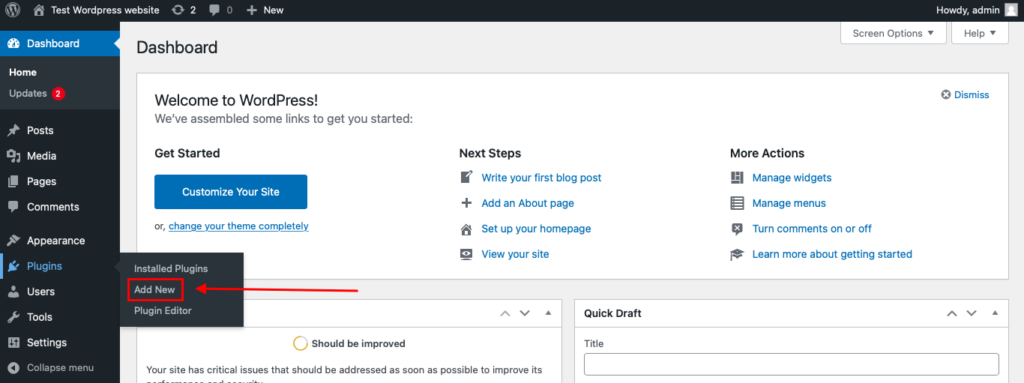
Then enter «СleanTalk» in the search box and click the Install button for «Spam protection, Anti-Spam, FireWall by CleanTalk».
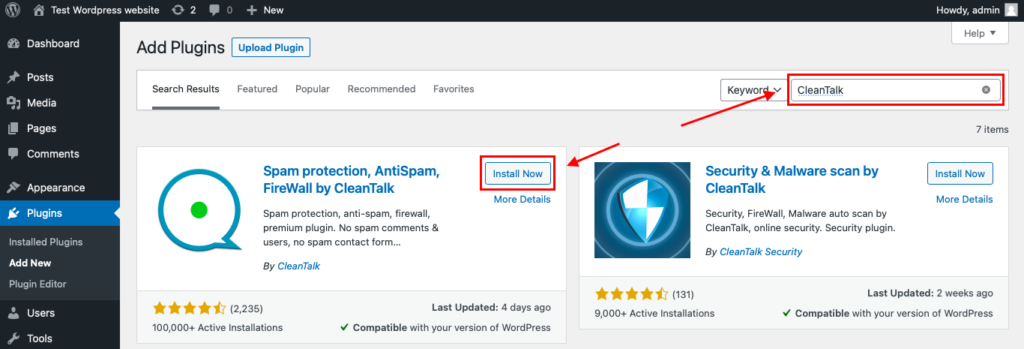
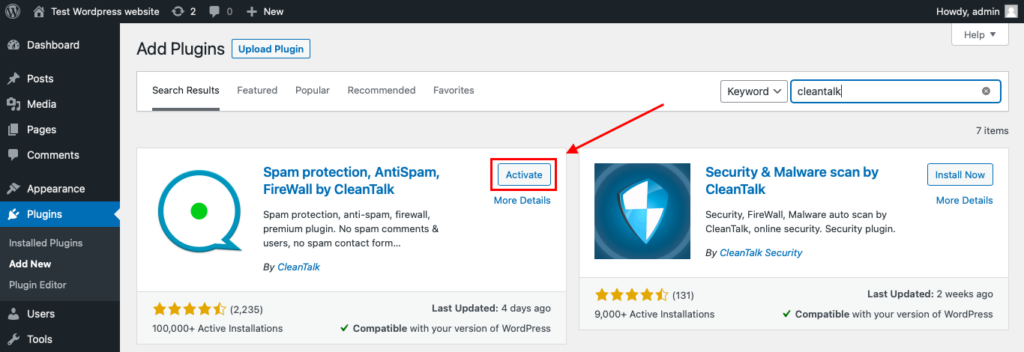
After installing the plugin, click the «Activate» button.
After it is done go to the plugin settings and click the «Get Access Key Automatically» button. Then just click the «Save Settings» button.
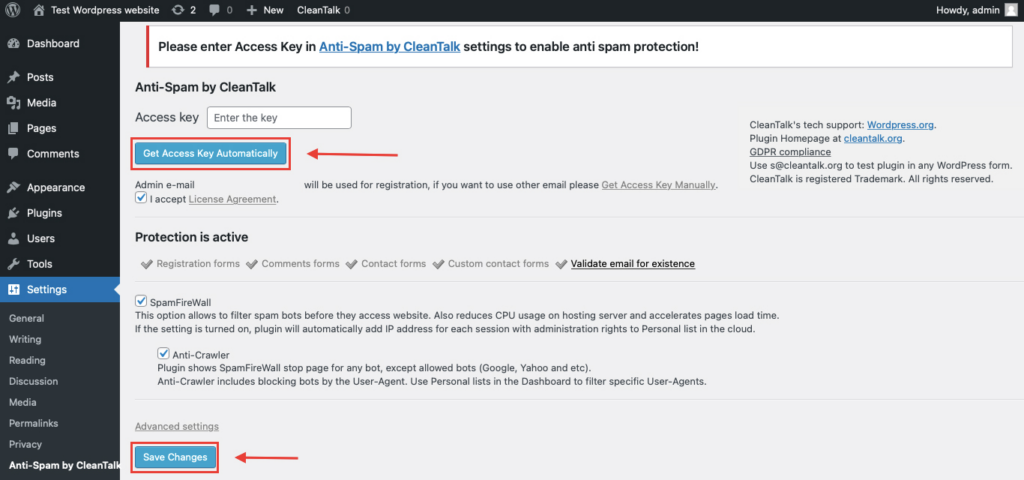
That’s it! From now you know how to completely protect your Tutor LMS from spam. You don’t need to paste any shortcodes – just use Tutor LMS as usual, and CleanTalk will filter spam in the background.
Check if spam protection works with Tutor LMS
The best way to test the spam protection is by using a test email,
stop_email@example.com
- Open a page with your Tutor LMS form in an Incognito / private browser tab.
- Fill out the form using stop_email@example.com as the sender’s email.
- Send the form.
- You should see a message from the Anti-Spam plugin confirming that a spam submission was blocked.
\*\*\* Forbidden. Sender blacklisted. Anti-Spam by CleanTalk. \*\*\
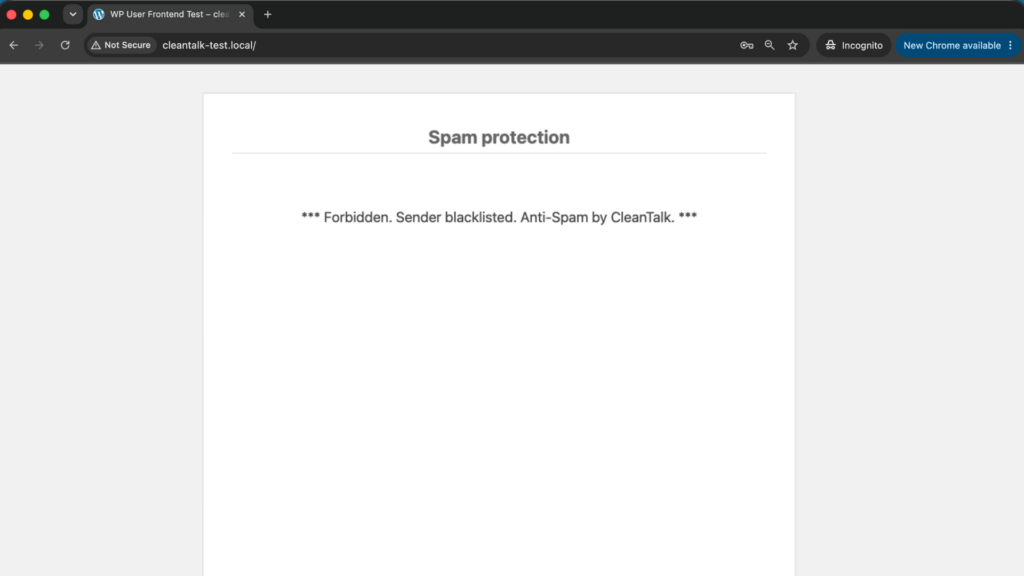
If you see this message, it means CleanTalk successfully protects your Tutor LMS forms from spam.
We ran this test on both Tutor LMS registration forms – Student Registration and Instructor Registration – with CleanTalk Anti-Spam 6.85. Both spam attempts were stopped with the message above, no account was created, and a normal registration with a real email address went through to the student dashboard as usual.
Cloud Dashboard
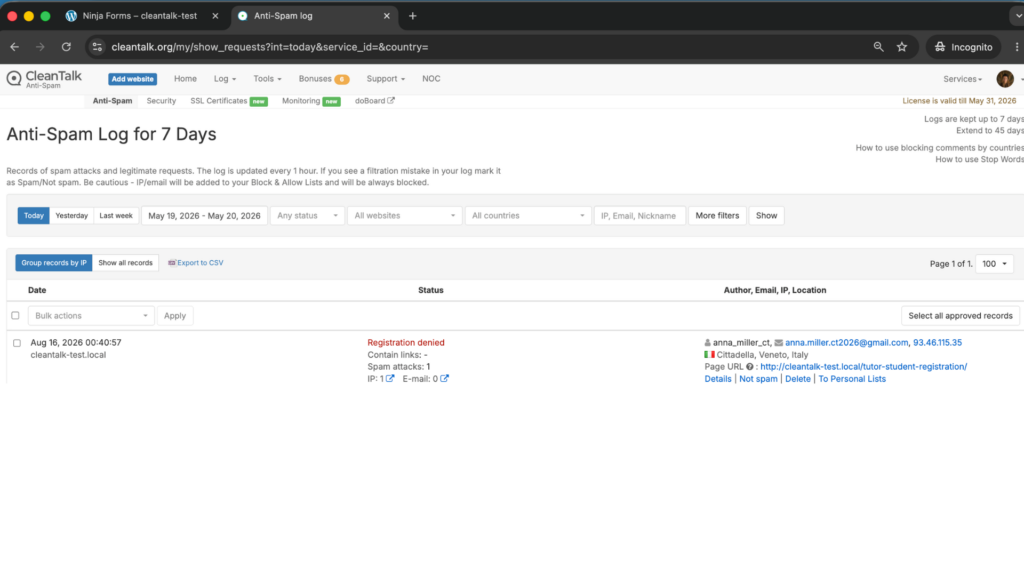
In addition, in the Cloud Dashboard you can find extra details regarding all submissions processed by CleanTalk, including Tutor LMS forms:
- IP and email of the sender, as well as the sender’s activity history across other websites connected to the CleanTalk cloud.
- Geolocation of the sender.
- Date and time of the submission.
- Page (URL) where the form was submitted.
- Cloud decision – Approved or Denied.
- Cloud explanation for the decision (e.g. blacklisted email, bad IP reputation, spam text, etc.).
- Tools to move the sender to Block or Allow lists so you can fine-tune Tutor LMS spam protection.
FAQ
Do I need Tutor LMS Pro to stop registration spam?
No. The Pro version adds reCAPTCHA and honeypot protection, but a cloud anti-spam filter works with the free plugin and covers both registration forms.
Does CleanTalk protect the instructor registration form as well as the student one?
Yes. Both [tutor_student_registration_form] and [tutor_instructor_registration_form] are checked. Support for these forms is included in CleanTalk Anti-Spam 6.85 and newer, so update the plugin if you are on an older version.
Will real students be blocked?
Legitimate signups pass through without any extra step. If a valid registration is ever stopped, the submission is visible in the Cloud Dashboard with the reason, and you can move that sender to the Allow list.
Do I need to add a shortcode or a field to my forms?
No. Activate the plugin, add your Access Key and use Tutor LMS as usual. Protection is applied in the background.
Can I still use reCAPTCHA together with CleanTalk?
Yes. They work at different levels: reCAPTCHA judges the session, CleanTalk checks the reputation of the IP and email. Many sites keep a challenge only on their highest-risk form.
What about spam in course Q&A, reviews and lesson comments?
Those are protected too, along with WooCommerce checkout, the standard WordPress registration form and any other forms on the same site.
Will it slow down my LMS?
No. The check is a single background request while the form is submitted, and the CAPTCHA scripts you can now remove are usually heavier than the check itself.
Final recommendation
For a Tutor LMS site, the cheapest place to stop spam is the registration form, before an account, a profile and a moderation queue exist. Keep instructor approval and email verification as policy controls, add a challenge only where the risk is genuinely high, and let an invisible cloud filter handle the volume.
For broader website protection, CleanTalk also provides anti-spam protection for websites, helping block spam in forms, comments, registrations, and orders without CAPTCHA.
