
Category: WordPress

  • Strengthen Your WordPress Defense: The Ultimate Brute Force Protection 

    Strengthen Your WordPress Defense: The Ultimate Brute Force Protection 

    In the vast world of the internet, your WordPress site faces constant threats from brute force attacks. But worry not! Security & Malware Scan by CleanTalk is here to fortify your digital fortress and ensure it remains impervious to intrusion.

    In WordPress security, the login form is both essential and vulnerable. Hackers target it with relentless brute force attacks, exploiting weaknesses in passwords and outdated software. Once inside, they wreak havoc, defacing sites or stealing sensitive data. However, with measures like two-factor authentication and regular updates, we can strengthen our defenses and keep our digital kingdoms safe from harm.

    Enhance Your Security: Key Features

    • Security Firewall: Guard Your Gates

    “Build a sturdy wall around your website! CleanTalk’s Security Firewall filters out malicious IPs and halts DDoS attacks, safeguarding your WordPress site from harm.”

    • Malware Scanner: Detect and Remove Threats

    Hunt down hidden dangers! CleanTalk’s vigilant scanner identifies and eliminates malware, ensuring your WordPress files stay clean and your site stays secure.

    • Brute Force Protection: Keep Intruders Out

    “Block unwanted guests from your site! CleanTalk’s Brute Force Protection plugin limits login attempts and adds delays on failed logins, effectively thwarting brute force attacks.

    • Two-Factor Authentication: Double Up on Security

    Add an extra layer of protection! CleanTalk’s Two-Factor Authentication ensures that only authorized users gain access to your WordPress domain, boosting security for your peace of mind.

    • Custom wp-login URL: Hide Your Entry Point

    Keep your login page under wraps! CleanTalk lets you customize your login URL, confusing automated login attempts and safeguarding against unauthorized access.

    Secure Your WordPress Stronghold

    With over 20,000 active installations and nearly a perfect 5-star rating on WordPress.org, Security & Malware Scan by CleanTalk stands as a trusted guardian in the realm of WordPress security. Its widespread adoption and high user satisfaction attest to its effectiveness in fortifying websites against cyber threats. From thwarting brute force attacks to detecting and eliminating malware, Security & Malware Scan by CleanTalk offers a comprehensive suite of features to keep your WordPress site safe and secure. 

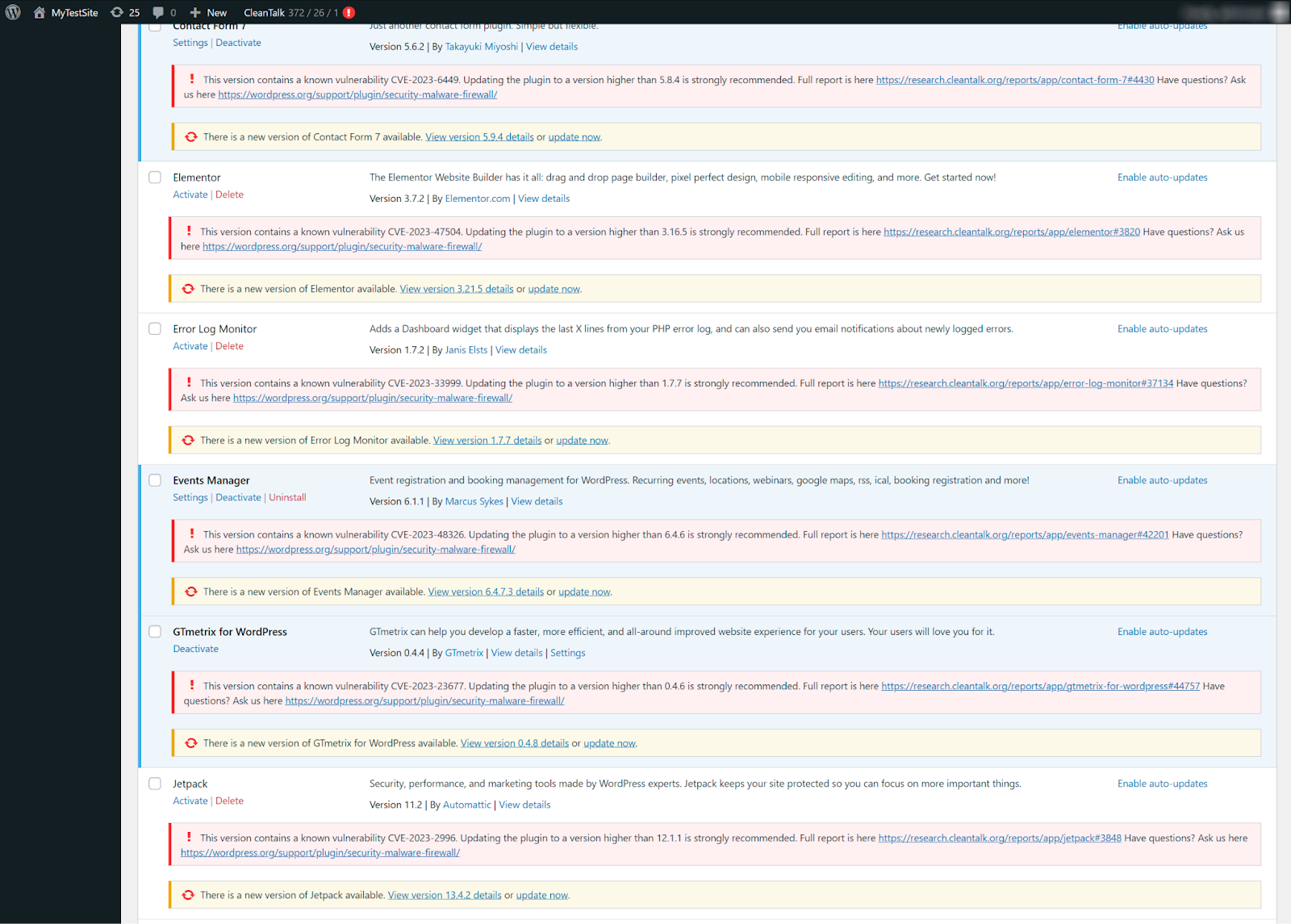
    Don’t overlook the critical need to fortify your digital defenses. Stay informed with CleanTalk Research, your indispensable source for real-time alerts on plugin vulnerabilities and PSC plugin security certificates. Subscribe to our Telegram channel and stay one step ahead of cyber threats. Learn more: Subscribe to CleanTalk Research

    Choose Security & Malware scan by CleanTalk and protect your WordPress kingdom with ease and efficiency. Your digital fortress awaits its impenetrable shield!

  • Survey: Would You Like to Have a User Verification Badge ✔️ in the Comments/Reviews on your Site? 

    Survey: Would You Like to Have a User Verification Badge ✔️ in the Comments/Reviews on your Site? 

    Many online comments and reviews are helpful, but some might not be written by real users. A special verification badge could indicate if a comment/review is confirmed to be written by a real person. This might help you decide which reviews to trust more when reading/discussing online.

    Vote in the survey   or use the widget below if you see it ↓

  • Preventing Stripe Fraudulent Payments

    Preventing Stripe Fraudulent Payments

    Fraudulent payments occur when the cardholder has not authorized the transaction. Most fraudulent payments are made using stolen credit card information. When the cardholder notices an unauthorized payment or reviews their card statement, they contact the card issuer to dispute it. It is crucial for businesses accepting online payments to be aware of different types of fraud.

    Website owners mainly encounter two types of fraud: purchases made with stolen cards and card testing.

    Stolen Cards:
    This type of fraud involves using stolen credit card data to make purchases online. When the cardholder discovers fraudulent activity, they dispute the payment with the card issuer. If the dispute is resolved in favor of the cardholder, the business suffers losses equivalent to the payment amount and the value of goods or services provided. Additionally, the business may face dispute fees.

    Card Testing:
    Card testing is the practice of validating a card’s authenticity on one website before using it for fraudulent transactions on another site. Websites with an open payment form on the page can be subject to card testing.

    To reduce the risk of fraud, businesses can take measures to block automated bots used by card testers.

    CleanTalk Anti-Spam is a tool that can identify bots during order submission and block the form if it detects automated activity and this occurs before the payment for the order proceeds.. This helps safeguard against disputes and fraudulent purchases.

    CleanTalk Anti-Spam is already being utilized by numerous WooCommerce sites and other online other online stores, donation forms and other payment forms, with positive feedback on its contribution to reducing fraud in online stores.
    https://wordpress.org/support/topic/this-saves-lots-of-work-and-it-pays-for-itself/

    Installation on WordPress only takes a few minutes, providing protection against fraud and spam. 

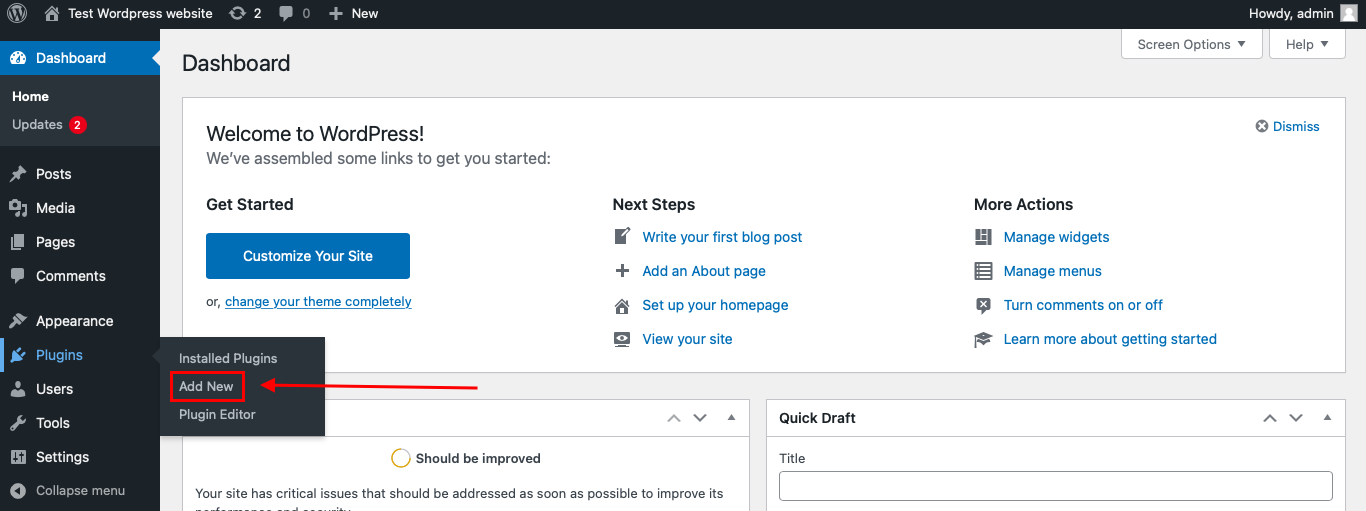
    To install the Anti-Spam plugin, go to your WordPress admin panel → Plugins → Add New.

    How to install CleanTalk anti-spam

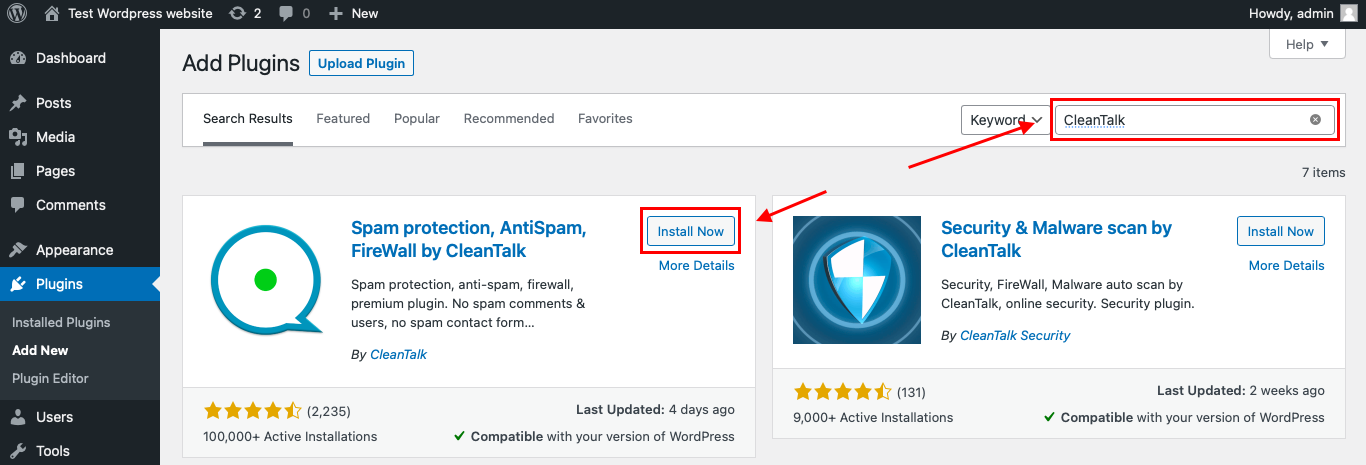
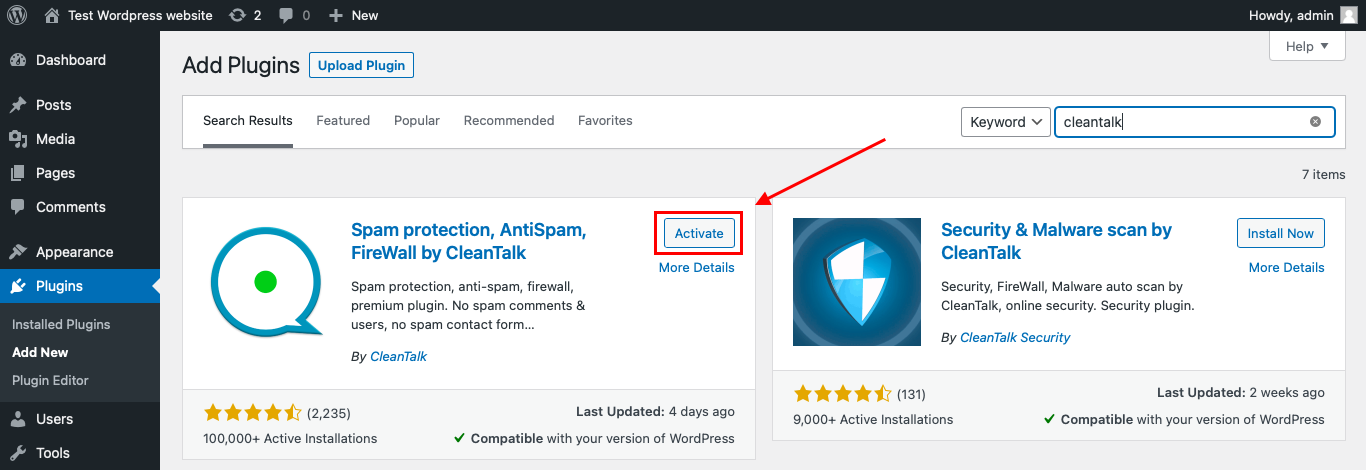
    Then enter «СleanTalk» in the search box and click the Install button for «Spam protection, Anti-Spam, FireWall by CleanTalk». After installing the plugin, click the «Activate»‎ button.

    WordPress Installation of CleanTalk anti-spam

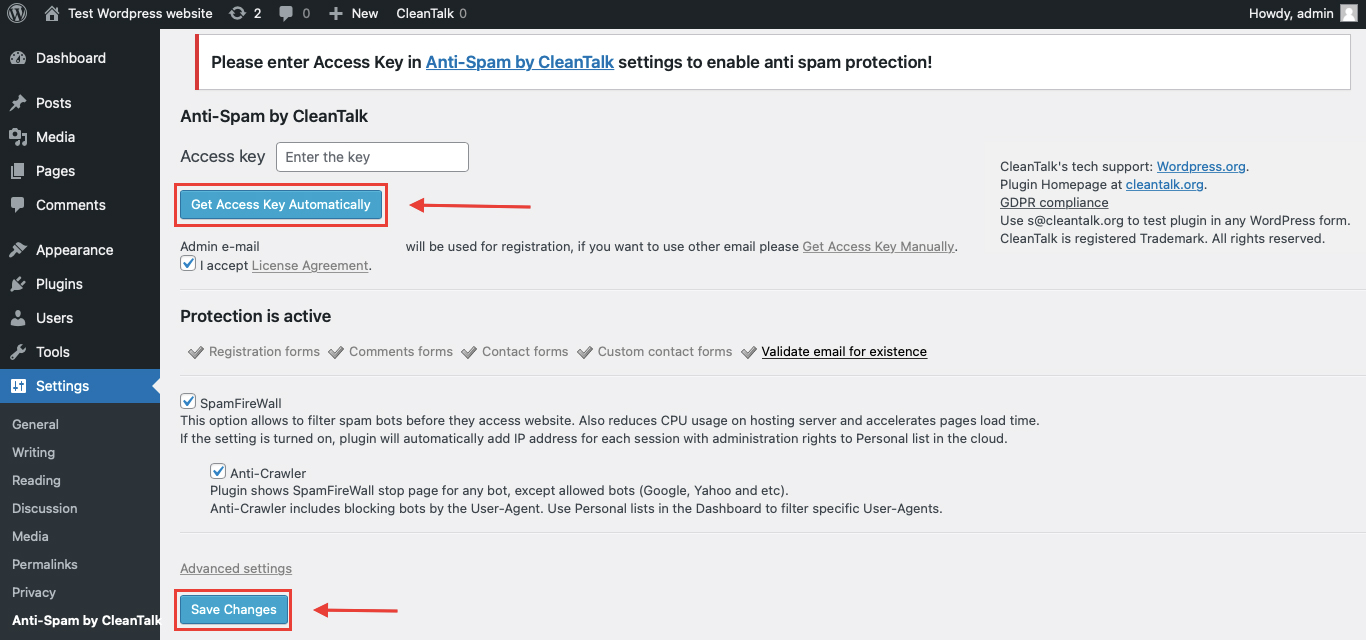
    After it is done go to the plugin settings and click the «Get Access Key Automatically» button. Then just click the «Save Settings»‎ button.

    Getting the CleanTalk Anti-Spam key

    Go to the checkout page in Incognito mode. Place your order and use the test email address s@cleantalk.org. When you submit your order, it will be blocked for a reason:
    *** Forbidden. Fraud prevention. Sender blacklisted. Anti-Spam by CleanTalk. ***.

    So, the CleanTalk Anti-Spam installation process is complete.

    For users of Drupal and Joomla or other CMS, instructions for installation are also available. 
    https://cleantalk.org/help/install

    Bot Detector  – You can use this integration API method using our library without using plugins. You will need programming knowledge to create the integration.
    https://github.com/alexandergull/cleantalk_api_check_bot

    By being proactive in detecting and preventing fraud, businesses can safeguard themselves from financial losses and disputes.

    We will be happy to respond to your comments.

  • We have added a new feature to Security Protection – File System Watcher

    We have added a new feature to Security Protection – File System Watcher

    Introducing File System Watcher, a new feature of our Security protection. It helps to track changes in your site files to detect suspicious ones in time. File System Watcher has already been added to all plans and is enabled by default.


    How the feature works

    The feature takes a snapshot of the file system during a selected period and allows you to monitor which files on your site have been modified between selected dates. The snapshots are stored for 7 days.

    You can control the frequency of snapshots in the plugin settings. Alternatively, you can run the snapshot immediately by clicking the Create File System snapshot button and refreshing the page.


    How to use the feature and see results

    1. Go to your WordPress site dashboard and go to SettingsSecurity by CleanTalkFile System Watcher.

    2. Select the dates you want to compare and click the Compare button.

    3. Click the View link and you will see the code for the modified version of the specified file.

    To use this feature you have to have a Security & Malware scan plugin installed to your WordPress. Feel free to download it in WordPress catalog.

  • Hubspot emails going to spam – fixing the issue

    Hubspot emails going to spam – fixing the issue

    Hubspot users frequently encounter the issue of their email newsletters being classified as spam, despite having appropriate content in the emails. Even though the email content, headers, and text are all in compliance, you can still see the emails flagged as spam. Let’s investigate the possible reasons behind this occurrence.


    Why email from Hubspot going to spam

    • Exclamation points or certain phrases in the “subject” line
      Avoid using exclamation points or specific phrases in the subject line that may trigger spam filters, such as “Make money,” “Free,” or “Not spam.” It is advisable to steer clear of these types of triggering phrases to prevent your emails from being classified as spam.

    • The Unsubscribe Button is missing
      It’s important to keep in mind that if an email is not pertinent to the recipient and lacks an Unsubscribe option, the only recourse for the recipient to cease receiving the email is to flag it as spam.

    • Irrelevant offer
      If multiple individuals label your email as spam, it could result in your future emails being automatically directed to recipients’ spam folders.

    • Blacklisted or unreal email in your email list
      We believe you can handle the changes above yourself, but this one requires some help to check email addresses. Since so many bots use subscription forms and use either fake addresses or stolen ones. If you have blacklisted and unreal emails in your email list, spam filters can recognize it and put your emails at risk of going into the spam folder.

      Mailing to such addresses will not be useful, so we made a web service that clears your email list by checking it through a database of 6M email addresses for fake addresses and spam. Use the instructions below to clean your mailing list of “bad” addresses.


    How to protect your HubSpot forms from spam bots

    The Anti-Spam plugin for WordPress by CleanTalk has direct integration with HubSpot and blocks any spam bots even before they reach your website. Follow this guide to protect your HubSpot forms from spam.


    How to clean email list of non-existent or spammers email addresses

    1. Visit the SpamBots Check page, where you can clean your email list by inputing your email list by either copying and pasting it into the designated field or uploading a file using the Browse button. Click the Clear my list button to initiate the process. That is the moment when all the non-existent or spammers email addresses are recognized and filtered. You need to register to check more than 5 emails, and it only takes approximately 30 seconds to complete.

    2. Once the email list has been processed, you will be presented with a summary of the checked emails along with their corresponding outcomes. You can easily download CSV and JSON files or share the check results by utilizing the provided links located in the upper right corner of the page.

    URL to results – share the check results or reset to the full list, including both good and bad lists.
    Good list – remove emails that are suspiciously active or invalid.
    Bad list – leave only emails that are suspiciously active or invalid.
    Copy – copy the entire list of emails.
    CSV – download results of the check in CSV-file.
    JSON – download results of the check in JSON file.

    3. Access the CSV or JSON file and select the emails that are not on the blacklist for copying.

    4. Access your HubSpot newsletter, paste the list into the designated area, and then click on the Continue to organize button.

    5. Next, proceed with the regular process of creating your HubSpot newsletter.

    By utilizing confirmed email addresses, you can prevent your HubSpot messages from being marked as spam, ensuring that more of your newsletter emails are successfully sent and read. Remember to validate all email lists to minimize the risk of your emails being flagged as spam. Email verification is essential for cleaning up email lists, enhancing email deliverability, and boosting engagement rates.


    Check my email list


  • FluentBooking spam protection for WordPress

    FluentBooking spam protection for WordPress

    CleanTalk added spam protection for FluentBooking using direct form integration. Always be sure to use the most effective Anti-Spam plugin. For example CleanTalk Anti-Spam will guarantee your FluentBooking spam protection in about 5 minutes.

    Once the CleanTalk Anti-Spam plugin is installed it starts to protect all of the existing forms on your WordPress website. It may not only be FluentBooking but many other forms.

    Download CleanTalk Anti-Spam plugin | Download FluentBooking 

    How to install CleanTalk Anti-Spam plugin

    To install the Anti-Spam plugin, go to your WordPress admin panelPluginsAdd New.

    Then enter «СleanTalk» in the search box and click the Install button for «Spam protection, Anti-Spam, FireWall by CleanTalk».

    After installing the plugin, click the «Activate»‎ button.

    After it is done go to the plugin settings and click the «Get Access Key Automatically» button. Then just click the «Save Settings»‎ button.

    That’s it! From now your WordPress website and FluentBooking are protected from spam.

    You can always use our detailed installation instructions.

    How to check your FluentBooking spam protection in about 5 minutes

    You can test the work of Anti-Spam protection for your FluentBooking forms by using a test email s @ cleantalk.org (without spaces). First, open the form in an Incognito browser tab. Fill in all the required form fields and send a form. After submitting the form, you will see a block message about the block on the form submission.

    If you have any questions, add a comment and we will be happy to help you. Create your Cleantalk account – Register now and enjoy your spam-free FluentBooking.

    You may view a complete list of CleanTalk Anti-Spam plugin features here. https://cleantalk.org/help/introduction 

    WordPress spam protection

  • Divi spam protection for WordPress

    Divi spam protection for WordPress

    CleanTalk added spam protection for Divi Builder email opt-in subscription form using direct form integration. So in case, you prefer using Divi subscription form be sure to use the most effective Anti-Spam plugin. Read the guide below and learn 4 steps to protect your Divi subscription form from spam.

    Once the CleanTalk Anti-Spam plugin is installed it starts to protect all of the existing forms on your WordPress website. It may not only be Newsletters subscription forms but also many others.

    Download CleanTalk Anti-Spam plugin | Download Divi Builder email opt-in 

    How to install CleanTalk Anti-Spam plugin

    To install the Anti-Spam plugin, go to your WordPress admin panelPluginsAdd New.

    Then enter «СleanTalk» in the search box and click the Install button for «Spam protection, Anti-Spam, FireWall by CleanTalk».

    After installing the plugin, click the «Activate»‎ button.

    After it is done go to the plugin settings and click the «Get Access Key Automatically» button. Then just click the «Save Settings»‎ button.

    That’s it! From now you How to completely protect your Divi Builder email opt-in subscription form from spam.

    How to check spam protection for Divi Builder email opt-in

    You can test the work of Anti-Spam protection for your СonvertKit Forms by using a test email s @ cleantalk.org (without spaces). First, open the form in an Incognito browser tab. Fill in all the required form fields and send a form. After submitting the form, you will see a block message about the block on the form submission.

    If you have any questions, add a comment and we will be happy to help you.

    Create your CleanTalk account – Register now and protect your Divi Builder email opt-in from spam in 5 minutes

    Update

    The protection works only for website visitors, not for website admins. Be sure to test the form protection using Incognito mode.

    Additional features

    • CleanTalk protects all forms at once: comments, registrations, feedbacks, contacts, and reviews.
    • Installation takes about 1-2 minutes.
    • Smart 99% protection against spambots.
    • Always online – 24/7 technical support.
    • Logs, SpamFireWall, personal lists, country filters, stop-words, and many others.

    Discover the complete list of CleanTalk Anti-Spam plugin features here.

  • Tribulant Newsletters spam protection for WordPress

    Tribulant Newsletters spam protection for WordPress

    CleanTalk added spam protection for Tribulant Newsletters using direct form integration. So in case, you prefer using Tribulant Newsletters be sure to use the most effective Anti-Spam plugin. Read the guide below and learn 4 steps to protect your Newsletters from spam.

    Once the CleanTalk Anti-Spam plugin is installed it starts to protect all of the existing forms on your WordPress website. It may not only be Newsletters subscription forms but also many others.

    Download CleanTalk Anti-Spam plugin | Download Tribulant Newsletters 

    How to install CleanTalk Anti-Spam plugin

    To install the Anti-Spam plugin, go to your WordPress admin panelPluginsAdd New.

    Then enter «СleanTalk» in the search box and click the Install button for «Spam protection, Anti-Spam, FireWall by CleanTalk».

    After installing the plugin, click the «Activate»‎ button.

    After it is done go to the plugin settings and click the «Get Access Key Automatically» button. Then just click the «Save Settings»‎ button.

    That’s it! From now you How to completely protect your Tribulant Newsletters from spam.

    How to check spam protection for Tribulant Newsletters

    You can test the work of Anti-Spam protection for your СonvertKit Forms by using a test email s @ cleantalk.org (without spaces). First, open the form in an Incognito browser tab. Fill in all the required form fields and send a form. After submitting the form, you will see a block message about the block on the form submission.

    If you have any questions, add a comment and we will be happy to help you.

    Create your CleanTalk account – Register now and protect your Tribulant Newsletters from spam in 5 minutes

    Update

    The protection works only for website visitors, not for website admins. Be sure to test the form protection using Incognito mode.

    Additional features

    • CleanTalk protects all forms at once: comments, registrations, feedbacks, contacts, reviews.
    • Installation takes about 1-2 minutes.
    • Smart 99% protection against spambots.
    • Always online – 24/7 technical support.
    • Logs, SpamFireWall, personal lists, country filters, stop-words, and many others.

    Discover the complete list of CleanTalk Anti-Spam plugin features here.

  • Avada form spam protection for WordPress

    Avada form spam protection for WordPress

    Avada forms is a good choice when you need to use contact form for surveys, quizzes and many others. Always be sure to use the most effective Anti-Spam plugin. For example CleanTalk Anti-Spam will guarantee your Avada forms spam protection in about 5 minutes.

    Once CleanTalk Anti-Spam plugin is installed it starts to protect all of the existing forms on your WordPress website. It may not only be Avada forms but many others.

    Download CleanTalk Anti-Spam plugin | Download Avada Form Builder 

    How to install CleanTalk Anti-Spam plugin

    To install the Anti-Spam plugin, go to your WordPress admin panelPluginsAdd New.

    Then enter «СleanTalk» in the search box and click the Install button for «Spam protection, Anti-Spam, FireWall by CleanTalk».

    After installing the plugin, click the «Activate»‎ button.

    After it is done go to the plugin settings and click the «Get Access Key Automatically» button. Then just click the «Save Settings»‎ button.

    That’s it! From now your WordPress website and Avada forms are protected from spam.

    You can always use our detailed installation instructions.

    How to check your Avada forms spam protection in about 5 minutes

    You can test the work of Anti-Spam protection for your Avada forms by using a test email s @ cleantalk.org (without spaces). First, open the form in an Incognito browser tab. Fill in all the required form fields and send a form. After submitting the form, you will see a block message about the block on the form submission.

    If you have any questions, add a comment and we will be happy to help you.

    Create your Cleantalk account – Register now and enjoy your spam-free Avada forms.

    You may view a complete list of CleanTalk Anti-Spam plugin features here. https://cleantalk.org/help/introduction 

    WordPress spam protection

  • How to build a WordPress website

    How to build a WordPress website

    Building a WordPress website can be a rewarding experience, allowing you to showcase your creativity, share your passion, or promote your business online. In this comprehensive guide, we will walk you through the step-by-step process of creating a WordPress website.


    Step 1: Define Your Website’s Purpose and Goals

    Before diving into the technical aspects of building a WordPress website, it’s essential to define your website’s purpose and goals. Consider what you aim to achieve with your website, whether it’s to sell products, share information, showcase your portfolio, or attract clients. Understanding your goals will help shape the design and content of your site.


    Step 2: Choose a Domain Name and Web Hosting

    The next step is to choose a domain name that reflects your brand or business and is easy to remember. You can register a domain name through domain registrars like GoDaddy, Namecheap, or Bluehost. Additionally, select a reliable web hosting provider that offers good uptime, speed, security, and customer support. Popular hosting providers include Bluehost, SiteGround, HostGator and Kinsta.


    Step 3: Install WordPress

    To install WordPress on your website, you can follow these steps:

    1. Log in to Your Hosting Account.
      First, log in to your web hosting account. This is where you’ll manage your website files and settings.


    2. Access the Control Panel (cPanel)
      Most hosting providers use cPanel as the control panel. Look for an option like “cPanel” or “My Account” in your hosting account dashboard.


    3. Find the WordPress Installer
      In cPanel, look for an icon or section labeled “WordPress” or “Softaculous Apps Installer.” Click on it to access the WordPress installation tool.


    4. Configure Your WordPress Installation
      Next, you need to configure your WordPress installation by entering details like the site name, description, admin username, password, and email address. You can also choose a language and select any plugins or themes you want to install.


    5. Start the Installation Process
      Inside the WordPress installer, click on the “Install Now” button. You will be prompted to choose the domain where you want to install WordPress.


    6. Complete the Installation
      Once you’ve entered all the necessary information, click on the “Install” button. The installer will create the necessary database and install WordPress on your domain.


    7. Access Your WordPress Dashboard
      After the installation is complete, you will receive a confirmation message with a link to access your WordPress dashboard. This is where you can customize your website, add content, and manage settings.

    That’s it! You have successfully installed WordPress on your website. You can now start building your website by choosing a theme, adding pages and posts, installing plugins, and customizing the design. If you encounter any issues during the installation process, reach out to your hosting provider’s support team for assistance.


    Step 4: Choose a Theme and Customize Your Website

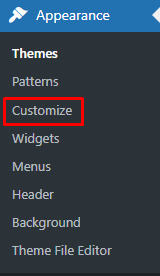
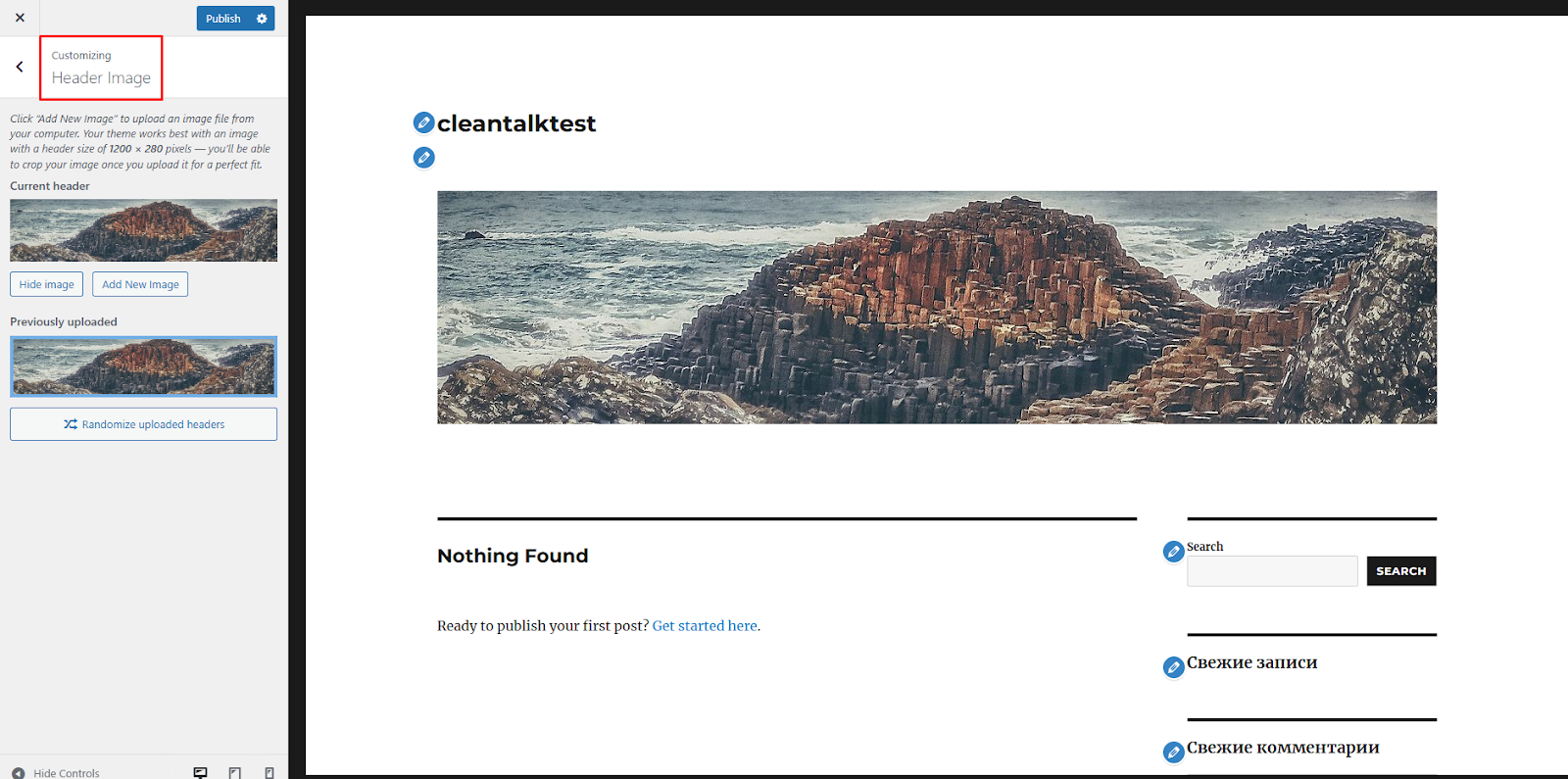
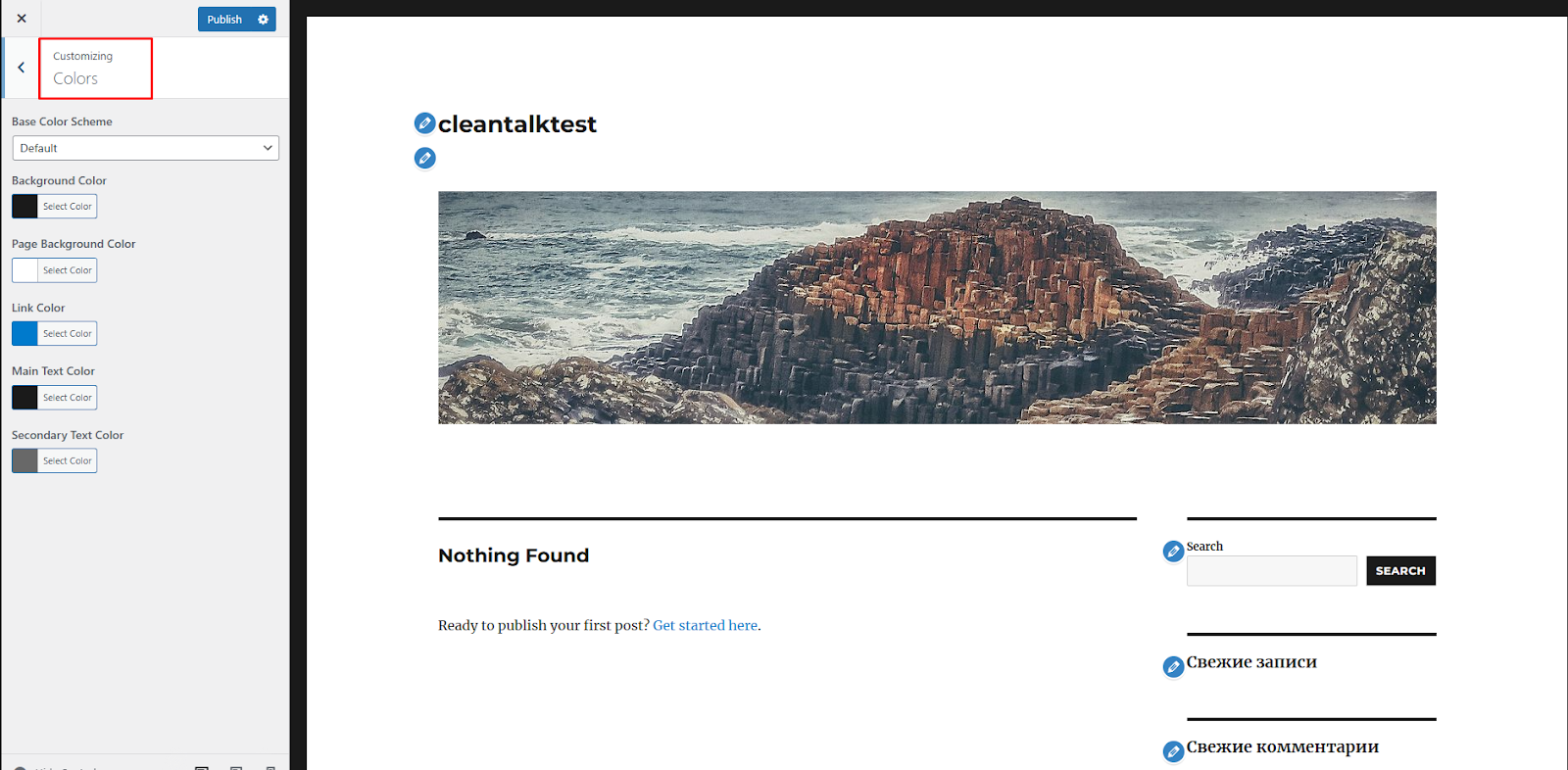
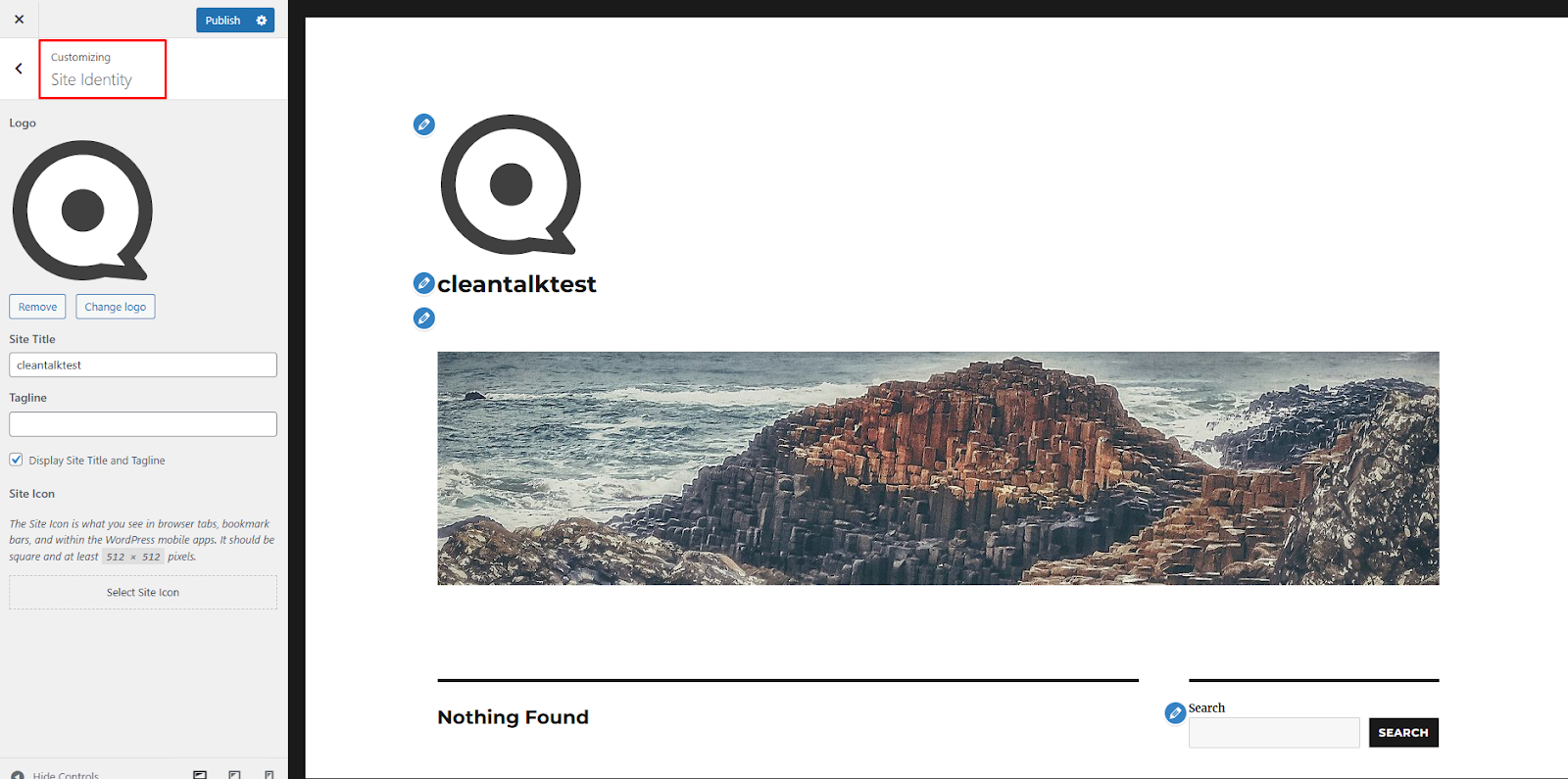
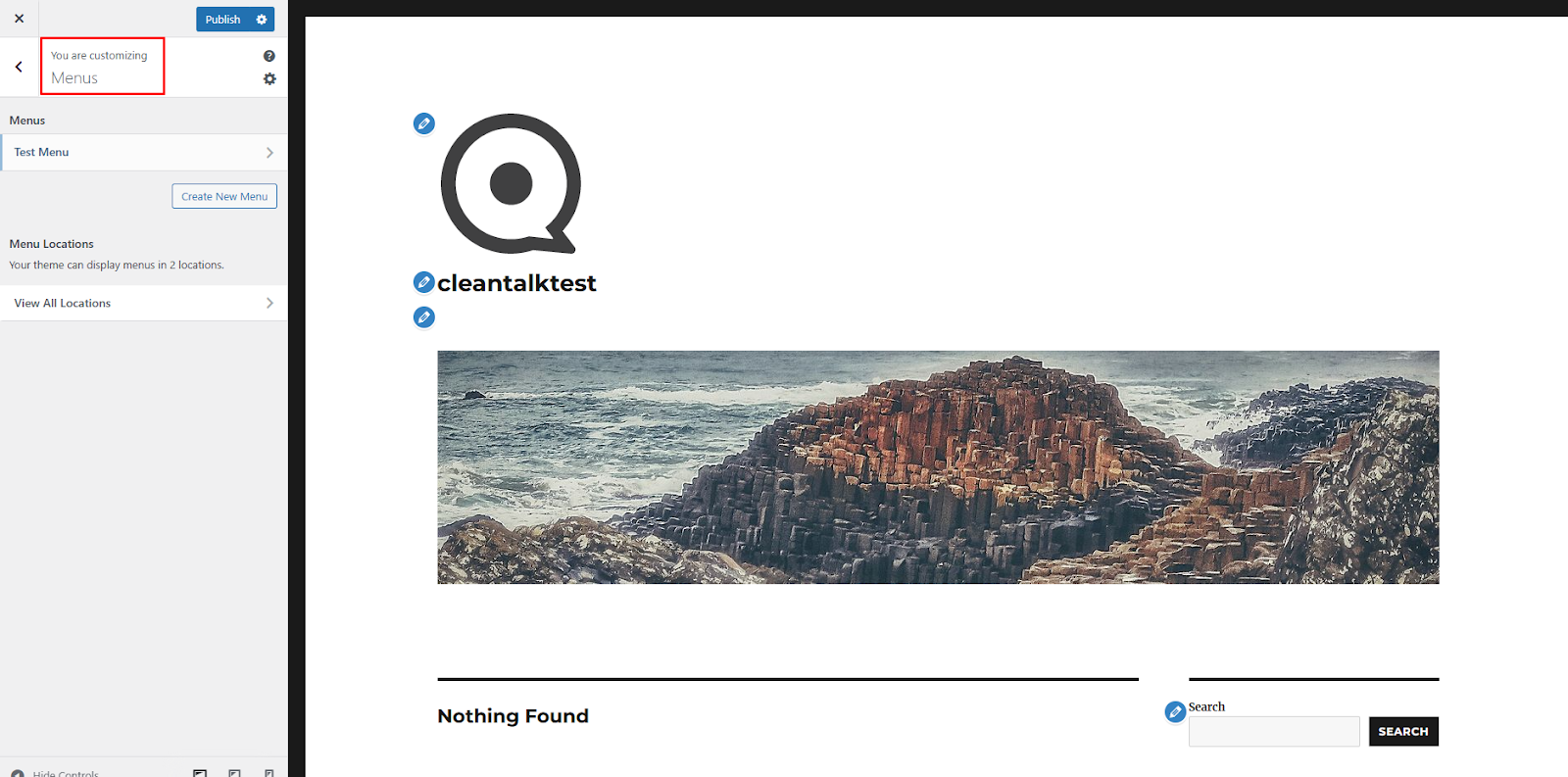
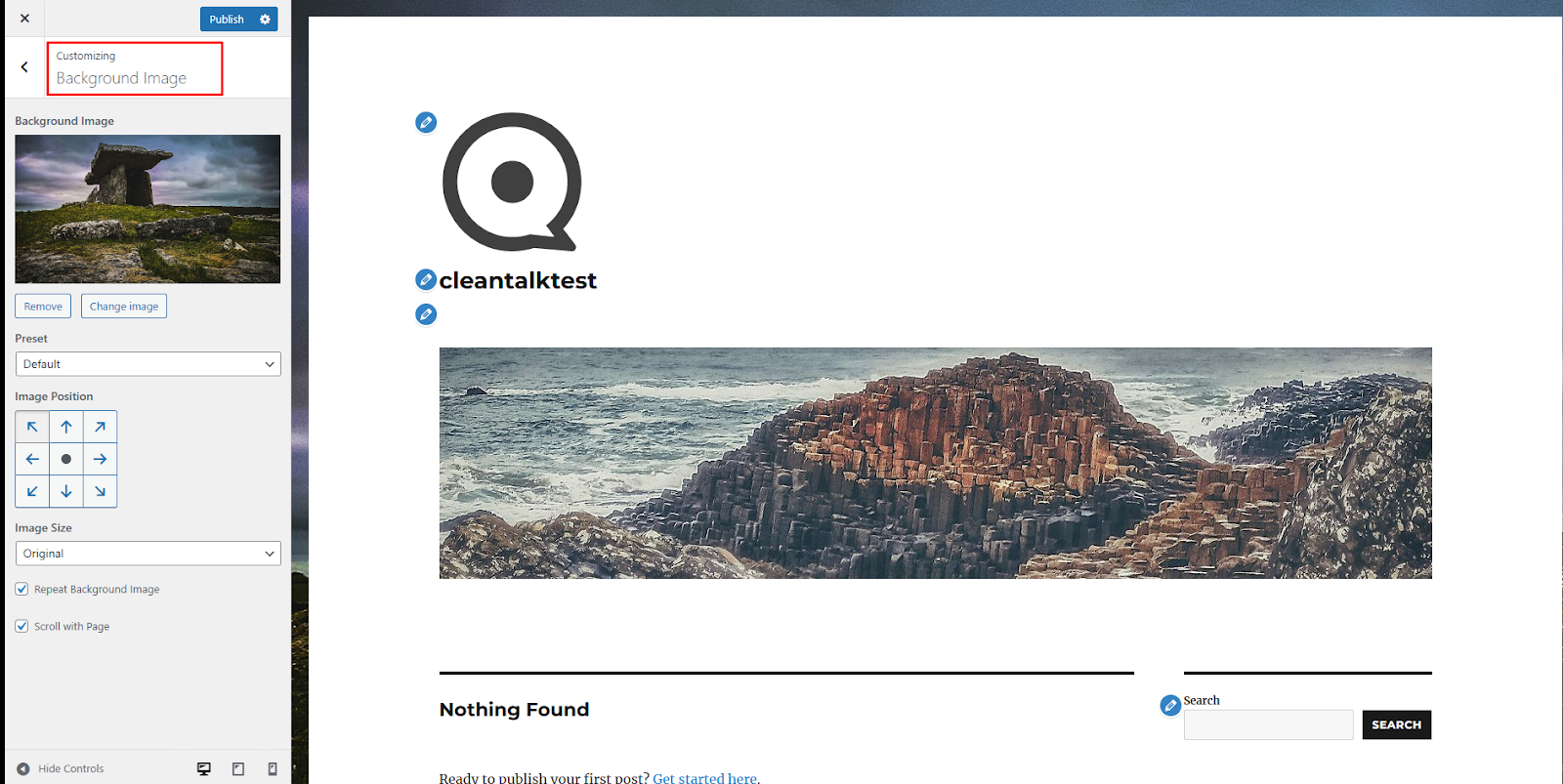
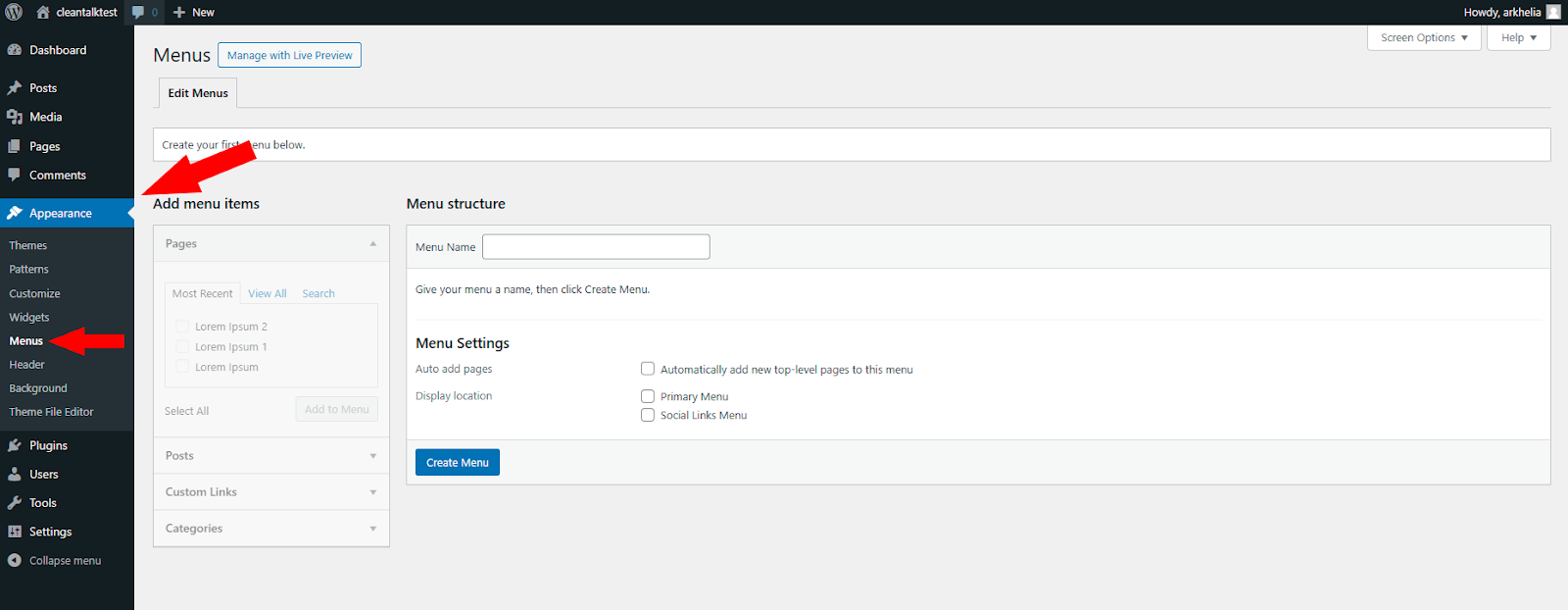
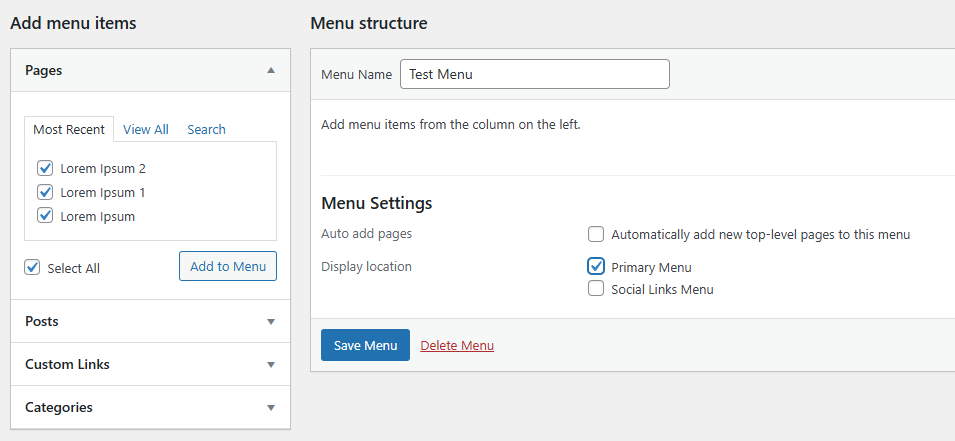
    WordPress offers thousands of free and premium themes that determine the design and layout of your website. Browse the WordPress theme directory or third-party marketplaces like ThemeForest to find a theme that aligns with your brand and goals. Once you’ve selected a theme, customize your website by adding your logo, changing colors and fonts, and creating custom menus.


    Step 5: Create Essential Pages and Posts

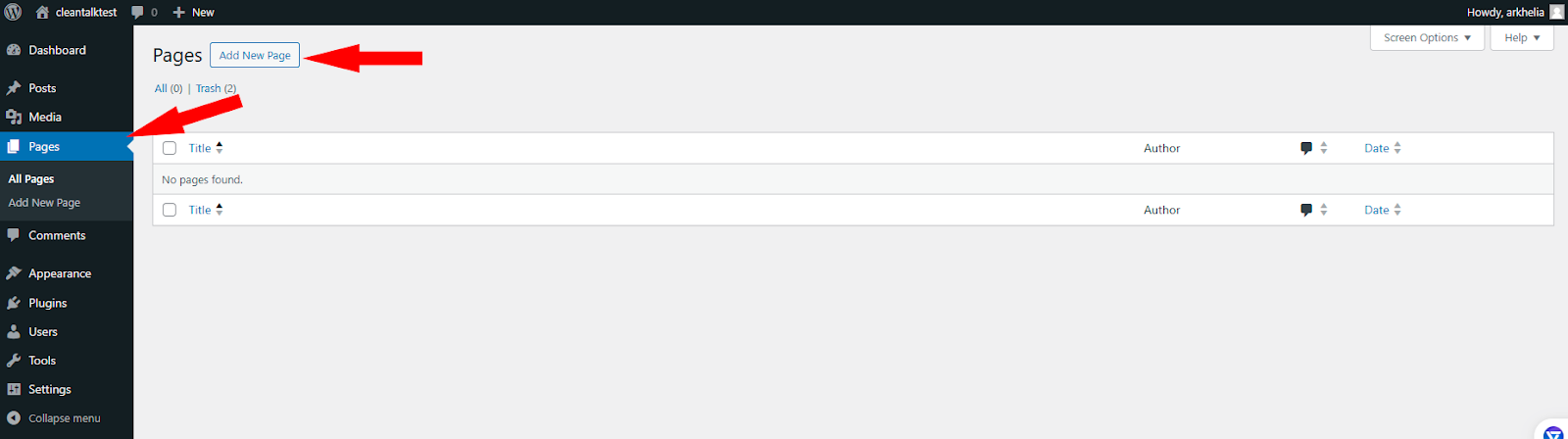
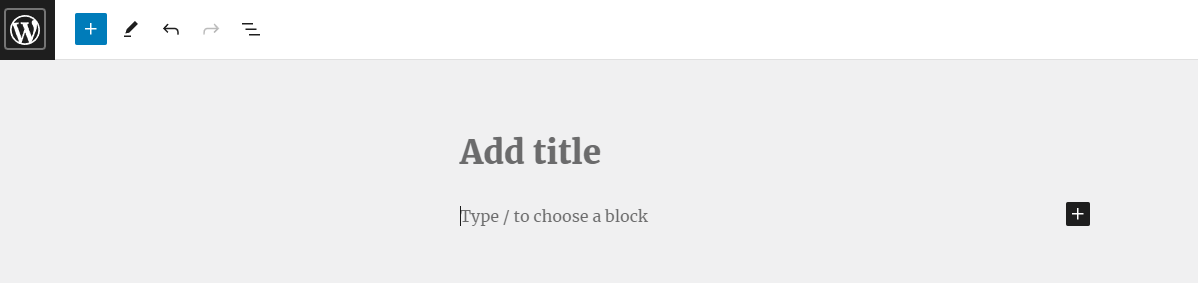
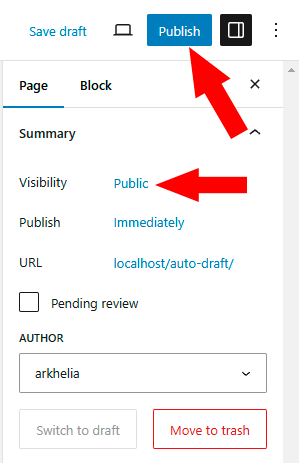
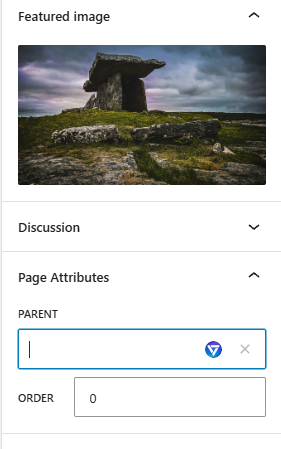
    Now it’s time to add content to your website. Create essential pages such as Home, About Us, Services, and Contact. Write engaging copy, add images or videos, and optimize your content for search engines using relevant keywords. Additionally, publish blog posts regularly to keep your audience engaged and drive traffic to your site.


    Step 6: Set Up SEO

    Search engine optimization (SEO) is crucial for improving your website’s visibility in search engine results. Install an SEO plugin like Yoast SEO or Rank Math to optimize your pages and posts for target keywords, meta descriptions, and structured data. Create an XML sitemap and submit it to search engines like Google for indexing.


    Step 7: Install Essential Plugins

    WordPress plugins extend the functionality of your website by adding different features. We recommend that you install the ones that will be useful for the first step and for the whole time you use WordPress:

    SEO Plugins to improve website’s visibility in Search engine results: Yoast SEO / All in One SEO / Rank Math SEO – one of them will be enough. Additionaly, using Google Site Kit is our strong recommendation.

    E-commerce Plugins in case you sell products or services: WooCommerce / Easy Digital Downloads / Shopify – research and choose one that fits you most.

    Contact Form Plugins to allow your visitors contact you: Contact Form 7, WPForms, or Gravity Forms. Regardless of the form you choose make sure you protect it from spam and spambots with anti-spam protection like Anti-Spam.

    Security Plugin to protect the site from threats like malware or hacking attempts: Security & Malware scan – it’s a 18-in-1 plugin that will be sufficient for you.

    Performance Optimization Plugins: you might want to use WP Rocket, W3 Total Cache, and Smush Image Compression and Optimization to get started.


    Step 8: Test Your Website and Launch

    Before launching your website, test it on different devices and browsers to ensure it looks and functions correctly. Check for broken links, slow loading times, and mobile responsiveness. Once you are satisfied with the results, launch your website by promoting it on social media, email newsletters, and other marketing channels.


    Step 9: Maintain and Update Your Website

    After launching your website, it’s crucial to maintain it regularly by updating WordPress core, themes, and plugins. Monitor website performance using tools like Google Search Console and GTmetrix. Create fresh content, engage with your audience, and make necessary adjustments to improve user experience and achieve your goals.


    Step 10: Monitor Analytics and Optimize

    Monitor your website’s performance using tools like Google Analytics to track visitor behavior, traffic sources, and conversions. Analyze the data to identify areas for improvement and make informed decisions to optimize your website further. Continuously refine your content strategy

    SEO efforts, and user experience based on analytics insights.

    In conclusion, building a WordPress website involves planning, creativity, and technical know-how. By following this comprehensive guide and investing time in creating quality content, optimizing for search engines, and engaging with your audience, you can build a successful online presence with WordPress. Remember that building a website is an ongoing process that requires regular updates and improvements to stay relevant and effective in achieving your goals.