If you use AWeber forms on a WordPress website, spam will eventually become a real problem. Fake subscribers, bot signups, junk leads, and low-quality email addresses can quickly pollute your list and make your marketing data less reliable.
This guide explains how to set up AWeber forms spam protection using CleanTalk as the main filtering layer on your website, together with additional tools such as AWeber’s form options, double opt-in, frontend verification where appropriate, and stronger list-quality controls.
This approach can be applied to inline forms, pop-over forms, lightbox forms, popup forms, and AWeber forms embedded on WordPress sites.
AWeber Forms for WordPress
Before looking at protection methods, it helps to understand how AWeber forms are commonly used on WordPress websites.
AWeber offers sign-up forms for list growth and email marketing. Its WordPress plugin allows users to embed AWeber forms and landing pages on a WordPress site, while AWeber’s own documentation explains that forms can be placed through widgets, shortcodes, pages, posts, and other theme areas.
In practice, AWeber forms can help website owners:
- collect email subscribers
- grow lists through embedded or popup forms
- run split tests on forms
- send captured contacts directly into AWeber lists
That flexibility is exactly why spam becomes an issue. Once a form is publicly available, it can attract bots, fake signups, disposable email addresses, and repeated low-quality submissions.
As WordPress.org shows, the official AWeber WordPress plugin is currently used on over 9000 websites and has a rating of 2.6 out of 5 based on 25 reviews.
Plugin Homepage at WordPress.org | Documentation at AWeber Help Center
Why AWeber Forms Attract Spam
AWeber forms are designed to make subscribing easy. That is good for real visitors, but it also makes them attractive to bad traffic.
In real-world use, the most common issues usually include:
- fake subscribers
- automated bot signups
- disposable email addresses
- repeated submissions tied to incentives, lead magnets, or list-growth campaigns
This matters because spam does not only create clutter. It can lower lead quality, distort list growth metrics, reduce campaign efficiency, and make engagement data harder to trust.
Anti-Spam by CleanTalk
The main tool we’re going to use here is CleanTalk Anti-Spam.
CleanTalk is a cloud-based anti-spam service for WordPress sites. In practical terms, it helps filter suspicious signups before they become normal subscribers, checks sender reputation and email quality, detects automated and repeated abuse patterns, and reduces junk leads before they reach your AWeber list.
That matters because the real cost of AWeber spam is not only a messy list. It also means weaker segmentation, noisier reporting, and lower-quality marketing automation.
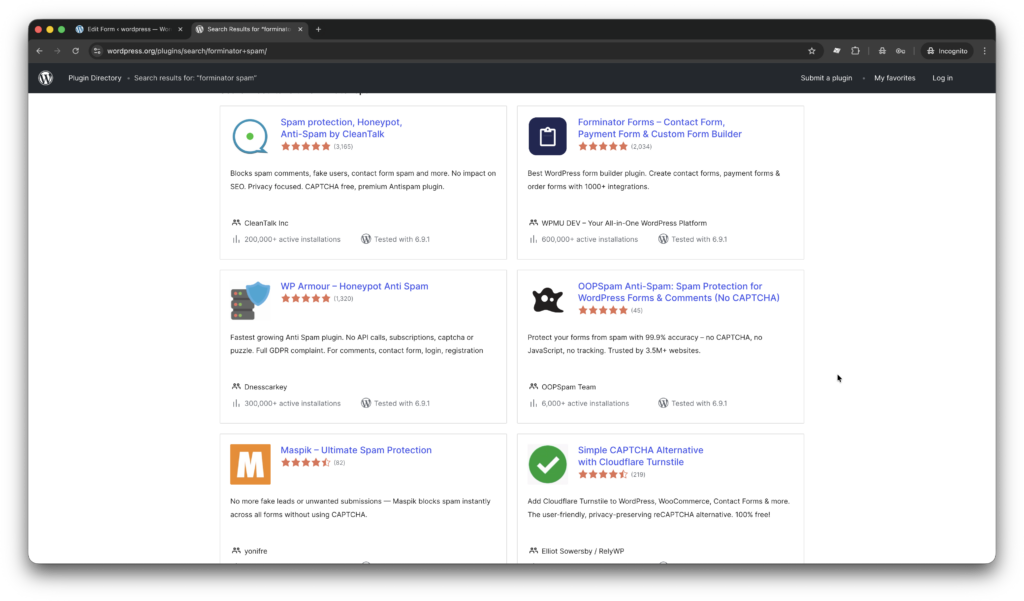
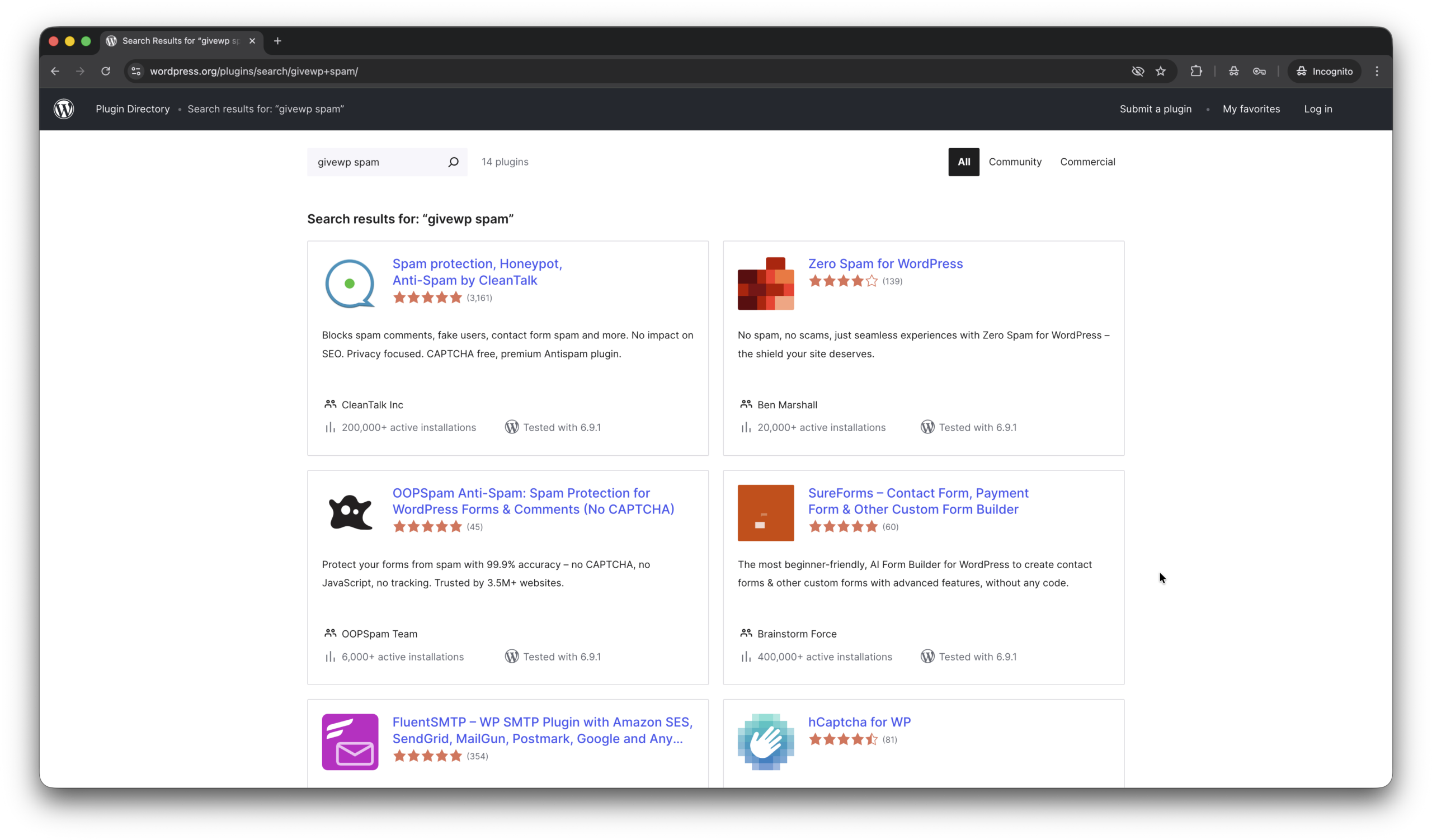
According to WordPress.org, Anti-Spam by CleanTalk for WordPress has over 200,000 active installations, with thousands of reviews and an average rating around 4.9 out of 5.
Plugin Homepage at cleantalk.org | Latest release atGitHub.com
Install the CleanTalk Anti-Spam plugin
Show Instructions
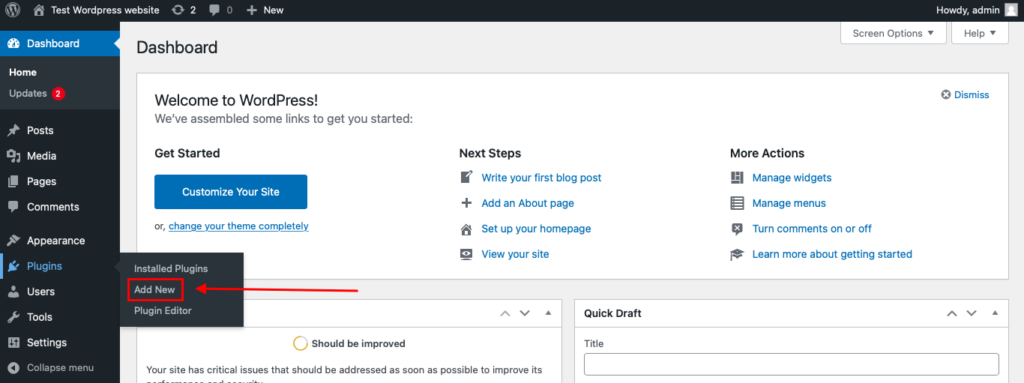
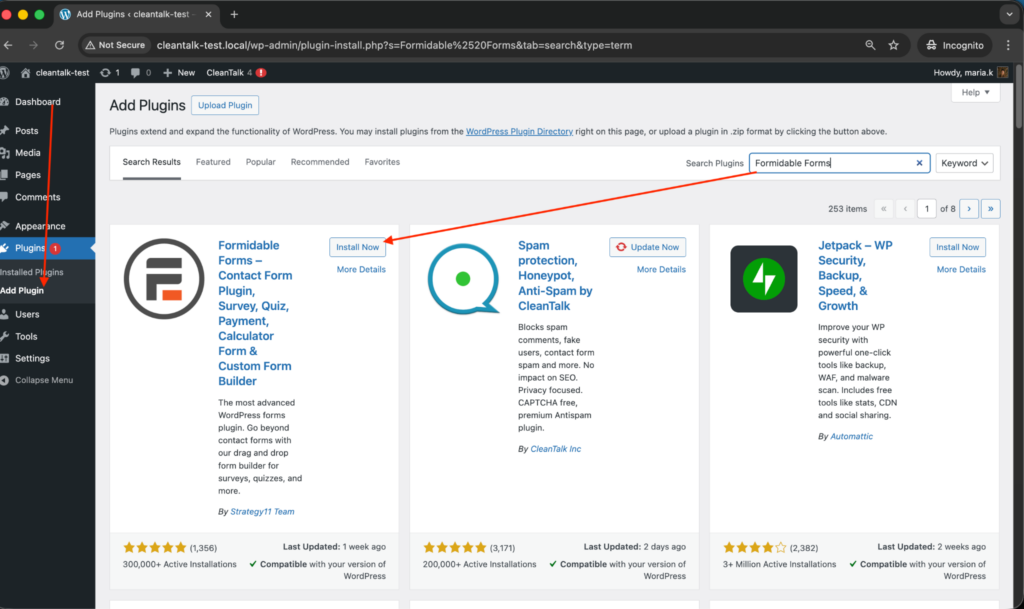
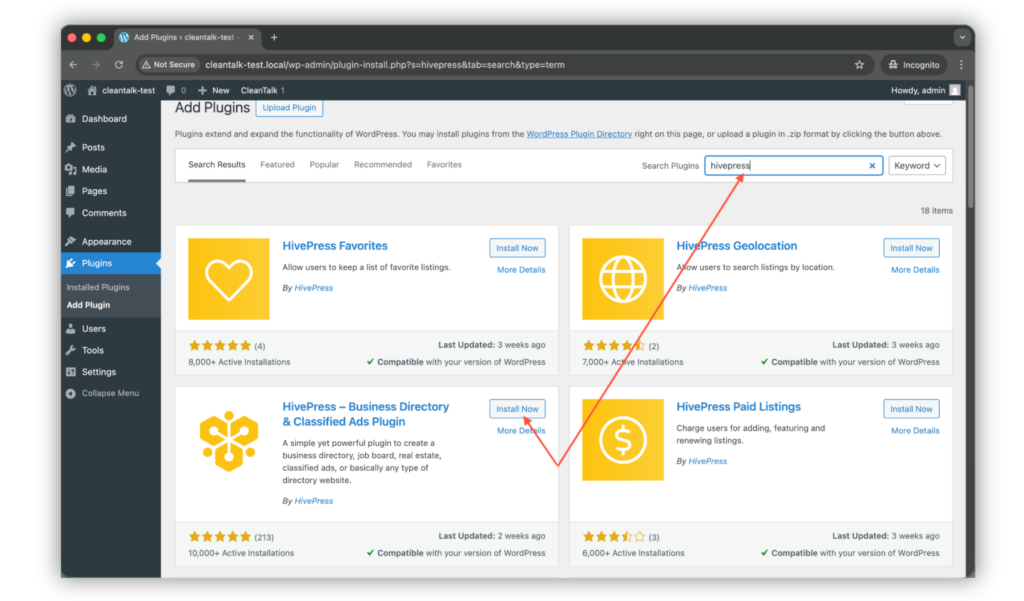
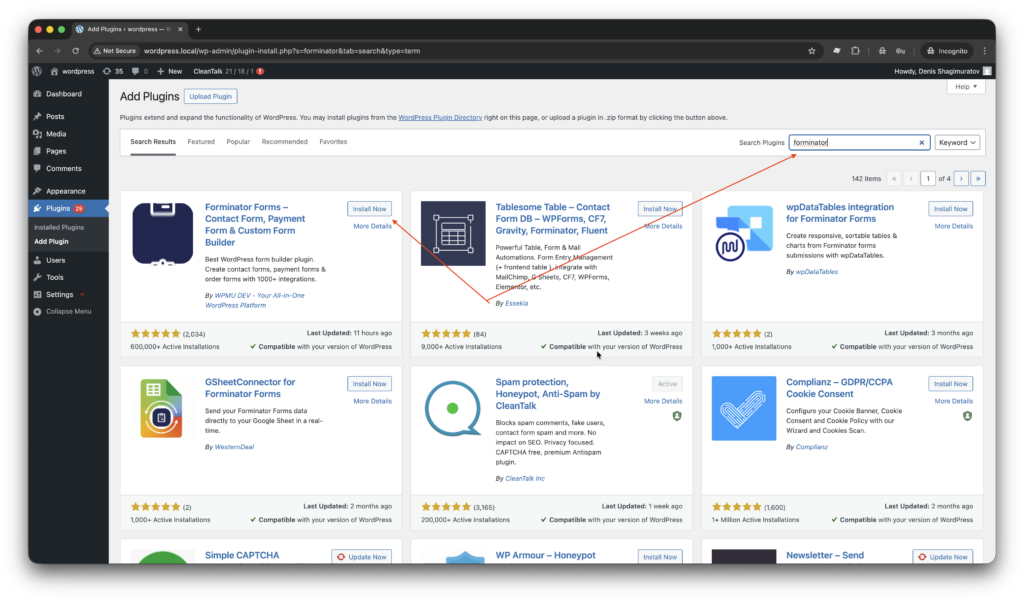
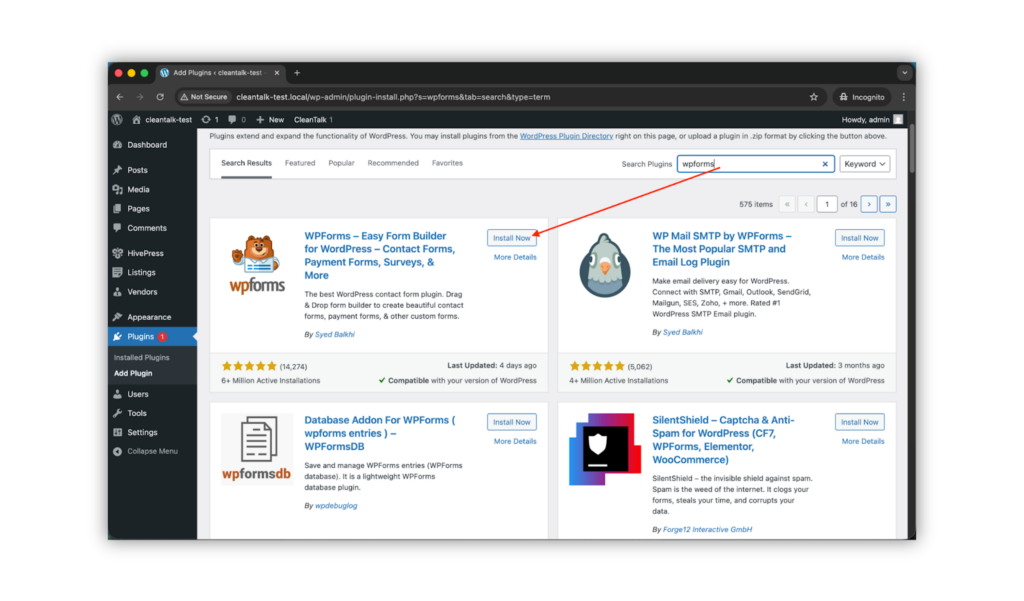
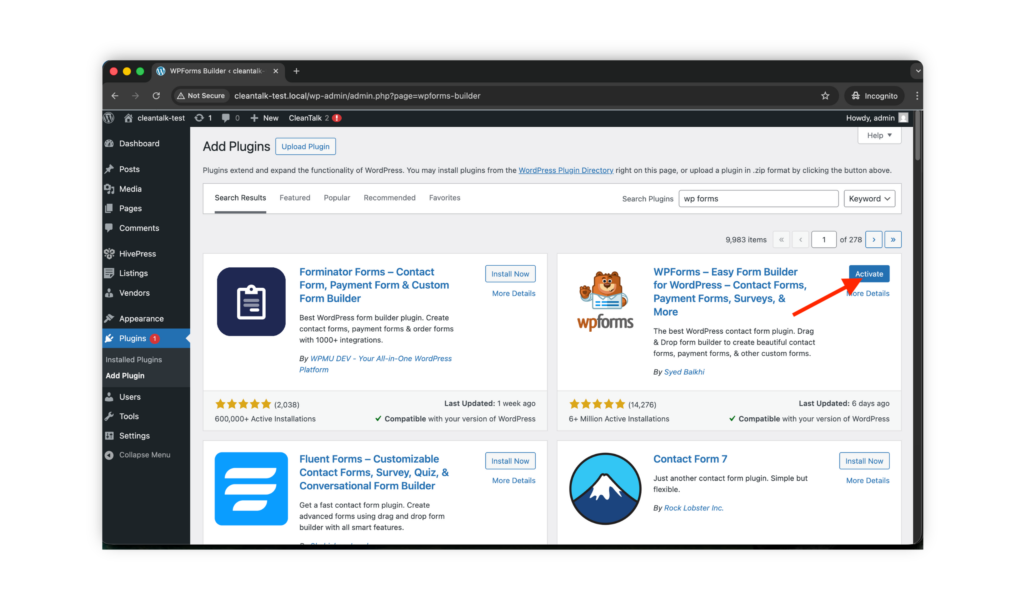
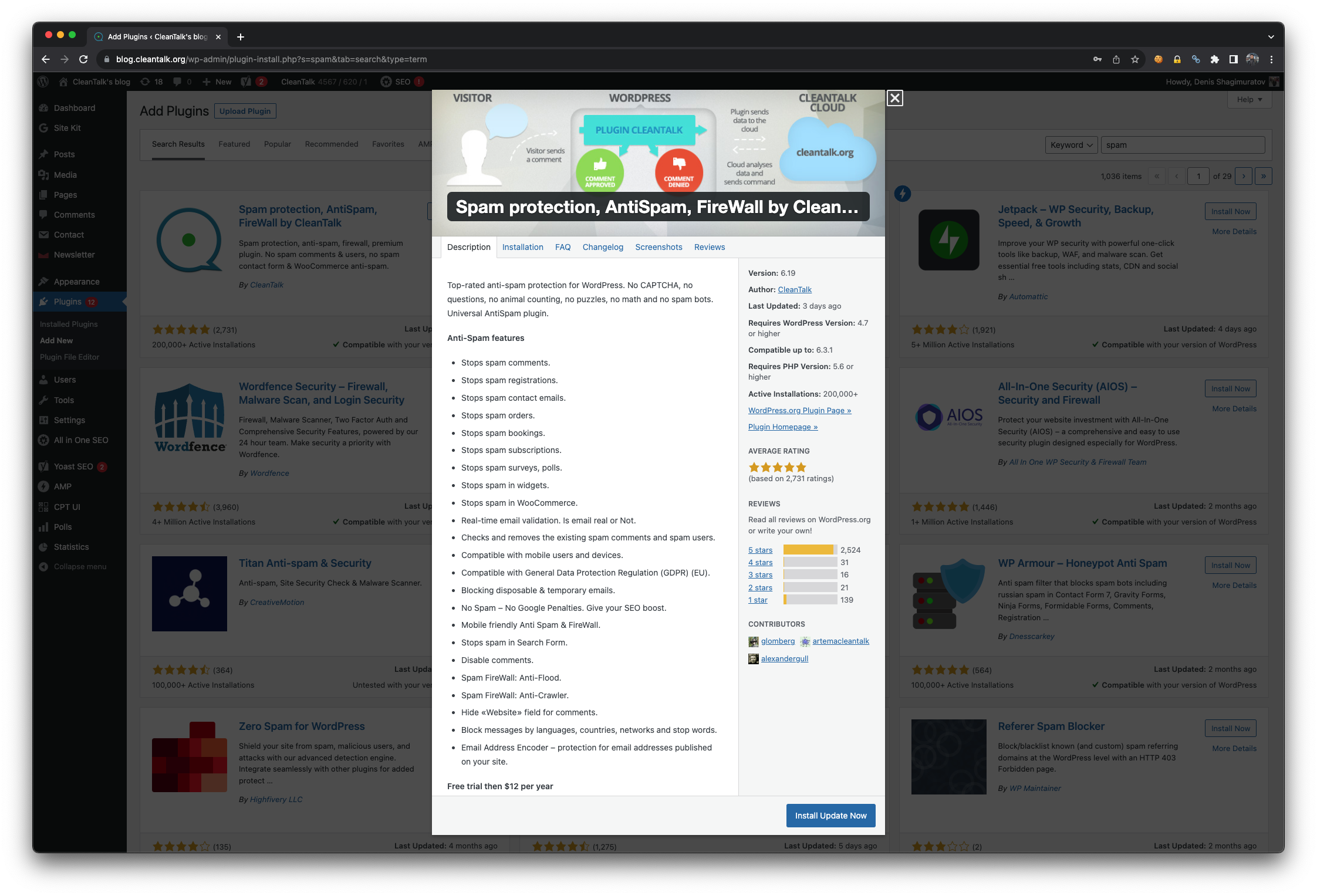
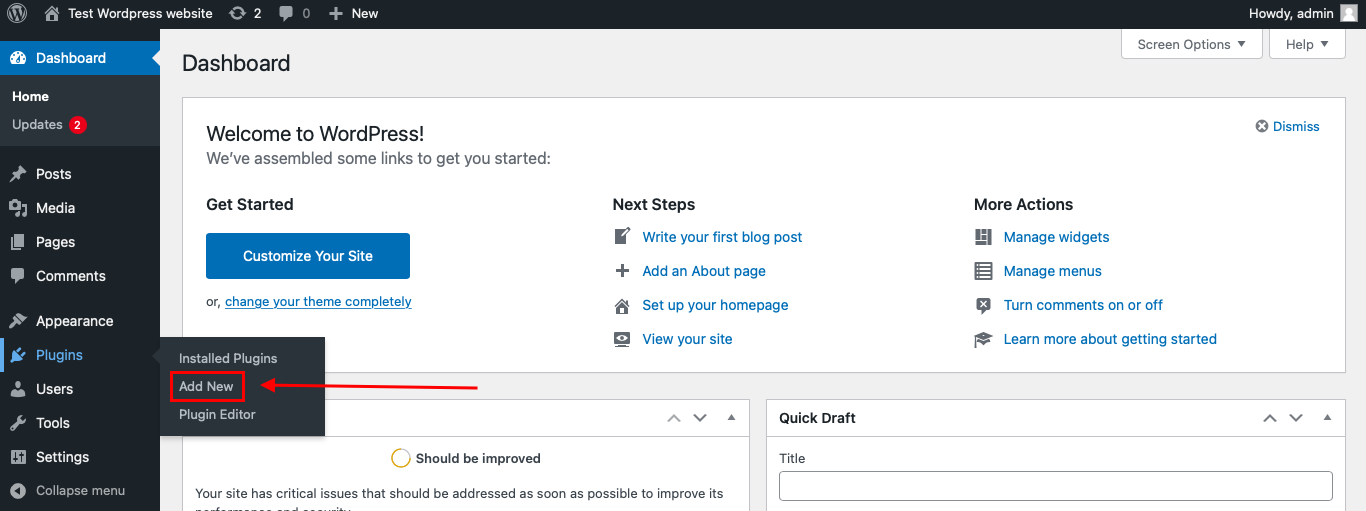
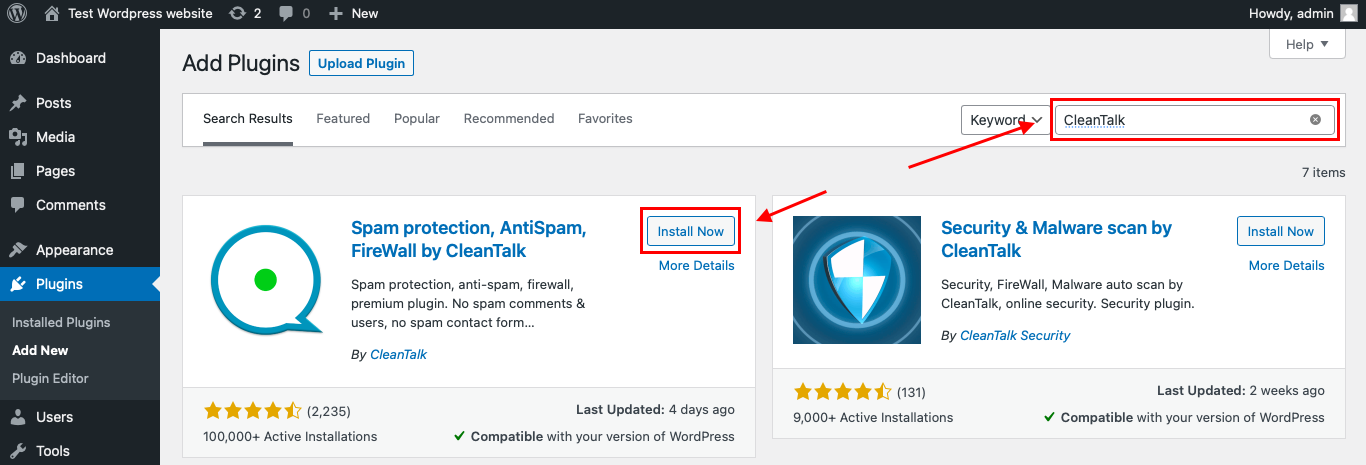
To install the Anti-Spam plugin, go to your WordPress admin panel → Plugins → Add New.
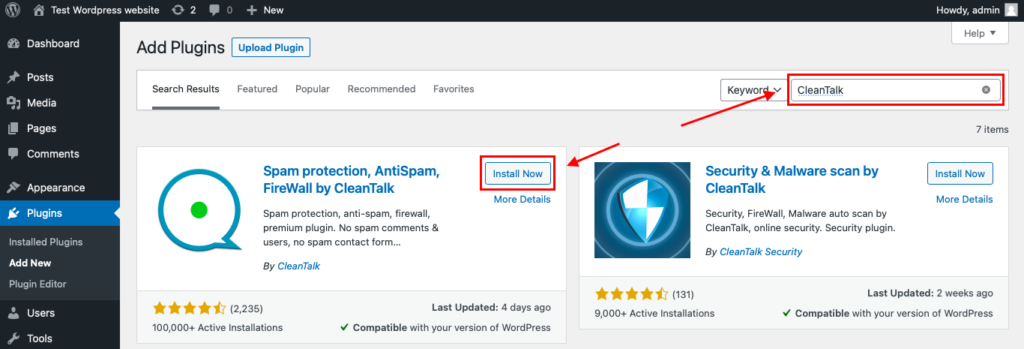
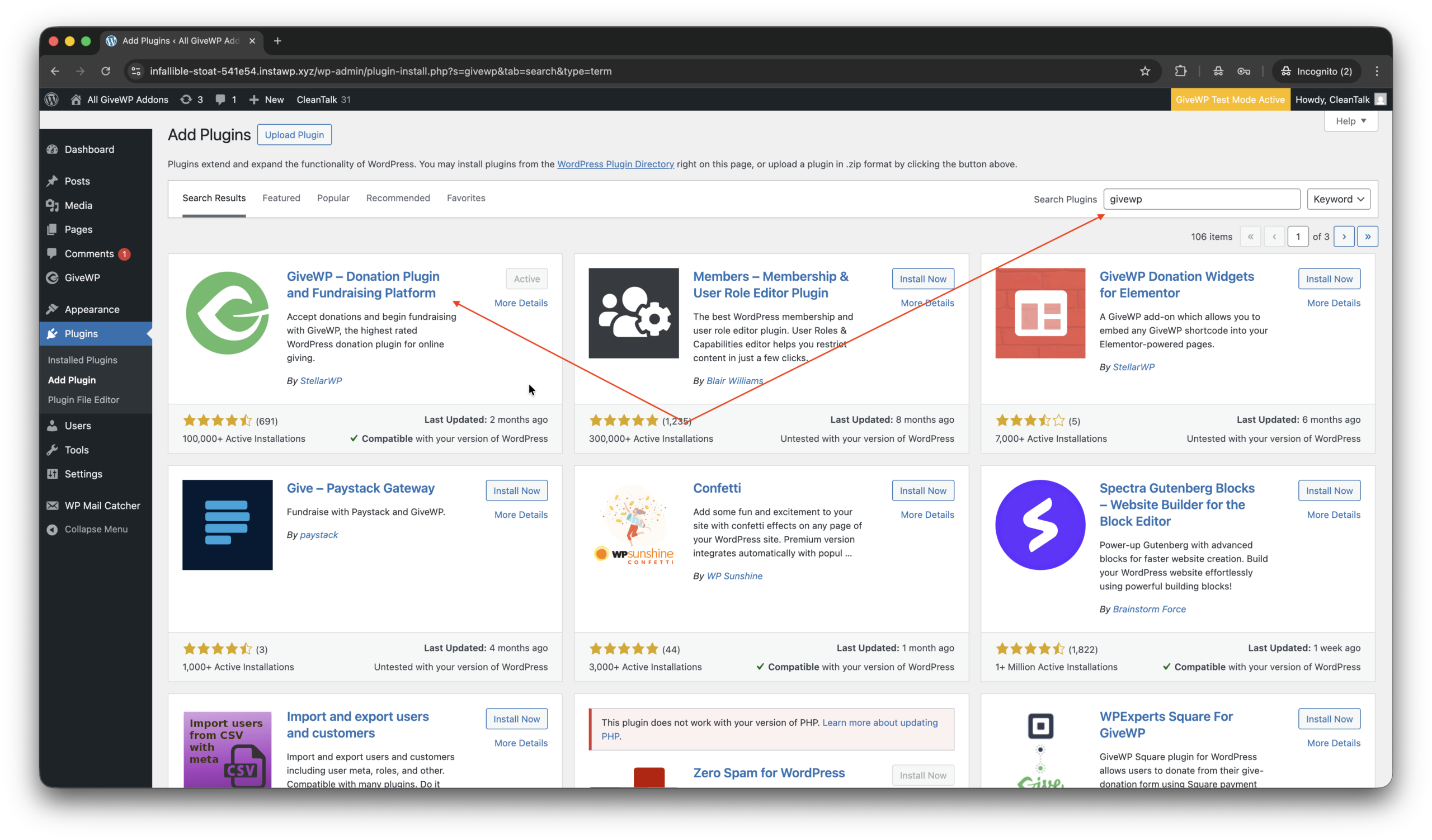
Then enter «СleanTalk» in the search box and click the Install button for «Spam protection, Anti-Spam, FireWall by CleanTalk».
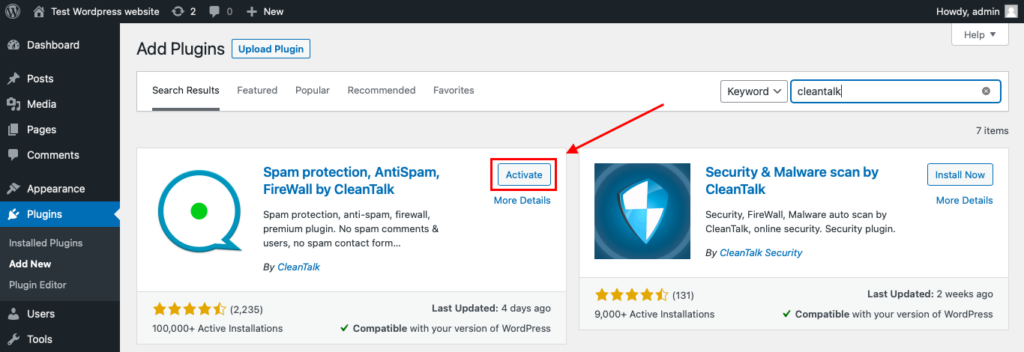
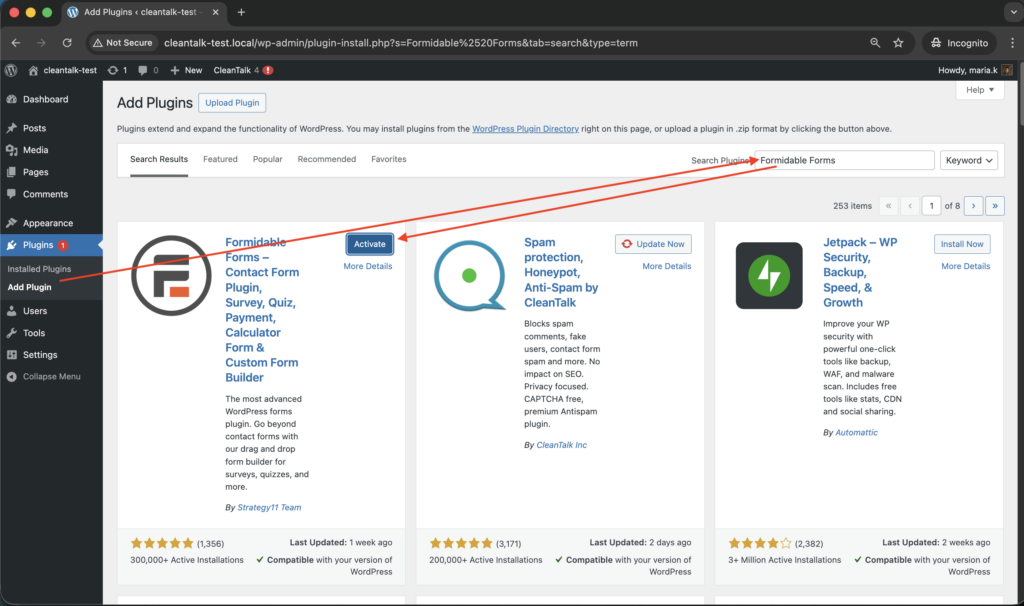
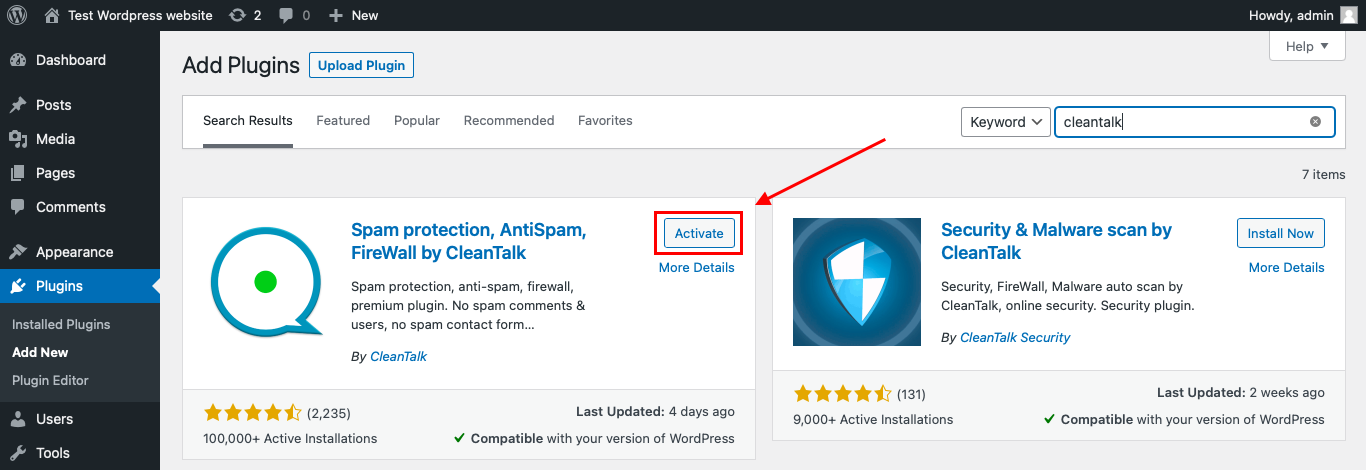
After installing the plugin, click the «Activate» button.
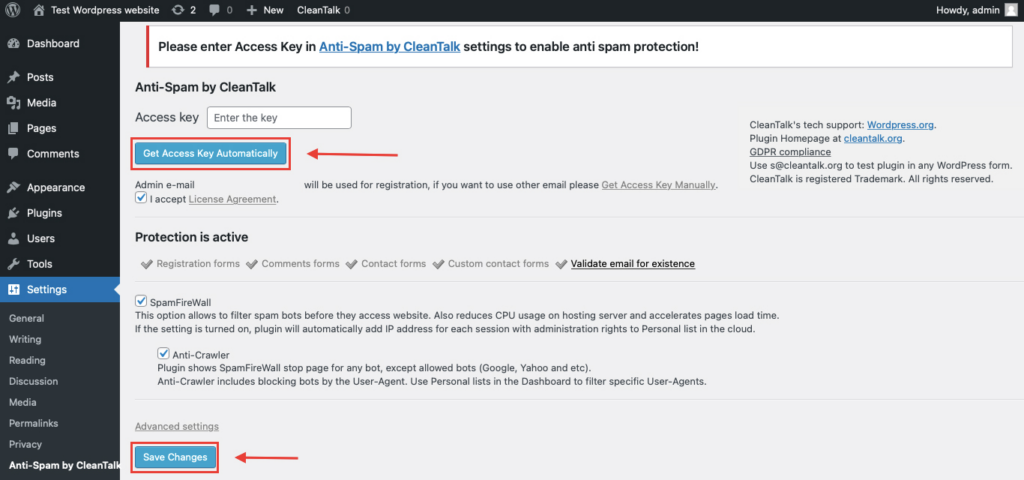
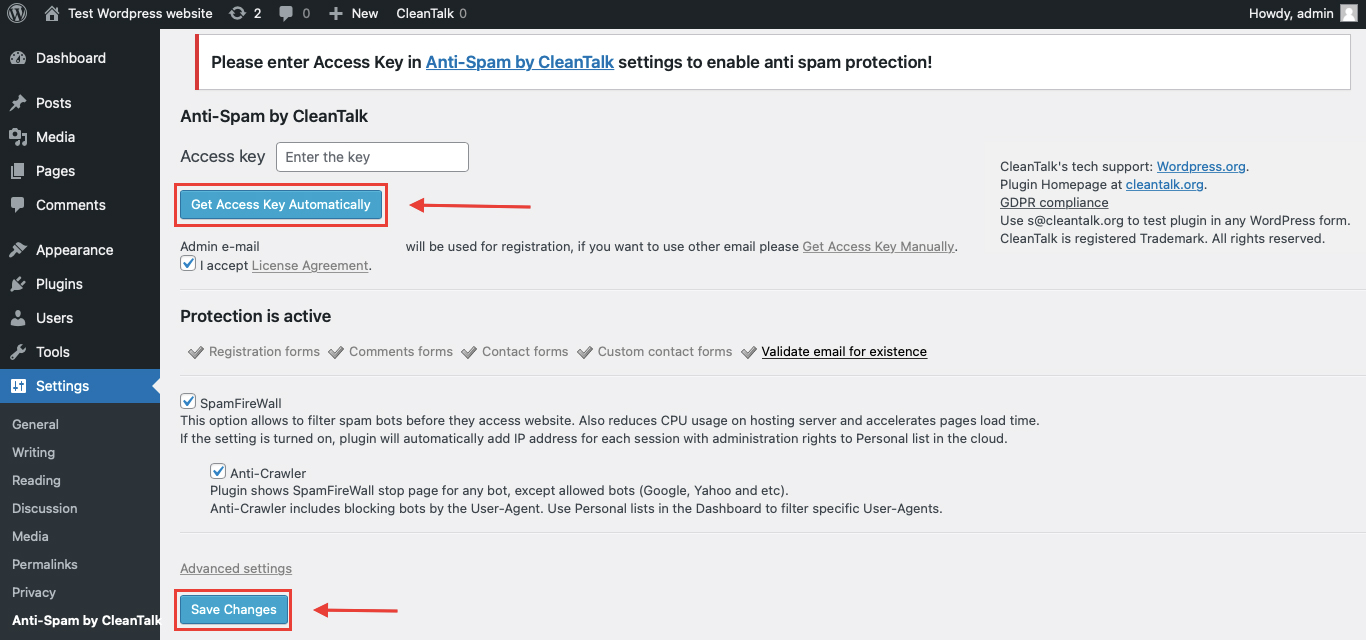
After it is done go to the plugin settings and click the «Get Access Key Automatically» button. Then just click the «Save Settings» button.
That’s it! From now you know how to completely protect your HivePress from spam.
How to Check Whether Spam Protection Works
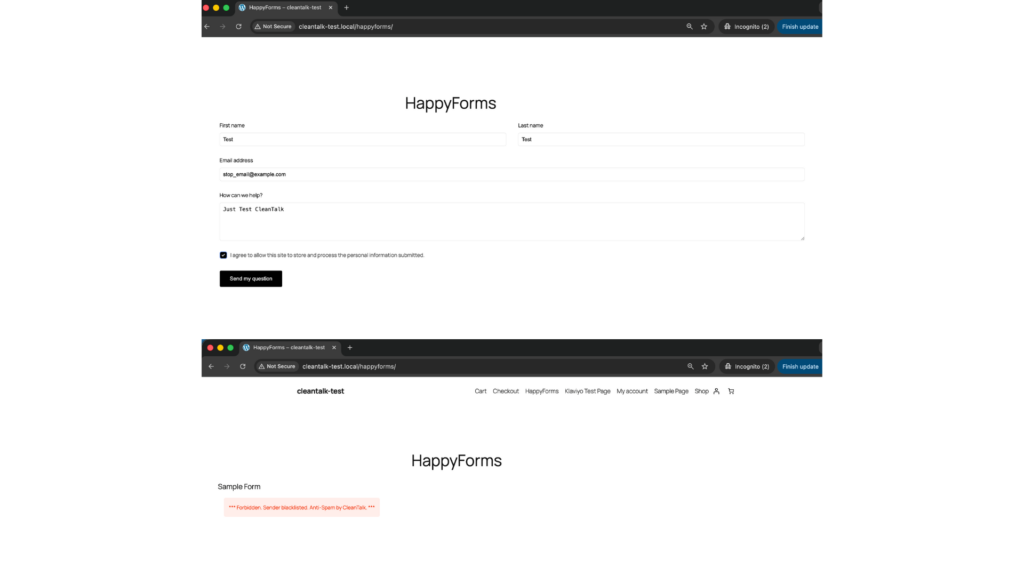
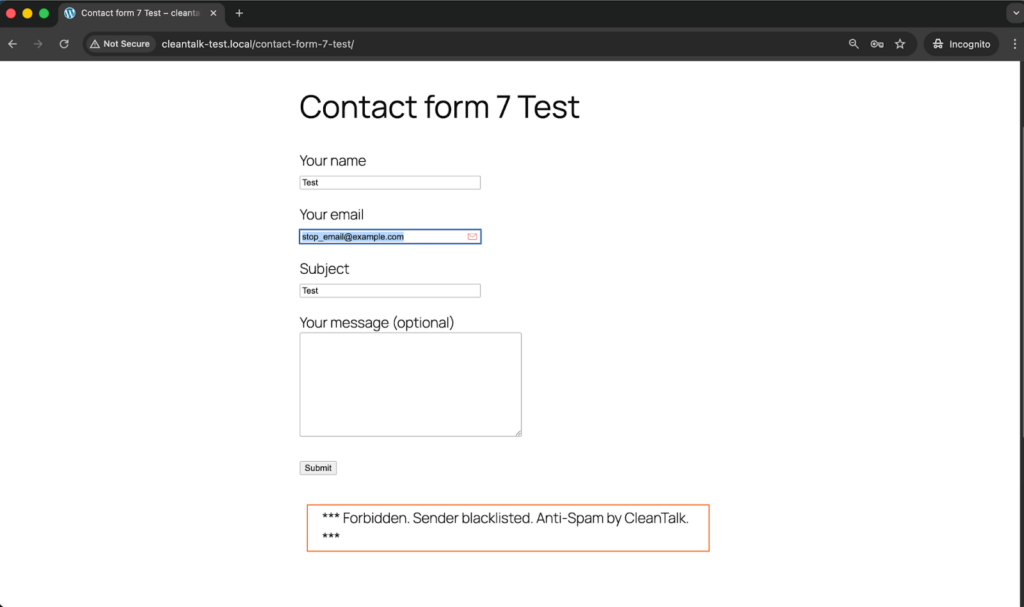
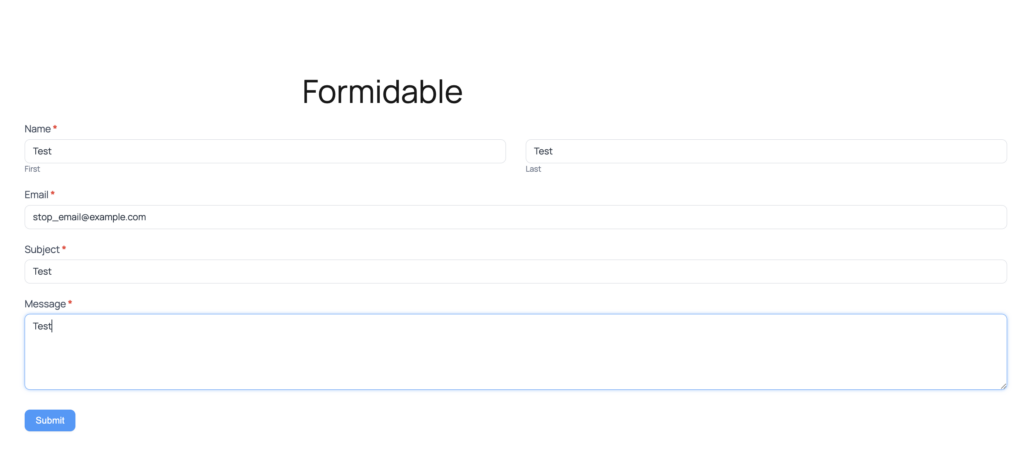
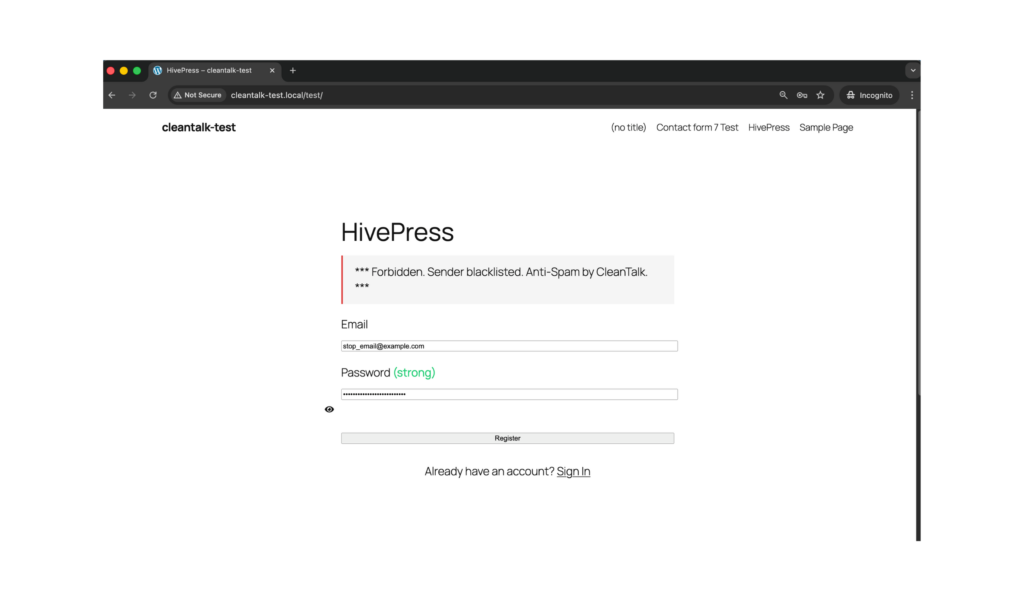
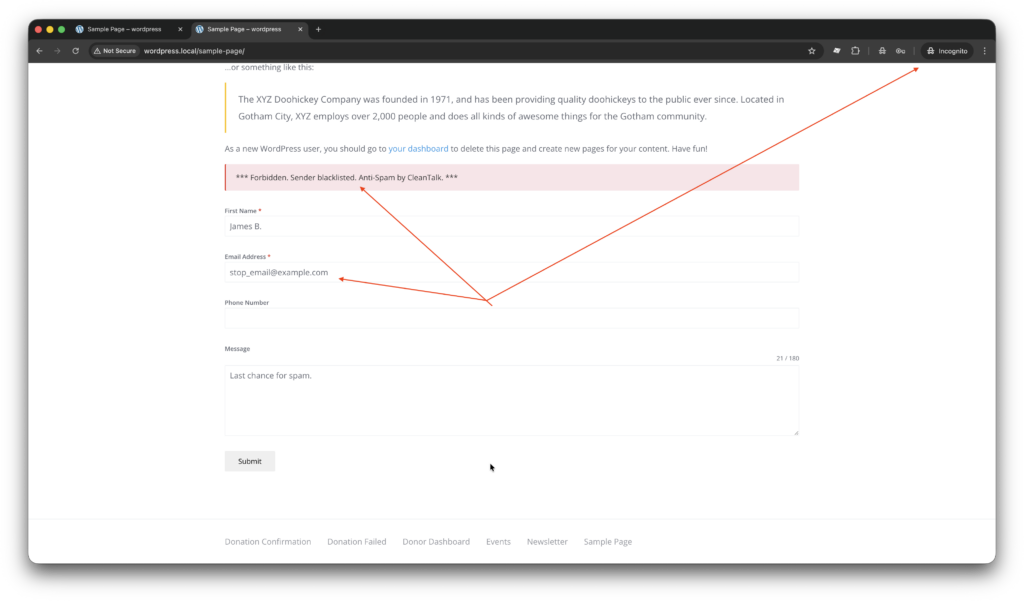
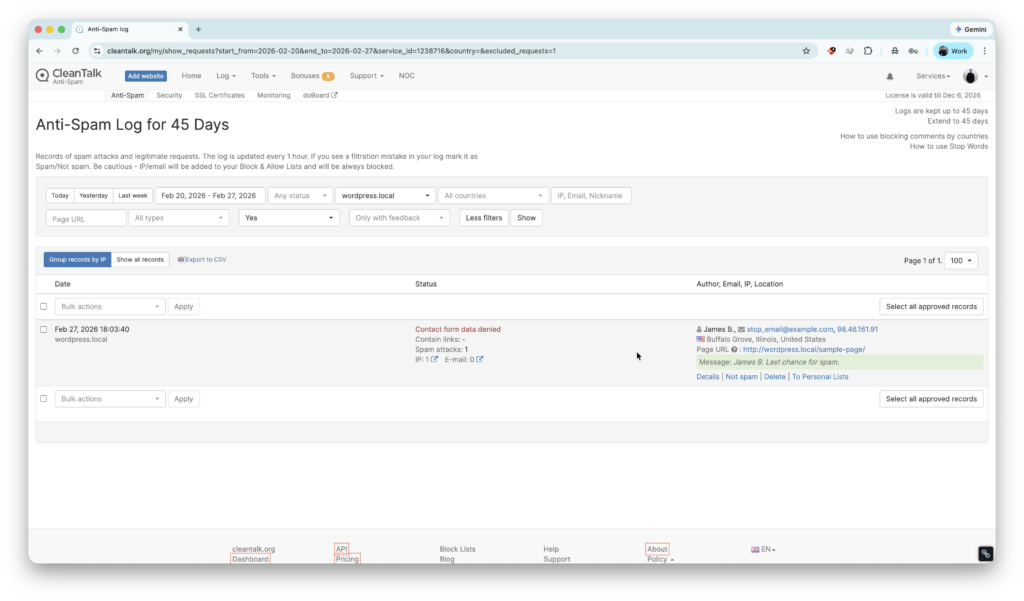
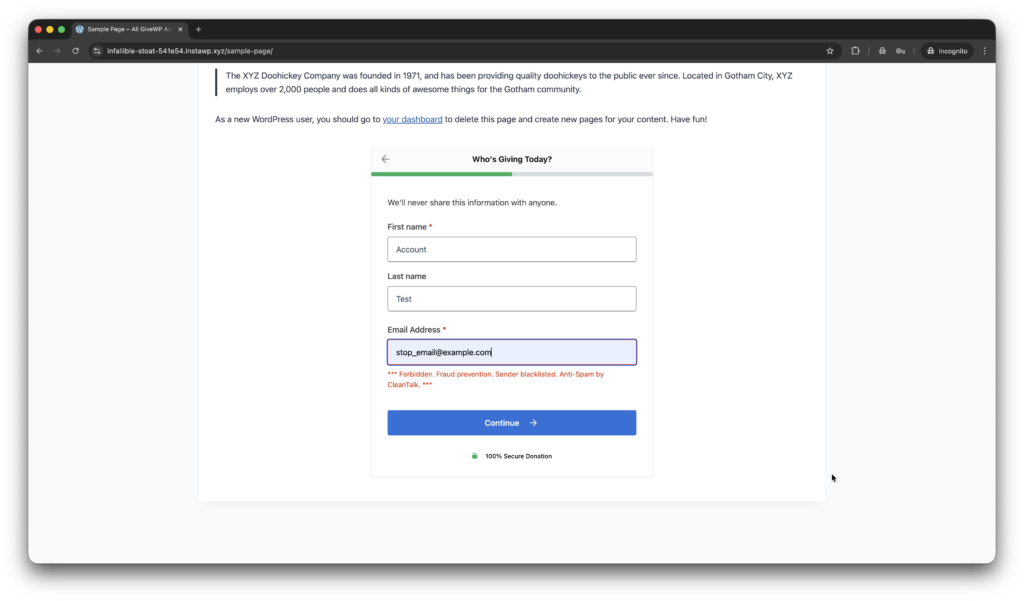
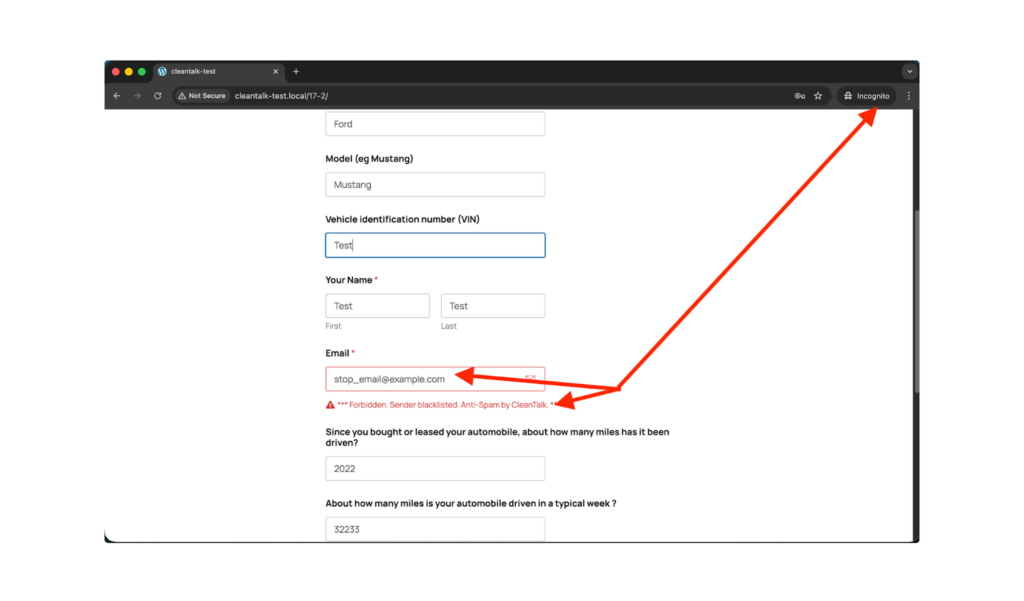
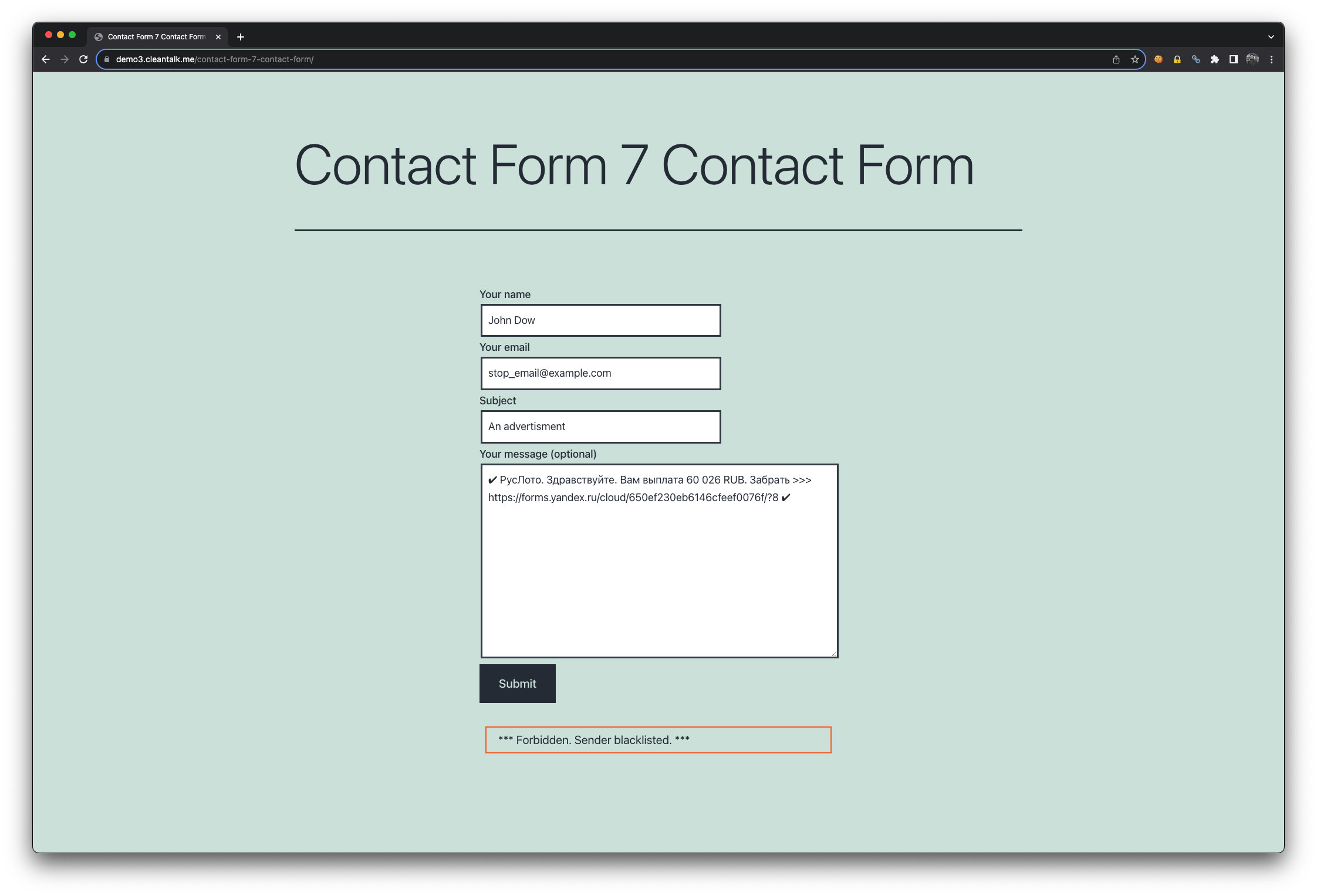
A simple way to test the setup is to use the following test address:
stop_email@example.com
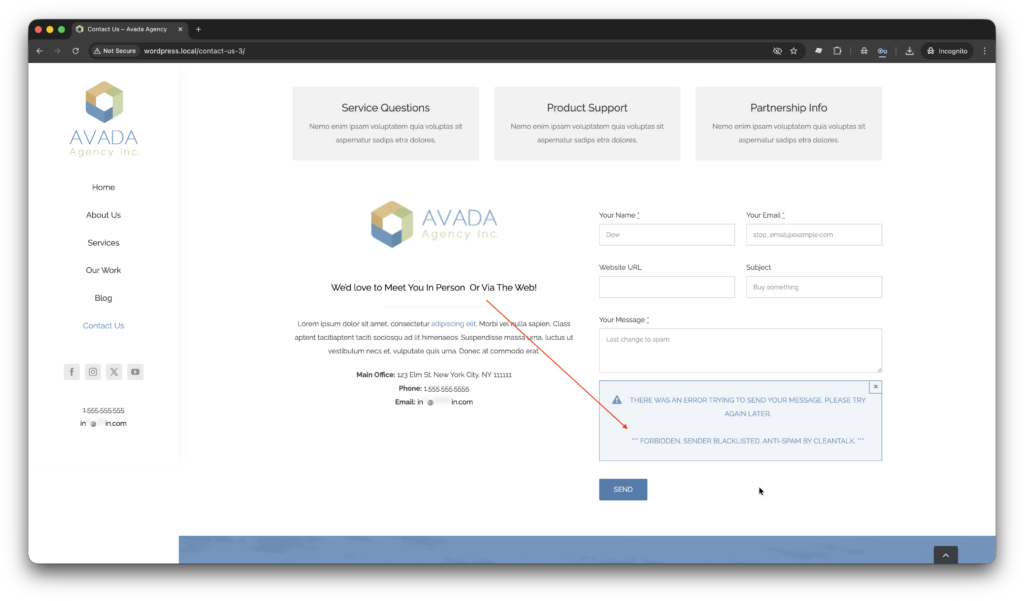
Open the page with your AWeber form in an Incognito or private browser window.
Submit the form using that email address.
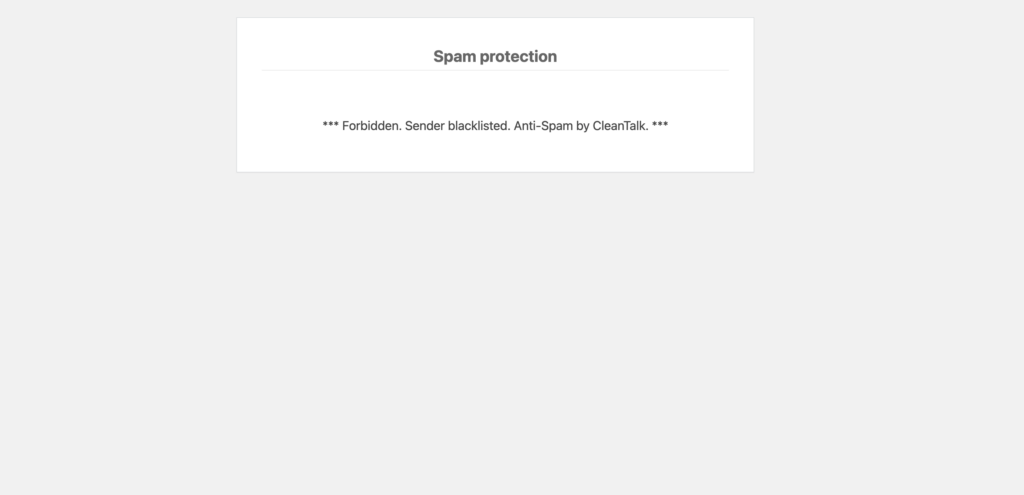
If everything is configured properly, the signup should be blocked or should not appear as a normal subscriber in your AWeber list.
When testing, check both sides of the process:
- the frontend, to see whether the form accepts the submission
- the AWeber list or email destination, to verify that the contact was not processed as a normal signup
This matters because a form may appear to submit on the surface while the real question is whether the contact actually made it into the list workflow.
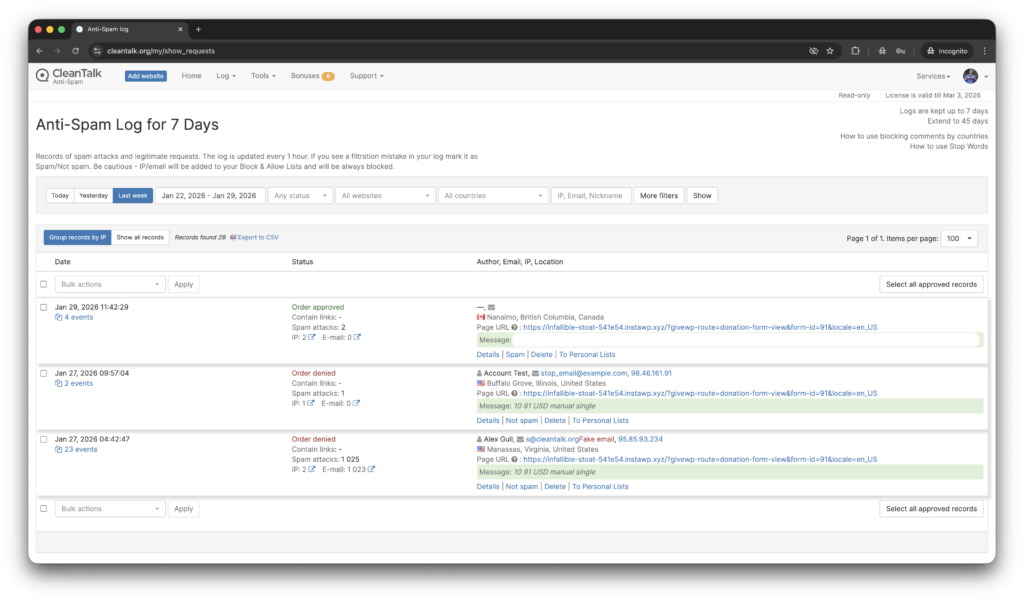
Cloud Dashboard and Monitoring
Blocking spam is only one part of the job. Good protection also gives you visibility into what is happening.
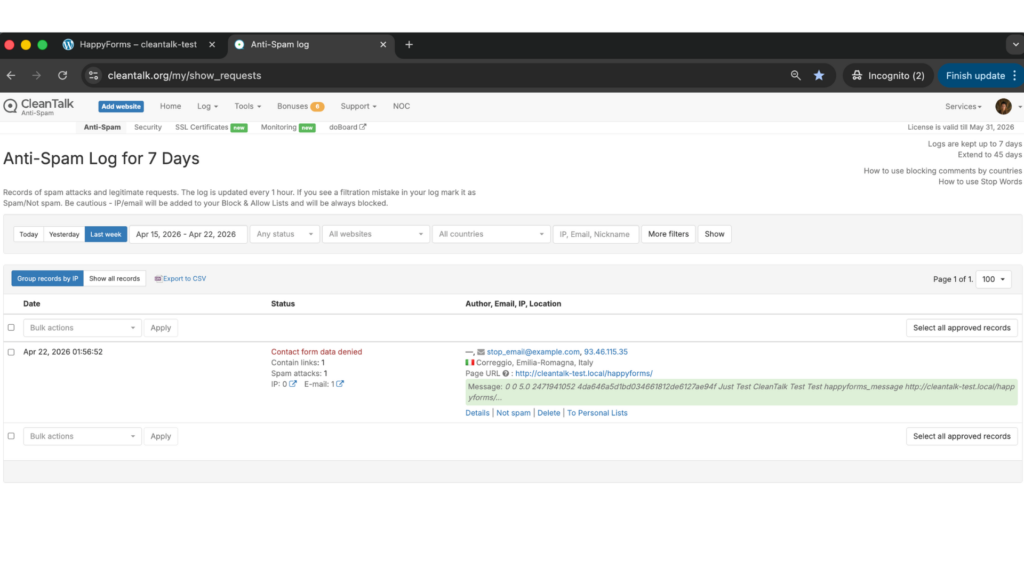
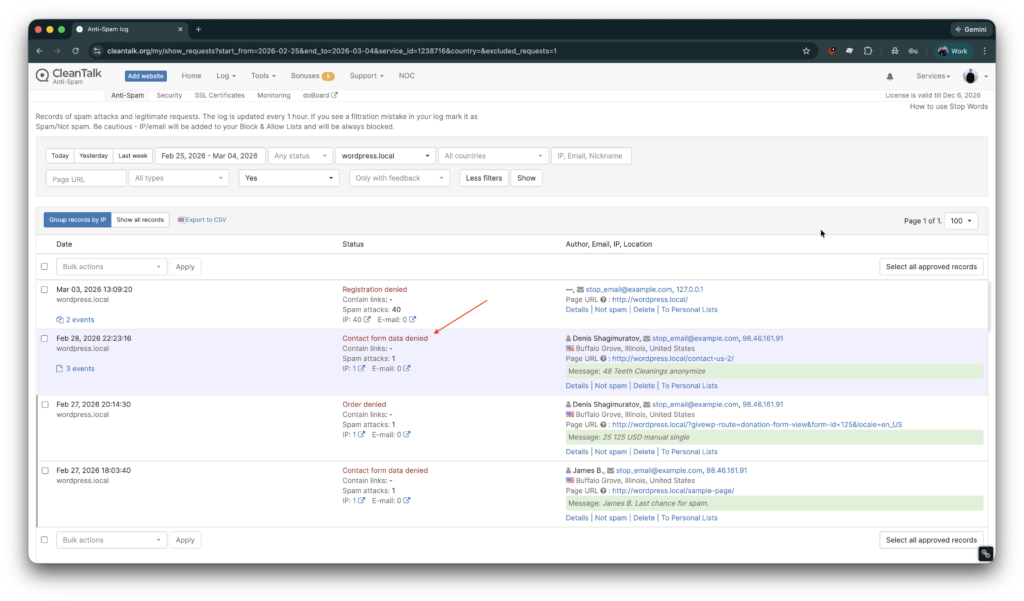
In the anti-spam dashboard, it is useful to review:
- sender IP and email
- submission time
- source page
- approval or denial status
- the likely reason a signup was flagged
This makes it easier to spot recurring spam waves, identify weak pages, and understand which forms attract the most junk traffic.
That visibility helps you fine-tune the setup over time instead of relying on guesswork.
How CleanTalk Fits into the AWeber Workflow
AWeber forms can be embedded on a WordPress website through the official plugin, widgets, shortcodes, or other placement methods. That means the strongest place to apply spam protection is before the submission is treated as a normal signup.
If your site uses the AWeber WordPress plugin, a site-level anti-spam layer can help stop suspicious signups before they are accepted as normal subscribers.
If the website uses custom placement, widgets, or shortcode-based form display, the filtering layer should still be applied before the submission is accepted into the list-growth workflow.
That is the key principle: do not wait until junk has already entered the list. Stop it earlier in the process.
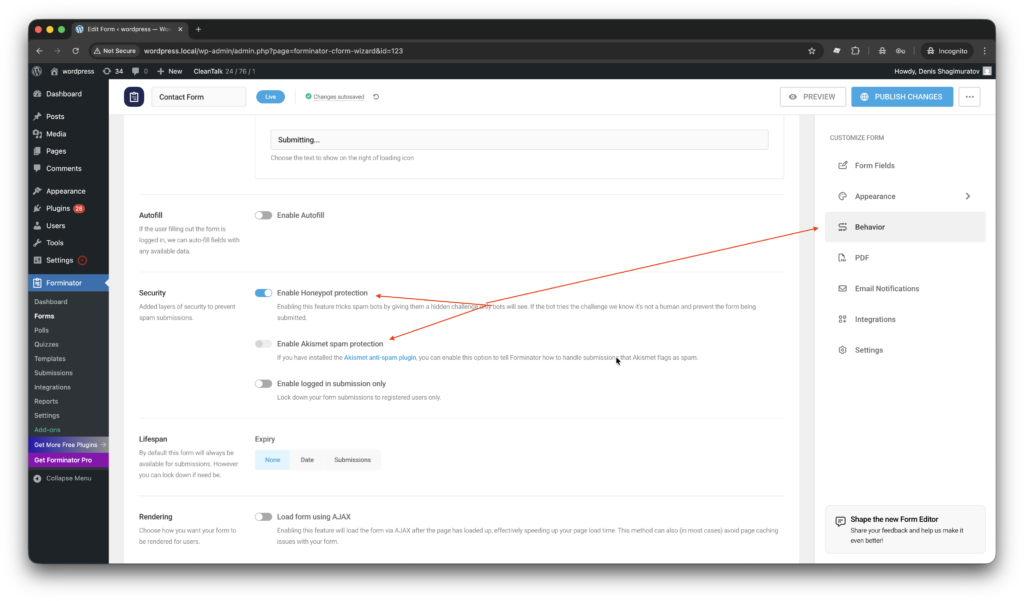
Form Types, Double Opt-In, and Additional Anti-Spam Options
Besides CleanTalk, AWeber also offers several practical controls that affect spam risk and list quality.
Form Types
AWeber supports several sign-up form types, including inline, pop-over, lightbox, and popup forms.
These display options can affect both conversion and spam exposure. A highly visible popup may collect more subscribers, but it can also attract more low-quality submissions if it appears too aggressively on public pages.
Double Opt-In
Double opt-in is one of the most useful list-quality controls when the goal is not only to collect more contacts, but to collect better ones.
This is especially helpful when:
- you want to reduce fake or mistyped email addresses
- you care more about lead quality than raw signup volume
- you want an extra confirmation step before a contact becomes fully active
Double opt-in will not block every kind of abuse, but it can significantly improve the quality of the subscribers who actually make it into your list.
Widgets, Shortcodes, and Placement Controls
AWeber forms can be placed through widgets, shortcodes, pages, posts, and other theme areas. That flexibility is useful for testing form performance, but it also means you should pay attention to where your highest-risk forms appear.
For example, aggressively displayed popups on public traffic pages may attract more junk than a quieter embedded form on a more targeted page.
Why AWeber Form Spam Becomes a Bigger Problem Over Time
Spam in AWeber forms is not just a temporary annoyance. It tends to become a list-quality problem.
Once junk subscribers start slipping through, they can:
- clutter your list with low-value contacts
- reduce trust in your growth numbers
- waste time on cleanup and segmentation
- make campaign performance harder to interpret
This is especially important for email marketing, where list quality often matters more than raw list size.
Comparison of Anti-Spam Approaches for AWeber Forms
| Solution | Main role | Strengths | Limitations | Best use case |
| CleanTalk | Core site-level anti-spam filtering | Filters suspicious submissions before they become normal subscribers, works without classic CAPTCHA friction | Usually strongest when combined with list-quality controls | Sites that want the main anti-spam layer to protect AWeber list quality |
| AWeber double opt-in | Subscriber confirmation layer | Helps reduce fake or mistyped email addresses and improves list quality | Does not block every kind of spam before submission | Sites that prioritize lead quality over raw signup volume |
| AWeber form types and placement controls | Visibility and conversion control | Lets you manage where and how forms appear, can reduce abuse through more careful placement | Not a full spam filter on its own | Sites testing inline, popup, lightbox, or pop-over signup flows |
| Frontend verification tools | Extra anti-bot checkpoint | Can add an additional visible or invisible barrier against automated traffic | Can introduce friction and should not be the only protection method | Sites that need extra frontend verification on high-risk forms |
In practice, the strongest starting point is to use one reliable primary anti-spam layer and then add confirmation or frontend controls only where they are truly needed.
Frequently Asked Questions
Why am I getting fake subscribers through my AWeber form?
This usually happens because the form is public, easy to submit, and not filtered strongly enough before the signup reaches your list. Bots, disposable emails, and low-quality manual submissions can all get through if the site relies only on basic frontend controls.
Why do new AWeber subscribers look real, but still hurt campaign performance?
Because not all bad signups look obviously fake. Some contacts use valid-looking addresses, but they never engage, never confirm, or only subscribed to claim a lead magnet or discount. Over time, these low-quality subscribers can distort list growth and weaken campaign results.
Is double opt-in enough to stop spam in AWeber?
Not by itself. Double opt-in helps improve list quality by filtering out mistyped or low-intent addresses, but it does not stop every fake signup before submission. It works best as a quality-control step, not as the only protection layer.
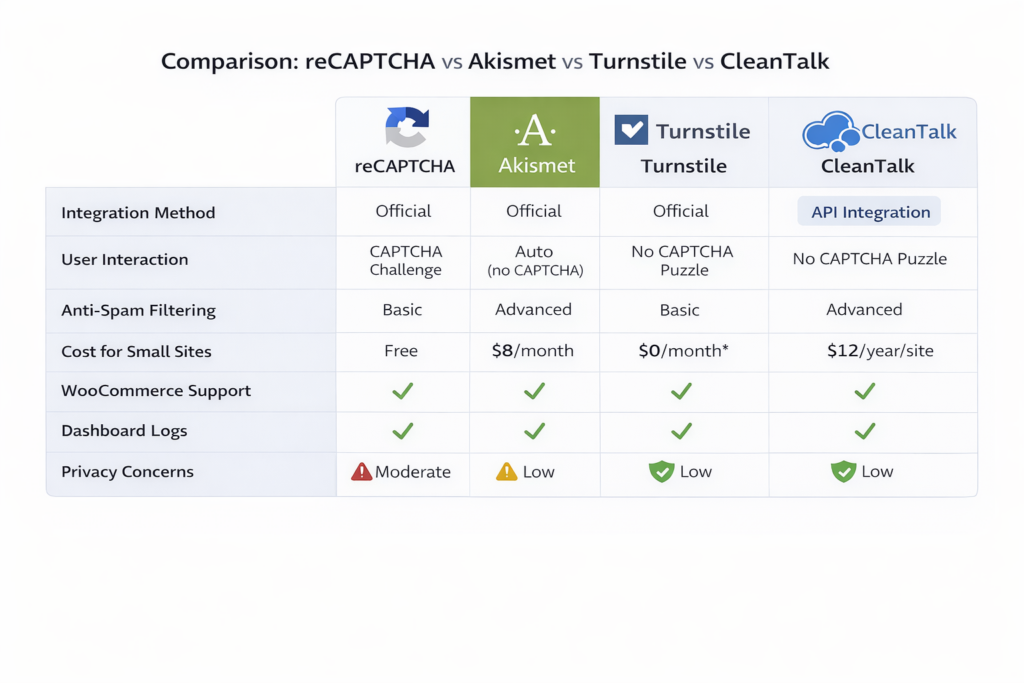
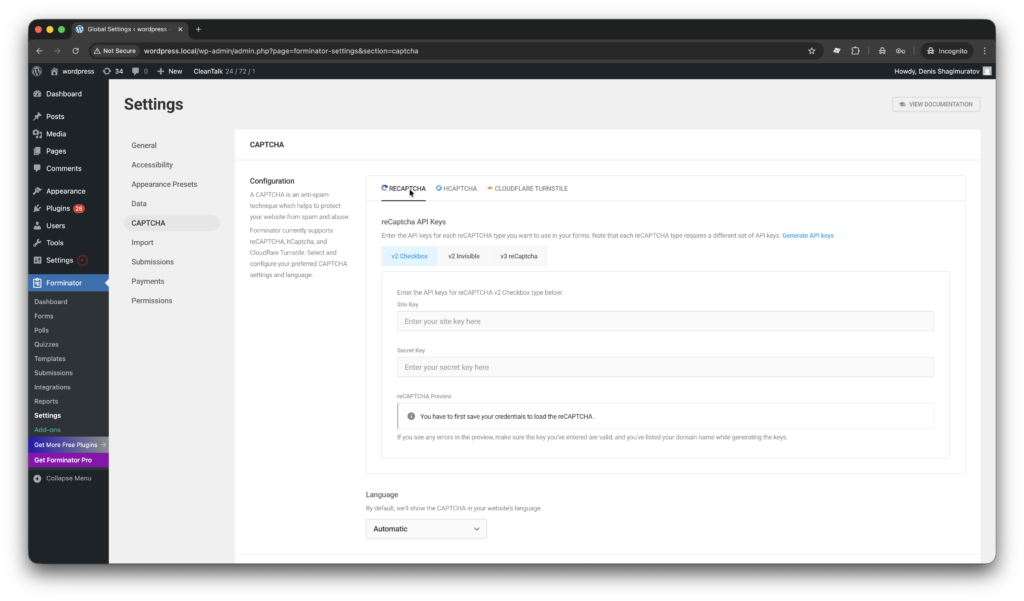
Why do I still get spam signups even after adding reCAPTCHA or other frontend checks?
Because frontend verification only handles part of the problem. It can reduce some automated traffic, but it does not always stop disposable emails, repeated submissions, or more advanced abuse. Sites with heavier spam pressure usually need a stronger site-level filtering layer as well.
How can I tell whether spam is affecting my AWeber list?
Common warning signs include sudden spikes in subscribers, low engagement from new contacts, poor list quality, unusual growth from one form, and subscribers who never behave like real leads. If list size is growing but campaign quality is getting worse, spam or low-quality signups may be part of the problem.
What is the best low-friction setup for AWeber forms?
For most websites, the best low-friction setup is to use one strong background filtering layer, then add double opt-in only where list quality matters most, and keep extra frontend verification limited to higher-risk forms. This helps protect the list without making the signup process harder than it needs to be.
How can I test whether AWeber form protection is actually working?
Open the form page in an Incognito or private browser tab and submit it with the test email stop_email@example.com. Then check both sides of the process: whether the form accepts the submission on the frontend and whether the contact appears in your AWeber list. If the setup is working properly, the signup should be blocked or should not enter the list as a normal subscriber.
What should I do if real subscribers are being blocked together with spam?
Review the protection layers one by one. Check whether your filtering is too aggressive, whether frontend verification is set too strictly, and whether double opt-in or other rules are causing confusion. In most cases, the answer is not to remove protection completely, but to tune it more carefully so real signups can pass while junk is still filtered out.
Recommended Anti-Spam Stack for AWeber Forms (2026)
| Use case | Recommended setup | Why it works |
| Standard email signup website | CleanTalk as the main anti-spam filtering layer + optional double opt-in | Helps block obvious spam and improves list quality |
| Lead magnet or incentive-based signup page | CleanTalk as the main anti-spam filtering layer + double opt-in + tighter form placement | Reduces fake signups and repeated low-quality submissions |
| High-traffic popup or lightbox forms | CleanTalk as the main anti-spam filtering layer + selective frontend verification | Balances strong filtering with practical frontend protection |
| Sites focused on low friction | CleanTalk as the main anti-spam filtering layer + inline or carefully placed forms | Adds protection while keeping the signup experience smoother |
| Split-test-driven list growth sites | CleanTalk as the main anti-spam filtering layer + AWeber split-test forms + list-quality review | Helps compare form performance without letting junk traffic distort results |
Final Thoughts
No single anti-spam tool can stop every kind of unwanted AWeber form submission.
Some controls are better at improving list quality after signup. Others are better at reducing bad submissions before they ever reach the list. The most reliable approach is to combine one strong primary anti-spam layer with the signup and confirmation controls that make sense for your form strategy.
For most WordPress websites using AWeber forms, the strongest setup is to use CleanTalk as the main site-level anti-spam layer, then use double opt-in where necessary, and apply extra frontend controls only where they improve protection without adding too much friction.
This combination helps reduce fake subscribers, protect list quality, and keep your signup data more useful for real email marketing work.