

Everest Forms can be used for much more than a simple contact form. Many WordPress websites use it for inquiries, lead generation, bookings, quote requests, surveys, applications, payments, quizzes, file uploads, and customer feedback.
That flexibility is useful for real visitors, but it also creates more entry points for spam.
If an Everest form is public, bots can try to submit fake names, suspicious links, disposable emails, repeated inquiries, low-quality leads, or automated entries. If the form is connected to email notifications, payment workflows, admin approvals, CSV exports, or external integrations, spam can quickly become more than just an inbox problem.
This guide explains how to protect Everest Contact Forms from spam using Anti-Spam by CleanTalk for WordPress, together with Everest Forms’ own anti-spam and security options such as Honeypot, minimum waiting time, CAPTCHA, Akismet, admin approval, blacklist words, IP/email blocking, and form restrictions.
Everest Forms and WordPress Forms
Everest Forms is a WordPress form builder that lets website owners create forms with a drag-and-drop interface. It can be used for simple contact forms, but also for more complex business forms.
According to WordPress.org, Everest Forms supports many use cases, including contact forms, support request forms, feedback forms, newsletter signup forms, quote request forms, payment forms, booking forms, registration forms, surveys, polls, quizzes, job applications, and multi-step forms.
Everest Forms are often used for:
- contact forms
- support request forms
- callback request forms
- quote request forms
- booking inquiry forms
- newsletter signup forms
- payment forms
- donation forms
- job application forms
- file upload forms
- survey and quiz forms
- customer feedback forms
The advantage of Everest Forms is that it can collect and manage submissions directly inside WordPress. It also supports entry storage, CSV export, form templates, file uploads, payment use cases, and multiple embed options such as Gutenberg blocks and shortcodes.
But this also means that spam can affect more than one place.
A fake submission can appear in entries, trigger admin notifications, pollute exported data, affect analytics, or create confusion in approval workflows.
As WordPress.org shows, Everest Forms – Contact Form, Payment Form, Quiz, Survey & Custom Form Builder is currently used on over 100,000 websites and has an average rating of 4.9 out of 5.
Plugin Homepage at WordPress.org | Documentation at Everest Forms
Why Everest Forms Attract Spam
Everest Forms is not the reason spam happens. Spam is a normal risk for any public WordPress form.
Bots look for forms that accept visitor input. The more useful the form is for real users, the more likely it is to be discovered by automated scripts.
Common Everest Forms spam patterns include:
- fake contact inquiries
- low-quality quote requests
- repeated messages from the same IPs
- disposable or suspicious email addresses
- links placed inside message fields
- fake file upload attempts
- bot-generated names and phone numbers
- spam in booking or callback request forms
- junk entries in survey or quiz forms
- irrelevant SEO, crypto, adult, or software pitches
- automated submissions that happen too fast after page load
This is especially important for websites that store entries inside WordPress. Spam does not only reach the inbox; it can also clutter the entries dashboard and make exports less reliable.
That is why Everest Forms should have spam filtering before suspicious submissions become normal entries.
Anti-Spam by CleanTalk
The next tool we are going to use is the Anti-Spam plugin by CleanTalk.
Here’s a short overview:
- CleanTalk is a cloud-based spam protection service for WordPress websites.
- It blocks spam without forcing real visitors to solve CAPTCHA challenges.
- It can protect different types of WordPress forms and submissions, including contact forms, comments, registrations, subscriptions, bookings, surveys, and WooCommerce orders.
- It checks submissions using spam detection signals such as email address, IP address, sender reputation, and sender activity.
- It helps block automated bots and suspicious form submissions.
- It works quietly in the background.
- It allows website owners to review spam checks in the CleanTalk Cloud Dashboard.
- It gives website owners tools for personal Allow lists and Block lists, country filters, language filters, stop words, and SpamFireWall.
According to WordPress.org, Anti-Spam by CleanTalk for WordPress has over 200,000 active installations, with 3,168 reviews and an average rating of 4.7.
Plugin Homepage at cleantalk.org | Latest release at GitHub.com | Website cleantalk.org
Install the CleanTalk Anti-Spam plugin
Show Instructions
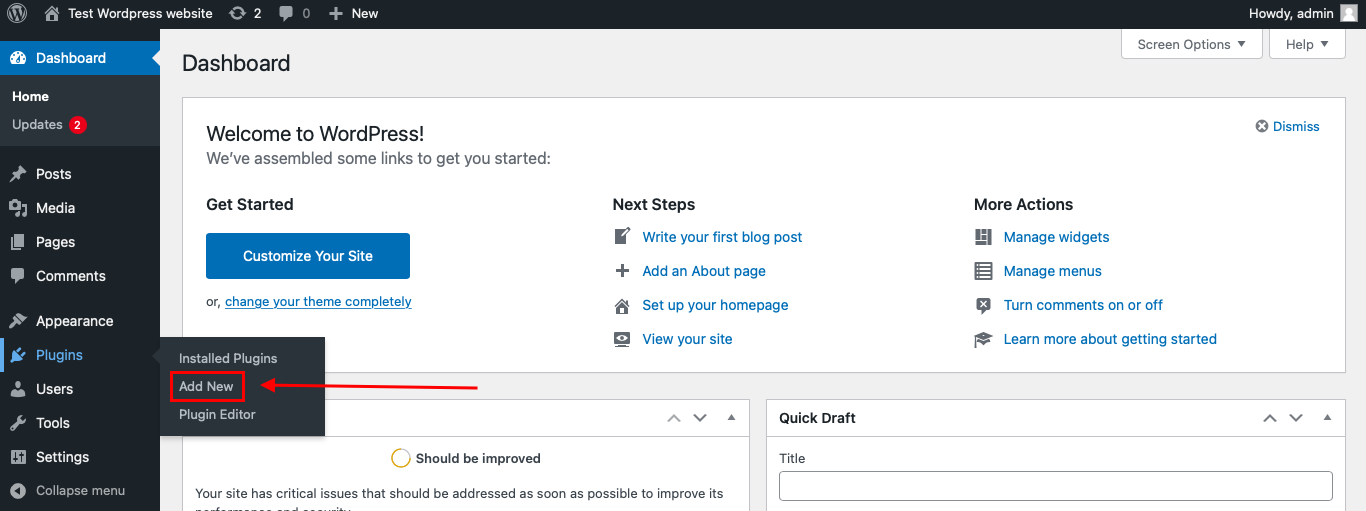
To install the Anti-Spam plugin, go to your WordPress admin panel → Plugins → Add New.
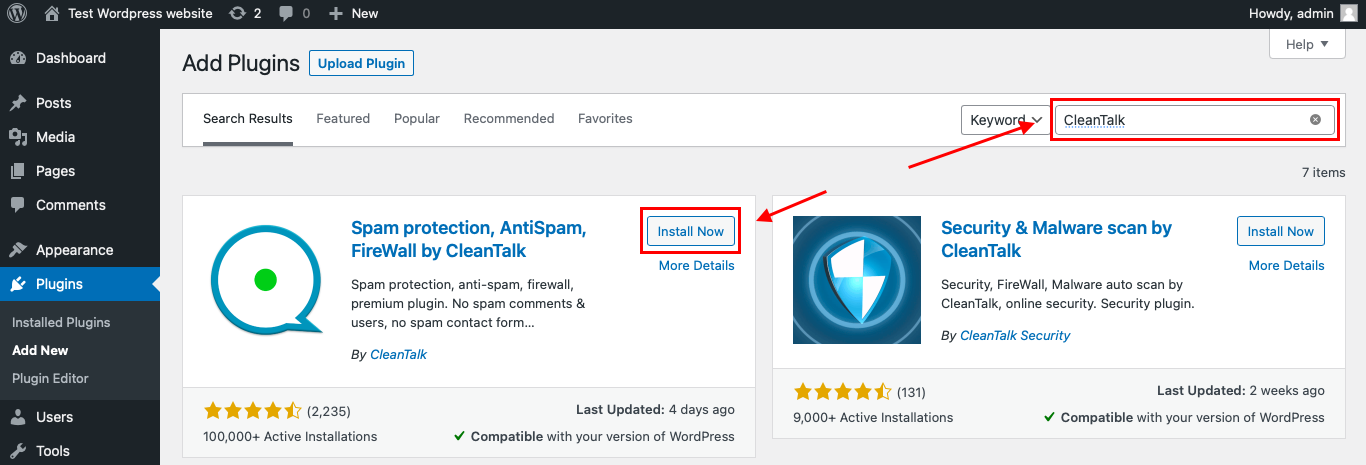
Then enter «СleanTalk» in the search box and click the Install button for «Spam protection, Anti-Spam, FireWall by CleanTalk».
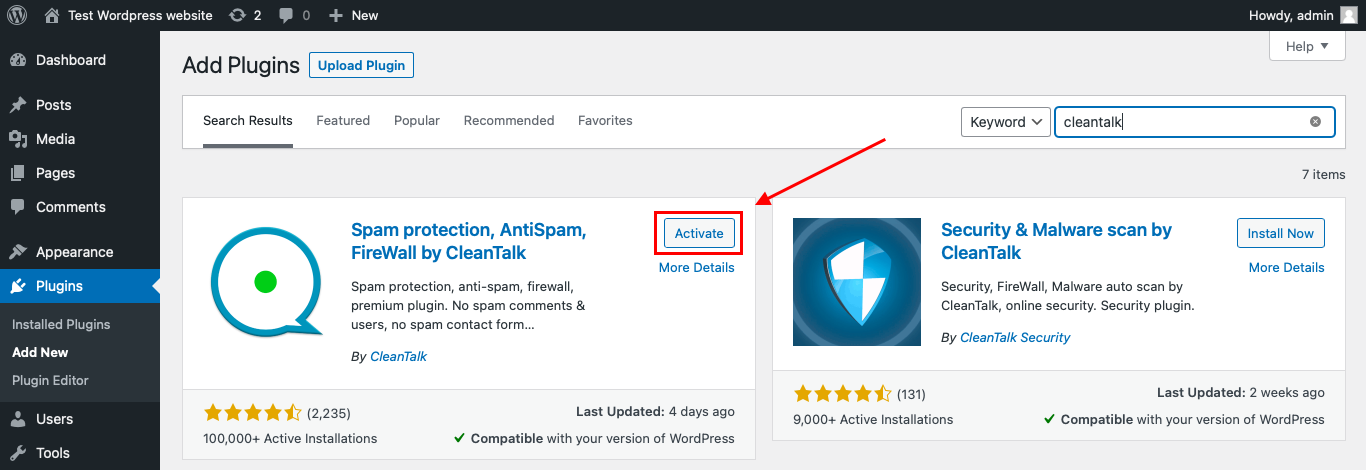
After installing the plugin, click the «Activate» button.
After it is done go to the plugin settings and click the «Get Access Key Automatically» button. Then just click the «Save Settings» button.
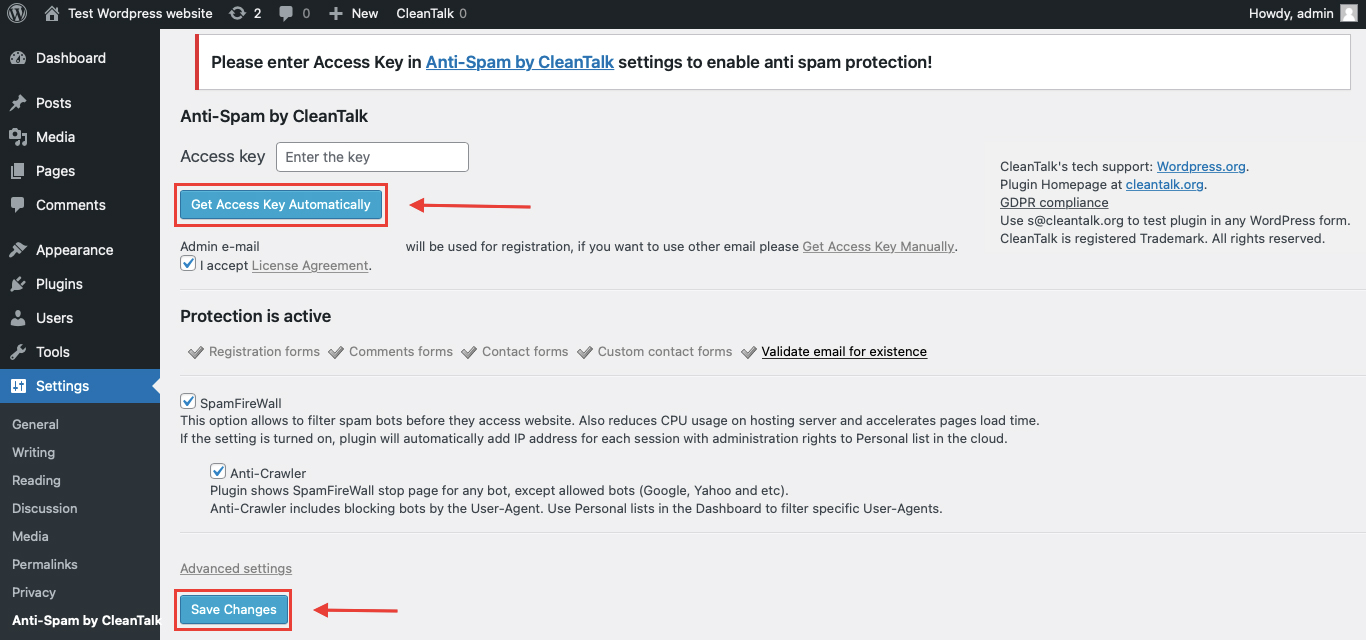
That’s it! From now you know how to completely protect your HivePress from spam.
That’s it! From now on, you know how to protect Everest Forms from spam.
How to Check Everest Forms Spam Protection
After installing the plugin, test that spam protection is working correctly.
Use the test email:
stop_email@example.com
To test the form:
- Open a page with an Everest contact form.
- Use an Incognito or private browser window.
- Fill in all required form fields.
- Use stop_email@example.com as the sender email.
- Submit the form.
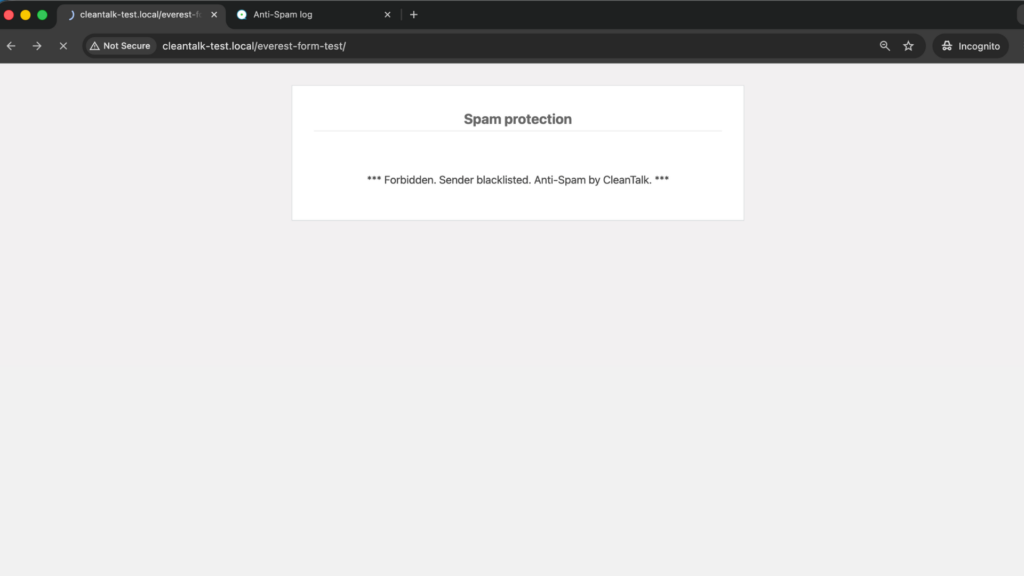
It is better to test protection in an Incognito window because WordPress admins may be treated differently from regular website visitors. Testing as a normal visitor helps confirm that protection works for public form submissions.
If the form submits successfully and nothing appears in the CleanTalk Anti-Spam Log, the request path should be checked separately. The form may be using AJAX, caching, a third-party integration, or another layer that changes how the submission reaches WordPress.
Cloud Dashboard and Monitoring
CleanTalk gives website owners access to request details in the CleanTalk Cloud Dashboard.
This is useful for Everest Forms because spam often follows patterns. You may see repeated IP addresses, suspicious domains, repeated message text, repeated countries, fake phone formats, or the same sender trying several forms.
In the Cloud Dashboard, site owners can review:
- approved and blocked submissions
- sender IP addresses
- sender email addresses
- submission date and time
- page URL where the form was submitted
- spam check result
- reason for blocking or approving a request
- personal Allow lists and Block lists
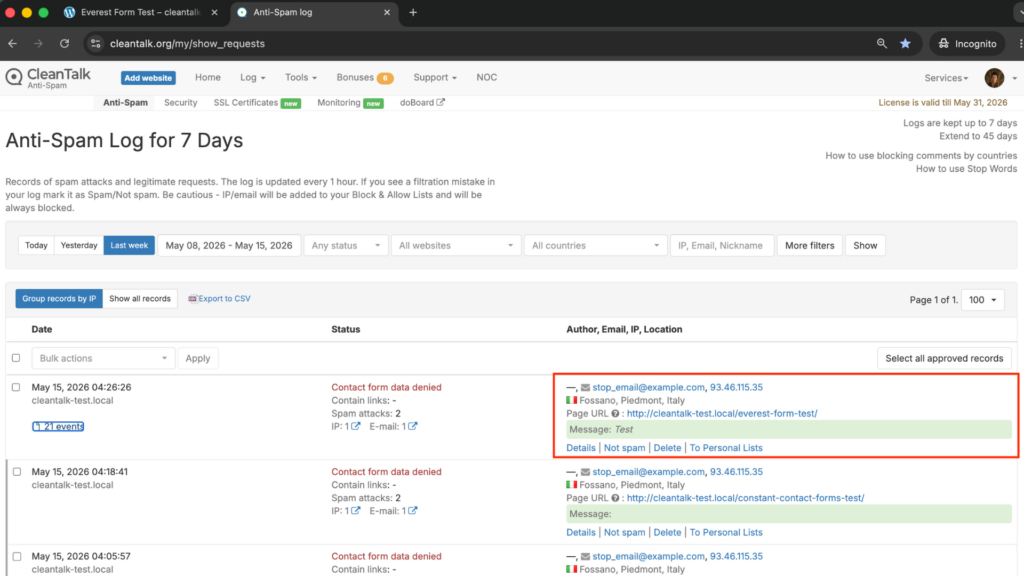
This helps website owners understand whether Everest Forms spam is random or connected to repeated sources.
For example, if a real inquiry is blocked by mistake, the site owner can review the log and add the sender to an Allow list. If repeated spam comes from the same email domain, IP range, or country, filtering rules can be adjusted.
Everest Forms Entries and Why Spam Filtering Matters
Everest Forms can store submissions in the WordPress database and make them available through the entries dashboard. This is useful for managing real inquiries, but it also means spam can build up inside WordPress.
Spam can:
- clutter the entries dashboard
- trigger unnecessary admin emails
- pollute CSV exports
- create fake leads
- affect form analytics
- waste time during manual review
- create noise in admin approval queues
- make survey and quiz data unreliable
- cause problems in payment or booking workflows
- make file upload forms riskier to manage
If Everest Forms is used for business-critical workflows, spam should be stopped before it becomes a saved entry.
Additional Spam Protection Options for Everest Forms
CleanTalk can work as the main anti-spam layer, but Everest Forms also provides several built-in and plugin-based protection options.
Some are available in the free version, while others require Everest Forms Pro or specific add-ons.
Honeypot
Everest Forms includes Honeypot protection as a free anti-spam option.
Honeypot works by adding a hidden field to the form. Real users do not see or fill in this field, but many bots will complete it automatically. If the hidden field is filled, the submission can be rejected.
This is useful because it does not add visible friction for real visitors.
However, Honeypot should not be treated as full protection. More advanced bots and human-written spam may still pass through.
Minimum Waiting Time
Everest Forms includes a minimum waiting time option.
This setting requires a visitor to wait for a configured period after the form loads before the form can be submitted. For example, a website owner can require a delay such as 20 seconds.
This helps block bots that submit forms instantly after loading the page.
It is especially useful for simple contact forms where real users normally need time to read and fill in the fields. However, waiting time should be configured carefully so it does not frustrate real visitors.
CAPTCHA
Everest Forms supports multiple CAPTCHA options, including Google reCAPTCHA, hCaptcha, and Cloudflare Turnstile.
These options can be configured through Everest Forms settings by adding the required site keys and secret keys from the selected CAPTCHA provider.
CAPTCHA can help reduce automated form submissions, especially on high-risk pages.
However, CAPTCHA can also add friction. It is usually better to use it on forms that receive repeated spam rather than forcing every visitor to complete additional verification.
Custom CAPTCHA
Everest Forms Pro supports Custom CAPTCHA.
This allows website owners to create simple challenge questions, such as math problems or custom questions, that visitors must answer before submitting the form.
Custom CAPTCHA can be useful when a website owner wants a form-specific challenge instead of relying only on third-party CAPTCHA services.
Akismet
Everest Forms supports Akismet as a spam protection plugin.
Akismet checks submissions against a spam database. In Everest Forms settings, Akismet can be configured to either fail the form submission or mark the entry as spam.
This can be useful as an additional layer, especially for sites already using Akismet.
Admin Approval Entries
Admin Approval Entries is an Everest Forms Pro option.
It allows submissions to be reviewed before they are fully accepted or processed. This is useful for forms where quality control matters, such as applications, registrations, submissions, and sensitive inquiries.
Admin approval does not replace spam filtering, but it helps prevent questionable entries from moving forward automatically.
Blacklist Words
Everest Forms Pro includes Blacklist Words.
This allows website owners to block submissions that contain specific words, phrases, links, or spam patterns.
This is useful when spam messages repeat the same keywords, URLs, product names, adult terms, crypto phrases, or suspicious promotional language.
Rules should be specific. If blacklist words are too broad, legitimate messages may be blocked by mistake.
Block IP and Email
Everest Forms Pro includes IP and email blocking.
This can help when the same sender, email address, domain, or IP repeatedly submits spam.
It is especially useful after reviewing spam patterns in entries, logs, or CleanTalk dashboard data.
Form Restriction
Everest Forms Pro includes Form Restriction.
This can limit when, where, or how a form can be submitted based on conditions. Everest Forms documentation describes it as a first-line defense that can reduce unnecessary form exposure before other anti-spam tools are applied.
This is useful for campaign forms, limited-time forms, private forms, and forms that should only be available to certain audiences.
Comparison of Anti-Spam Methods for Everest Forms
| Method | Main Role | Strengths | Limitations | Best Use Case |
|---|---|---|---|---|
| CleanTalk | Background anti-spam filtering | Works without visible CAPTCHA, helps block suspicious submissions before they reach entries and workflows | Needs plugin setup and log review | Most WordPress sites using Everest Forms |
| Honeypot | Hidden bot trap | Free, invisible to real users, low friction | Not enough against advanced bots or human spam | Basic protection for simple forms |
| Minimum Waiting Time | Speed-based bot filtering | Blocks instant submissions that happen too fast | Must be configured carefully for real users | Simple contact forms and quote forms |
| reCAPTCHA / hCaptcha / Turnstile | CAPTCHA-style verification | Supported by Everest Forms and useful for high-risk forms | May add friction or require external keys | Public forms receiving repeated bot traffic |
| Custom CAPTCHA | Form-specific challenge | Useful for tailored questions | Requires Pro / addon and can add friction | Forms needing a simple human check |
| Akismet | Spam database check | Useful when Akismet is already installed | Works best as an additional layer | Sites already using Akismet |
| Admin Approval Entries | Manual review | Helps control what moves forward | Does not stop spam before submission | Applications, registrations, sensitive forms |
| Blacklist Words | Pattern blocking | Good for repeated phrases, links, or spam terms | Requires maintenance and careful wording | Repeated message spam |
| Block IP and Email | Sender blocking | Good for repeated offenders | Less useful for rotating bots | Repeated IPs, domains, or email patterns |
| Form Restriction | Submission access control | Reduces form exposure before spam starts | Requires Pro and setup planning | Campaign, limited access, or private forms |
For most WordPress websites, the best setup is layered. CleanTalk can be used as the main background anti-spam layer, while Everest Forms tools can add form-specific protection where needed.
Frequently Asked Questions
Why are spam entries appearing in my Everest Forms dashboard?
Spam entries can appear when bots submit public forms and the submissions are saved in WordPress before being filtered.
This is especially noticeable on Everest Forms because entries can be stored and managed in the WordPress dashboard. If a form receives repeated fake submissions, they can clutter entries, exports, and admin notifications.
Is minimum waiting time useful for Everest Forms spam?
Yes. Minimum waiting time can help block bots that submit the form immediately after the page loads.
Real visitors usually need time to read the form and fill in the fields. Bots often submit much faster. A short waiting time can reduce this type of automated spam, but it should be tested so it does not block real users.
Should I use Honeypot or CAPTCHA in Everest Forms?
They solve different problems.
Honeypot is invisible and low-friction, so it is good as a quiet first layer. CAPTCHA, hCaptcha, or Cloudflare Turnstile can add stronger verification on high-risk forms.
For most websites, Honeypot can stay enabled broadly, while CAPTCHA should be added only where spam volume justifies the extra step.
Can spam affect Everest Forms file upload or application forms?
Yes. File upload and application forms can receive fake submissions, low-quality applications, suspicious filenames, or irrelevant uploaded files.
For these forms, it is better to combine CleanTalk with Everest Forms security tools such as admin approval, IP/email blocking, blacklist words, CAPTCHA, and careful file upload settings.
Why does my Everest Forms test submission pass even with a spam email?
If the test email is not blocked and nothing appears in the CleanTalk Anti-Spam Log, the submission flow should be checked.
AJAX settings, caching, custom integrations, REST/API handling, or plugin conflicts may affect how the request reaches WordPress. Testing should be done in an Incognito browser window, and the CleanTalk dashboard should be checked after submission.
What is the best anti-spam setup for Everest Forms?
For most websites, use CleanTalk as the main background anti-spam layer and enable Everest Forms Honeypot.
For higher-risk forms, add minimum waiting time, CAPTCHA or Turnstile, blacklist words, IP/email blocking, or admin approval depending on the form type. Application forms, upload forms, payment forms, and public lead forms usually need stronger protection than basic contact forms.
Recommended Anti-Spam Setup for Everest Forms
| Website Type | Recommended Setup | Why |
|---|---|---|
| Standard contact page | CleanTalk + Honeypot | Low-friction background protection |
| High-spam contact form | CleanTalk + Honeypot + CAPTCHA or Turnstile | Adds stronger bot verification |
| Quote request form | CleanTalk + minimum waiting time + filters | Reduces instant bot submissions and repeated spam |
| Application form | CleanTalk + admin approval + CAPTCHA | Helps review entries before they move forward |
| File upload form | CleanTalk + CAPTCHA + admin approval + strict upload settings | Reduces fake uploads and risky submissions |
| Survey or quiz form | CleanTalk + Honeypot + entry review | Helps keep results cleaner |
| Repeated spam pattern | CleanTalk + blacklist words + IP/email blocking | Targets known spam terms and senders |
| Limited campaign form | CleanTalk + form restriction | Reduces form exposure and unwanted submissions |
Final Thoughts
Everest Forms is a flexible WordPress form builder for contact forms, lead forms, surveys, applications, payments, quizzes, file uploads, and more. But because it can store and process many different types of submissions, spam protection is especially important.
Honeypot, minimum waiting time, CAPTCHA, Akismet, admin approval, blacklist words, IP/email blocking, and form restriction can all help. But they work best when they are part of a layered setup.
For most WordPress websites using Everest Forms, the best solution is to install Anti-Spam by CleanTalk as the main background anti-spam layer. Then, depending on the form type, add Everest Forms security settings for extra control.
This helps reduce fake entries, protect email notifications, keep exports cleaner, and make Everest Forms easier for real visitors to use.
