
Tag: anti spam

  • Contact Form by BestWebSoft Spam Protection

    Contact Form by BestWebSoft Spam Protection

    CleanTalk added spam protection for Contact Form by BestWebSoft using direct form integration. So in case, you prefer using this type of contact forms be sure to use the most effective Anti-Spam plugin. Read the guide below and learn 4 steps to protect all your contact forms from spam.

    Once the CleanTalk Anti-Spam plugin is installed it starts to protect all of the existing forms on your WordPress website. It may not only be Contact Forms by BestWebSoft but also many others.

    Download CleanTalk Anti-Spam plugin | Download Contact Form by BestWebSoft 

    How to install CleanTalk Anti-Spam plugin

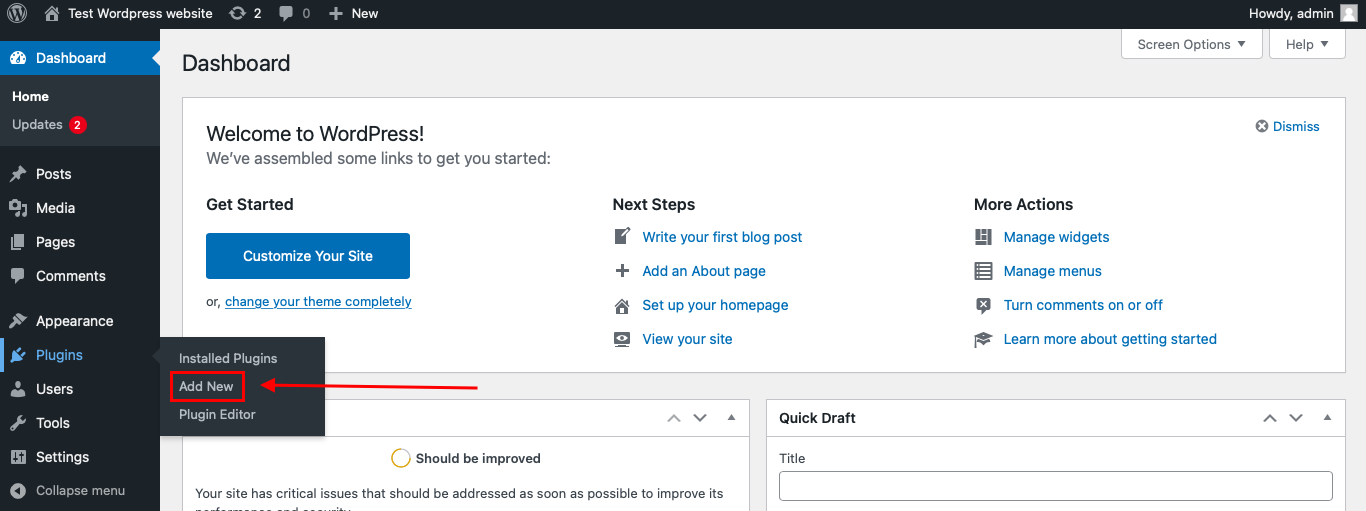
    To install the Anti-Spam plugin, go to your WordPress admin panelPluginsAdd New.

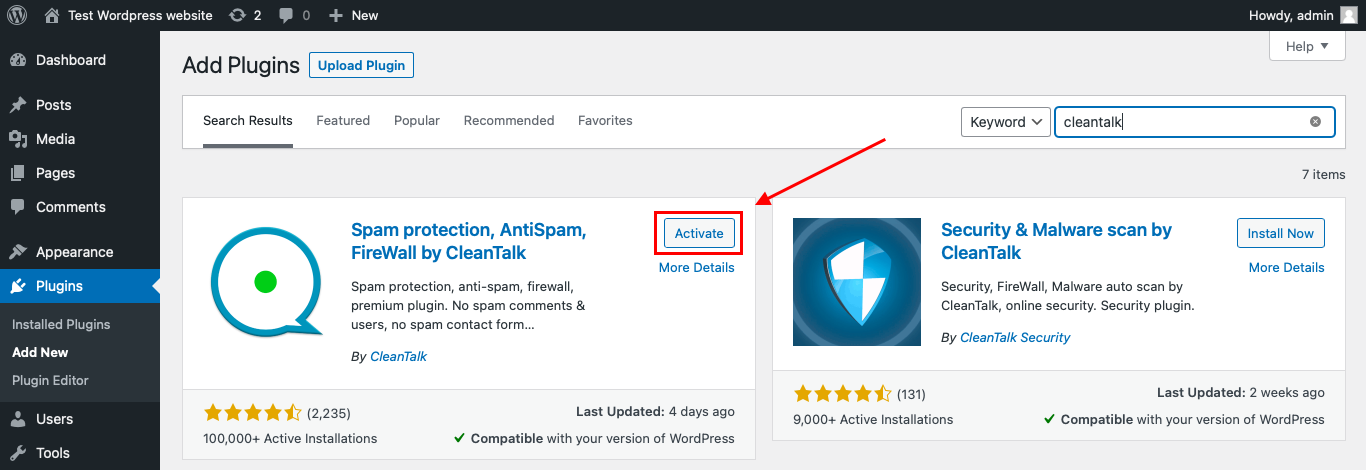
    Then enter «CleanTalk» in the search box and click the Install button for «Spam protection, Anti-Spam, FireWall by CleanTalk».
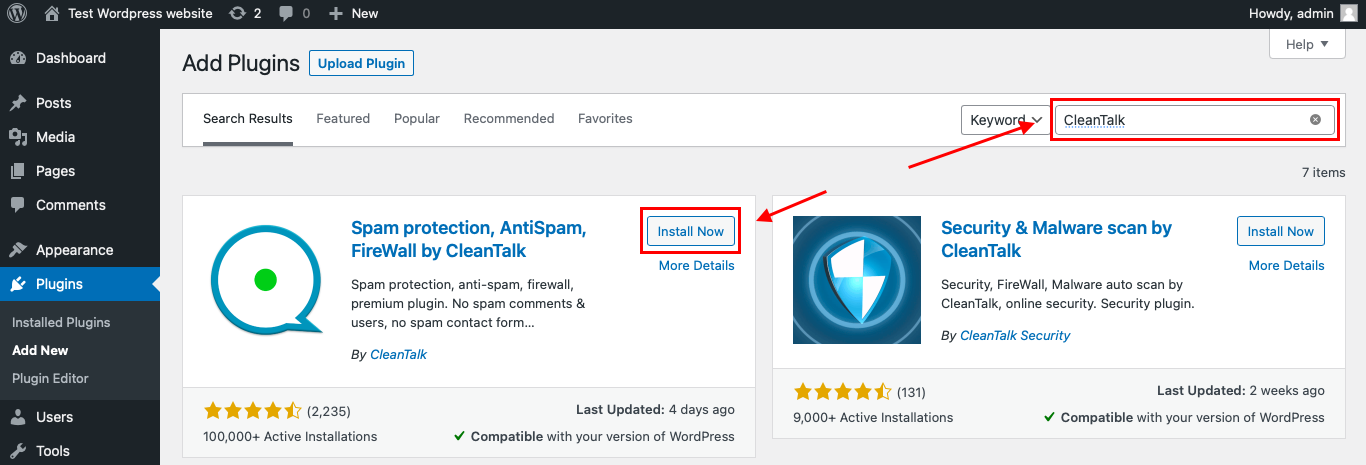
    After installing the plugin, click the «Activate»‎ button.

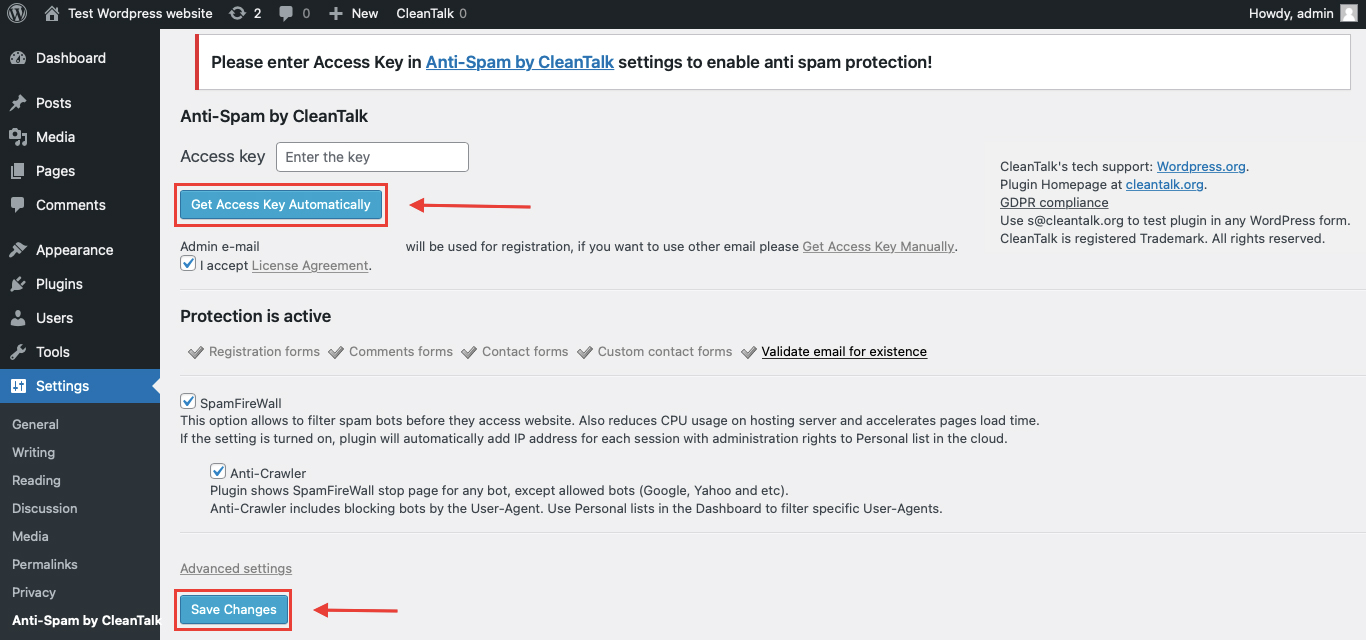
    After it is done go to the plugin settings and click the «Get Access Key Automatically» button. Then just click the «Save Settings»‎ button.

    That’s it! From now you How to completely protect your Contact Forms from spam.

    How to check Contact Form by BestWebSoft Spam Protection

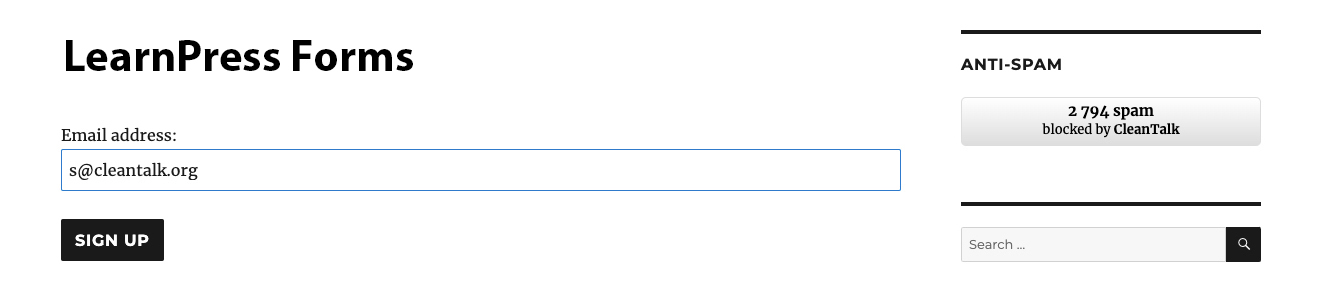
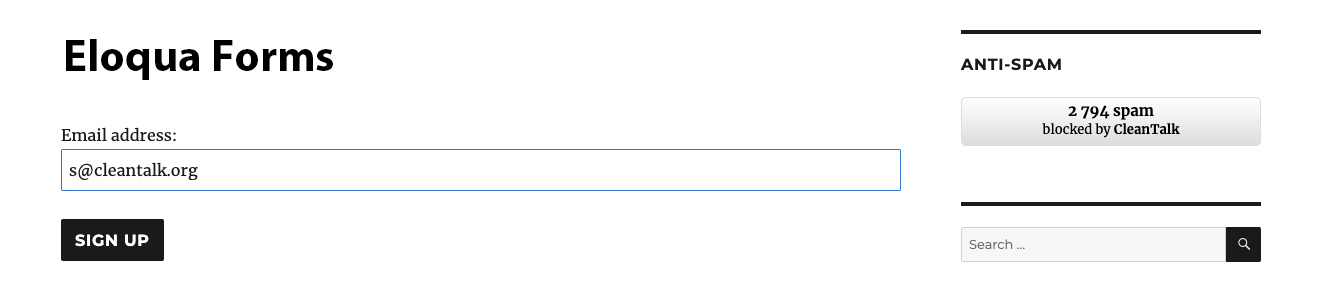
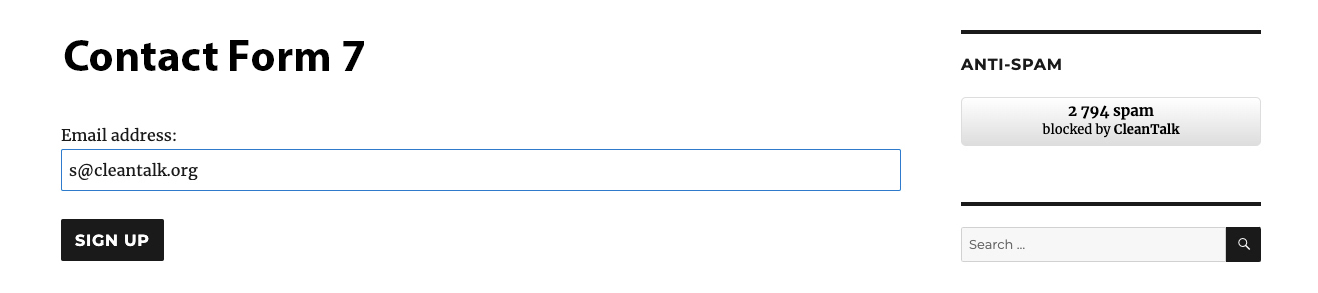
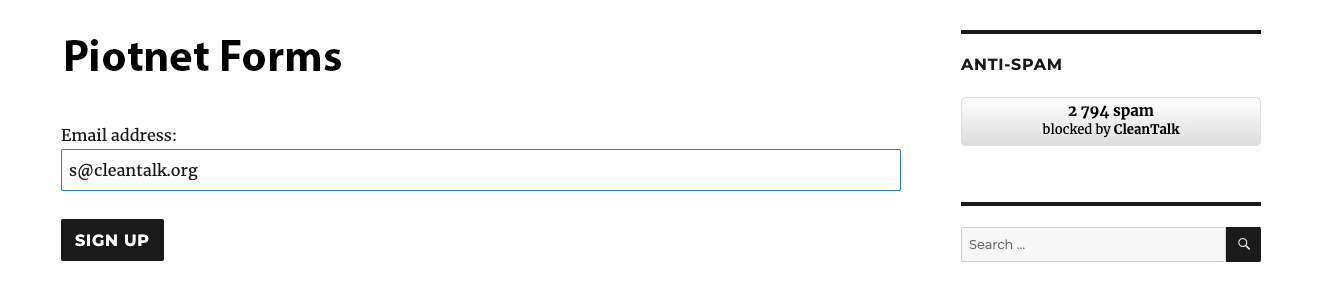
    You can test the work of Anti-Spam protection for your Contact Forms by using a test email s @ cleantalk.org (without spaces). First, open the form in an Incognito browser tab. Fill in all the required form fields and send a form. After submitting the form, you will see a block message about the block on the form submission.

    3
    3

    If you have any questions, add a comment and we will be happy to help you.

    Create your CleanTalk account – Register now and protect your Contact Forms from spam in 5 minutes

    Update

    The protection works only for website visitors, not for website admins. Be sure to test the form protection using Incognito mode.

    Additional features

    • CleanTalk protects all forms at once: comments, registrations, feedbacks, contacts, reviews.
    • Installation takes about 1-2 minutes.
    • Smart 99% protection against spambots.
    • Always online – 24/7 technical support.
    • Logs, SpamFireWall, personal lists, country filters, stop-words, and many others.

    Discover the complete list of CleanTalk Anti-Spam plugin features here.

  • Our client’s review: TROVAZIENDE.NET

    Our client’s review: TROVAZIENDE.NET

    We continue sharing our clients’ reviews and today’s one is kindly brought to you by Daniel from trovaziende.net on WordPress.

    Time and money saving plugin

    Absolute time-saving plugin! After trying various anti-spam plugins, this was definitely one of the best.

    Screenshot 2024 08 11 144955

  • Klaviyo Web Forms Spam Protection

    Klaviyo Web Forms Spam Protection

    CleanTalk added spam protection for Klaviyo web forms using direct form integration. So in case, you prefer using Klaviyo web forms be sure to use the most effective Anti-Spam plugin. Read the guide below and learn 4 steps to protect your Klaviyo web forms from spam.

    Once the CleanTalk Anti-Spam plugin is installed it starts to protect all of the existing forms on your WordPress website. It may not only be Klaviyo web forms but also many others.

    Download CleanTalk Anti-Spam plugin | Download Klaviyo 

    How to install CleanTalk Anti-Spam plugin

    To install the Anti-Spam plugin, go to your WordPress admin panelPluginsAdd New.

    Then enter «СleanTalk» in the search box and click the Install button for «Spam protection, Anti-Spam, FireWall by CleanTalk».

    After installing the plugin, click the «Activate»‎ button.

    After it is done go to the plugin settings and click the «Get Access Key Automatically» button. Then just click the «Save Settings»‎ button.

    That’s it! From now you How to completely protect your Klaviyo web forms from spam.

    How to check spam protection for Klaviyo web forms

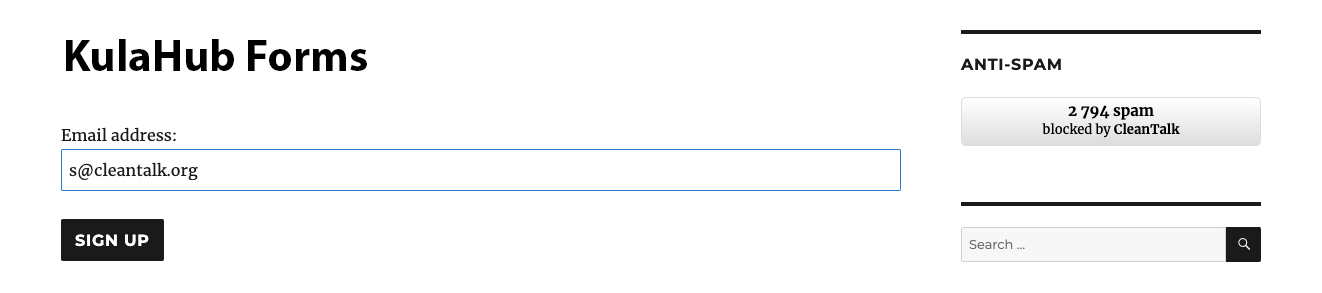
    You can test the work of Anti-Spam protection for your СonvertKit Forms by using a test email s @ cleantalk.org (without spaces). First, open the form in an Incognito browser tab. Fill in all the required form fields and send a form. After submitting the form, you will see a block message about the block on the form submission.

    2
    2

    If you have any questions, add a comment and we will be happy to help you.

    Create your CleanTalk account – Register now and protect your СonvertKit Forms from spam in 5 minutes

    Update

    The protection works only for website visitors, not for website admins. Be sure to test the form protection using Incognito mode.

    Additional features

    • CleanTalk protects all forms at once: comments, registrations, feedbacks, contacts, reviews.
    • Installation takes about 1-2 minutes.
    • Smart 99% protection against spambots.
    • Always online – 24/7 technical support.
    • Logs, SpamFireWall, personal lists, country filters, stop-words, and many others.

    Discover the complete list of CleanTalk Anti-Spam plugin features here.

  • What to Do if You Encounter a CleanTalk Cloud False Positive Response?

    What to Do if You Encounter a CleanTalk Cloud False Positive Response?

    False positives happen. Don’t be scared if you happen to encounter one of them – any issue always has one or another solution.

    In order to help you and save you time, we have prepared a list of guides for all existing CleanTalk cloud responses (also known as API responses, server answers, service responses). Use it to see the detailed instructions for every type of response and what to do with it if you suppose, you have encountered a false positive.

    https://cleantalk.org/help/cleantalk-cloud-responses

    All types of CleanTalk Cloud Responses
    All types of CleanTalk Cloud Responses
  • Payment Issue Alert: Important Information and Our Actions to Resolve It

    Payment Issue Alert: Important Information and Our Actions to Resolve It

    We’ve found a glitch in our payment system that messed up PayPal payments for about 300 of you who paid between May 1 and July 18. Some debit and credit cards didn’t get charged right. We understand fully that the problem is on our side. The team is working hard to fix things and make it right for everyone affected.

    We’ve sent emails to people whose payments were wrong. You can also check your payment history to see if anything’s missing. We’ve marked the payments that didn’t go through.

    1

    What We Did

    1. We’ve made sure you can continue using your account without interruption.
    2. To thank you for your patience, we’re adding 3 extra months of service starting July 29th.
    3. We kindly request that you process the payment for the original license period again.

    Important Points to Note

    • You’ll only be charged once, even if you pay again.
    • The extra 3 months are our gift to you.
    • You have until October 29, 2024, to finish paying.

    Next Steps

    1. Please verify your bank or PayPal statement to confirm whether the affected payment was charged.
    2. Visit your payment history page to complete the payment. You can select a suitable package.
    3. Click the “Renew” button to process the failed payment. This action will maintain your active license and initiate the bonus period.

    Need Help?

    We understand this may be frustrating. Sorry for the inconvenience it caused. Our support team is here to lend a hand, as always. Don’t hesitate to contact us.

  • Say Goodbye to Checkout Spam with CleanTalk for Opencart 4!

    Say Goodbye to Checkout Spam with CleanTalk for Opencart 4!

    Hey there, Opencart store owners! Are spammers giving you a headache? Let us put a smile on your face. CleanTalk Anti-Spam plugin for Opencart 4 is your new best friend in the fight against online nuisances!

    Imagine a world where your Opencart checkout form is protected from spam and fraudulent orders. Well, guess what? That world is here! Our clever little plugin works tirelessly behind the scenes to keep your store safe and your customers happy.

    Here’s why you’ll love CleanTalk:

    1. Spam-Be-Gone: Watch those annoying spam attempts bounce right off your checkout form. It’s like having a bouncer for your online store!
    2. Fraud Fighter: Say “not today” to those sneaky fraud orders. CleanTalk’s got your back, 24/7.
    3. Easy-Peasy Integration: No tech wizardry required! CleanTalk plays nice with Opencart 4, making setup a breeze.
    4. Happy Customers, Happy You: With a smooth, spam-free checkout, your real customers will love shopping with you even more.
    5. Time-Saver Extraordinaire: Less time cleaning up spam means more time growing your business. Who doesn’t want that?

    But don’t just take our word for it! Give CleanTalk a spin and see the difference for yourself. Your Opencart store deserves the best protection from checkout form spam and fraud orders, and that’s exactly what we deliver.

    Ready to kick spam to the curb and give your store the shield it deserves? Hop on board with CleanTalk today – because a happy checkout is a protected checkout!

  • Our client’s review

    Our client’s review

    We continue sharing our clients’ reviews and today’s one is kindly brought to you by Matt Erney on Trustpilot.

    The service works well to keep our form spam under control!

    TWe have been using the CleanTalk plugin for 3 years to control form spam on any of our client websites (and our own site). CleanTalk does a fabulous job of preventing the vast majority of spam. We use the WordPress plugin as our primary integration.

  • Flamingo Plugin new option – “Not Saving Spam Messages”

    Flamingo Plugin new option – “Not Saving Spam Messages”

    As you know, we have direct integration with the most popular contact form plugin – Contact Form 7. Also, you are probably familiar with the Flamingo – a message storage plugin, which doesn’t store submitted messages. Earlier, when using these two plugins simultaneously with CleanTalk Anti-Spam, messages recognized as spam would end up in the “spam” folder instead of just being deleted.

    After a couple of requests about this, we decided that it would be a great idea not to store messages recognized as spam in Flamingo. So now we’ve made the “Save Flamingo Spam entries” option in the Anti-Spam plugin settings. It is enabled by default, but you can turn it off, after which messages recognized as spam will stop being stored in this folder.


    How to activate the option

    1. Install both Contact Form 7 and Flamingo plugins. The option is displayed only if you have both plugins installed and activated.

    2. Go to Anti-Spam plugin settings in your WordPress dashboard

    Screenshot 2024 06 26 232530

    3. Scroll down to “Forms to protect” directory, find the “Save Flamingo spam entries” option and switch it off. The option is switched on by default.

    2024 05 28 07 59 51

    That’s it! Now your messages recognized as spam will not be stored in Flamingo. If you want to see these messages again, just turn this option back on.

  • Attention CleanTalk Anti-Spam Users! Important Update Regarding Public Widget

    Attention CleanTalk Anti-Spam Users! Important Update Regarding Public Widget

    We’re writing to inform you that the public widget for CleanTalk Anti-Spam will be removed from the plugin and no longer be supported after August 1, 2024.

    What does this mean for you?

    The public widget, which is typically displayed on public pages and demonstrates the number of spam attacks, is no longer considered compatible with modern WordPress development practices and has seen low user demand. As a result, we’re removing it from the plugin to ensure optimal performance, streamline the user experience, and focus on core functionalities. This removal also helps us stay aligned with future WordPress versions.

    What action should you take?

    While the public widget will no longer be available after August 1, 2024, CleanTalk Anti-Spam’s core functionality remains unchanged and will continue to provide robust spam protection for your WordPress site.

    Here’s what you can do:

    1. No action required: If you don’t utilize the public widget, you don’t need to take any further action. CleanTalk Anti-Spam will continue to operate seamlessly.
    2. Review alternative widget usage: If you’ve been using the public widget, we recommend exploring alternative methods for interacting with CleanTalk Anti-Spam’s features. These may include accessing settings pages or utilizing shortcodes.

    Affiliate Program Guidance

    If you’ve been using the public widget to promote the CleanTalk AntiSpam Affiliate program, we recommend transitioning to using Affiliate links along with our banner. This method provides a more streamlined and effective way to promote the program.

    To get started with Affiliate links:

    1. Access your CleanTalk Affiliate Dashboard: Log in to your CleanTalk account and navigate to the Affiliate program section.
    2. Generate your Affiliate link: Your unique Affiliate link is provided within the dashboard. Copy this link for use in your promotional materials.
    3. Utilize our Affiliate banner: We offer a visually appealing banner that you can include alongside your Affiliate link. Download the banner from the Affiliate dashboard.
    4. Promote your Affiliate link and banner: Share your Affiliate link and banner on your website, social media channels, or other relevant platforms. When a visitor clicks on your link and signs up for CleanTalk AntiSpam, you’ll earn a commission.

    By transitioning to Affiliate links and our banner, you can continue to effectively promote the CleanTalk AntiSpam Affiliate program while aligning with the updated public widget removal.

    We understand that change can be challenging, and we appreciate your understanding as we work to enhance the CleanTalk Anti-Spam experience.

    If you have any questions or concerns, please don’t hesitate to contact our support team.

    Thank you for being a valued CleanTalk Anti-Spam user!

  • How to Protect Your Joomla Registration Form from Spam with CleanTalk Anti-Spam

    How to Protect Your Joomla Registration Form from Spam with CleanTalk Anti-Spam

    Spam is an ongoing issue for website administrators, and Joomla sites are no exception. When spam bots target your registration forms, they can flood your database with fake accounts, consume resources, and make managing your user base a nightmare. Thankfully, tools like CleanTalk Anti-Spam can help protect your Joomla registration forms from spam effectively. This comprehensive guide will walk you through the steps to integrate CleanTalk Anti-Spam with your Joomla site and protect Your Joomla registration form from spam


    Why Protect Your Joomla Registration Forms?

    Before diving into the steps, it’s crucial to understand why protecting your registration forms from spam is essential. Here are some of the primary reasons:

    1. Database Integrity
      Spam registrations can clutter your database with unnecessary data, making it harder to manage and slower to operate.

    2. Resource Management
      Spam bots consume server resources, which can slow down your website and increase hosting costs.

    3. User Experience
      A flood of spam registrations can impact the user experience by making it difficult for genuine users to register and interact with your site.

    4. Security Risks
      Some spam accounts may be created with malicious intent, aiming to exploit vulnerabilities or distribute malware.


    What is CleanTalk Anti-Spam?

    CleanTalk is a cloud-based anti-spam solution designed to protect websites from spam bots without relying on traditional CAPTCHA methods. It offers real-time spam protection by checking form submissions against a comprehensive database of known spam activities. CleanTalk is known for its high accuracy, ease of use, and minimal impact on user experience.


    Setting Up Registration form protection

    To protect your Joomla registration form from spam, follow these steps to set up CleanTalk Anti-Spam:

    Step 1. Make a backup of the site files and database!

    Step 2. Download the extension archive from the CleanTalk website.

    Step 3. In the main Joomla menu open System → Install → Extensions.

    Step 4. Click the “Browse for file” button to upload the archive.

    Step 5. After installation, you will see the success message:

    Step 6. Go to plugin settings: Extensions → Anti-Spam by CleanTalk, and enable the plugin.

    Step 7. In plugin settings press the Get access key automatically button. Admin email address will be used for registration.

    If you want to use another address click the button Get access key manually. Fill in the easy registration form and you will receive your key.

    Step 8. Enter your Access key in its field, choose protection options, and save settings.


    Test Your Registration Form

    Test protection with this email address stop_email@example.com. Write a comment, registration, or contact message with this email. Here you should see the plugin respond, like in the screenshot.

    You are amazing!

    You have successfully installed Anti-Spam and now your registration forms (and all the other forms) are protected from spam. If something went wrong, please let us know in the comments below or create a private ticket.