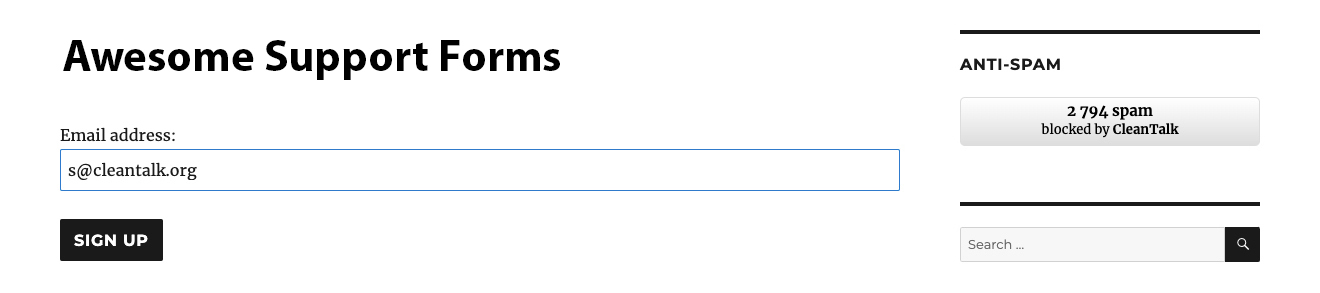
CleanTalk added spam protection for Awesome Support using direct form integration. So in case, you prefer using this type of forms be sure to use the most effective Anti-Spam plugin. Read the guide below and learn 4 steps to protect all your contact forms from spam.
Once the CleanTalk Anti-Spam plugin is installed it starts to protect all of the existing forms on your WordPress website. It may not only be Awesome Support but also many others.
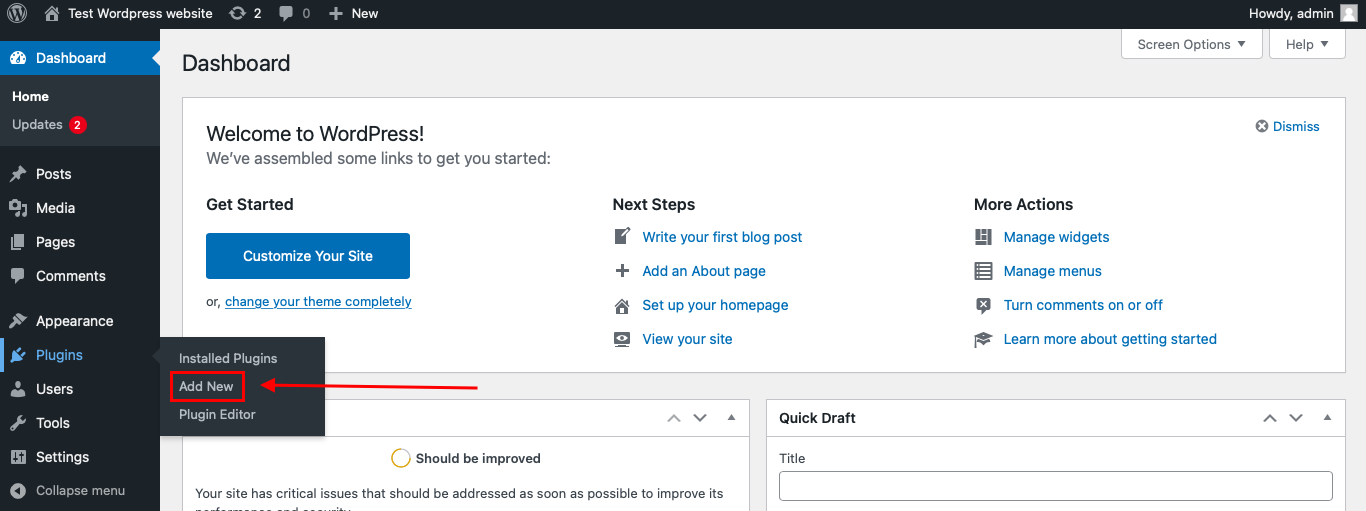
To install the Anti-Spam plugin, go to your WordPress admin panel → Plugins → Add New.
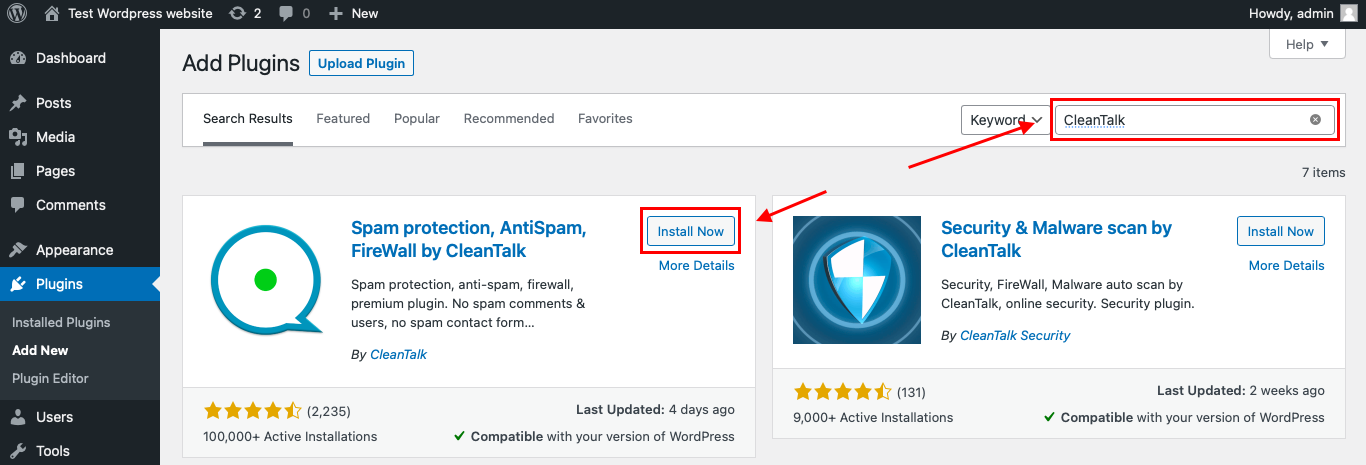
Then enter «CleanTalk» in the search box and click the Install button for «Spam protection, Anti-Spam, FireWall by CleanTalk».
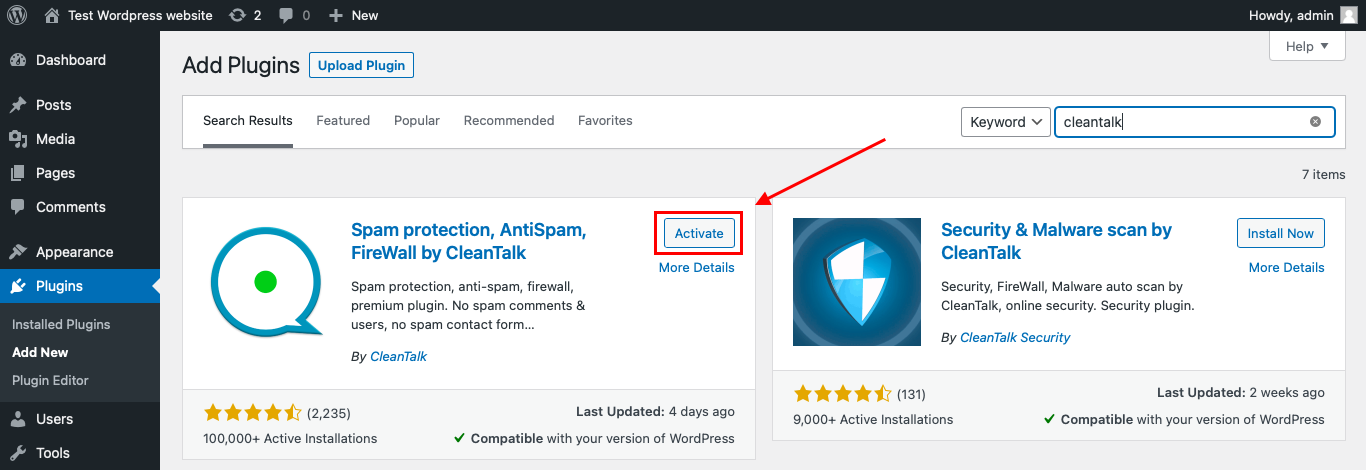
After installing the plugin, click the «Activate» button.
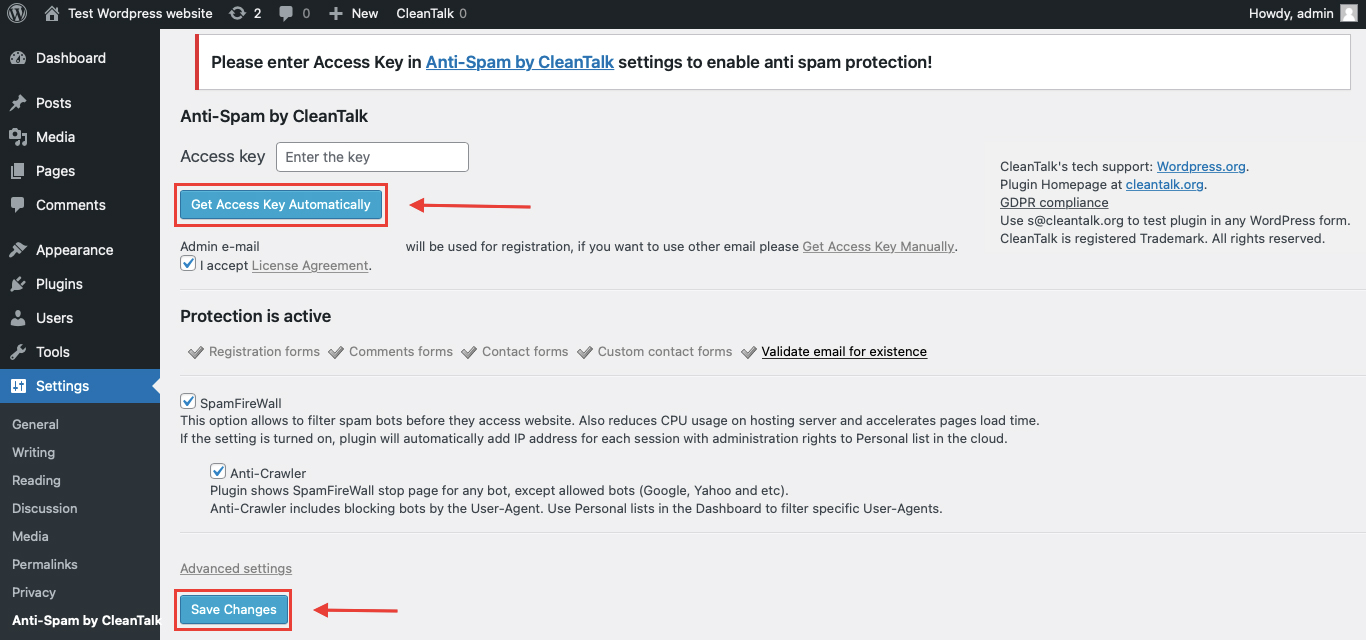
After it is done go to the plugin settings and click the «Get Access Key Automatically» button. Then just click the «Save Settings» button.
That’s it! From now you How to completely protect your Contact Forms from spam.
How to check Awesome Support Spam Protection
You can test the work of Anti-Spam protection for your Contact Forms by using a test email s @ cleantalk.org (without spaces). First, open the form in an Incognito browser tab. Fill in all the required form fields and send a form.
After submitting the form, you will see a block message about the block on the form submission.
If you have any questions, add a comment and we will be happy to help you.
Create your CleanTalk account – Register now and protect your Contact Forms from spam in 5 minutes
Update
The protection works only for website visitors, not for website admins. Be sure to test the form protection using Incognito mode.
Additional features
CleanTalk protects all forms at once: comments, registrations, feedbacks, contacts, reviews.
Installation takes about 1-2 minutes.
Smart 99% protection against spambots.
Always online – 24/7 technical support.
Logs, SpamFireWall, personal lists, country filters, stop-words, and many others.
Discover the complete list of CleanTalk Anti-Spam plugin features here.
Delegate control of your websites to other accounts at CleanTalk.org.
We’ve been testing this integration since January 6, 2025, it’s firm and stable by now. Anyway, if you have any questions or issues, just drop a message in the comment section down below.
If you have got a lots of spam or suspicious messages from testing@example.com or test@example.com lately? You’re not alone — these email addresses are widely used by spammers and hackers for sending spam, phishing attempts, and even code injection attacks.
At CleanTalk Anti-Spam, we’ve seen tons of spam originating from these addresses, every day we block approximately 110,000 requests to our clients’ websites from testing @example.com. So they’ve been on our blacklist for quite some time already:
At CleanTalk, we’ve been filtering out spam for a long time, and these two addresses have been stuck on our blacklist for a while now:
How to Protect Your Website From Spam and Malicious Requests The easiest way to protect your site from spam attacks is using CleanTalk Anti-Spam. It automatically filters submissions in the background and blocks spammy emails and malicious bots from getting through to your website.
If you want even stronger protection, just block the whole *@example.com domain. Here’s how you do it in CleanTalk: Use our instructions to install the anti-spam plugin on your site and connect it to the cloud, it takes no more than 5 minutes. We have developed plugins for all popular CMS, if your site is not made using CMS, you can use our API or libraries.
Lately, we sometimes get questions like “The code samples on GitHub are written in C#, they don’t seem to convert to VB. Do you have any code sample for visual basic ?”
The good news is that now we have! The project below demonstrates how to use the Cleantalk API with VBScript to validate registrations. Feel free to ask any questions – we’re here to help.
This script will automatically detect the form submission event and send the data to the Cleantalk API.
Please note, that the script does not perform any checks, just sends the user’s frontend data (like JavaScirpt state, mouse position etc.) to the API.
Example
VB
<!DOCTYPE html><html lang="en"><head><meta charset="UTF-8"><title>Register</title><!--Bot-detector JS library wrapper. This script must be added to the HTML of the page.--><script src="https://moderate.cleantalk.org/ct-bot-detector-wrapper.js"></script></head><body><form method="post" action="your_form_handler_script"><label for="user_name">User name</label><label for="user_email">User email</label><input type="text" name="user_name" id="search_field" /><br /><input type="text" name="user_email" id="search_field" /><br /><input type="submit" /></form></body></html>
When you got added the script, the form will be updated with hidden event_token field after the script loaded. This field value you should transfer to VB Script
Once the token is provided in the API request, the VB Script will make the API takes in count the frontend data.
Make note, that data provided on event_token have the higher priority than the data set by optional VB Script setters.
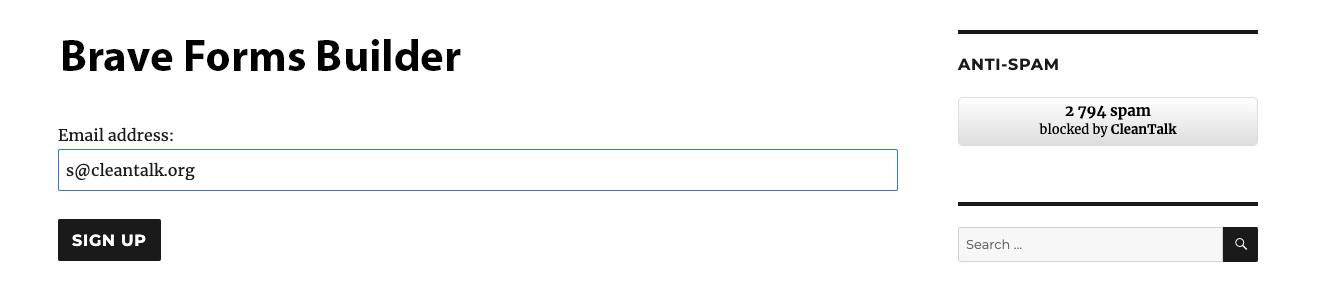
CleanTalk added spam protection for Brave Forms using direct form integration. So in case, you prefer using this type of forms be sure to use the most effective Anti-Spam plugin. Read the guide below and learn 4 steps to protect all your contact forms from spam.
Once the CleanTalk Anti-Spam plugin is installed it starts to protect all of the existing forms on your WordPress website. It may not only be Brave Forms but also many others.
To install the Anti-Spam plugin, go to your WordPress admin panel → Plugins → Add New.
Then enter «CleanTalk» in the search box and click the Install button for «Spam protection, Anti-Spam, FireWall by CleanTalk».
After installing the plugin, click the «Activate» button.
After it is done go to the plugin settings and click the «Get Access Key Automatically» button. Then just click the «Save Settings» button.
That’s it! From now you How to completely protect your Contact Forms from spam.
How to check Brave Forms Spam Protection
You can test the work of Anti-Spam protection for your Contact Forms by using a test email s @ cleantalk.org (without spaces). First, open the form in an Incognito browser tab. Fill in all the required form fields and send a form. After submitting the form, you will see a block message about the block on the form submission.
brave
If you have any questions, add a comment and we will be happy to help you.
Create your CleanTalk account – Register now and protect your Contact Forms from spam in 5 minutes
Update
The protection works only for website visitors, not for website admins. Be sure to test the form protection using Incognito mode.
Additional features
CleanTalk protects all forms at once: comments, registrations, feedbacks, contacts, reviews.
Installation takes about 1-2 minutes.
Smart 99% protection against spambots.
Always online – 24/7 technical support.
Logs, SpamFireWall, personal lists, country filters, stop-words, and many others.
Discover the complete list of CleanTalk Anti-Spam plugin features here.
We’re excited to introduce a new feature in CleanTalk’s Anti-Spam plugin: custom phrase settings for the Contacts Encoder.
Starting with version 6.52, you can now easily customize the default messages shown during the contact data encoding and decoding process — making the user experience better aligned with your website’s tone and style.
You can edit the following three phrases:
“The magic is on the way, please wait for a few seconds!” Shown while decoding is in progress
“The original one is” Shown right before revealing the contact information
“Decoding the contact data, let us a few seconds to finish.” Displayed while processing contact decryption
These options are available in the plugin’s Contacts Encoder settings, under the Data Processing tab.
Make your contact protection both invisible to bots and friendly to users — now in your own words.
How It Works
You can customize the Contacts Encoder messages by adding a few simple code snippets to your site’s functions.php file. For step-by-step instructions, check the guide [here].
This update helps you create a more personalized and user-friendly experience — while still protecting your contact data from bots and crawlers.
CleanTalk added spam protection for FiboSearch Search Forms for WooCommerce in the CleanTalk Anti-Spam plugin using direct form integration. So in case, you prefer using search forms be sure to use the most effective Anti-Spam plugin. Read the guide below and learn 4 steps to protect all your contact forms from spam.
Once the CleanTalk Anti-Spam plugin is installed it starts to protect all of the existing forms on your WordPress website. It may not only be FiboSearch but also many others.
New Year is coming and we’ve got some holiday spirit news for you!
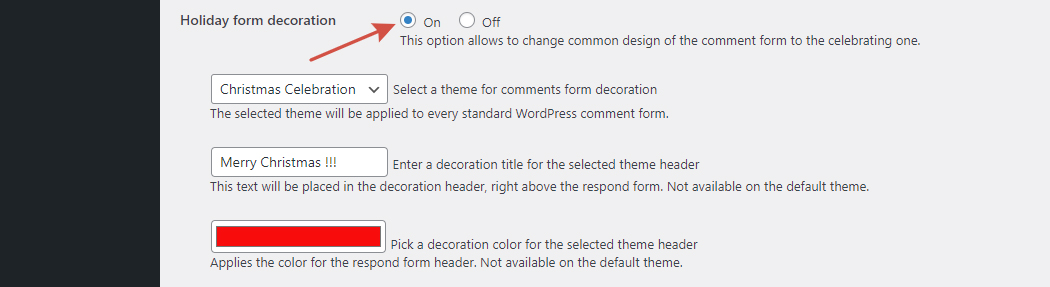
We are launching an option for the Anti-Spam plugin, which adds special designs for your WordPress websites’ standard comment forms, including holiday designs. Not only does this attract attention in your comment form, but it also is an active protection against bots and strengthens your site’s defense.
We are actively working on this option and you can check an example of the form design in the comments below this post. The option is currently in beta but is available in the Anti-Spam plugin starting from version 6.47, which has already been released.
Please write, what you think about the option in the comments below, we really want your opinion.
How to enable decorated forms
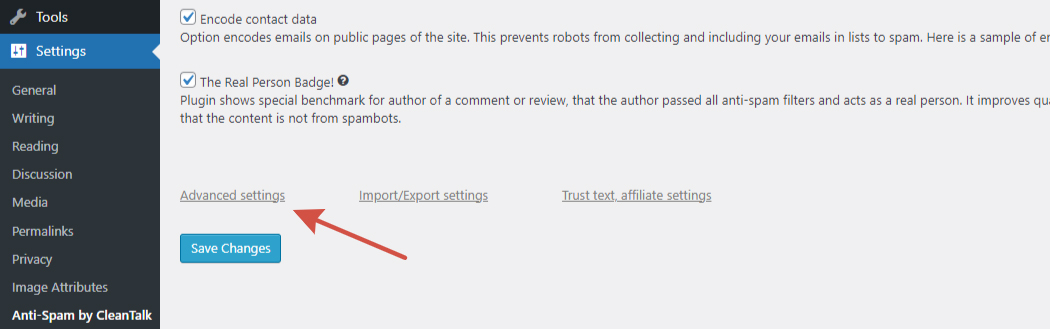
Step 1: Go to the Anti-Spam plugin Settings and click on the Advanced settings link.
Step 2: Enable the Holiday form decoration option by switching it to on. Then press the Save changes button.
Step 3: Check the result – go to your site and see if the decoration works well. If not – please let us know in the comments below this post.