
Stop spam without frustrating your visitors

Create your CleanTalk account and start blocking spam — no CAPTCHA challenges and no impact on visitors.

Security Block Lists

CleanTalk Account

No credit card required • Setup takes less than a minute • Your temporary password will be sent by email.

A New Way to Choose Safe WordPress Plugins

We have an important update to share. The newly released version 2.184 of our Security Plugin for WordPress includes a major new feature the Security Certified tab.
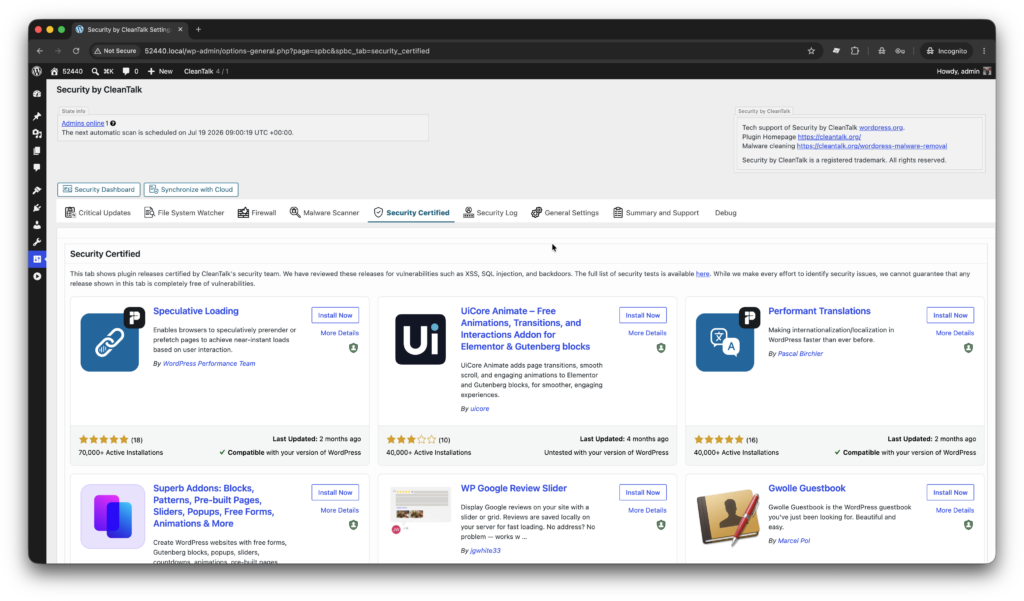
This tab shows plugin releases certified by CleanTalk’s security team. We have reviewed these releases for vulnerabilities such as XSS, SQL injection, and backdoors. The full list of security tests is available here.

What is the main purpose of this tab?

Website owners cannot easily tell whether a WordPress plugin is secure before installing or updating it.

Stop guessing which plugins are safe. See which WordPress plugins have been security-tested before you install them.

While we make every effort to identify security issues, we cannot guarantee that any release shown in this tab is completely free of vulnerabilities.

Location

The tab location is here:

WordPress Console -> Settings -> Security by CleanTalk -> Security Certified

Plugin Security Certification Program

We also offer plugin authors a Plugin Security Certification Program, which provides priority security testing for each new release.

Here are list of the most recent tested and certified plugins,

Let us know what you think. If you have any questions, leave a comment using the form below.

Comments

3 responses to “A New Way to Choose Safe WordPress Plugins”

  1. Luke Douglas Avatar

    I am a pro user of CleanTalk services and use it on every client website.

    You should have a section with two tabs, Active and Library. Then put your current list of all Security Certified in the Library tab but put all currently installed plugins with a tag indicating which ones are Security Certified.

    Otherwise, it’s a useless or, at the very least, an exercise in having to cross check currently installed plugins in one browsers tab with the full library list of Security Certified plugins which are NOT in alphabelical order.

    Example: I have LiteSpeed Cache installed. If I wanted to see if it is on your list of Security Certified plugins, I have to scroll and scroll and scroll and scroll and scroll until I see LiteSpeed. If I don’t see LiteSpeed, well, it’s not Security Certified.

    I do feel strongly this is a useful tab to have but it should be focused on currently installed plugins.

    Just out of the box, if there was a Search feature on the Library tab or even on your current Security Certified where you could type in the Plugin name and get the results, whether it is Security Certified or NOT Security Certified.

    Think of extending a plugin from the standpoint of the website developer. 🙂

    1. Almaz M Avatar
      Almaz M

      Hello Luke,

      Thank you for your feedback!

      We will discuss your suggestions with the team to help improve the Plugin Certified section.

      Kind regards,

    2. Denis Shagimuratov Avatar

      Hello Luke,

      Thank you for the great feedback! We are going to add in the next 1-2 releases,
      – A filter to show Certified and Installed plugins only.
      – A search box. In order to filter certified plugins by your own search request.
      – A stat that shows total number of certified plugins and plugins after filters.

      Hope this will work for you.

      As a temporary solution, you can find plugins with badge “Security certified” among installed plugins on this page,

      WORDPRESS_CONSOLE -> Plugins.

      See the screenshot https://drive.google.com/file/d/1OwH_ugPWtvLncUpOIsqOo8VMDYCj7M75/view?usp=sharing

      Let me know if you have any questions.

Leave a Reply

Your email address will not be published. Required fields are marked *