
Author: Denis Shagimuratov

  • Job Stack Theme Spam Protection for WordPress

    Job Stack Theme Spam Protection for WordPress

    CleanTalk added spam protection for a Register Form in Job Stack using direct form integration. So in case, you prefer using this theme, be sure to use the most effective Anti-Spam plugin. Read the guide below and learn 4 steps to protect your register forms from spam.

    Once the CleanTalk Anti-Spam plugin is installed it starts to protect all of the existing forms on your WordPress website.

    Download CleanTalk Anti-Spam plugin | Download Job Stack Theme 

    How to install CleanTalk Anti-Spam plugin

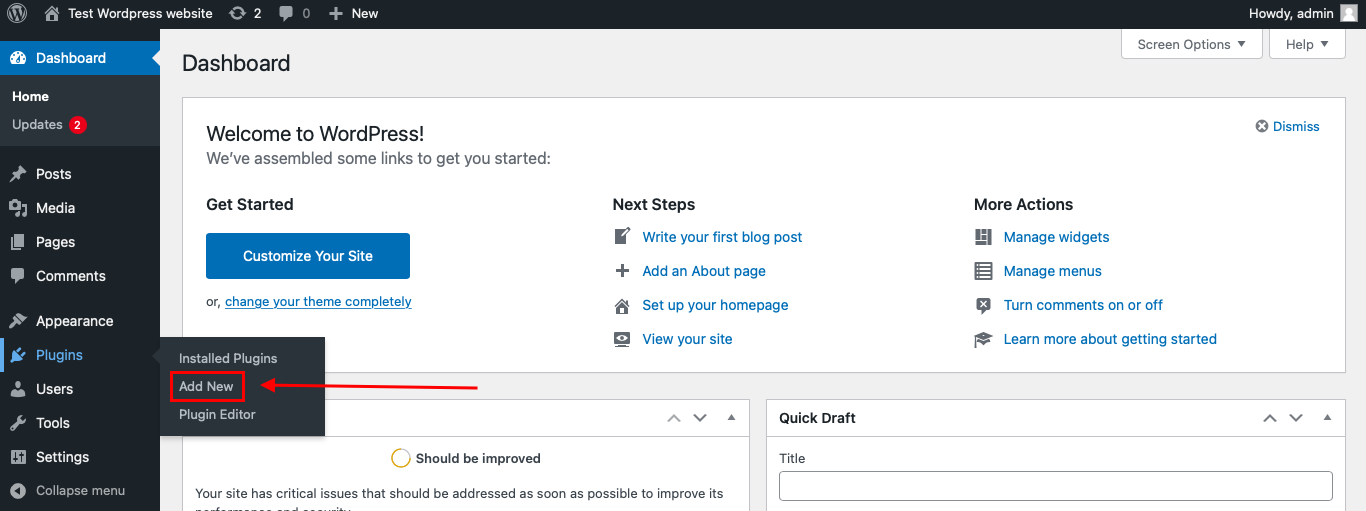
    To install the Anti-Spam plugin, go to your WordPress admin panelPluginsAdd New.

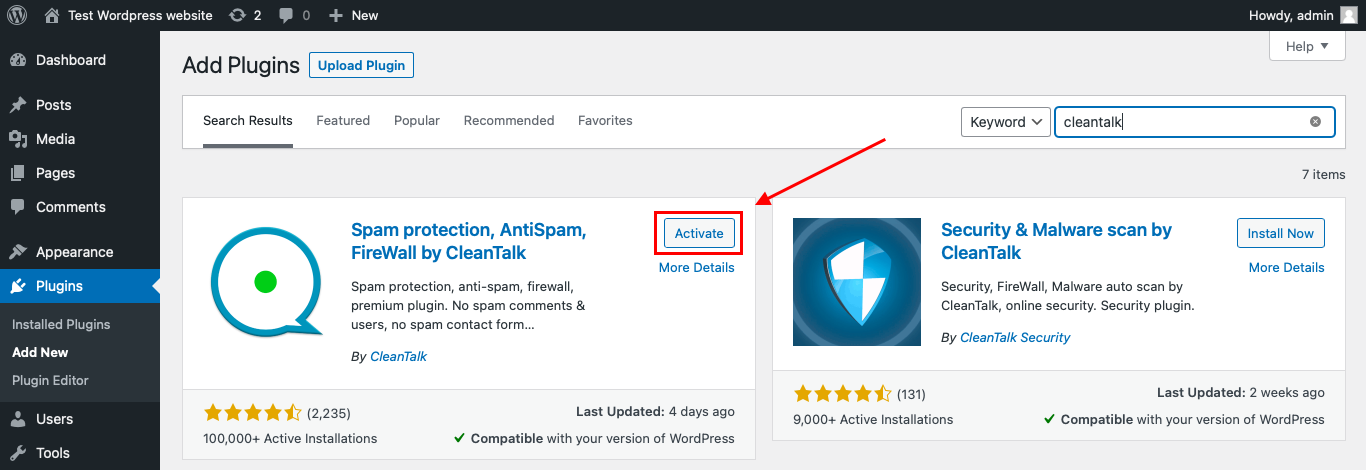
    Then enter «CleanTalk» in the search box and click the Install button for «Spam protection, Anti-Spam, FireWall by CleanTalk».
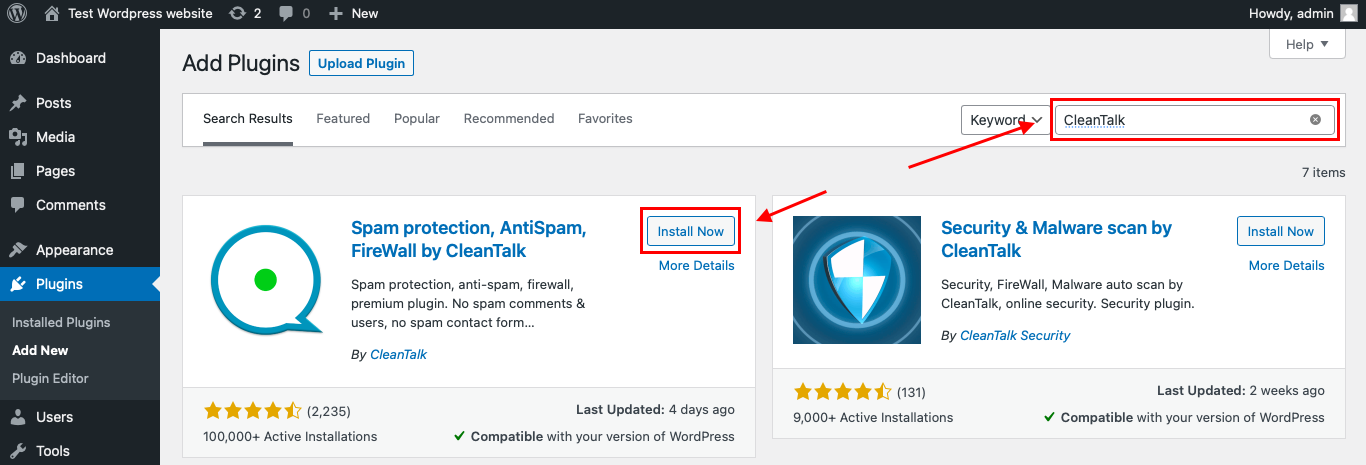
    After installing the plugin, click the «Activate»‎ button.

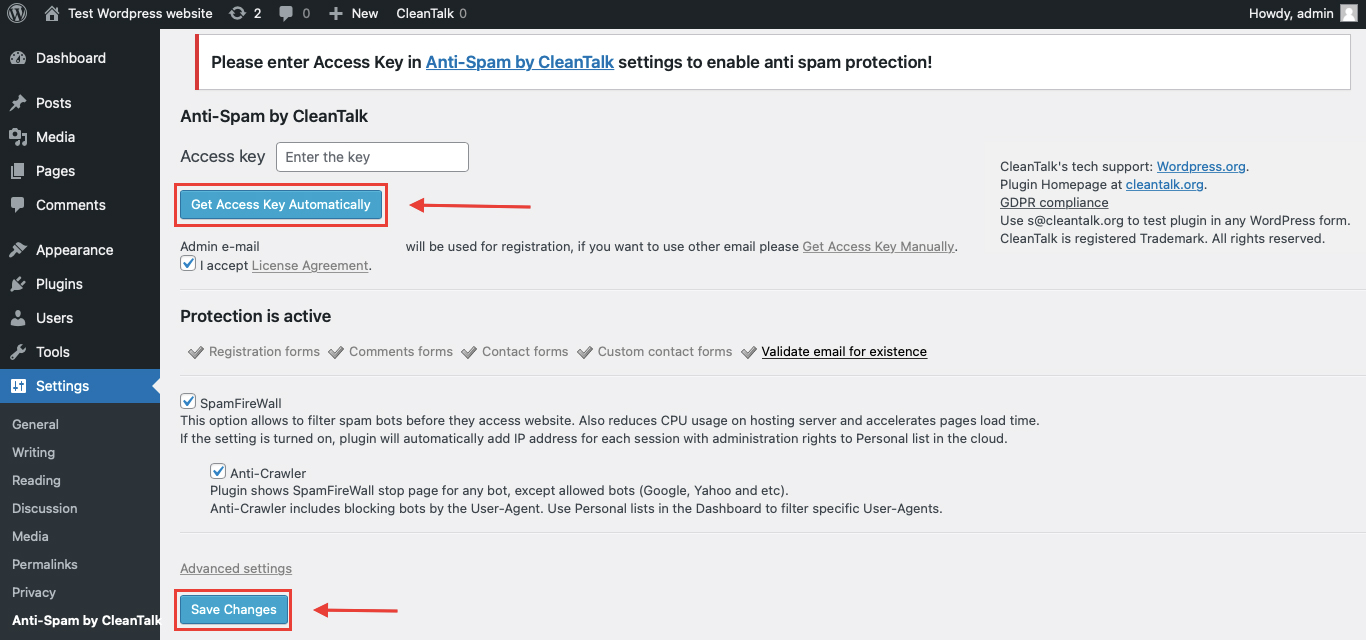
    After it is done go to the plugin settings and click the «Get Access Key Automatically» button. Then just click the «Save Settings»‎ button.

    That’s it! From now you How to completely protect your Contact Forms from spam.

    How to check Job Stack Register form Spam Protection

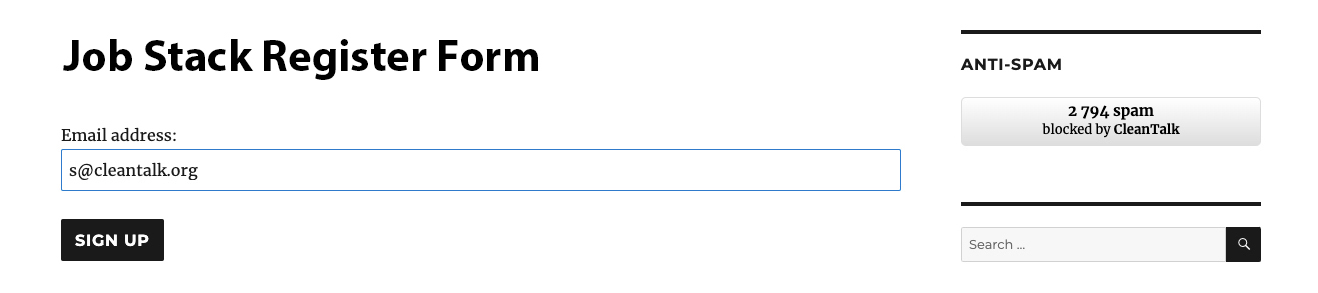
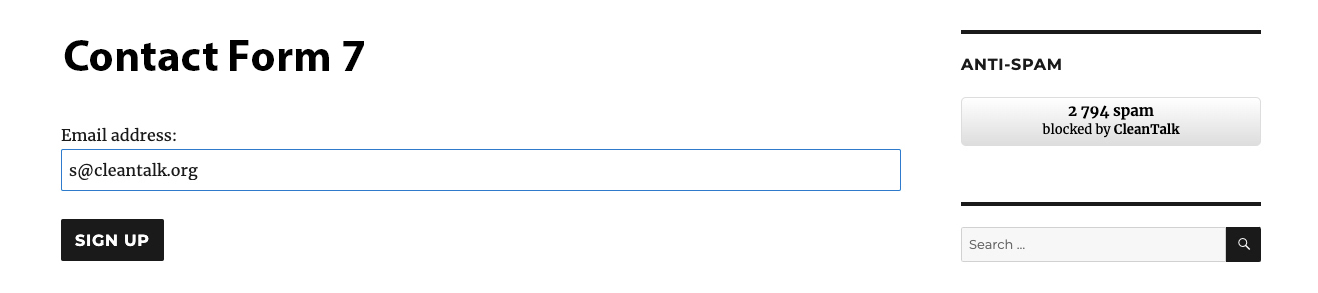
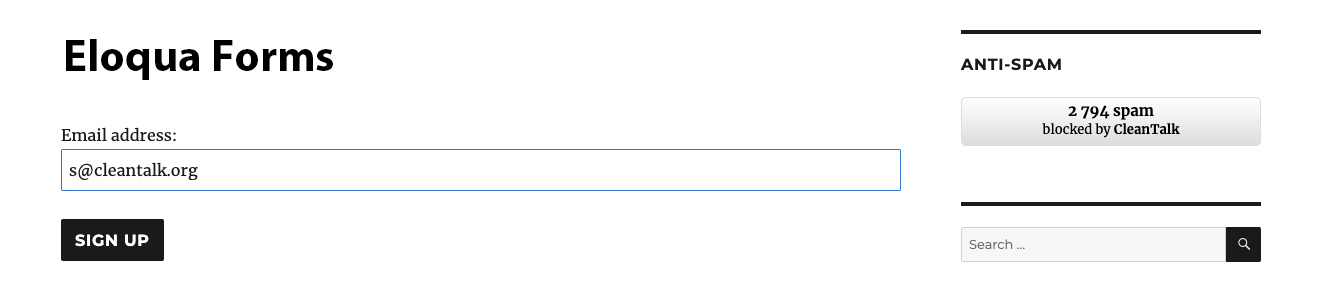
    You can test the work of Anti-Spam protection for your Contact Forms by using a test email s @ cleantalk.org (without spaces). First, open the form in an Incognito browser tab. Fill in all the required form fields and send a form. After submitting the form, you will see a block message about the block on the form submission.

    4
    4

    If you have any questions, add a comment and we will be happy to help you.

    Create your CleanTalk account – Register now and protect your Contact Forms from spam in 5 minutes

    Update

    The protection works only for website visitors, not for website admins. Be sure to test the form protection using Incognito mode.

    Additional features

    • CleanTalk protects all forms at once: comments, registrations, feedbacks, contacts, reviews.
    • Installation takes about 1-2 minutes.
    • Smart 99% protection against spambots.
    • Always online – 24/7 technical support.
    • Logs, SpamFireWall, personal lists, country filters, stop-words, and many others.

    Discover the complete list of CleanTalk Anti-Spam plugin features here.

  • Flamingo Spam Protection for WordPress

    Flamingo Spam Protection for WordPress

    CleanTalk added spam protection for Flamingo plugin using direct form integration. So in case, you prefer using Flamingo to store submitted messages be sure to use the most effective Anti-Spam plugin to protect it. Read the guide below and learn 4 steps to protect all your contact forms from spam.

    Once the CleanTalk Anti-Spam plugin is installed it starts to protect all of the existing forms on your WordPress website. It may not only be Contact Form 7 forms but also many others.

    Download CleanTalk Anti-Spam plugin | Download Flamingo 

    How to install CleanTalk Anti-Spam plugin

    To install the Anti-Spam plugin, go to your WordPress admin panelPluginsAdd New.

    Then enter «CleanTalk» in the search box and click the Install button for «Spam protection, Anti-Spam, FireWall by CleanTalk».

    After installing the plugin, click the «Activate»‎ button.

    After it is done go to the plugin settings and click the «Get Access Key Automatically» button. Then just click the «Save Settings»‎ button.

    That’s it! From now you How to completely protect your Flamingo from spam.

    How to check Flamingo Spam Protection

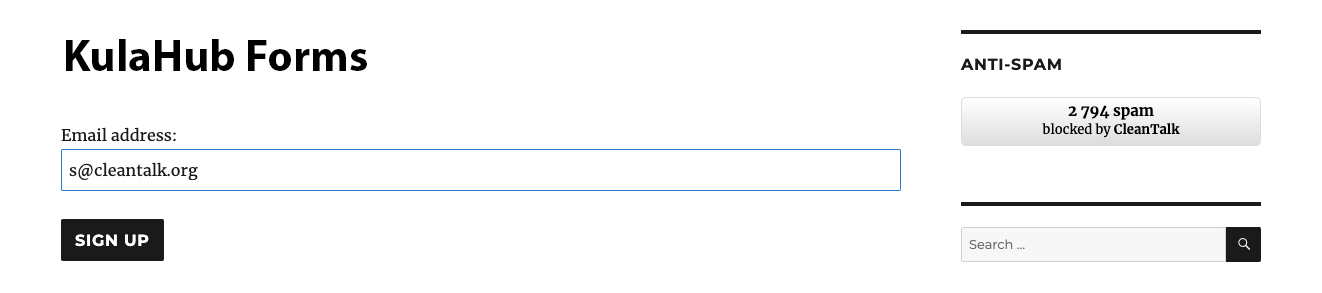
    You can test the work of Anti-Spam protection for Flamingo by using a test email s @ cleantalk.org (without spaces). First, open the form in an Incognito browser tab. Fill in all the required form fields and send a form. After submitting the form, you will see a block message about the block on the form submission.

    2
    2

    If you have any questions, add a comment and we will be happy to help you.

    Create your CleanTalk account – Register now and protect your Flamingo messages from spam in 5 minutes

    Update

    The protection works only for website visitors, not for website admins. Be sure to test the form protection using Incognito mode.

    Additional features

    • CleanTalk protects all forms at once: comments, registrations, feedbacks, contacts, reviews.
    • Installation takes about 1-2 minutes.
    • Smart 99% protection against spambots.
    • Always online – 24/7 technical support.
    • Logs, SpamFireWall, personal lists, country filters, stop-words, and many others.

    Discover the complete list of CleanTalk Anti-Spam plugin features here.
    t

  • Contact Form by BestWebSoft Spam Protection

    Contact Form by BestWebSoft Spam Protection

    CleanTalk added spam protection for Contact Form by BestWebSoft using direct form integration. So in case, you prefer using this type of contact forms be sure to use the most effective Anti-Spam plugin. Read the guide below and learn 4 steps to protect all your contact forms from spam.

    Once the CleanTalk Anti-Spam plugin is installed it starts to protect all of the existing forms on your WordPress website. It may not only be Contact Forms by BestWebSoft but also many others.

    Download CleanTalk Anti-Spam plugin | Download Contact Form by BestWebSoft 

    How to install CleanTalk Anti-Spam plugin

    To install the Anti-Spam plugin, go to your WordPress admin panelPluginsAdd New.

    Then enter «CleanTalk» in the search box and click the Install button for «Spam protection, Anti-Spam, FireWall by CleanTalk».

    After installing the plugin, click the «Activate»‎ button.

    After it is done go to the plugin settings and click the «Get Access Key Automatically» button. Then just click the «Save Settings»‎ button.

    That’s it! From now you How to completely protect your Contact Forms from spam.

    How to check Contact Form by BestWebSoft Spam Protection

    You can test the work of Anti-Spam protection for your Contact Forms by using a test email s @ cleantalk.org (without spaces). First, open the form in an Incognito browser tab. Fill in all the required form fields and send a form. After submitting the form, you will see a block message about the block on the form submission.

    3
    3

    If you have any questions, add a comment and we will be happy to help you.

    Create your CleanTalk account – Register now and protect your Contact Forms from spam in 5 minutes

    Update

    The protection works only for website visitors, not for website admins. Be sure to test the form protection using Incognito mode.

    Additional features

    • CleanTalk protects all forms at once: comments, registrations, feedbacks, contacts, reviews.
    • Installation takes about 1-2 minutes.
    • Smart 99% protection against spambots.
    • Always online – 24/7 technical support.
    • Logs, SpamFireWall, personal lists, country filters, stop-words, and many others.

    Discover the complete list of CleanTalk Anti-Spam plugin features here.

  • Our client’s review: PEACOCKSOFTWARE.COM

    Our client’s review: PEACOCKSOFTWARE.COM

    We continue sharing our clients’ reviews and today’s great review is kindly brought to you by Richard from peacocksoftware.com on Trustpilot.

    Reliable, great service

    This is a very awesome service. I run several business websites (using Drupal), and as such I have “contact us” forms on each one. Dealing with spam was a constant battle, as there were very few captcha/recaptcha solutions available. I found cleantalk years ago, and have been hooked ever since.

    Screenshot 2024 08 11 150343

  • Our client’s review: TROVAZIENDE.NET

    Our client’s review: TROVAZIENDE.NET

    We continue sharing our clients’ reviews and today’s one is kindly brought to you by Daniel from trovaziende.net on WordPress.

    Time and money saving plugin

    Absolute time-saving plugin! After trying various anti-spam plugins, this was definitely one of the best.

    Screenshot 2024 08 11 144955

  • Klaviyo Web Forms Spam Protection

    Klaviyo Web Forms Spam Protection

    CleanTalk added spam protection for Klaviyo web forms using direct form integration. So in case, you prefer using Klaviyo web forms be sure to use the most effective Anti-Spam plugin. Read the guide below and learn 4 steps to protect your Klaviyo web forms from spam.

    Once the CleanTalk Anti-Spam plugin is installed it starts to protect all of the existing forms on your WordPress website. It may not only be Klaviyo web forms but also many others.

    Download CleanTalk Anti-Spam plugin | Download Klaviyo 

    How to install CleanTalk Anti-Spam plugin

    To install the Anti-Spam plugin, go to your WordPress admin panelPluginsAdd New.

    Then enter «СleanTalk» in the search box and click the Install button for «Spam protection, Anti-Spam, FireWall by CleanTalk».

    After installing the plugin, click the «Activate»‎ button.

    After it is done go to the plugin settings and click the «Get Access Key Automatically» button. Then just click the «Save Settings»‎ button.

    That’s it! From now you How to completely protect your Klaviyo web forms from spam.

    How to check spam protection for Klaviyo web forms

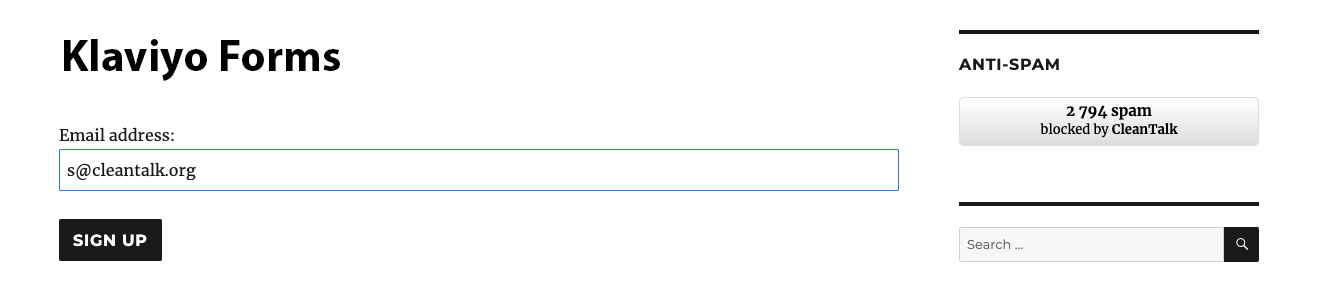
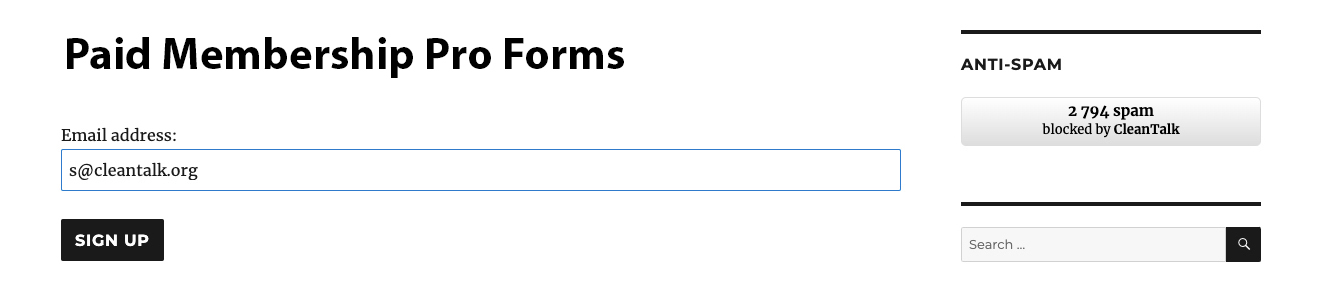
    You can test the work of Anti-Spam protection for your СonvertKit Forms by using a test email s @ cleantalk.org (without spaces). First, open the form in an Incognito browser tab. Fill in all the required form fields and send a form. After submitting the form, you will see a block message about the block on the form submission.

    2
    2

    If you have any questions, add a comment and we will be happy to help you.

    Create your CleanTalk account – Register now and protect your СonvertKit Forms from spam in 5 minutes

    Update

    The protection works only for website visitors, not for website admins. Be sure to test the form protection using Incognito mode.

    Additional features

    • CleanTalk protects all forms at once: comments, registrations, feedbacks, contacts, reviews.
    • Installation takes about 1-2 minutes.
    • Smart 99% protection against spambots.
    • Always online – 24/7 technical support.
    • Logs, SpamFireWall, personal lists, country filters, stop-words, and many others.

    Discover the complete list of CleanTalk Anti-Spam plugin features here.
  • What to Do if You Encounter a CleanTalk Cloud False Positive Response?

    What to Do if You Encounter a CleanTalk Cloud False Positive Response?

    False positives happen. Don’t be scared if you happen to encounter one of them – any issue always has one or another solution.

    In order to help you and save you time, we have prepared a list of guides for all existing CleanTalk cloud responses (also known as API responses, server answers, service responses). Use it to see the detailed instructions for every type of response and what to do with it if you suppose, you have encountered a false positive.

    https://cleantalk.org/help/cleantalk-cloud-responses

    All types of CleanTalk Cloud Responses
    All types of CleanTalk Cloud Responses
  • Conversion rates, feature of AI and payments. Notes by Stripe Sessions 2024

    Conversion rates, feature of AI and payments. Notes by Stripe Sessions 2024

    A few months ago I’ve got a great chance to visit Stripe Sessions 2024 at SF, CA. Here are my notes from this,

    1. Stripe uses machine learning to protect merchants against fraud, as data they look through completed transactions. They identify two types of fraud – card testing and card caching. The false positive rate is 0.05%, meaning 5 false transaction per 1,000. Here is our solution against fraud for Stripe’s merchants https://blog.cleantalk.org/preventing-stripe-fraudulent-payments/
    2. Stripe offers around one hundred payment methods (besides cards) and recommends enabling these methods either manually with country linkage or conducting payment in the buyer’s local currency. In this case, Stripe automatically shows to buyers their local payment methods. In my opinion, payments in local currency brings losses on conversion to USD, but in return a merchant improves payment conversion rates.
    3. Stripe recommends using an embedded payment form on the seller’s website instead of redirecting the user to the Stripe site. This increases conversion by up to 11% due to fewer clicks for the buyer. We are going to implement such feature on our payment page as well, p.cleantalk.org. Here is a draft of the new design.

      Inline payment form. Stripe + PayPal.
    4. For clients from the US and Europe, it makes sense to offer credit/installment options at checkout. A representative from affirm.com (online credits/installments) mentioned that they work with payments starting at $50, and adding such a payment method can increase conversion by up to 60%, as well as increase the average check (typical buyer behavior when purchasing on credit).
    5. Stripe measures the reliability of its infrastructure by the number of seconds of downtime. Currently, their downtime is 26 seconds per month, which they consider a key product feature.
    6. There was an interesting session with the CEO of Nvidia, Jensen. He said,
      We are currently experiencing a new industrial revolution, comparable to the time when humans transformed the energy of fire into steam, and then steam into electrons. Now electrons are being transformed into tokens (GPU computational cycles), and the number of these tokens will change the economy and industry. He is driving the AI industry towards solving real human problems, namely building multi-stage processes and using external (to AI) ways of solving problems. For example, AI should independently write an email or call a third party to provide the correct solution to the user who requested it. We use own AI to design new chips. Nvidia employees would never have started doing what AI is currently doing in chip design.
    7. There were also several sessions on product design (Figma, Linear) and pricing systems (Adobe, Stripe). I didn’t learn anything new here; we are doing what the experts recommend.
    8. Stripe has launched Usage-Based Billing, which is similar to our Pay-as-you-go model (that we have launched in the end of 2023). Interestingly, it features a simple API for interacting with Stripe’s billing system, and it provides real-time tracking of consumed resources and costs. In CleanTalk we considered using Stripe before starting work on our universal page but decided against it because Stripe didn’t support cross-selling. Otherwise, it’s a good solution if you don’t have the desire or capability to develop your own system.
    9. At the developer session, about 80% of the audience (approximately 1000 developers) use GitHub Copilot (https://github.com/features/copilot), which is GitHub’s AI language model that assists with coding. From what I quickly gathered, this tool:
      • Writes documentation.
      • Writes unit tests.
      • Provides clear descriptions for pull requests and commits.
      • And, of course, writes code.
      • The head of development at GitHub explained that the system is designed so that the developer must oversee the AI-written code to avoid issues similar to Tesla’s self-driving problems. Overall, we should try it out.
    10. Stripe is very focused on code documentation. They have many in-house developments to keep their documentation up to date, which they consider a strong point and a reason why they are widely used (which I think is true, as their documentation was among the best during my time as a developer).
    11. To enter the corporate market, besides complying with ISO standards, it would be good to implement Bring Your Own Key (BYOK). This feature allows users to encrypt their cloud data with their own key.
    12. Stripe sees a reduction in payment processing costs by offering users the least expensive payment methods for the seller (Surcharge). However, it’s unclear whether Stripe plans to launch this feature for everyone or if they are suggesting users consider this option themselves.
    13. In the summer of 2024, Stripe is launching cryptocurrency payment acceptance. They had previously tried accepting such payments but abandoned it in 2018 because the process took up to 30 minutes (due to insufficient computing power on buyers’ devices). Now, thanks to the increased performance of client devices, they have reduced this process to 15 seconds.
    14. We should look into Linear, as they have ideas regarding project management and tracking. As well as Mindbody, which provides software (SaaS) around fitness, including financial services for their clients.

    Bonus

    In San Francisco, self-driving taxis are already fairly common. White cars with sensors are seen in the photos. Subjectively, 2 out of 10 cars are on autopilot. It’s a bit eerie to imagine that such a car will come to pick you up and take you somewhere, it immediately reminds me of Skynet.

  • Our client’s review

    Our client’s review

    We continue sharing our clients’ reviews and today’s one is kindly brought to you by Matt Erney on Trustpilot.

    The service works well to keep our form spam under control!

    TWe have been using the CleanTalk plugin for 3 years to control form spam on any of our client websites (and our own site). CleanTalk does a fabulous job of preventing the vast majority of spam. We use the WordPress plugin as our primary integration.

  • Flamingo Plugin new option – “Not Saving Spam Messages”

    Flamingo Plugin new option – “Not Saving Spam Messages”

    As you know, we have direct integration with the most popular contact form plugin – Contact Form 7. Also, you are probably familiar with the Flamingo – a message storage plugin, which doesn’t store submitted messages. Earlier, when using these two plugins simultaneously with CleanTalk Anti-Spam, messages recognized as spam would end up in the “spam” folder instead of just being deleted.

    After a couple of requests about this, we decided that it would be a great idea not to store messages recognized as spam in Flamingo. So now we’ve made the “Save Flamingo Spam entries” option in the Anti-Spam plugin settings. It is enabled by default, but you can turn it off, after which messages recognized as spam will stop being stored in this folder.


    How to activate the option

    1. Install both Contact Form 7 and Flamingo plugins. The option is displayed only if you have both plugins installed and activated.

    2. Go to Anti-Spam plugin settings in your WordPress dashboard

    Screenshot 2024 06 26 232530

    3. Scroll down to “Forms to protect” directory, find the “Save Flamingo spam entries” option and switch it off. The option is switched on by default.

    2024 05 28 07 59 51

    That’s it! Now your messages recognized as spam will not be stored in Flamingo. If you want to see these messages again, just turn this option back on.