

Stop spam without frustrating your visitors

Create your CleanTalk account and start blocking spam — no CAPTCHA challenges and no impact on visitors.

Security Block Lists

CleanTalk Account

No credit card required • Setup takes less than a minute • Your temporary password will be sent by email.

Author: Denis Shagimuratov

  • How to stop spam on Joomla – VP One Page Checkout for VirtueMart

    How to stop spam on Joomla – VP One Page Checkout for VirtueMart

    CleanTalk added spam protection for VP One Page Checkout Forms for VirtueMart using direct form integration. So if you prefer to use VP One Page Checkout Forms, be sure to use the most effective Anti-Spam plugin. Read the guide below and learn 8 steps to protect your forms from spam.

    Once the CleanTalk Anti-Spam plugin is installed it starts to protect all of the existing forms on your Joomla website. It may not only be contact forms but also contact forms and many others.

    Download CleanTalk Anti-Spam plugin | Download VP One Page Checkout Forms 

    How to install CleanTalk Anti-Spam plugin

    1. Make a backup of the site files and database.

    2. Download the Anti-Spam extension archive via link above.

    3. In the main Joomla menu open Extensions → Manage → Install.

    4. Click the «Browse for file» button to upload the archive.

    Joomla install

    5. After installation you will see a success message:

    Joomla success

    6. Go to plugin settings: Extensions → Plugins → Anti-Spam by CleanTalk. Enable the plugin and save settings.

    7. In plugin settings press «Get access key automatically» button. Admin email address will be used for registration. If you want to use another address click the button «Get access key manually». Fill in the easy registration form and you will receive your key.

    Joomla Anti-Spam settings

    8. Enter your Access key in its field, choose protection options and save settings.

    Anti-Spam settings

    That’s it! From now you know how to completely protect your VP One Page Checkout Forms from spam.

    How to check spam protection for VP One Page Checkout Forms

    You can test the work of Anti-Spam protection for your VP One Page Checkout Forms by using a test email s @ cleantalk.org (without spaces). First, open the form in an Incognito browser tab. Fill in all the required form fields and send a form. After submitting the form, you will see a block message about the block on the form submission.
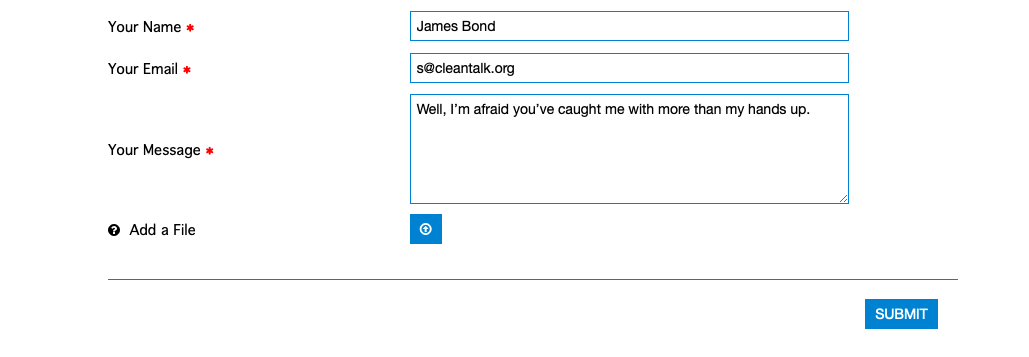

    If you have any questions, add a comment and we will be happy to help you.

    Create your CleanTalk account – Register now and protect your VP One Page Checkout Forms for VirtueMart from spam in 5 minutes.

    Update

    The protection works only for website visitors, not for website admins. Be sure to test the form protection using Incognito mode.

    Additional features

    • CleanTalk protects all forms at once: comments, registrations, feedbacks, contacts, reviews.
    • Installation takes about 1-2 minutes.
    • Smart 99% protection against spambots.
    • Always online – 24/7 technical support.
    • Logs, SpamFireWall, personal lists, country filters, stop-words, and many others.

    Discover the complete list of CleanTalk Anti-Spam plugin features here.

  • Our client’s story: EXPLAINERADS.COM

    Our client’s story: EXPLAINERADS.COM

    We continue sharing our clients’ reviews and today’s story is brought to you by Silus Mihai from explainerads.com.

    Just give it a try

    One of the best plugins out there for antispam messages

  • Check email and IP addresses with our new extension for Chrome

    Check email and IP addresses with our new extension for Chrome

    From now you can check public emails and IP addresses directly from your browser using our brand new extension for Google Chrome.

    The extension compares all the visible IP/email addresses on a web page with our spam database. Also, it checks an IP or Email address over the database of spam active addresses at cleantalk.org. The database contains up to 10 millions records with activity for past 30 days.

    It shows the history of spam attacks, amount of attacked websites, and a short description of the owner of an address.

    How to use the Extension in Chrome

    Step 1: Find the extension page here or go to Chrome web store and search for “CleanTalk”.

    Then press the “Add to Chrome” button.

    After that press “Continue to install”.

    And the “Add extension” button after that.

    Step 2: When ready, highlight and click your right mouse button on any email or IP address on a website and select “cleantalk.org lookup” line.

    That’s it! On the following page you can see all the detailed information about the IP or email address you’ve chosen.

  • How to stop spam on Joomla – Rapid Contact Forms

    How to stop spam on Joomla – Rapid Contact Forms

    CleanTalk added spam protection for Rapid Contact Forms using direct form integration. So if you prefer to use Rapid Contact Forms, be sure to use the most effective Anti-Spam plugin. Read the guide below and learn 8 steps to protect your forms from spam.

    Once the CleanTalk Anti-Spam plugin is installed it starts to protect all of the existing forms on your Joomla website. It may not only be contact forms but also contact forms and many others.

    Download CleanTalk Anti-Spam plugin | Download Rapid Contact Forms 

    How to install CleanTalk Anti-Spam plugin

    1. Make a backup of the site files and database.

    2. Download the Anti-Spam extension archive via link above.

    3. In the main Joomla menu open Extensions → Manage → Install.

    4. Click the «Browse for file» button to upload the archive.

    Joomla install

    5. After installation you will see a success message:

    Joomla success

    6. Go to plugin settings: Extensions → Plugins → Anti-Spam by CleanTalk. Enable the plugin and save settings.

    7. In plugin settings press «Get access key automatically» button. Admin email address will be used for registration. If you want to use another address click the button «Get access key manually». Fill in the easy registration form and you will receive your key.

    Joomla Anti-Spam settings

    8. Enter your Access key in its field, choose protection options and save settings.

    Anti-Spam settings

    That’s it! From now you know how to completely protect your Rapid Contact Forms from spam.

    How to check spam protection for Rapid Contact Forms

    You can test the work of Anti-Spam protection for your Rapid Contact Forms by using a test email s @ cleantalk.org (without spaces). First, open the form in an Incognito browser tab. Fill in all the required form fields and send a form. After submitting the form, you will see a block message about the block on the form submission.

    If you have any questions, add a comment and we will be happy to help you.

    Create your CleanTalk account – Register now and protect your Rapid Contact Forms from spam in 5 minutes.

    Update

    The protection works only for website visitors, not for website admins. Be sure to test the form protection using Incognito mode.

    Additional features

    • CleanTalk protects all forms at once: comments, registrations, feedbacks, contacts, reviews.
    • Installation takes about 1-2 minutes.
    • Smart 99% protection against spambots.
    • Always online – 24/7 technical support.
    • Logs, SpamFireWall, personal lists, country filters, stop-words, and many others.

    Discover the complete list of CleanTalk Anti-Spam plugin features here.

  • Our client’s story: KDWELLNESSCO.COM

    Our client’s story: KDWELLNESSCO.COM

    We continue sharing our clients’ reviews and today’s story is brought to you by kdwellnessco.com.

    This plugin is amazing and so easy to use. I was getting 12-15 pieces of spam mail per day. CleanTalk reduced that to zero. So happy to have found this plugin. Thank you.

  • VirtueMart Forms – Spam Protection for Joomla

    VirtueMart Forms – Spam Protection for Joomla

    CleanTalk added VirtueMart Forms spam protection using direct form integration. So if you prefer to use VirtueMart Forms, be sure to use the most effective Anti-Spam plugin. Read the guide below and learn 8 steps to protect your VirtueMart Forms from spam.

    Once the CleanTalk Anti-Spam plugin is installed it starts to protect all of the existing forms on your Joomla website. It may not only be comment forms but also contact forms and many others.

    Download CleanTalk Anti-Spam plugin | Download VirtueMart Forms 

    How to install CleanTalk Anti-Spam plugin

    1. Make a backup of the site files and database.

    2. Download the Anti-Spam extension archive via link above.

    3. In the main Joomla menu open Extensions → Manage → Install.

    4. Click the «Browse for file» button to upload the archive.

    Joomla install

    5. After installation you will see a success message:

    Joomla success

    6. Go to plugin settings: Extensions → Plugins → Anti-Spam by CleanTalk. Enable the plugin and save settings.

    7. In plugin settings press «Get access key automatically» button. Admin email address will be used for registration. If you want to use another address click the button «Get access key manually». Fill in the easy registration form and you will receive your key.

    Joomla Anti-Spam settings

    8. Enter your Access key in its field, choose protection options and save settings.

    Anti-Spam settings

    That’s it! From now you know how to completely protect your VirtueMart Forms from spam.

    How to check spam protection for VirtueMart Forms

    You can test the work of Anti-Spam protection for your VirtueMart Forms by using a test email s @ cleantalk.org (without spaces). First, open the form in an Incognito browser tab. Fill in all the required form fields and send a form. After submitting the form, you will see a block message about the block on the form submission.

    If you have any questions, add a comment and we will be happy to help you.

    Create your CleanTalk account – Register now and protect your VirtueMart Forms from spam in 5 minutes.

    Update

    The protection works only for website visitors, not for website admins. Be sure to test the form protection using Incognito mode.

    Additional features

    • CleanTalk protects all forms at once: comments, registrations, feedbacks, contacts, reviews.
    • Installation takes about 1-2 minutes.
    • Smart 99% protection against spambots.
    • Always online – 24/7 technical support.
    • Logs, SpamFireWall, personal lists, country filters, stop-words, and many others.

    Discover the complete list of CleanTalk Anti-Spam plugin features here.

  • Joomla contact form spam protection

    Joomla contact form spam protection

    CleanTalk added spam protection for standard contact forms for Joomla using direct form integration. So if you prefer to use standard Joomla forms, be sure to use the most effective Anti-Spam plugin. Read the guide below and learn 8 steps to protect your forms from spam.

    Once the CleanTalk Anti-Spam plugin is installed it starts to protect all of the existing forms on your Joomla website. It may not only be contact forms but also contact forms and many others.

    Download CleanTalk Anti-Spam plugin

    How to install CleanTalk Anti-Spam plugin

    1. Make a backup of the site files and database.

    2. Download the Anti-Spam extension archive via link above.

    3. In the main Joomla menu open Extensions → Manage → Install.

    4. Click the «Browse for file» button to upload the archive.

    Joomla install

    5. After installation you will see a success message:

    Joomla success

    6. Go to plugin settings: Extensions → Plugins → Anti-Spam by CleanTalk. Enable the plugin and save settings.

    7. In plugin settings press «Get access key automatically» button. Admin email address will be used for registration. If you want to use another address click the button «Get access key manually». Fill in the easy registration form and you will receive your key.

    Joomla Anti-Spam settings

    8. Enter your Access key in its field, choose protection options and save settings.

    Anti-Spam settings

    That’s it! From now you know how to completely protect your Standard Contact Forms for Joomla from spam.

    How to check spam protection for Standard Joomla Contact Forms

    You can test the work of Anti-Spam protection for your Standard Joomla Contact Forms by using a test email s @ cleantalk.org (without spaces). First, open the form in an Incognito browser tab. Fill in all the required form fields and send a form. After submitting the form, you will see a block message about the block on the form submission.

    If you have any questions, add a comment and we will be happy to help you.

    Create your CleanTalk account – Register now and protect your Standard Joomla Contact Forms from spam in 5 minutes.

    Update

    The protection works only for website visitors, not for website admins. Be sure to test the form protection using Incognito mode.

    Additional features

    • CleanTalk protects all forms at once: comments, registrations, feedbacks, contacts, reviews.
    • Installation takes about 1-2 minutes.
    • Smart 99% protection against spambots.
    • Always online – 24/7 technical support.
    • Logs, SpamFireWall, personal lists, country filters, stop-words, and many others.

    Discover the complete list of CleanTalk Anti-Spam plugin features here.

  • SobiPro Forms – Spam Protection for Joomla

    SobiPro Forms – Spam Protection for Joomla

    CleanTalk added SobiPro Forms spam protection using direct form integration. So if you prefer to use SobiPro Forms, be sure to use the most effective Anti-Spam plugin. Read the guide below and learn 8 steps to protect your SobiPro Forms from spam.

    Once the CleanTalk Anti-Spam plugin is installed it starts to protect all of the existing forms on your Joomla website. It may not only be comment forms but also contact forms and many others.

    Download CleanTalk Anti-Spam plugin | Download SobiPro Forms 

    How to install CleanTalk Anti-Spam plugin

    1. Make a backup of the site files and database.

    2. Download the Anti-Spam extension archive via link above.

    3. In the main Joomla menu open Extensions → Manage → Install.

    4. Click the «Browse for file» button to upload the archive.

    Joomla install

    5. After installation you will see a success message:

    Joomla success

    6. Go to plugin settings: Extensions → Plugins → Anti-Spam by CleanTalk. Enable the plugin and save settings.

    7. In plugin settings press «Get access key automatically» button. Admin email address will be used for registration. If you want to use another address click the button «Get access key manually». Fill in the easy registration form and you will receive your key.

    Joomla Anti-Spam settings

    8. Enter your Access key in its field, choose protection options and save settings.

    Anti-Spam settings

    That’s it! From now you know how to completely protect your SobiPro Forms from spam.

    How to check spam protection for SobiPro Forms

    You can test the work of Anti-Spam protection for your SobiPro Forms by using a test email s @ cleantalk.org (without spaces). First, open the form in an Incognito browser tab. Fill in all the required form fields and send a form. After submitting the form, you will see a block message about the block on the form submission.

    If you have any questions, add a comment and we will be happy to help you.

    Create your CleanTalk account – Register now and protect your SobiPro Forms from spam in 5 minutes.

    Update

    The protection works only for website visitors, not for website admins. Be sure to test the form protection using Incognito mode.

    Additional features

    • CleanTalk protects all forms at once: comments, registrations, feedbacks, contacts, reviews.
    • Installation takes about 1-2 minutes.
    • Smart 99% protection against spambots.
    • Always online – 24/7 technical support.
    • Logs, SpamFireWall, personal lists, country filters, stop-words, and many others.

    Discover the complete list of CleanTalk Anti-Spam plugin features here.

  • Vulnerability in the CleanTalk Anti-Spam plugin for WordPress

    Vulnerability in the CleanTalk Anti-Spam plugin for WordPress

    There was a slight vulnerability in the comment scanning interface. It was not very serious, since only the logged-in administrator could execute the malware. In other words, in order to exploit a vulnerability, you need access to a site with administrator privileges. And if an attacker has such access, then this makes this vulnerability irrelevant, because he obviously can add any malicious code without using any vulnerabilities. The vulnerability in the plugin interface can still be exploited in versions till 5.174.1.

    Anyway, we added the bugfix in the version 5.174.1 of Anti-Spam Plugin right after we got the message from WordPress Plugin Team. So from now on, all you have to do is to make sure, that your Anti-Spam Plugin is up-to-date. In case you use one of these previous versions, please be sure to update the plugin to the latest stable version as soon as you read this post using our special guide.

  • SP Page Builder – Spam Protection for Joomla

    SP Page Builder – Spam Protection for Joomla

    CleanTalk added SP Page Builder spam protection using direct form integration. So if you prefer to use SP Page Builder Forms, be sure to use the most effective Anti-Spam plugin. Read the guide below and learn 8 steps to protect your SP Page Builder Forms from spam.

    Once the CleanTalk Anti-Spam plugin is installed it starts to protect all of the existing forms on your Joomla website. It may not only be comment forms but also contact forms and many others.

    Download CleanTalk Anti-Spam plugin | Download SP Page Builder 

    How to install CleanTalk Anti-Spam plugin

    1. Make a backup of the site files and database.

    2. Download the Anti-Spam extension archive via link above.

    3. In the main Joomla menu open Extensions → Manage → Install.

    4. Click the «Browse for file» button to upload the archive.

    Joomla install

    5. After installation you will see a success message:

    Joomla success

    6. Go to plugin settings: Extensions → Plugins → Anti-Spam by CleanTalk. Enable the plugin and save settings.

    7. In plugin settings press «Get access key automatically» button. Admin email address will be used for registration. If you want to use another address click the button «Get access key manually». Fill in the easy registration form and you will receive your key.

    Joomla Anti-Spam settings

    8. Enter your Access key in its field, choose protection options and save settings.

    Anti-Spam settings

    That’s it! From now you know how to completely protect your SP Page Builder Forms from spam.

    How to check spam protection for SP Page Builder Forms

    You can test the work of Anti-Spam protection for your SP Page Builder Forms by using a test email s @ cleantalk.org (without spaces). First, open the form in an Incognito browser tab. Fill in all the required form fields and send a form. After submitting the form, you will see a block message about the block on the form submission.

    If you have any questions, add a comment and we will be happy to help you.

    Create your CleanTalk account – Register now and protect your SP Page Builder Forms from spam in 5 minutes.

    Update

    The protection works only for website visitors, not for website admins. Be sure to test the form protection using Incognito mode.

    Additional features

    • CleanTalk protects all forms at once: comments, registrations, feedbacks, contacts, reviews.
    • Installation takes about 1-2 minutes.
    • Smart 99% protection against spambots.
    • Always online – 24/7 technical support.
    • Logs, SpamFireWall, personal lists, country filters, stop-words, and many others.

    Discover the complete list of CleanTalk Anti-Spam plugin features here.