
Stop spam without frustrating your visitors

Create your CleanTalk account and start blocking spam — no CAPTCHA challenges and no impact on visitors.

Security Block Lists

CleanTalk Account

No credit card required • Setup takes less than a minute • Your temporary password will be sent by email.

Author: Maria Krasnova

  • How Much Server Resources Spam Bots Waste

    How Much Server Resources Spam Bots Waste

    When you look at your hosting invoice, you see CPU, RAM, disk and traffic.
    What you don’t see is the hidden line:

    How much of this is spent on spam bots instead of real users.

    Today a big part of web traffic is no longer human. Bad bots:

    • try to register fake accounts,
    • submit spam through forms and comments,
    • hit login, XML-RPC and admin URLs thousands of times a day.

    For your server, each of these bots looks like a normal visitor:

    • PHP runs,
    • WordPress and plugins load,
    • the database is queried,
    • logs and backups grow.

    From a business point of view, this is pure waste:
    you pay for server resources that serve traffic which will never become a customer, lead or subscriber.

    We can see the scale of this problem very clearly in CleanTalk’s own network.

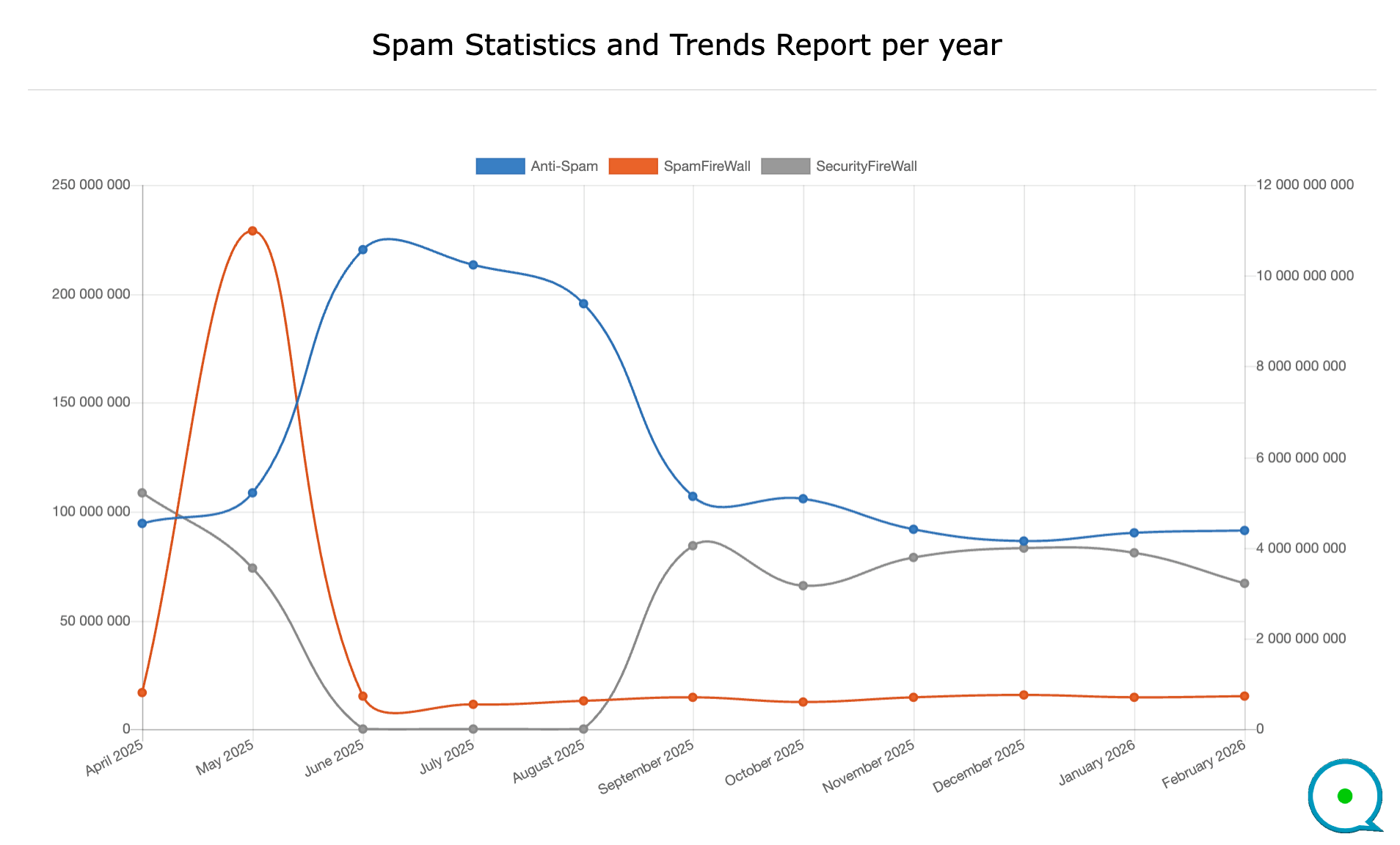
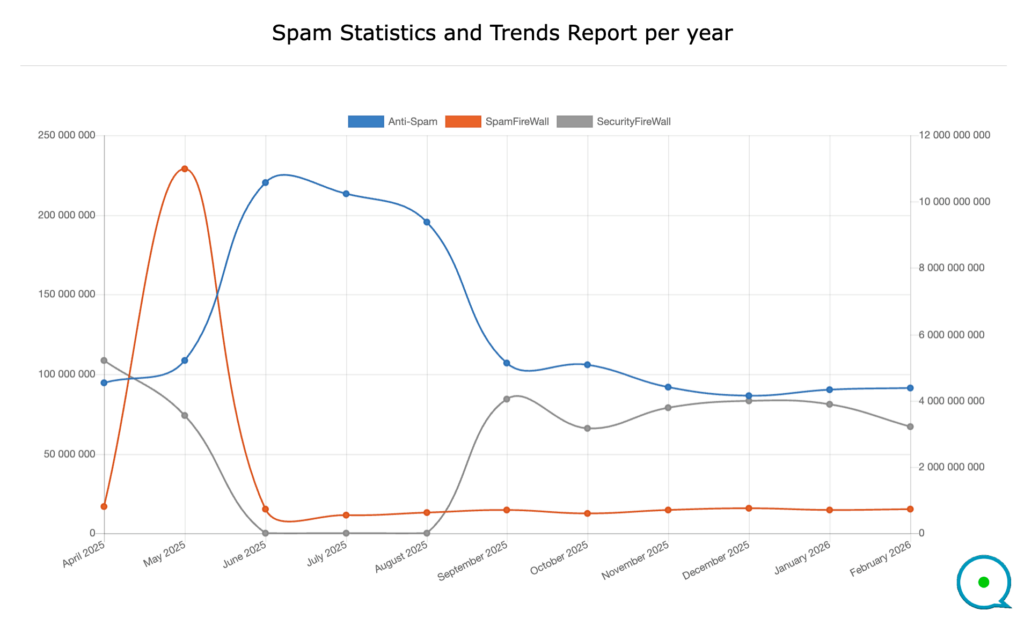
    • the Anti-Spam layer processed about 91-220 million spam events per month at the application level,
    • while SpamFireWall filtered 560-740 million suspicious requests per month before they reached websites – and in May 2025 it blocked more than 11 billion requests in a single month.

    In total for that period, SpamFireWall handled many times more bad requests than the Anti-Spam checks inside forms and registrations. This is exactly what “reduce server load bots create” means in practice: most of the dirty work is done in the cloud, so your own servers stay free for real visitors.

    In this article, we’ll look at:

    • how spam bots translate into real server and hosting costs,
    • why blocking spam only inside WordPress is not enough if you care about performance and budget,
    • and how CleanTalk SpamFireWall uses cloud filtering to cut bot load before it ever reaches your infrastructure.

    The goal is simple:
    to show spam not only as “junk content”, but as a financial line item, and to explain how CleanTalk helps you shrink that line without changing your whole tech stack.

    2. Problem: Why Spam Bots Are Expensive, Not Just Annoying

    Most teams think of spam bots as a nuisance: fake sign-ups, junk messages, useless comments.

    From a business perspective, they’re something else entirely:

    Spam bots quietly burn real server resources that you pay for – and they never become customers.

    Every spam bot request looks “normal” to your infrastructure:

    • it opens a connection to your server,
    • starts PHP or your application runtime,
    • loads WordPress and all active plugins,
    • may trigger database and cache queries,
    • writes another line into your logs and backups.

    Technically, that bot request costs almost the same as a real visitor.
    The only difference is outcome: there is zero chance it turns into revenue.

    That’s the core of the spam bots server cost problem.

    2.1. Direct server and hosting cost

    If a noticeable share of your traffic is bots – and for many sites it is 20-30% or more – then the same share of your infrastructure is effectively reserved for non-humans:

    • CPU cycles are spent executing code for scripts, not people.
    • RAM is used to keep processes alive for fake sessions.
    • Disk I/O and storage are consumed by logs and backups of bot traffic.

    The result:

    • you hit resource limits earlier,
    • you upgrade hosting plans sooner,
    • you pay for bigger servers than your real audience actually needs.

    This is the hidden spam bots server cost: part of your hosting budget that works only to serve automated garbage traffic.

    2.2. Performance and user experience

    Bots don’t stand in a separate queue. They compete with your real users for the same pool of workers and database connections.

    When a wave of bots hits:

    • pages start loading slower,
    • login, registration and checkout become less responsive,
    • time-outs and 5xx errors appear at the worst possible moment – usually when you run campaigns or receive organic peaks.

    From a business angle, this shows up as:

    • lower conversion rates,
    • worse campaign performance,
    • and the wrong diagnosis: “we need UX changes” or “ads are not working”,
      when the real problem is that servers are busy talking to bots.

    2.3. Security and operational noise

    Bad bots are also responsible for a lot of “background noise” in security and operations:

    • endless login attempts and password guessing,
    • automated vulnerability scans,
    • repeated hits to admin and system URLs.

    Even if these attempts fail, they still generate:

    • alerts and tickets,
    • time spent investigating suspicious spikes,
    • extra rules and manual blocks.

    Your security and DevOps teams pay the cost in attention and hours, rather than focusing on real incidents and product reliability.

    2.4. Dirty analytics and poor decisions

    Finally, spam bots compromise the quality of your data:

    • they inflate visits and page views,
    • distort geography and device statistics,
    • pollute funnels and conversion metrics.

    Marketing and product teams then make decisions based on a dataset where a significant part is not human:

    • overestimating interest from certain regions,
    • underestimating the true conversion rate of real users,
    • misjudging which channels are actually working.

    In short, spam bots are not just about “ugly comments” or “annoying sign-ups”. They are:

    • extra percentage points on your hosting bill,
    • slower pages for real customers,
    • more noise for your security and ops teams,
    • and less reliable analytics for management.

    The rest of this article will show how a cloud filter like CleanTalk SpamFireWall helps reduce server load bots create, so your infrastructure, teams and budget are focused on real visitors instead of scripts.

    3. Data: What CleanTalk Sees in Real Traffic

    Before we talk about solutions, it’s worth asking a simple question:

    “Is this really a big enough problem to care about, or just a few spam submissions a day?”

    CleanTalk’s own network data gives a very clear answer.

    Across thousands of protected websites, CleanTalk records every spam event and firewall block. Between April 2025 and February 2026, the platform processed:

    • Anti-Spam (forms, registrations, comments): from ~86-220 million spam events per month
    • SpamFireWall (cloud filtering): from ~566-825 million suspicious requests per month
    • With a spike in May 2025, when SpamFireWall blocked more than 11 billion requests in a single month.

    In other words: for every batch of spam you see at the application level, there is a much larger wave of bot traffic that can be stopped earlier – in the cloud.

    3.1. Cloud firewall vs in-app spam checks

    Looking at the monthly report:

    • February 2026:
      • Anti-Spam: 91,136,173 events
      • SpamFireWall: 738,199,535 events
    • November 2025:
      • Anti-Spam: 92,113,219
      • SpamFireWall: 721,915,379

    A typical pattern emerges:

    SpamFireWall consistently handles 6-8× more bad requests than the Anti-Spam layer inside forms.

    That means the bulk of hostile or useless traffic never needs to reach PHP, WordPress, or your database at all – as long as you filter it in the cloud first.

    From a “reduce server load bots” perspective, this is the key point:

    • Anti-Spam removes spam content and fake accounts.
    • SpamFireWall removes a huge amount of bot load before your server ever has to care.

    3.2. Billions of requests that never hit customers’ servers

    The May 2025 numbers are a good illustration of scale:

    • Anti-Spam processed 108,609,819 spam events.
    • SpamFireWall blocked 11,001,687,601 requests in the cloud.

    That’s not a rounding error or a minor optimisation. It’s roughly:

    • 100+ million visible spam attempts vs
    • 11 billion blocked at the edge.

    Put differently:

    For every spam submission cleaned up inside a form, there were hundreds of bot requests that could have reached customer servers – but didn’t.

    Those 11 billion requests represent CPU, RAM, I/O and bandwidth that CleanTalk’s cloud absorbed instead of the websites themselves. That’s exactly the “spam bots server cost” that can be shifted away from your own infrastructure.

    3.3. A global problem, not a local glitch

    The same report also shows where spam is coming from. Between April 2025 and February 2026, the top sources of spam traffic in the CleanTalk network were:

    1. United States – 269,351,056 events (24.19%)
    2. Netherlands – 150,566,461 (13.52%)
    3. Germany – 66,958,677 (6.01%)
    4. Russian Federation – 46,137,396 (4.14%)
    5. Brazil – 40,897,099 (3.67%)
    6. China – 40,769,672 (3.66%)
      … and so on.

    This reinforces an important message for decision-makers:

    • spam and bad bots are not an edge case or a local phenomenon,
    • they are a predictable, measurable part of global traffic patterns,
    • and they will appear on almost any public-facing site as soon as it has real traffic.

    Seen through this lens, spam bots server cost stops being an abstract risk and becomes a very concrete, quantifiable component of your infrastructure spend – one that a cloud filter like CleanTalk SpamFireWall can directly reduce.

    4. How Spam Bots Turn into Hosting and Performance Costs

    By this point, it’s clear that bots generate a lot of traffic.
    The next question is simple: where exactly does this show up in your P&L and SLAs?

    Spam bots don’t come with a separate invoice.
    Instead, their cost is spread across four areas: infrastructure, performance, security, and data.

    4.1. Infrastructure: paying to serve non-customers

    Every extra request from a bot pushes your infrastructure a little closer to its limits:

    • CPU – executing PHP, WordPress and plugin code for non-human traffic,
    • RAM – keeping processes and connections alive for fake sessions,
    • Disk & I/O – writing access logs, error logs and larger backups,
    • Bandwidth – sending responses that no human ever sees.

    If 20-30% of your HTTP requests are bots, then 20-30% of your:

    • provisioned CPU capacity,
    • memory headroom,
    • and outbound traffic

    is effectively reserved for traffic that cannot convert.

    In practical terms, this means:

    • upgrading to a higher hosting plan “because we’re hitting limits”,
    • moving to larger VPS/instances earlier than necessary,
    • keeping a bigger performance buffer “just in case” – and feeding a lot of it to bots.

    That is your spam bots server cost in its purest form:
    the part of your hosting bill that exists only because scripts keep knocking on your door.

    4.2. Performance: bots competing with real users

    Infrastructure cost is only half the story. The other half is user experience.

    Bots don’t politely wait until your real customers are finished. They hit:

    • login and registration endpoints,
    • search and listing pages,
    • checkout and contact forms,

    using the same worker pool and the same database connections as humans.

    The result:

    • CPU spikes during bot waves lead to slower page loads,
    • application queues fill up, leading to higher TTFB,
    • at peak moments (campaigns, product launches, seasonal traffic),
      real users experience timeouts, 5xx errors or just “feels slow”.

    From a business perspective, this translates into:

    • lower conversion rates on key funnels,
    • underperforming ad campaigns,
    • higher cost per acquisition – not because your marketing is bad,
      but because servers are busy serving bots instead of buyers.

    If your goal is to reduce server load bots generate, this is exactly the performance win you’re aiming for:
    freeing capacity so that real users always get a fast, stable experience.

    4.3. Security and operations: constant background noise

    Many of the bots hitting your site are not just spammers, they’re also:

    • brute-forcing passwords,
    • probing for outdated plugins and known CVEs,
    • crawling admin and system URLs looking for weak points.

    Even when they fail, they still create work:

    • alerts in monitoring tools,
    • tickets for the security or DevOps team,
    • time spent investigating suspicious IPs and traffic spikes,
    • manual IP blocks and ad-hoc firewall rules.

    None of this creates value for customers.
    It’s necessary defensive work caused by traffic that should ideally never reach your application in the first place.

    By blocking a large share of this traffic in the cloud, you don’t just protect the server – you also reduce the operational noise your teams have to deal with.

    4.4. Analytics: dirty data, weaker decisions

    Finally, spam bots quietly damage something very important for business: data quality.

    If bot traffic is not filtered properly, it will:

    • inflate visits and page views,
    • distort geography and device breakdowns,
    • pollute funnels with sessions that never had a chance to convert,
    • drag down apparent conversion rates (“lots of traffic, few sign-ups”).

    This leads to bad second-order effects:

    • marketing invests more into audiences and regions with heavy bot presence,
    • channels are misjudged (“this campaign sends junk”, when the junk is bots),
    • product and growth decisions are made on metrics that don’t represent real users.

    Reducing bot load at the edge gives you cleaner numbers:

    • fewer fake sessions,
    • more realistic conversion rates,
    • better signal on which channels, markets and campaigns actually work.

    Put together, this is why spam bots are more than “just annoying”:

    • they drive up your infrastructure spend,
    • reduce performance and conversion for real customers,
    • increase security and operations overhead,
    • and weaken the analytics you use to run the business.

    The next step is to treat this as an architectural issue, not a form-field issue – and that’s where a cloud layer like CleanTalk SpamFireWall comes in as a tool specifically designed to cut this spam bots server cost before it reaches your servers.

    5. Why CAPTCHAs and In-App Filters Don’t Reduce Server Load

    At this point many teams say:

    “We already use CAPTCHA and an anti-spam plugin. Aren’t we covered?”

    You are covered against visible spam – fake comments, junk sign-ups, trash in your inbox.
    You are not covered against the server cost of bots.

    The reason is simple: most traditional anti-spam and security tools work inside your application, not before it.

    5.1. What actually happens with in-app spam protection

    Let’s take a typical WordPress setup:

    • A bot submits a registration or contact form.
    • The request reaches your web server.
    • PHP starts.
    • WordPress loads core, theme and all active plugins.
    • Your anti-spam plugin (or CAPTCHA) finally checks the request and says:
      “This is spam, block it.”

    Yes, you successfully blocked the spam submission.
    But from a server perspective, the heavy work has already happened:

    • CPU cycles were spent loading WordPress and running plugin code.
    • RAM was allocated for the request.
    • Logs were written, backups grew.

    In other words:

    In-app filters protect your content and users,
    but they do not reduce the server load bots generate.

    You have solved the “we don’t want spam in our interface” problem,
    but not the “we don’t want to pay for serving bots” problem.

    5.2. Why this matters more as bot traffic grows

    When bots were rare, this distinction didn’t matter much.
    With bots now representing a third of global traffic, it matters a lot.

    If 20-30% of your requests are bots, and every one of them:

    • boots your app stack,
    • touches your database,
    • sits in the same queues as real users,

    then you are paying a real, recurring spam bots server cost, even if your forms are “clean”.

    Symptoms you may already see:

    • “We keep hitting CPU or I/O limits, even though human traffic hasn’t grown that much.”
    • “The site slows down under spikes that don’t match our campaigns.”
    • “We had to upgrade hosting but didn’t see a proportional improvement in business KPIs.”

    That’s what “blocking too late” looks like.

    5.3. The architectural shift: from “inside the app” to “before the app”

    Big infrastructure players talk a lot about moving protection to the edge:

    • decisions are made as close as possible to the source of traffic,
    • bad requests are dropped before they consume origin resources.

    The same idea applies here, but with a focus on spam and bad bots.

    To actually reduce server load bots create, you need a layer that:

    • sees the request before WordPress, PHP or your framework do,
    • can make a fast decision based on IP, reputation and technical signals,
    • and, if it’s a known bad actor, stops the request right there.

    No PHP.
    No WordPress.
    No database query.
    No extra log entry on your side.

    Only after this cloud filter says “yes”, does the request reach your application, where in-app anti-spam can handle the remaining edge cases (new bots, human spammers, borderline content).

    That’s the architectural gap that CleanTalk SpamFireWall is designed to fill for CMS-driven sites.

    5.4. How CleanTalk is different from “just another CAPTCHA”

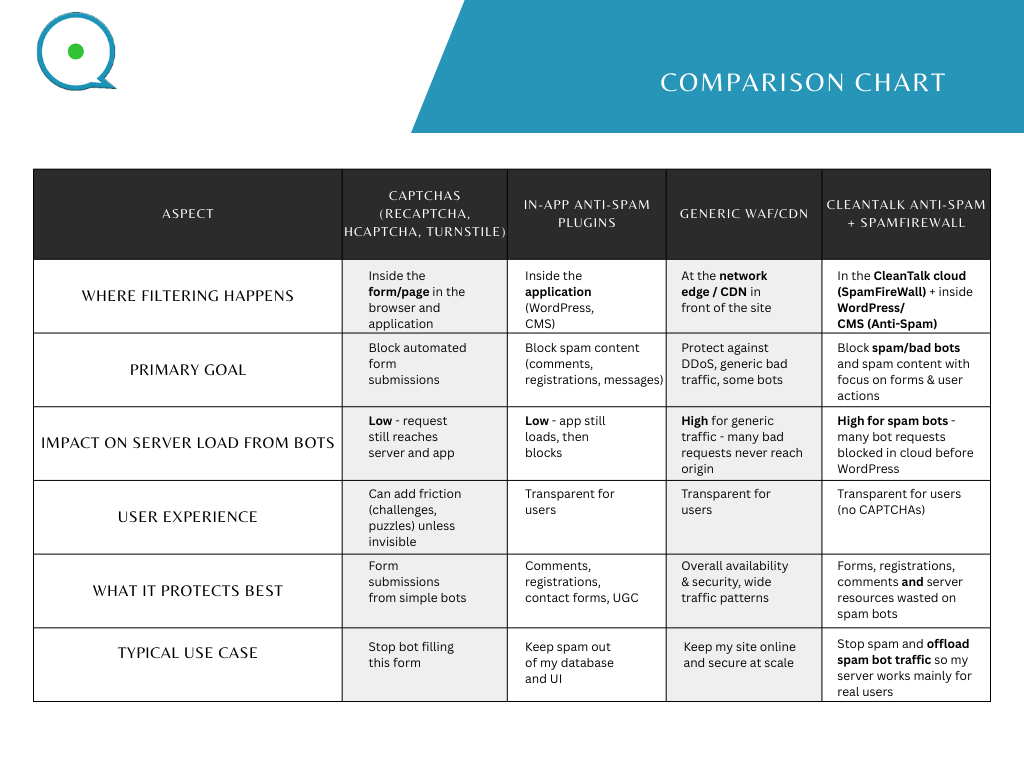
    So where does CleanTalk sit compared to CAPTCHAs and typical form plugins?

    You can think of it this way:

    • CAPTCHA protects forms.
    • Anti-Spam protects data and user base.
    • SpamFireWall protects your resources – CPU, RAM, bandwidth, and the time of your teams.

    All three have their place. But if your goal is not only “have less spam”, but also “pay less and perform better under load”, you need something that works before your application – not only inside it.

    In the next section, we’ll look more closely at how SpamFireWall’s cloud filtering actually works and how it translates into fewer bot requests hitting your servers in day-to-day operation.

    6. Solution: CleanTalk SpamFireWall (Cloud Filtering)

    If the problem is that bots consume server resources before your application can stop them,
    the solution has to start before your application too.

    That’s exactly what CleanTalk’s SpamFireWall is designed to do.

    Instead of fighting spam bots only inside WordPress or your CMS, CleanTalk adds a cloud filtering layer in front of your site. The goal is simple:

    Block as many spam/bad bots as possible in the cloud,  so your servers spend their time on real users, not scripts.

    In business language: it’s a way to reduce server load bots create and shrink your spam bots server cost without rebuilding your infrastructure.

    6.1. Two layers working together: cloud + application

    CleanTalk doesn’t replace in-app filters – it adds a second layer in front of them.

    1. SpamFireWall – cloud layer
      • Checks incoming IPs and technical signals against CleanTalk’s global spam and attack database.
      • Blocks known spam bots, brute-force tools and abusive scanners before they reach your server.
      • Offloads a large volume of hostile and useless traffic to the cloud.
    2. Anti-Spam – application layer
      • Runs inside WordPress / your CMS.
      • Analyzes actual form submissions (comments, registrations, contact forms, directory listings, etc.).
      • Blocks spam content, fake accounts and “fresh” spam that can’t be recognized by IP alone.

    Together they form a pipeline:

    Internet → SpamFireWall (CleanTalk cloud) → your server → WordPress / CMS → Anti-Spam → forms & users

    For a significant share of bot traffic, the journey ends at SpamFireWall – and that’s where your savings start.

    6.2. What happens when a visitor (or bot) hits your site

    At a high level, each request goes through three decisions:

    1. Cloud check (SpamFireWall)
      • The visitor’s IP and other technical signals are checked in the CleanTalk cloud.
      • If it matches known spam, attack or abuse patterns, the request is blocked at once.
      • Your web server, PHP and database don’t have to do any work for it.
    2. Application check (Anti-Spam)
      • If the cloud layer allows the request, it reaches your site as usual.
      • When the visitor submits a form (sign-up, login, comment, listing, contact, etc.), that submission is checked by CleanTalk’s Anti-Spam logic.
      • Suspicious content is blocked; clean submissions go through.
    3. Logging and visibility
      • Both layers record what they did in your CleanTalk dashboard:
        • how many requests SpamFireWall blocked,
        • how many spam submissions Anti-Spam stopped,
        • where spam and bots are coming from.

    The key architectural shift:

    • Instead of letting every bot request hit WordPress and then deciding “this is spam”,
    • CleanTalk moves a big part of that decision upstream, into the cloud.

    6.3. What this means in practice for server load

    From a business viewpoint, you don’t buy SpamFireWall just to say “we have another security tool”.
    You buy it to change the shape of your traffic:

    • Fewer bot requests reach your origin.
    • Fewer PHP workers are tied up by bots.
    • Fewer database queries are caused by fake sign-ups and scans.
    • More CPU and memory are available for actual customers.

    In CleanTalk’s own stats between April 2025 and February 2026, SpamFireWall consistently processed several times more bad requests than in-app Anti-Spam checks did – including a month with 11+ billion blocked requests. That is a direct, measurable reduction in spam bots server cost for the sites behind it.

    For you, the expected effects are:

    • More stable performance during traffic peaks and campaigns.
    • Less pressure to upgrade hosting “just to survive bot waves”.
    • Cleaner analytics (fewer fake sessions and non-human hits).
    • Less spam and fewer fake accounts for your team to clean up.

    In short: SpamFireWall turns “bots are just part of the internet now” into “bots are largely CleanTalk’s problem, not our servers’ problem”.

    7. Implementation: How to Deploy CleanTalk SpamFireWall (WordPress Example)

    The good news: you don’t need a new infrastructure project or DNS migration to start reducing bot load.

    For a typical WordPress site, enabling CleanTalk + SpamFireWall is a plugin-level change, not a platform rewrite.

    Below is a simple rollout plan you can hand to your tech person or agency.

    7.1. What you need before you start

    • A working WordPress site (any theme, any hosting).
    • Admin access to the WordPress dashboard.
    • A CleanTalk account (trial or paid) – this is created automatically if you use the “Get Access Key” button.

    That’s it. No DNS changes, no reverse proxies, no extra servers to maintain.

    Step 1 – Install the CleanTalk Anti-Spam plugin

    In the WordPress admin:
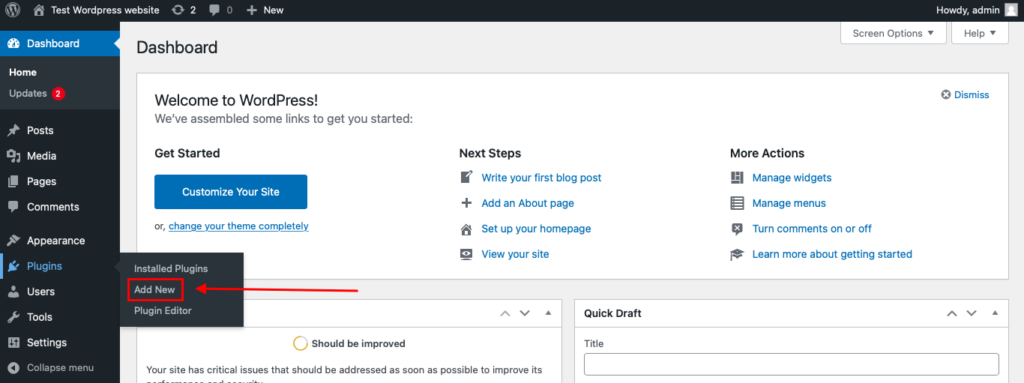
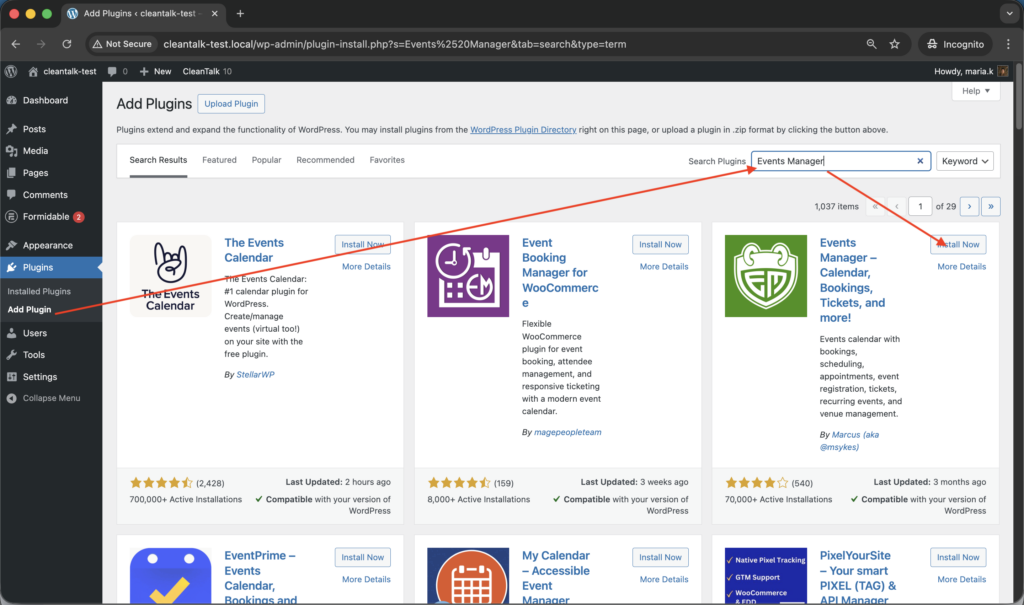
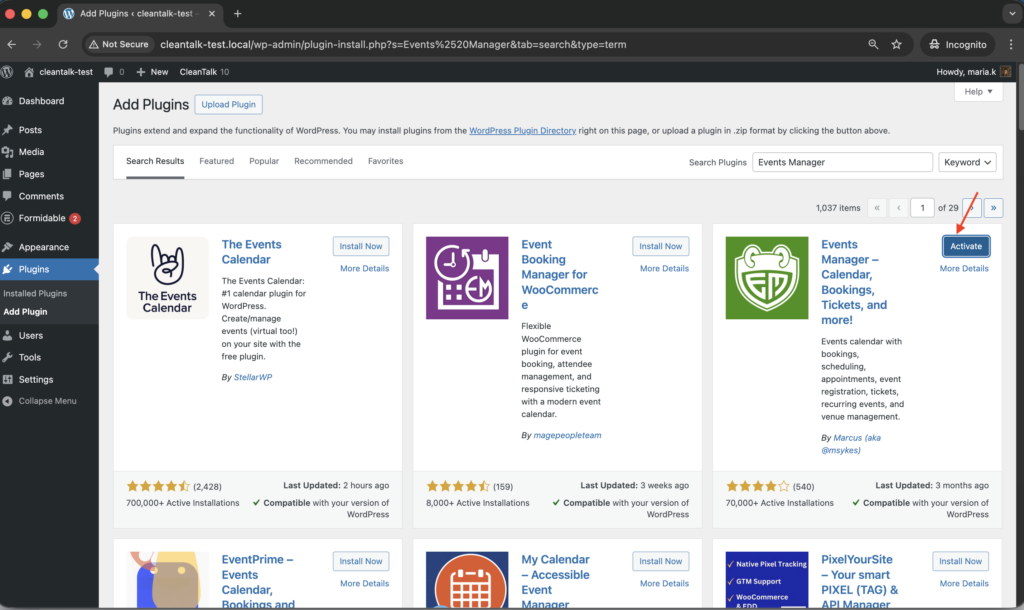
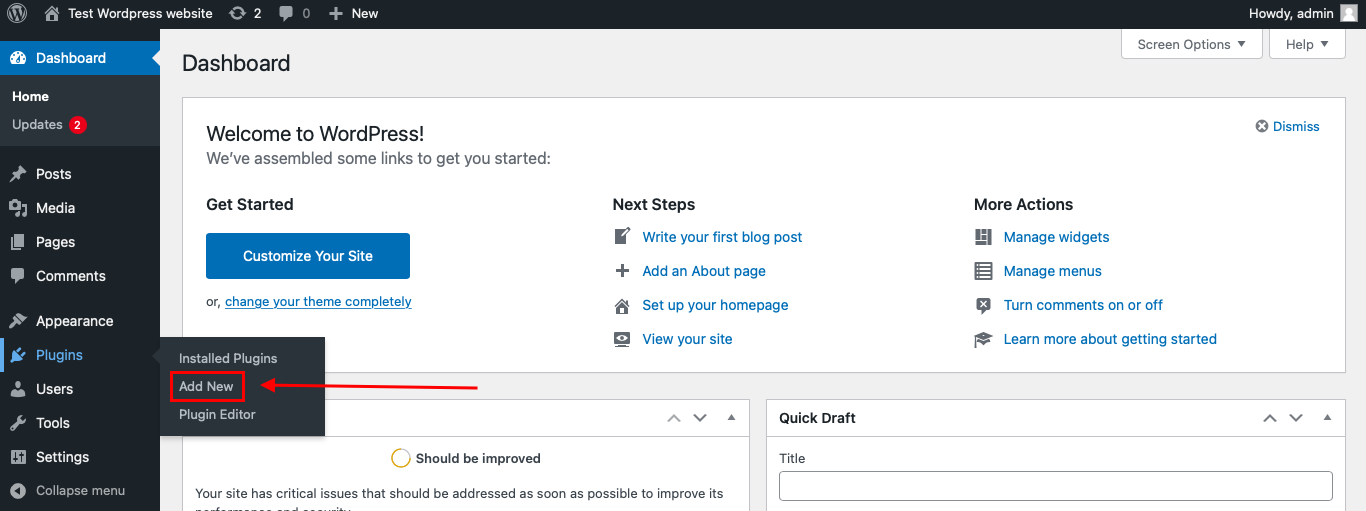
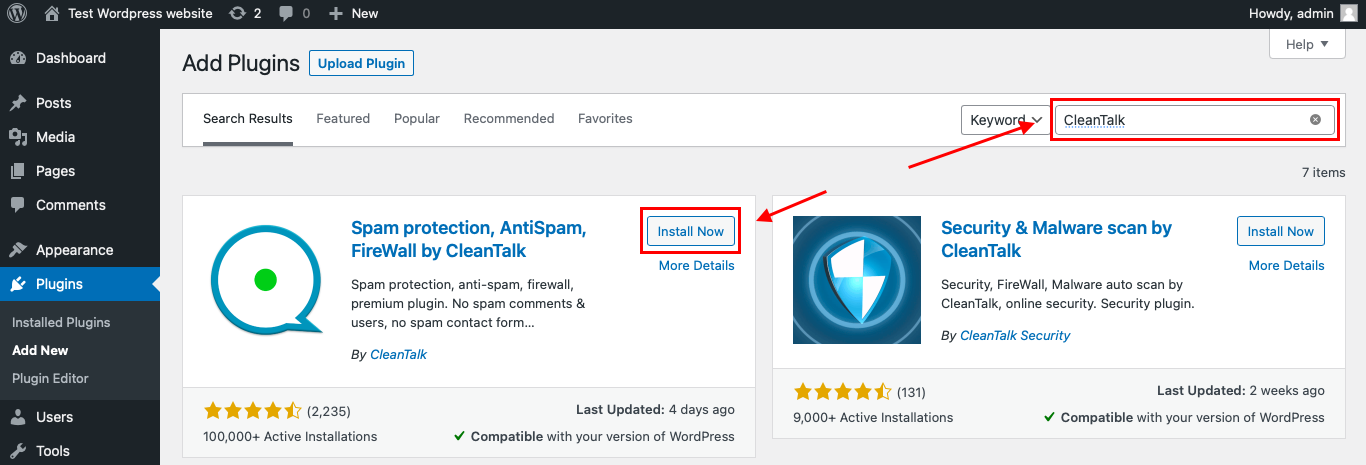
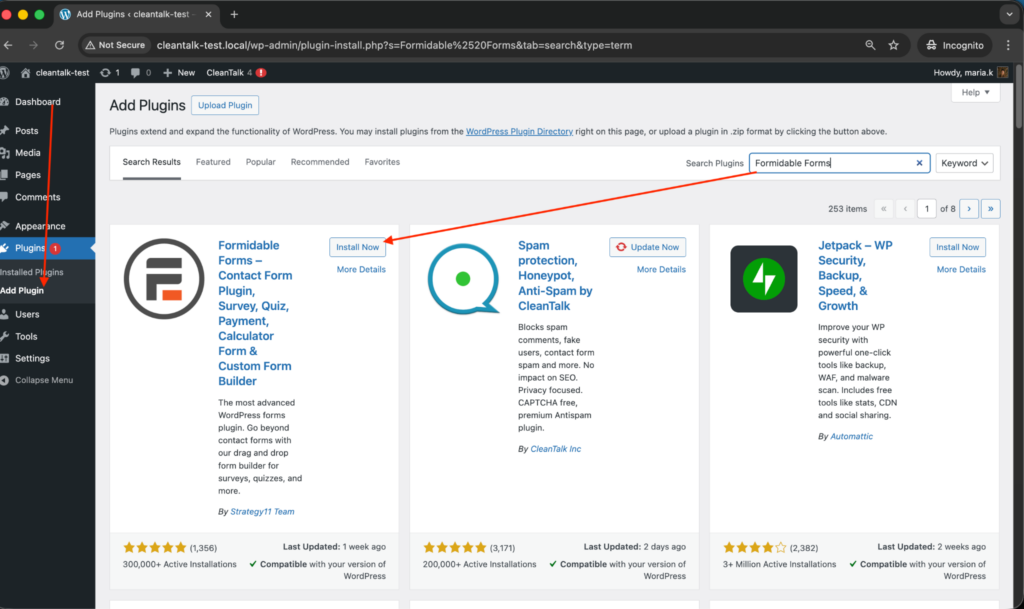
    1. Go to Plugins → Add New.

    2. To install the Anti-Spam plugin, go to your WordPress admin panelPluginsAdd New.

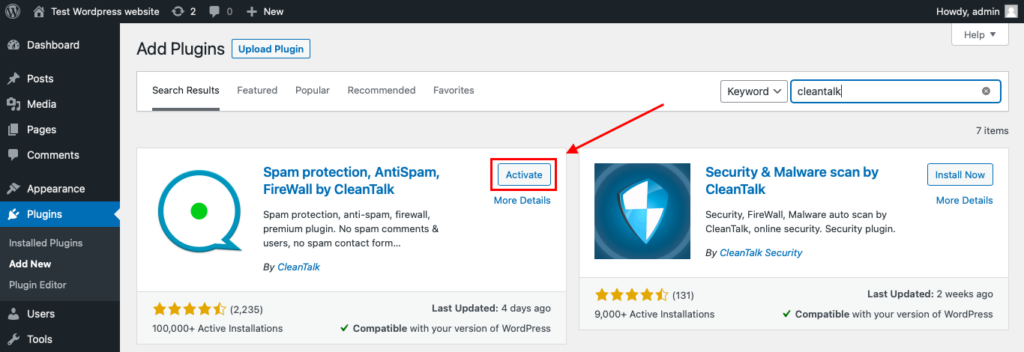
    3. In the search box, type: cleantalk.

    4. Find Spam protection, Honeypot, Anti-Spam by CleanTalk.

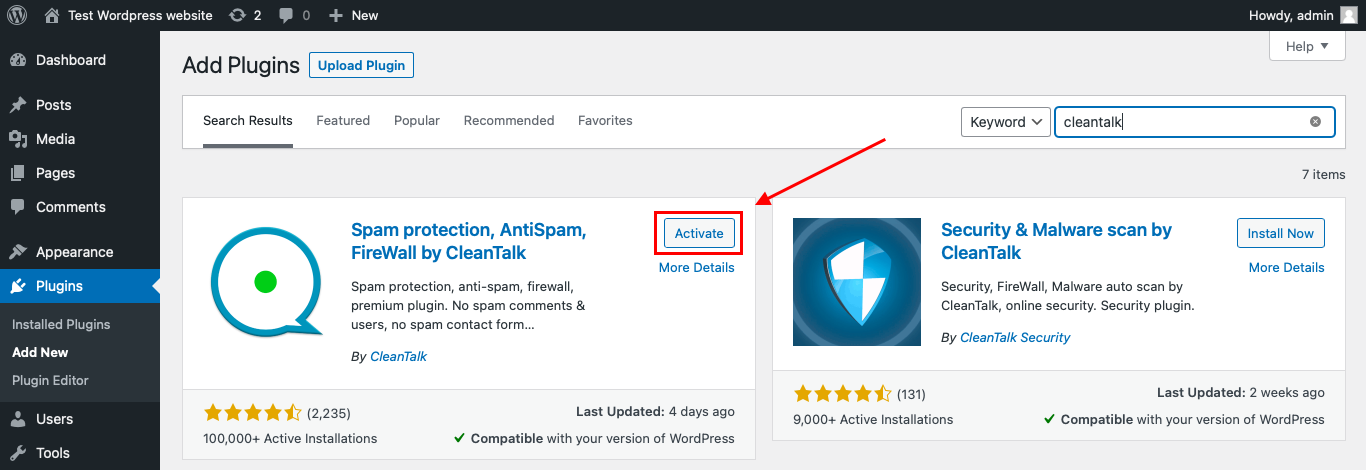
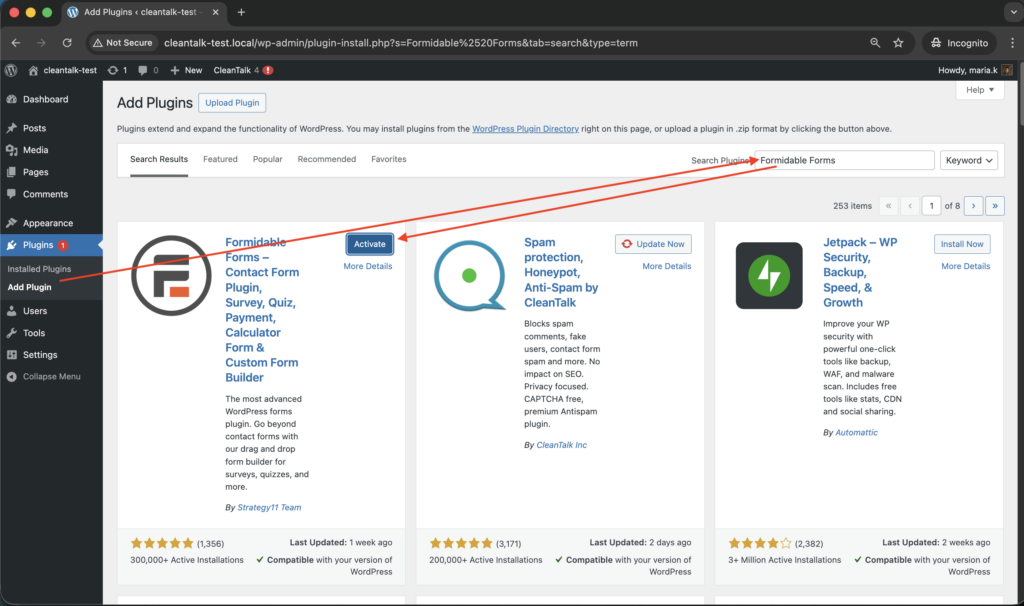
    Click Install, then Activate.

    Step 2 – Connect plugin to the cloud
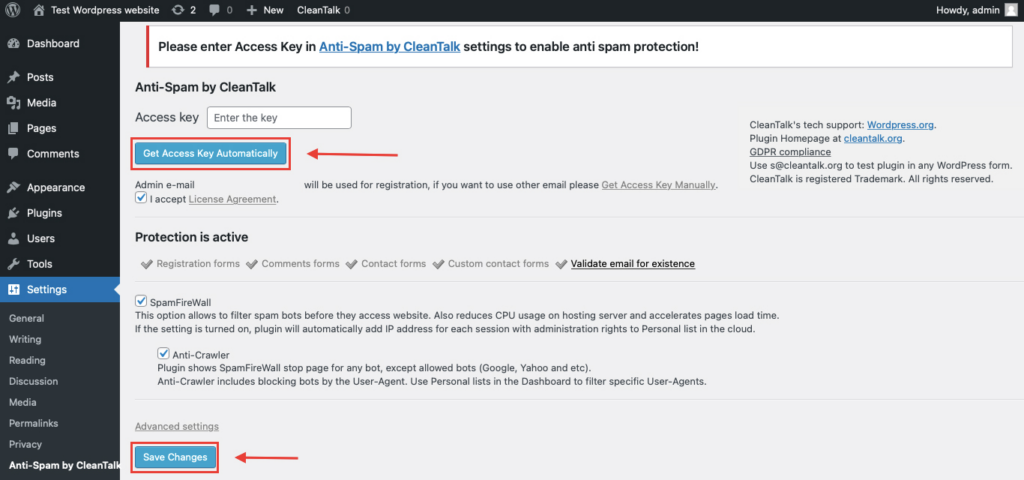
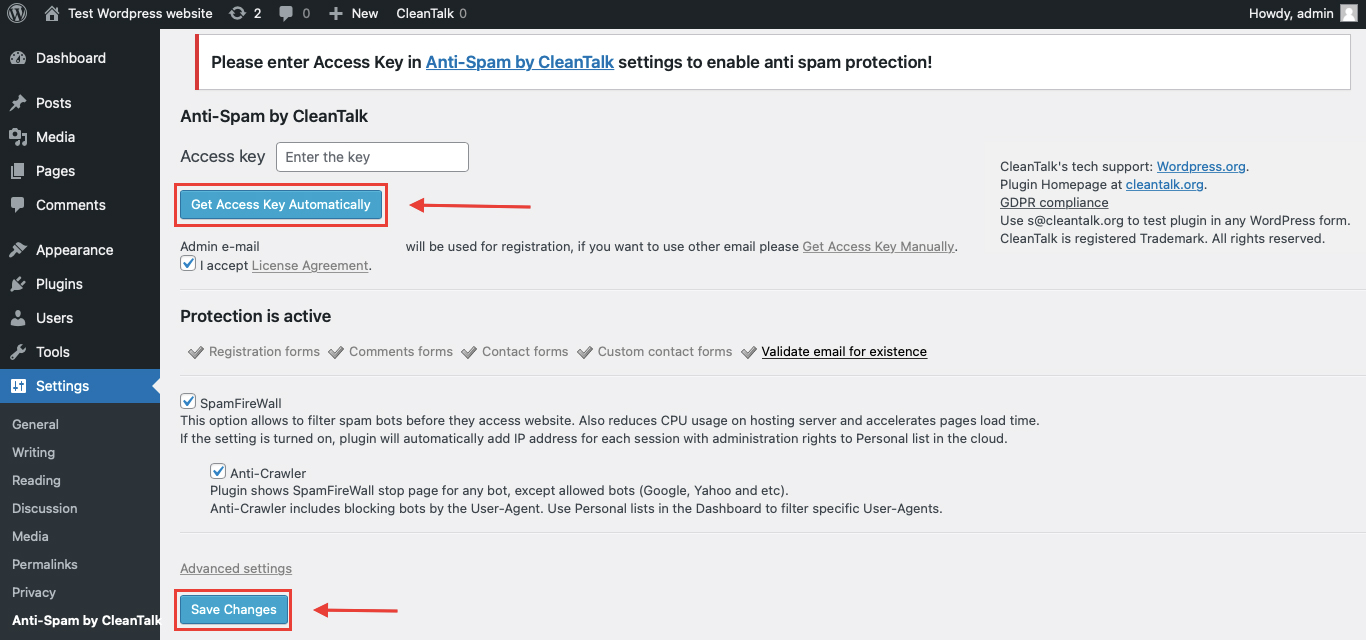
    1. Navigate to Settings → Anti-Spam by CleanTalk in the WordPress dashboard.

    2. Click “Get Access Key Automatically”.

    WordPress will contact CleanTalk, create/link your account, and insert an Access Key.

    1. Click Save Changes.

    Now:

    • your site can communicate with the CleanTalk cloud,
    • basic Anti-Spam checks for forms and comments are active.
    Step 3 – Make sure SpamFireWall is enabled

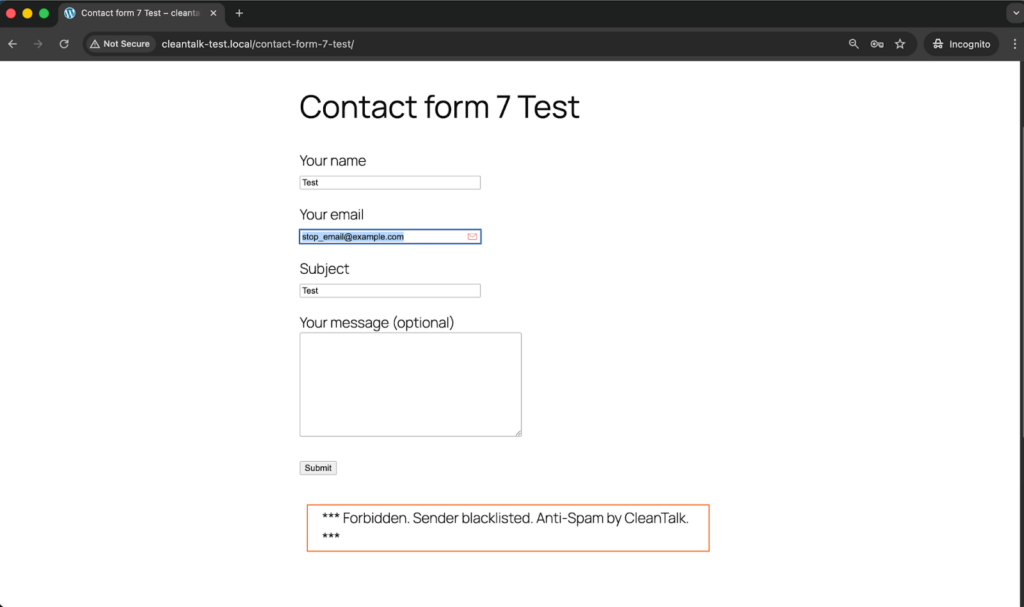
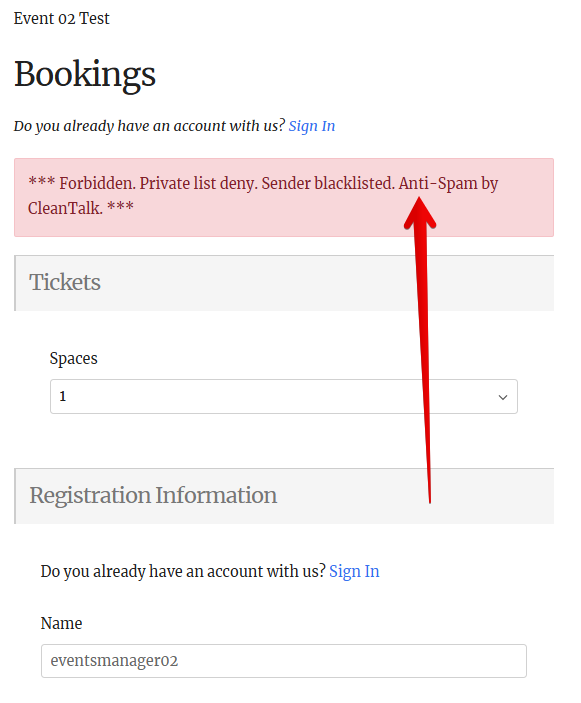
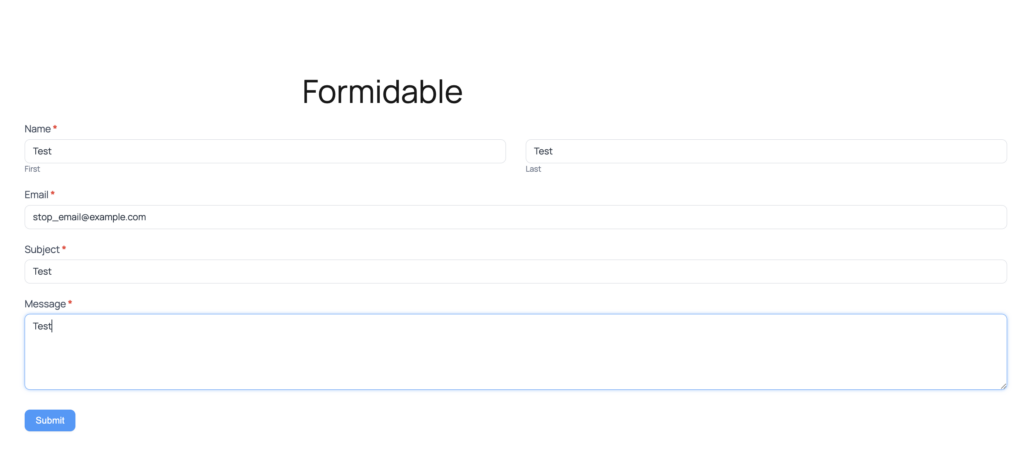
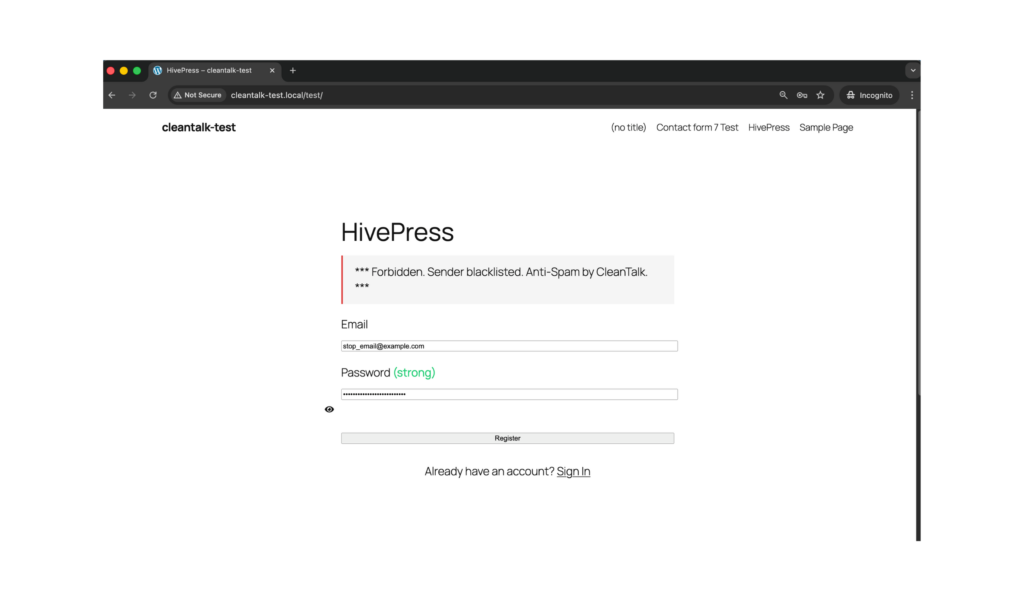
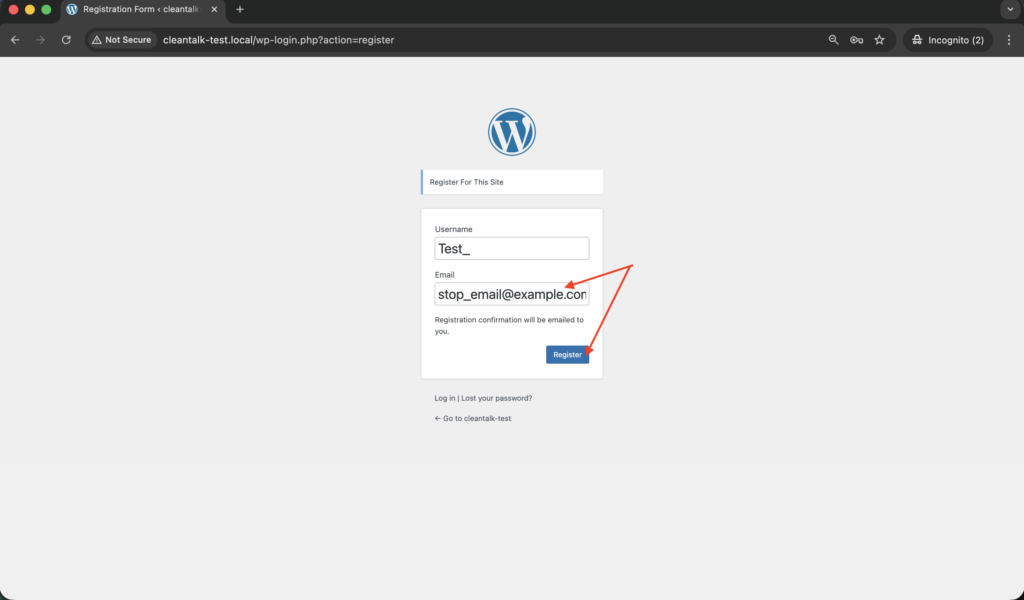
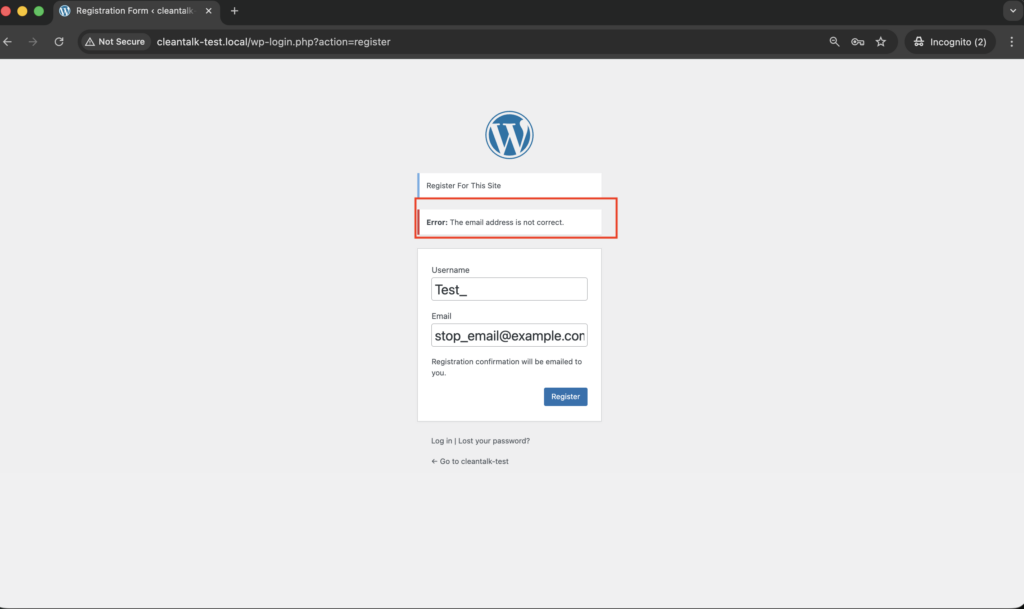
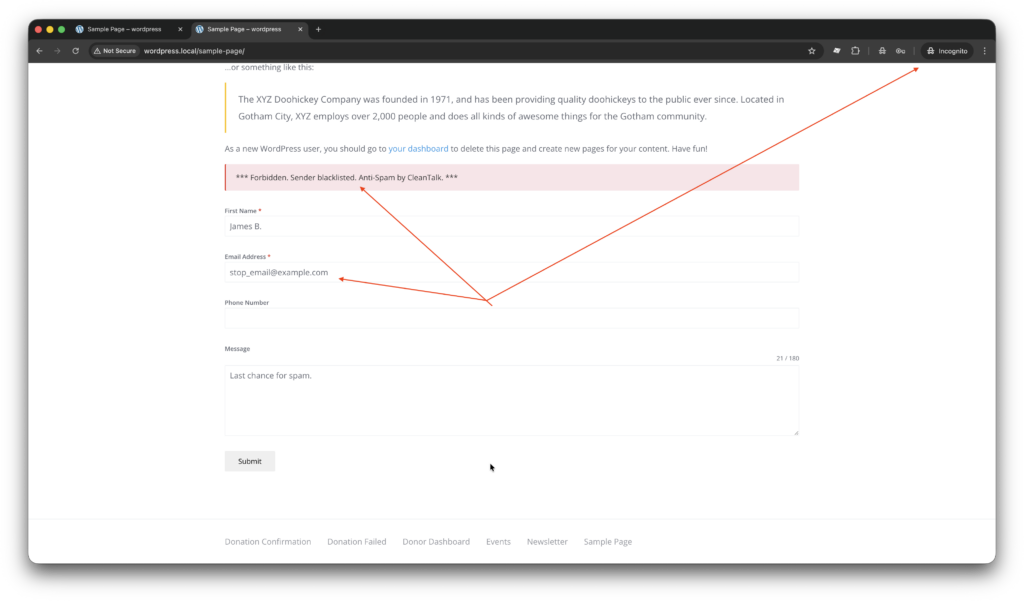
    The best way to text the spam protection by using a test email,

    stop_email@example.com

    1. Open page with your form (don’t forget to add the shortcode in the page content) in Incognito browser tab.
    2. Fill out the Contact form using stop_email@example.com as sender’s email.
    3. Send the form.
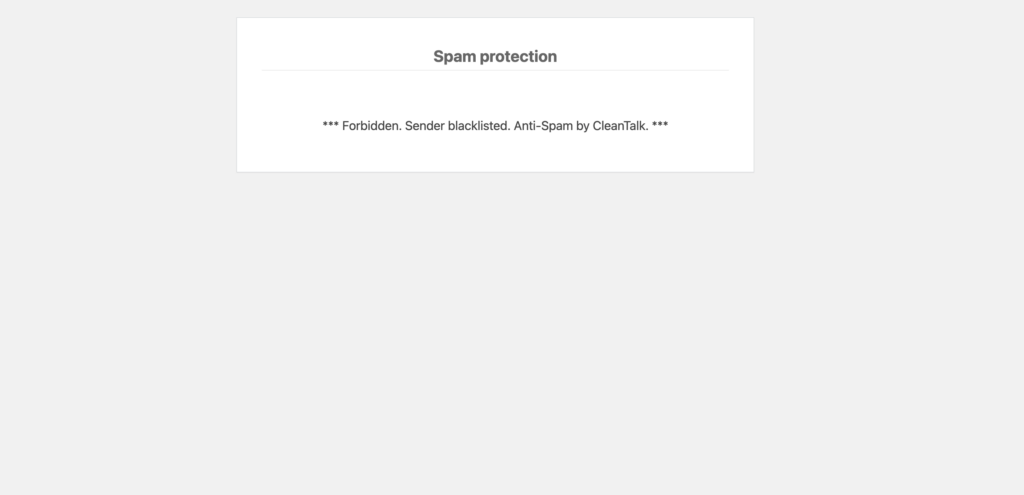
    4. You should see a message from the Anti-Spam plugin confirming that a spam submission was blocked.

    Cloud Dashboard

    In addition, in the Cloud Dashboard you can find extra details regarding all submissions processed by CleanTalk, including HivePress registration and Add Listing forms:

    • IP and email of the sender, as well as the sender’s activity history across other websites connected to the CleanTalk cloud.
    • Geolocation of the sender.
    • Date and time of the submission.
      Page (URL) where the form was submitted (for example, a specific listing submission page).
    • Cloud decision – Approved or Denied.
    • Cloud explanation for the decision (e.g. blacklisted email, bad IP reputation, spam text, etc.).
    • Tools to move the sender to Block or Allow lists so you can fine-tune HivePress spam protection.

    7.2. What about other CMS and custom sites?

    While this section uses WordPress as the example (because it’s the most common), CleanTalk is not limited to WordPress:

    • There are ready-made integrations for other popular CMS and e-commerce / forum engines.
    • For custom platforms, CleanTalk provides an HTTP API, so your developers can send form data to the cloud and get allow/deny decisions back.

    In practice, this means you can apply the same SpamFireWall + Anti-Spam model across most of your public-facing properties, not just WordPress.

    From an implementation standpoint, that’s all you need:

    • plugin install,
    • access key,
      enable SpamFireWall,
    • watch the numbers.

    The heavy lifting – maintaining IP reputation, filtering billions of bot requests, and absorbing the associated server load – is handled by CleanTalk’s infrastructure, not yours.

    8. Business Takeaways: How to Talk About This Inside Your Company

    By now, spam bots should look less like “IT noise” and more like what they really are:

    A recurring, measurable cost on your infrastructure, performance and data – that you don’t have to fully pay.

    Here’s how to frame this for founders, CTOs and CFOs in clear business language.

    8.1. This is not a plugin decision – it’s a cost decision

    Instead of “Should we install one more plugin?”, the better question is:

    • How much of our server budget goes to bots, not humans?
    • How much of that load can we move from our servers to CleanTalk’s cloud?

    You already pay for:

    • hosting and infrastructure capacity,
    • lost conversions when the site is slow,
    • internal time spent cleaning spam and handling security noise.

    CleanTalk + SpamFireWall simply changes who carries part of that load:

    • fewer spam/bot requests reach your servers,
    • less capacity is wasted on non-customers,
    • more headroom is available for real users.

    8.2. Four sentences you can use with leadership

    You can summarise the whole story in four short statements:

    1. Cost
      “A noticeable share of our server capacity is currently used to serve bots.
      CleanTalk’s SpamFireWall blocks a large part of that traffic in the cloud, so we can either delay upgrades or get more out of our existing hosting.”
    2. Performance & revenue
      “Bots compete with real users for CPU and database connections. Reducing bot load gives us more stable page speed and conversion during campaigns and peak traffic.”
    3. Risk & operations
      “Many brute-force and scanner requests never reach our app if we stop them in the cloud. That means fewer alerts, fewer incidents to check, and more time for real engineering work.”
    4. Data & decision quality
      “Filtering bots earlier gives us cleaner analytics – more accurate funnel numbers, conversion rates and geo data, so we can invest in the right channels and markets.”

    All of that is powered by one practical change: turning on SpamFireWall alongside CleanTalk Anti-Spam.

    8.3. What success looks like

    When this is working, you should see:

    • A clear, growing number of SpamFireWall blocks in the CleanTalk dashboard – these are requests your servers no longer process.
    • More stable CPU and response times during both normal days and marketing peaks.
    • Less manual spam moderation and fewer fake accounts for your team to chase.
    • Analytics that look more like human behaviour and less like random noise.

    You don’t have to guess: before/after numbers from SpamFireWall and your hosting panel will tell you whether your spam bots server cost is going down.

    8.4. The real decision

    The internet will only have more bots, not fewer.
    You can’t change that – but you can choose who pays for their requests.

    • Option A: your own servers, hosting budget and teams.
    • Option B: offload a large part of that work to a cloud service that is built to absorb it.

    CleanTalk’s Anti-Spam plugin plus SpamFireWall is a straightforward way to choose option B:

    • no DNS migration,
    • no new infrastructure to maintain,
    • just a cloud filter that sits in front of your site and lets your servers focus on humans.

    That’s ultimately what this article is about:

    Stop treating spam bots as “just annoying”.
    Start treating them as a cost centre –
    and then deliberately make that cost smaller.

    Stop wasting server resources on spam bots

    Create your CleanTalk account and let SpamFireWall block bad bots in the cloud before they reach your server — no CAPTCHA challenges and no friction for real visitors.

    CleanTalk Account

    No credit card required • Setup takes less than a minute • Your temporary password will be sent by email.

  • WPForms Spam Protection in 2026

    WPForms Spam Protection in 2026

    If you use WPForms for contact forms, lead generation, surveys, or payment forms, you will eventually face spam – fake submissions, junk leads, and bot activity.

    This guide explains how to set up WPForms spam protection using:

    • the Anti-Spam plugin by CleanTalk with a direct integration for WPForms, and
    • additional tools like Google reCAPTCHA, hCaptcha, Cloudflare Turnstile, honeypots and third-party anti-spam plugins.

    The integration protects WPForms forms such as:

    • simple contact forms,
    • marketing and lead forms,
    • “Request a quote” and booking forms,
    • registration / login / newsletter forms (where used with WPForms).

    WPForms continues to handle the form UI and workflow, while CleanTalk filters spam in the background without adding CAPTCHAs to every form.

    image

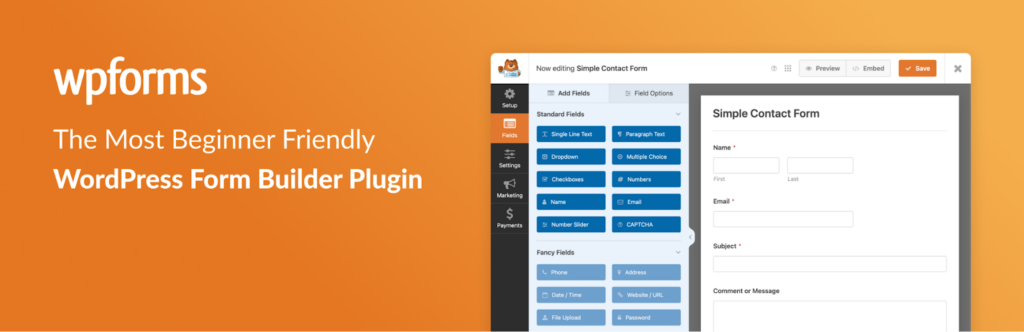
    WPForms – Easy Form Builder for WordPress

    First, let’s quickly look at WPForms itself and the types of sites that rely on it.

    WPForms is a popular drag-and-drop form builder plugin for WordPress that lets you create:

    • contact and feedback forms,
    • quote and booking forms,
    • newsletter and marketing forms,
    • payment / donation forms (Stripe, PayPal, etc.),
    • surveys, polls, and custom calculators,
    • login, registration, and other application-style forms.

    Out of the box WPForms provides:

    • a visual drag-and-drop builder and 2000+ pre-built form templates,
    • responsive, mobile-friendly layouts,
    • built-in spam protection (anti-spam token and optional honeypot),
    • integrations with major email marketing services and CRMs,
    • payment integrations with Stripe, PayPal, Square, and others.

    Because WPForms forms are often publicly accessible (contact pages, landing pages, sign-up forms), they become an easy target for spam bots and human spammers. That’s why it’s important to have a reliable WPForms spam protection setup from the beginning.

    As WordPress.org shows, WPForms Lite is currently active on over 6 million websites and has 14,274 user reviews with an average rating of 4.8 out of 5.

    Plugin Homepage at wordpress.org | Website wpforms.com

    Install WPForms and create your first form

    You can set up WPForms in just a few steps:
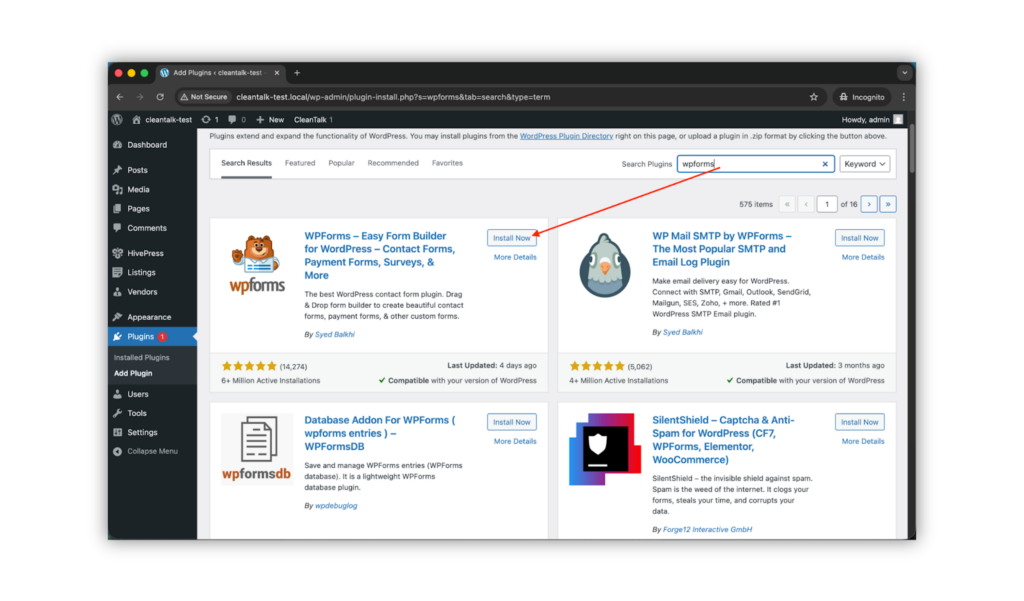
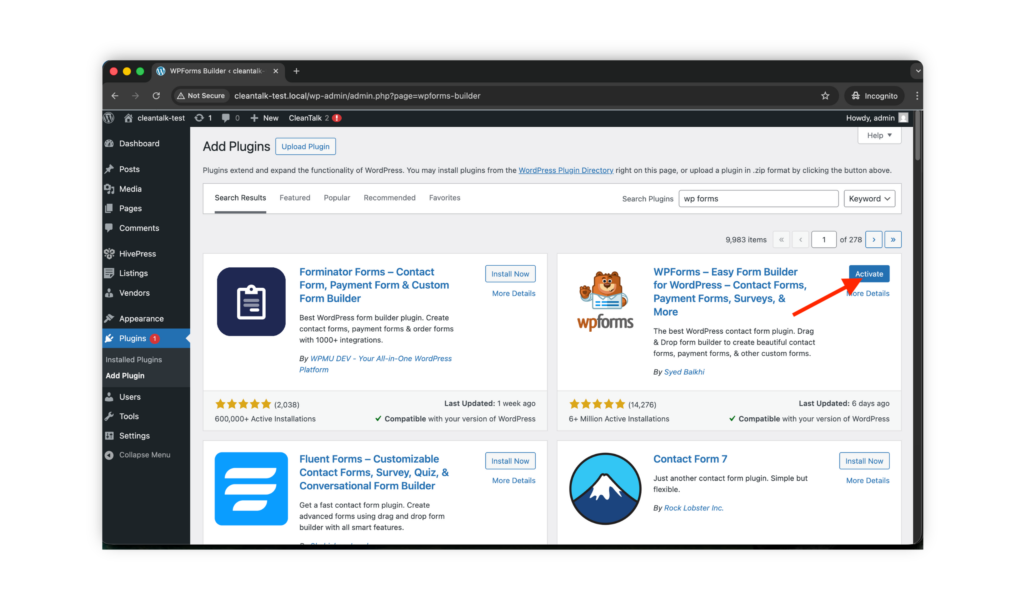
    1. In your WordPress admin go to
      Plugins → Add New and search for “WPForms”.
    1. Click Install and then Activate the plugin.
    2. Customize the fields as needed and click Save.
    3. Embed the form on a page using the WPForms block in the editor or the form shortcode.

    After that, your first WPForms form is live and ready to accept submissions.

    Anti-Spam plugin by CleanTalk for WordPress

    The next tool we’re going to use is the Anti-Spam plugin by CleanTalk.
    Here’s a brief overview:

    • CleanTalk is a cloud-based spam protection platform for websites, operating since 2012.
    • It filters spam without CAPTCHAs, challenge questions or image puzzles, so visitors don’t have to solve anything extra.
    • It protects many kinds of forms: comments, user registrations, contact forms, orders, subscriptions, surveys, and more.
    • It blocks both automated bots and human spammers using advanced filtering algorithms and data from a global spam database.
    • It detects spam based on IP reputation, email reputation and behavioral patterns.
    • It allows you to set custom rules and block by IP, email address, country or language when needed.
    • It runs quietly in the background, and the plugin is straightforward to install and configure.

    According to WordPress.org, Anti-Spam by CleanTalk for WordPress has over 200,000 active installations, with 3,168 reviews and an average rating of 4.7.

    Plugin Homepage atcleantalk.org | Latest release at GitHub.com | Website cleantalk.org

    Install the CleanTalk Anti-Spam plugin

    To install the Anti-Spam plugin, go to your WordPress admin panelPluginsAdd New.

    Then enter «СleanTalk» in the search box and click the Install button for «Spam protection, Anti-Spam, FireWall by CleanTalk».
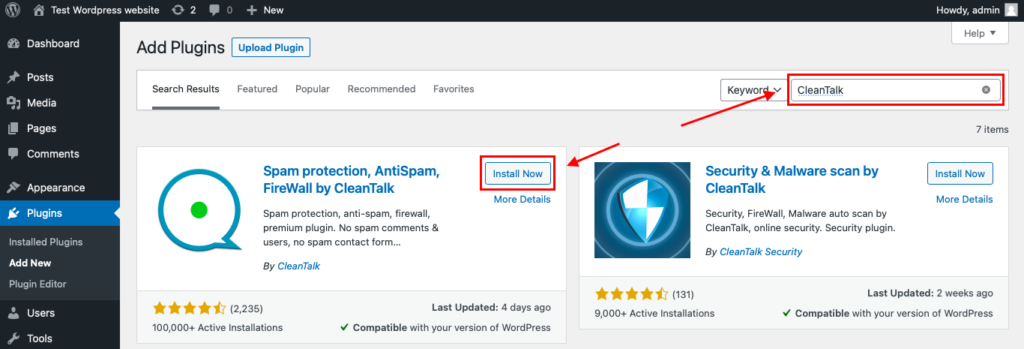
    After installing the plugin, click the «Activate»‎ button.

    After it is done go to the plugin settings and click the «Get Access Key Automatically» button. Then just click the «Save Settings»‎ button.

    That’s all –  WPForms are now protected From this moment,CleanTalk automatically protects the  WPForms registration form (REST route /wp-json/wpformspress/v1/users/), and the Add Listing form used to submit new listings.

    You don’t need to paste any shortcodes – just use  WPForms as usual, and CleanTalk will filter spam in the background.

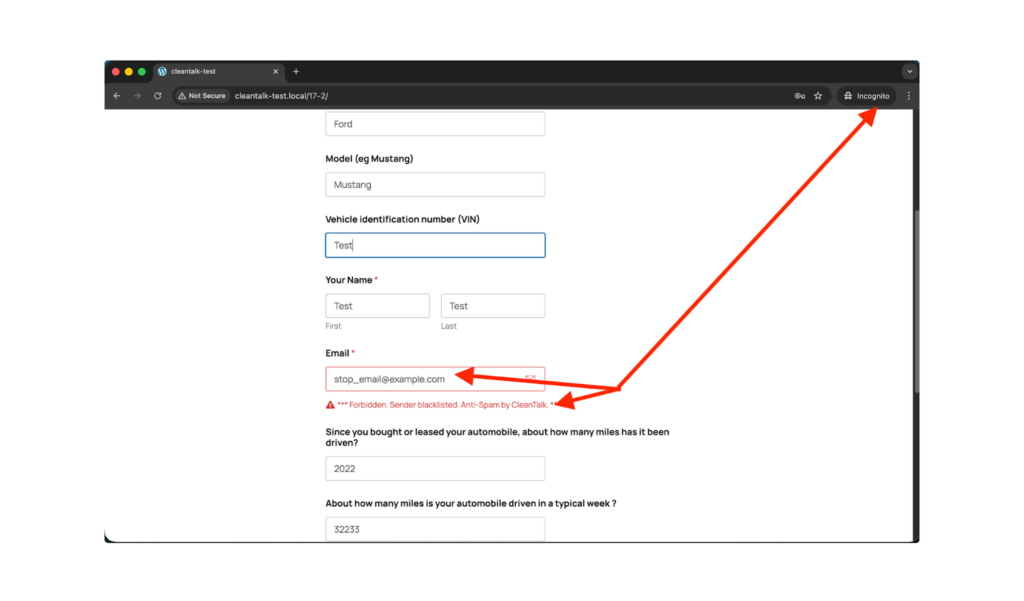
    Check if spam protection works with WPforms.

    The best way to text the spam protection by using a test email,

    stop_email@example.com

    1. Open a page with a WPForms (for example, the registration popup or the Add Listing form) in an Incognito / private browser tab.
    2. Fill out the Contact form using stop_email@example.com as sender’s email.
    3. Send the form.
    4. You should see a message from the Anti-Spam plugin confirming that a spam submission was blocked.

    If you see this message, it means CleanTalk successfully protects your WPForms (registration and Add Listing) from spam.

    Cloud Dashboard

    In addition, in the Cloud Dashboard you can find extra details regarding all submissions processed by CleanTalk, including WPForms registration and Add Listing forms:

    • IP and email of the sender, as well as the sender’s activity history across other websites connected to the CleanTalk cloud.
    • Geolocation of the sender.
    • Date and time of the submission.
      Page (URL) where the form was submitted (for example, a specific listing submission page).
    • Cloud decision – Approved or Denied.
    • Cloud explanation for the decision (e.g. blacklisted email, bad IP reputation, spam text, etc.).
    • Tools to move the sender to Block or Allow lists so you can fine-tune  WPForms spam protection.

    Google reCAPTCHA, hCaptcha, and Cloudflare Turnstile in WPForms

    In addition to CleanTalk, WPForms itself supports several CAPTCHA and anti-bot services:

    • Google reCAPTCHA,
    • hCaptcha,
    • Cloudflare Turnstile.

    These services act as a visible or invisible verification layer on top of your forms, while CleanTalk continues to filter spam submissions in the background.

    Google reCAPTCHA (WPForms integration)

    WPForms has built-in support for Google reCAPTCHA (v2 Checkbox, v2 Invisible, and v3):

    1. Register your website in the Google reCAPTCHA admin console and generate a Site Key and Secret Key.
    2. In WordPress go to WPForms → Settings → CAPTCHA.
    3. Choose reCAPTCHA as the provider and paste your keys.
    4. Select which reCAPTCHA type you want to use (checkbox, invisible, or v3 score-based).
    5. Edit your forms and enable reCAPTCHA where needed (WPForms shows a toggle or field depending on the type).

    reCAPTCHA helps block obvious automated submissions by requiring users to solve a challenge or by scoring their behavior, while CleanTalk still checks the content and sender reputation.

    hCaptcha

    WPForms also supports hCaptcha as a privacy-focused alternative to Google reCAPTCHA:

    Key benefits of hCaptcha compared to reCAPTCHA:

    • Stronger focus on privacy – hCaptcha collects less user tracking data, which is important for privacy-oriented and GDPR-sensitive projects.
    • Less dependence on Google – useful for brands that prefer to minimize their reliance on Google infrastructure.
    • Optional monetization options for some hCaptcha plans, which reCAPTCHA doesn’t provide.

    To use hCaptcha with WPForms:

    1. Obtain Site Key and Secret Key from the hCaptcha dashboard.
    2. Go to WPForms → Settings → CAPTCHA, choose hCaptcha and paste the keys.
    3. Enable hCaptcha for the forms you want to protect.

    Cloudflare Turnstile

    Cloudflare Turnstile is a quite modern CAPTCHA alternative that often works invisibly in the background, without classic image puzzles. Several WPForms guides cover how to enable Turnstile as a built-in CAPTCHA provider.

    Benefits of Cloudflare Turnstile:

    • Invisible verification – most visitors don’t see any challenge; Turnstile works in the background.
    • Higher completion rates – fewer puzzles means less friction and fewer abandoned forms.
    • Privacy-friendly design – Turnstile is built to minimize user tracking and profiling compared to traditional CAPTCHAs.

    To connect Turnstile:

    1. Get Site Key and Secret Key from your Cloudflare Turnstile dashboard.
    2. In WPForms → Settings → CAPTCHA, select Cloudflare Turnstile and enter your keys.
    3. Enable Turnstile on the forms (contact, registration, checkout, etc.) where you need extra bot protection.

    All three CAPTCHA providers can work alongside CleanTalk Anti-Spam, giving you both:

    • a front-end bot check (CAPTCHA / Turnstile), and
    • deep cloud-based spam filtering in the background.

    Honeypot, WPForms Built-In Anti-Spam, Akismet and Third-Party Plugins

    Alongside CleanTalk and CAPTCHAs, WPForms and WordPress offer several additional anti-spam layers.

    WPForms Anti-Spam Token and Honeypot

    By default, WPForms includes:

    • an anti-spam token that helps block automated form submissions, and
    • an optional honeypot field – a hidden field that humans never see, but bots often fill in.

    When a bot fills the honeypot field or fails the token check, WPForms treats the submission as spam and blocks it.

    You can control these options in each form’s Settings → Spam Protection and Security section inside WPForms.

    Honeypot protection is:

    • invisible for normal visitors,
    • easy to enable,
    • a lightweight extra defense against primitive bots.

    Akismet

    Akismet Anti-Spam is another popular plugin that filters spam by checking submissions against a global spam database. It is especially useful for blog comments and simple contact forms outside WPForms.

    On a site that uses WPForms + CleanTalk you can still use Akismet to:

    • keep comment sections clean,
    • filter spam from default WordPress forms or other plugins.

    To activate Akismet:

    1. Install and activate Akismet Anti-Spam from Plugins → Add New.
    2. Obtain an API key from Akismet and enter it in the plugin settings.
    3. Enable spam checking for the content types you need (comments, possibly other forms).

    Other universal anti-spam plugins

    Plugins like WP Armour, OOPSpam, Maspik, and Simple CAPTCHA Alternative provide generic honeypot or anti-spam protection for various forms and comment areas across WordPress.

    They can be used alongside CleanTalk if you want additional defense for:

    • contact forms created outside WPForms,
    • comments,
    • custom theme forms and widgets.

    You can find them via:

    Plugins → Add New → Search → “WP Armour” | “OOPSpam” | “Maspik” | “Simple CAPTCHA Alternative”

    Install, activate, and configure each plugin according to its documentation.

    Frequently Asked Questions (FAQ)

    I already use WPForms’ built-in anti-spam. Do I really need CleanTalk?

    WPForms includes an anti-spam token and optional honeypot, which is great for stopping very basic bots.
    However, they don’t:

    • check global spam activity across thousands of sites,
    • analyze IP and email reputation,
    • or block known spam networks at the cloud level.

    CleanTalk adds an extra layer on top of WPForms’ native tools. It filters submissions using a global spam database and the SpamFireWall, so most spam is blocked before it reaches your entries, inbox or CRM.

    Will CleanTalk slow down my WPForms submissions?

    No. CleanTalk is designed to work in the background and the request to the cloud is lightweight.

    From the visitor’s point of view:

    • they fill out the WPForms form as usual,
    • click submit,
    • and either see a normal success message or an anti-spam message if they are blocked.

    For normal users, there are no extra steps, pop-ups or CAPTCHAs to solve.

    Can CleanTalk protect all my WPForms forms or only the main contact form?

    Once the Anti-Spam plugin is installed and connected to the CleanTalk cloud, it can protect any WPForms form that uses the standard WPForms processing flow:

    • simple contact forms,
    • quote / booking / consultation forms,
    • lead generation and newsletter sign-up forms,
    • surveys, polls and feedback forms.

    You don’t need to add a special field to each form – protection works on the server side.

    What happens to blocked WPForms submissions? Are they lost forever?

    When CleanTalk blocks a submission, the user is shown an anti-spam message and the entry is not stored as a normal form submission.

    However, the attempt is:

    • logged in your CleanTalk dashboard with IP, email, date, URL and the reason,
    • available for review if you suspect a false positive,
    • easy to whitelist (by IP, email, country, etc.) if you decide that a sender is legitimate.

    So you still have visibility into what was blocked, but your WPForms entries, inbox and CRM stay clean.

    Recommended Anti-Spam Stack for WPForms (2026)

    No single tool can block every kind of spam or bad bot. The most reliable approach for WPForms is to build a layered anti-spam stack, where each component handles a different part of the problem.
    The key element is the Anti-Spam plugin by CleanTalk, which:

    • integrates directly with Contact Form by WPForms,
    • uses both application-level checks and the SpamFireWall to block many bots before they reach WordPress.

    On top of this, you can combine CAPTCHAs, WPForms’ built-in tools, and moderation policies.

    Recommended setup by site type

    Business websites and standard contact forms

    • CleanTalk Anti-Spam enabled (with SpamFireWall).
    • WPForms anti-spam token + honeypot enabled in each important form.
    • Optionally, Google reCAPTCHA or Cloudflare Turnstile on high-risk forms (contact, quote, booking).

    High-traffic landing pages and lead generation

    • CleanTalk Anti-Spam (cloud + plugin).
    • Cloudflare Turnstile or reCAPTCHA for minimal-friction verification.
    • WPForms honeypot enabled.
    • Optional extra filters: block high-risk countries or networks in CleanTalk if you notice patterns in spam logs.

    Membership / registration-heavy sites using WPForms

    • CleanTalk Anti-Spam to protect registration, login, and profile forms where applicable.
    • Cloudflare Turnstile or hCaptcha on registration / login forms for additional protection.
    • WPForms built-in spam protection turned on for all authentication forms.
    • Optionally, Akismet or other plugins for comments and non-WPForms areas.

    By this point, most spam problems in your WPForms contact, lead, survey, and payment forms should be significantly reduced. If you’re still seeing unwanted submissions, simply create a CleanTalk account (or log in to your existing one) and reach out to our support team – we’ll gladly help you fine-tune WPForms spam protection for your specific site.


    Stop WPForms spam without hurting conversions

    Create your CleanTalk account and connect it to WPForms to block spam contacts, leads, surveys and payment forms — no extra CAPTCHAs and no friction for real users.

    CleanTalk Account

    No credit card required • Setup takes less than a minute • Your temporary password will be sent by email.

  • HivePress Spam Protection in 2026

    HivePress Spam Protection in 2026

    If you use HivePress to power a directory, classifieds, or marketplace website, you will eventually face spam – fake listings, bot registrations, and junk messages.

    This guide explains how to set up HivePress spam protection using:

    • the Anti-Spam plugin by CleanTalk with direct integration for HivePress, and
    • additional tools like Google reCAPTCHA and basic moderation.

    The integration now protects both:

    • the registration form of HivePress (requests to /wp-json/hivepress/v1/users/), and
    • the Add Listing form used to submit new listings.
    hivepress logo

    HivePress – Business Directory & Classified Ads Plugin

    First, let’s take a quick look at HivePress itself and the types of sites you can build with it.

    HivePress is a free and highly flexible WordPress plugin for building any type of directory or listing website: business directory, job board, classifieds, real estate catalog, rental marketplace, and more.

    Out of the box HivePress provides:

    • listing types, categories and custom fields;
    • powerful search filters and location-based search;
    • user accounts, ratings, reviews, private messages and favorites.

    Because HivePress relies heavily on user-generated content and public forms, it quickly becomes a target for spambots. That’s why it is important to have a reliable HivePress spam protection setup from the beginning.

    As WordPress.org shows, HivePress is currently used on over 10,000 websites and has 213 user reviews with an average rating of 4.9.

    Plugin Homepage at wordpress.org | Website hivepress.io


    Install HivePress to build business directories, classifieds, marketplaces and other listing websites.

    You can set it up in just a few easy steps:

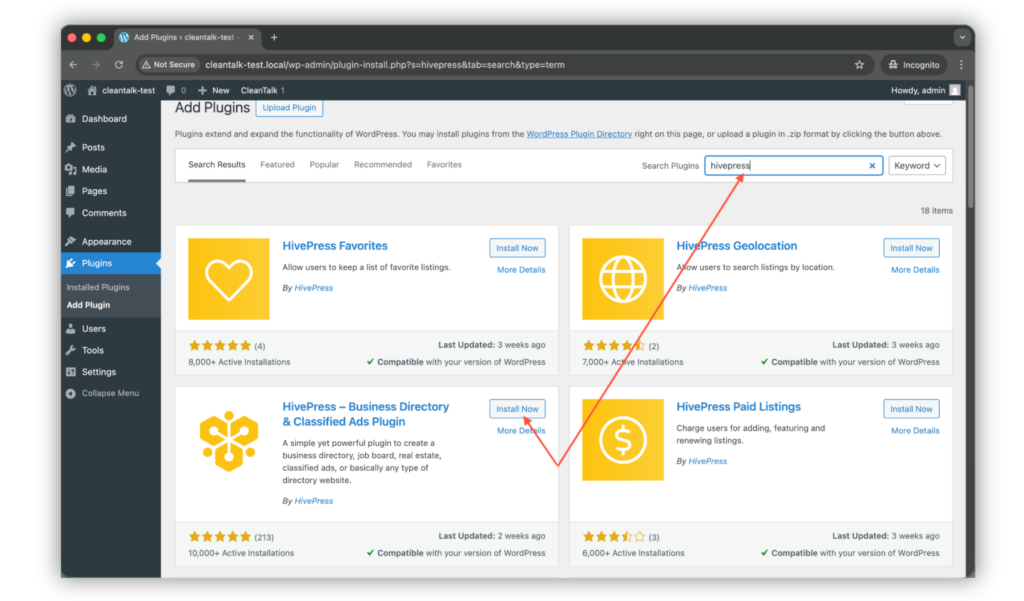
    1. Search for the plugin in WordPress console -> Plugins -> Add plugin -> Search -> Type ‘hivepress

    Untitled design

    2. Install and Activate the plugin.

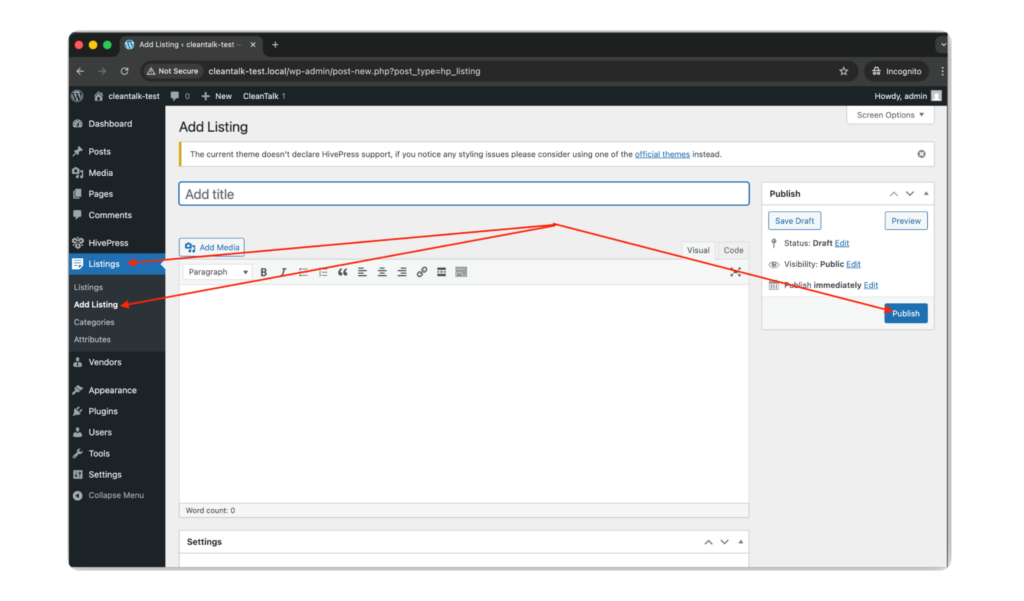
    3. Add the very first listing in WordPress console -> Listings -> Add New.

    Untitled design (2)

    WordPress console -> Listings -> Add New -> add title, description, images and other fields -> Publish.

    4. That’s all! Your first listing is live and HivePress is ready to use on your site.

    Anti-Spam plugin by CleanTalk for WordPress

    The next tool we’re going to use is the Anti-Spam plugin by CleanTalk.
    Here’s a short overview:

    • CleanTalk is a cloud-based spam protection service for websites, founded in 2012.
    • It automatically blocks spam without CAPTCHAs and doesn’t interrupt the user experience.
    • Protects many types of forms: contact forms, payment forms, registrations, comments, surveys and more.
    • Stops both automated bots and human spam submissions.
    • Uses advanced filtering algorithms and a global spam detection network.
    • Detects spam based on IP address, email address and user behavior.
    • Lets you create custom filtering rules for specific cases.
    • Allows blocking or filtering by IP, email and country.
    • Works quietly in the background and is very easy to install and configure.

    According to WordPress.org, Anti-Spam by CleanTalk for WordPress has over 200,000 active installations, with 3,168 reviews and an average rating of 4.7.

    Plugin Homepage at cleantalk.org | Latest release at GitHub.com | Website cleantalk.org

    Install the CleanTalk Anti-Spam plugin

    Show Instructions

    To install the Anti-Spam plugin, go to your WordPress admin panelPluginsAdd New.

    Then enter «СleanTalk» in the search box and click the Install button for «Spam protection, Anti-Spam, FireWall by CleanTalk».

    After installing the plugin, click the «Activate»‎ button.

    After it is done go to the plugin settings and click the «Get Access Key Automatically» button. Then just click the «Save Settings»‎ button.

    That’s it! From now you know how to completely protect your HivePress from spam.

    Check if spam protection works with HivePress

    The best way to test the spam protection by using a test email,

    stop_email@example.com

    1. Open page with your form (don’t forget to add the shortcode in the page content) in Incognito browser tab.
    2. Fill out the Contact form using stop_email@example.com as sender’s email.
    3. Send the form.
    4. You should see a message from the Anti-Spam plugin confirming that a spam submission was blocked.

    Cloud Dashboard

    In addition, in the Cloud Dashboard you can find extra details regarding all submissions processed by CleanTalk, including HivePress registration and Add Listing forms:

    • IP and email of the sender, as well as the sender’s activity history across other websites connected to the CleanTalk cloud.
    • Geolocation of the sender.
    • Date and time of the submission.
      Page (URL) where the form was submitted (for example, a specific listing submission page).
    • Cloud decision – Approved or Denied.
    • Cloud explanation for the decision (e.g. blacklisted email, bad IP reputation, spam text, etc.).
    • Tools to move the sender to Block or Allow lists so you can fine-tune HivePress spam protection.

    Google reCAPTCHA, hCaptcha, and Cloudflare Turnstile

    Besides CleanTalk and the built-in HivePress tools, you can also use cloud CAPTCHA / anti-bot services together with HivePress to reduce spam and protect registration and Add Listing forms.

    Google reCAPTCHA (native HivePress integration)

    HivePress has a core integration with Google reCAPTCHA v2:

    • First, register your site in the Google reCAPTCHA admin and generate a Site Key and Secret Key.
    • Then go to WordPress console → HivePress → Settings → Integrations → reCAPTCHA and paste these keys.
    • In the same section you can select which HivePress forms to protect (for example, registration, login, listing submission).

    This helps reduce spam submissions and adds an extra security layer to HivePress forms, while CleanTalk continues to filter all submissions in the background.

    hCaptcha

    HivePress does not currently include native hCaptcha support. However, you can use hCaptcha on your site via separate WordPress plugins (for example, “hCaptcha for Forms and More”) that add hCaptcha to standard WordPress forms and some popular plugins.

    Key benefits of hCaptcha compared to reCAPTCHA:

    • Better privacy for visitors. hCaptcha collects less tracking data and is more focused on privacy and GDPR-friendly use.
    • Reduced dependence on Google services. Useful for projects that prefer not to rely on Google infrastructure for branding or compliance reasons.
    • Optional monetization. hCaptcha offers a program where site owners can earn small rewards for solved challenges, something reCAPTCHA does not provide.

    To use hCaptcha you need to:

    • obtain a Site Key and Secret Key in the hCaptcha dashboard,
    • install and configure the corresponding WordPress plugin,
    • and test that hCaptcha is correctly displayed and working on your HivePress registration and Add Listing forms (since there is no direct HivePress integration yet).

    Cloudflare Turnstile

    Cloudflare Turnstile is a modern CAPTCHA alternative that verifies users mostly in the background, without classic image puzzles.

    Turnstile can be connected to WordPress via dedicated plugins that integrate Turnstile with standard WordPress forms and some third-party plugins.

    Main benefits of Cloudflare Turnstile compared to classic reCAPTCHA:

    • Invisible verification. Turnstile usually works silently in the background, so users can submit forms without extra clicks and image challenges.
    • Higher form completion rates. With fewer interruptions, registration and listing submission forms tend to have fewer abandoned attempts.
    • Strong privacy approach. Turnstile is designed to minimize user tracking and does not rely on heavy behavioral profiling, which makes it more privacy-friendly than traditional CAPTCHA solutions.

    As with hCaptcha, you need to:

    • obtain a Site Key and Secret Key in the Cloudflare Turnstile dashboard,
    • configure the chosen WordPress plugin,
    • and verify that Turnstile is actually applied to the pages where HivePress renders registration or Add Listing forms.

    Honeypot, Akismet and third-party Anti-Spam plugins

    Additionally, let’s consider standalone plugins and anti-spam mechanics that also work for HivePress-based websites.

    Honeypot

    Honeypot is one of the simplest anti-spam mechanics against primitive spam bots. It works by adding hidden fields that are only detected and filled by bots. When a bot fills these fields, the submission is blocked automatically, while legitimate users never see any additional challenges.

    Because no CAPTCHA or interaction is required, honeypots:

    • help maintain a smooth user experience,
    • reduce friction on registration and Add Listing forms,
    • and add a lightweight extra layer of protection.

    You can enable honeypot protection via a dedicated WordPress plugin, for example WP Armour – Honeypot Anti Spam.

    Settings are available in the plugin configuration, for example:

    • WordPress console -> Plugins -> Add New -> Search -> type ‘WP Armour’
    • Install and Activate the plugin.
    • WordPress console -> Settings -> WP Armour (or the plugin’s own menu item) -> enable honeypot protection for the forms used with HivePress (registration / Add Listing pages).

    Third-party Anti-Spam plugins

    Akismet

    Akismet Anti-Spam helps WordPress users automatically filter spam submissions by analyzing form data against its global spam detection network. It works in the background to identify suspicious content and prevent unwanted messages from reaching your inbox or database. This reduces manual moderation and helps keep comments and basic contact forms clean.

    For HivePress websites, Akismet can be used together with CleanTalk to:

    • filter blog comments and simple contact forms,
    • reduce low-quality submissions outside of HivePress-specific forms.

    In order to activate protection the user must:

    1. Install and activate the third-party plugin Akismet Anti-Spam.
    2. Get an API key from Akismet and enter it in the plugin settings.
    3. Enable spam checking for the content types you need (comments, contact forms, etc.).

    Typical path:

    • WordPress console -> Plugins -> Add New -> Search -> type ‘Akismet’
    • Install and Activate the plugin.
    • WordPress console -> Settings -> Akismet Anti-Spam -> enter API key and save.

    Other universal Anti-Spam plugins

    WP Armour, OOPSpam, Maspik, and Simple CAPTCHA Alternative are universal anti-spam plugins for WordPress that provide additional spam protection at the site level. They can help filter spam on contact forms, comments and other areas of your site that are not covered directly by HivePress integration.

    All of these solutions can be found in the search results at wordpress.org:

    WordPress console -> Plugins -> Add New -> Search -> type ‘WP Armour’ | ‘OOPSpam’ | ‘Maspik’ | ‘Simple CAPTCHA Alternative’
    Install and Activate the chosen plugin, then configure it according to its documentation.

    These third-party plugins can be used alongside CleanTalk and HivePress as optional extra layers of protection for high-risk or high-traffic projects.

    This guide explains how to protect HivePress forms using the Anti-Spam plugin by CleanTalk together with additional tools such as Google reCAPTCHA, hCaptcha, Cloudflare Turnstile, honeypot mechanisms and third-party anti-spam plugins like Akismet, OOPSpam, WP Armour and Maspik.

    Frequently Asked Questions (FAQ)

    Still getting spam through your HivePress forms?

    If nothing works in this guide, try a few more things:

    1. Block spammers by particular IPs, countries and email masks via Personal lists in your CleanTalk account.
    2. Enable listing moderation in HivePress, so new listings must be approved by an admin before they go live.
    3. Check for plugin conflicts – temporarily disable other anti-spam / security plugins and test HivePress registration and Add Listing forms only with CleanTalk enabled.
    4. Submit a support request to CleanTalk, attaching examples of spam submissions (IPs, emails, message text, page URLs). The support team will do their best to tune spam protection for your specific case.
    reCAPTCHA not saving in HivePs settingress or showing errors

    If reCAPTCHA keys are not saved or you see an error in HivePress → Settings → Integrations → reCAPTCHA:

    1. Make sure you are using the correct key type (usually reCAPTCHA v2 for HivePress).
    2. Double-check that the domain in the Google reCAPTCHA admin exactly matches your site.
    3. Remove any extra spaces when pasting the Site Key and Secret Key.
    4. Try temporarily disabling other CAPTCHA / security plugins and saving the settings again.
    5. If the issue persists, you can switch to an alternative solution such as hCaptcha or Cloudflare Turnstile via a separate WordPress plugin, while keeping CleanTalk as your main spam filter.
    HivePress + hCaptcha / Turnstile does not prevent spam

    If you enabled hCaptcha or Cloudflare Turnstile but spam still comes through:

    1. Do not rely on hCaptcha / Turnstile alone – always keep CleanTalk Anti-Spam enabled as the primary filter.
    2. Enable honeypot protection if it is available in your chosen security / form plugins to catch simple bots.
      Check that there are no plugin conflicts disabling CleanTalk checks or bypassing them.
    3. Use layered protection: CleanTalk + CAPTCHA (reCAPTCHA / hCaptcha / Turnstile) + HivePress moderation usually works much better than any single method.
    Emails from HivePress forms are going to spam.
    1. Check SMTP configuration and avoid sending mail via the default PHP mail() function.
    2. Install and configure an SMTP plugin, so your site sends messages through an authenticated email account (hosting mail, Gmail, or a transactional service).
    3. Verify that your domain has proper SPF / DKIM / DMARC records to improve sender reputation.
    4. After configuring SMTP, send a few test submissions from HivePress forms and confirm that notifications now arrive in the inbox, not in spam.

    Recommended Anti-Spam Stack for HivePress (2026)

    Finally, no single anti-spam tool can stop every type of spam submission. The most reliable approach for HivePress websites is a layered protection stack, where each tool blocks a different category of bots and spam behavior.

    Starting from the latest plugin update, the Anti-Spam plugin by CleanTalk includes a direct integration with HivePress. It automatically protects the HivePress registration form and the Add Listing form before a new user account or listing is created, without any extra settings inside HivePress. This integration is the core of the recommended anti-spam stack below.

    Recommended setup by site type

    Small business directory / local listings

    • CleanTalk Anti-Spam (with direct HivePress integration)
    • Optional honeypot protection in a security/form plugin
    • Basic HivePress listing moderation

    High-traffic classifieds or service marketplace

    • CleanTalk Anti-Spam (with direct HivePress integration)
    • Google reCAPTCHA or Cloudflare Turnstile on registration and Add Listing forms
    • Listing moderation for new or untrusted users

    Membership / registration-heavy HivePress sites

    • CleanTalk Anti-Spam (with direct HivePress integration)
    • Cloudflare Turnstile or hCaptcha on registration and login
    • Optional honeypot protection for additional bot filtering

    By now, most spam issues in your HivePress registration, login and Add Listing forms should be resolved. If not, sign up for a CleanTalk account or log in to your existing one and contact our support team – we will be happy to help you fine-tune spam protection for your specific case.

    Stop spam without frustrating your visitors

    Create your CleanTalk account and start blocking spam forms, surveys, polls and quiz answers — no CAPTCHA challenges and no impact on visitors.

    CleanTalk Account

    No credit card required • Setup takes less than a minute • Your temporary password will be sent by email.